

What is Airtable?
Airtable is a cloud-based collaborative database and project management platform that combines the simplicity of a spreadsheet with the power of a database.Video tutorial
Check out this tutorial on using Fillout to create or update an Airtable base.How it works
1
Create your database in Airtable
If you already have your base created in Airtable, you can skip this step.
Create on the lower left corner of your dashboard.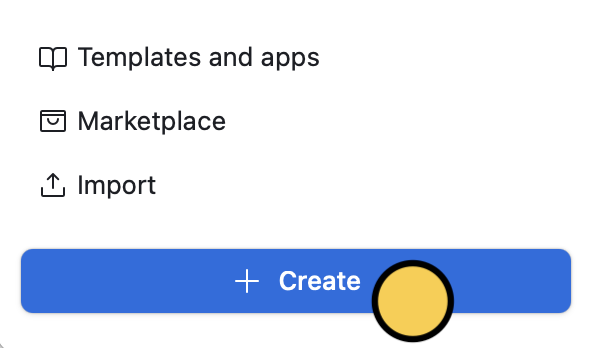
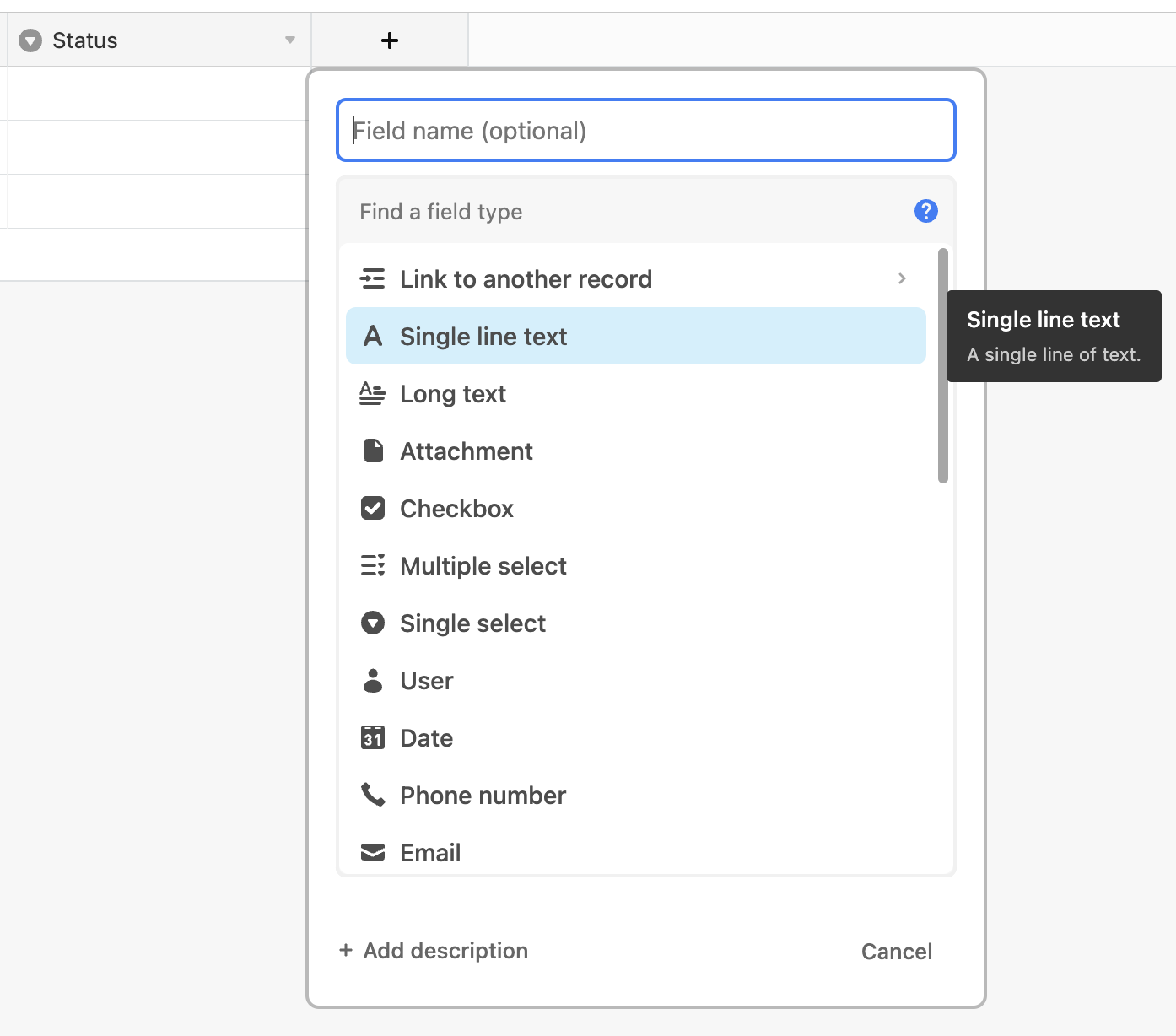
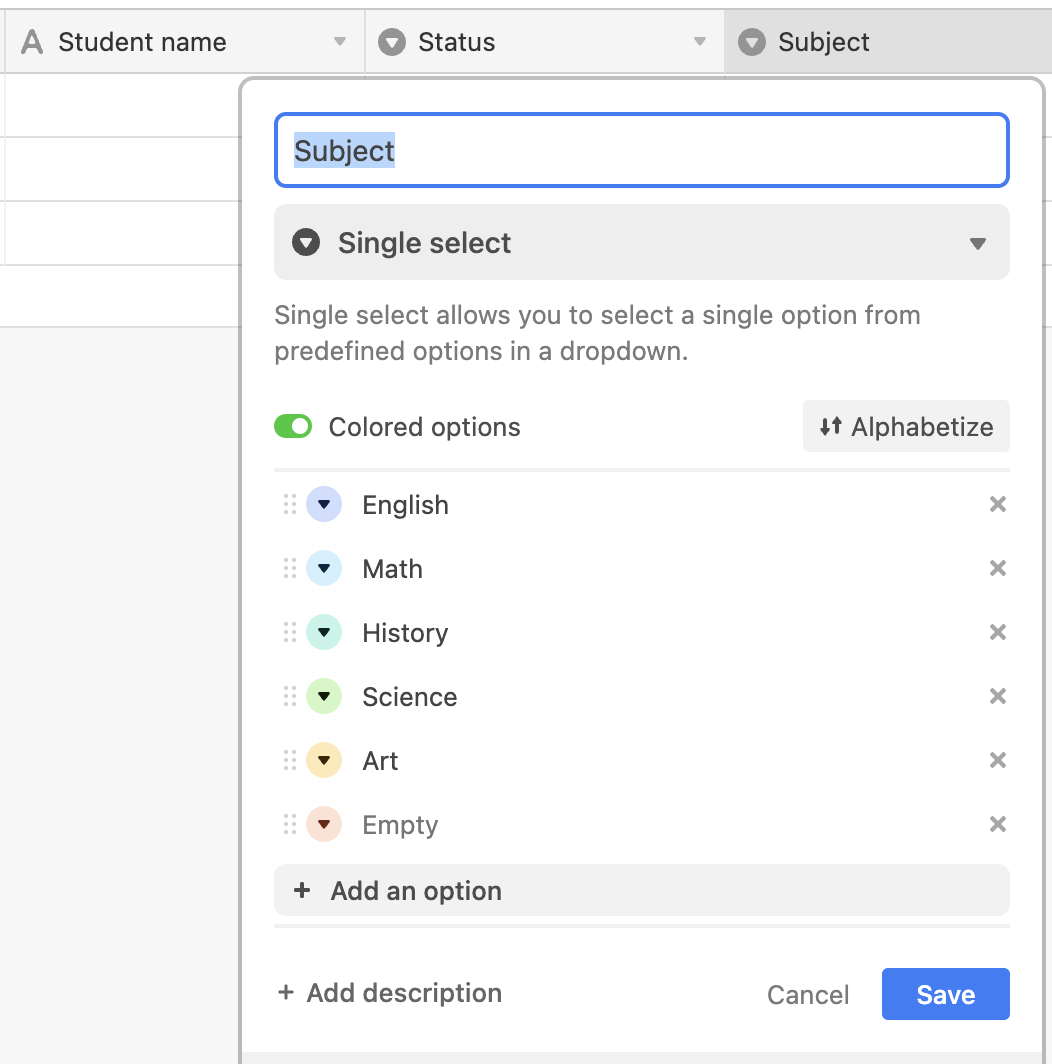
A form can only connect to one database and table at a time. However, Google Sheets is an exception because each new connection creates a new sheet.
2
Connect your database to your Fillout form
In the side menu under Fillout, open My forms and create a form with New form. Choose to Connect to Airtable.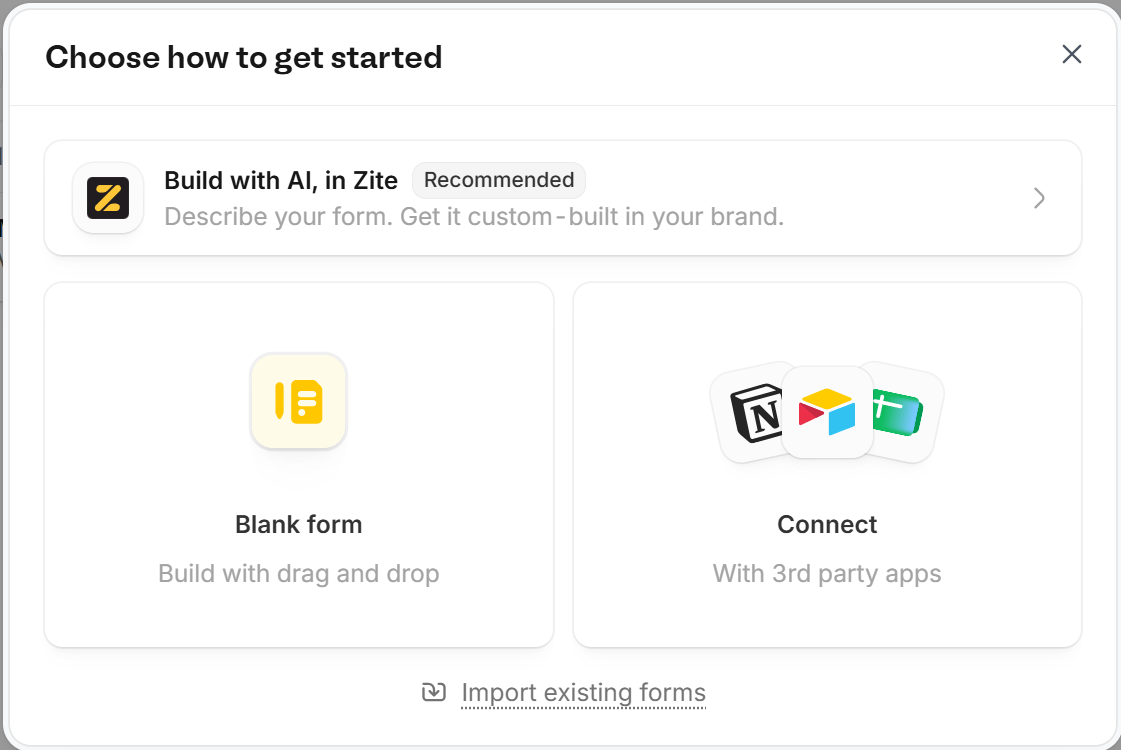
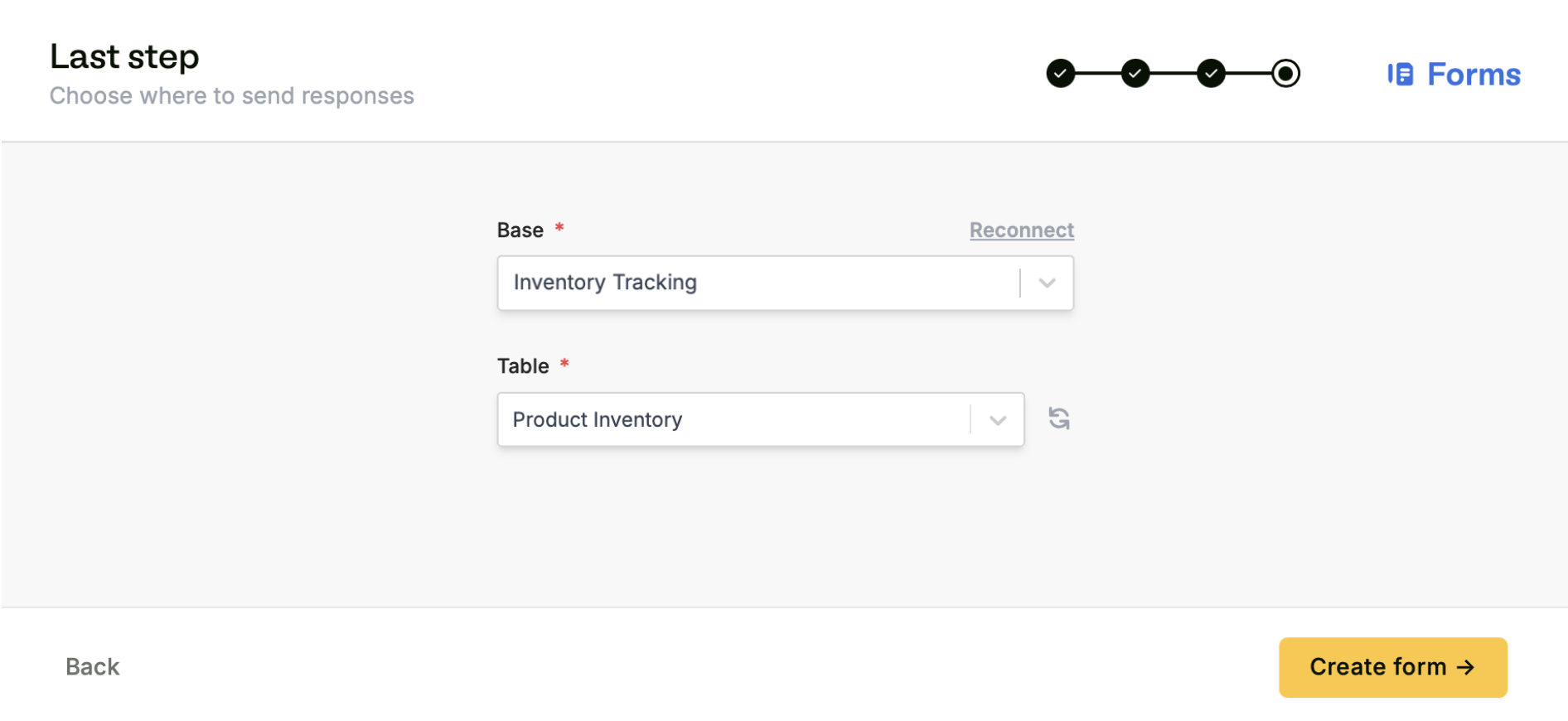
After connecting, you can switch to use personal access tokens via the Integrations page.
+ Create form.3
Map your questions
Fillout pulls questions and answer options from your Airtable base. Your Airtable fields now appear in the left sidebar. Drag & drop to build your form.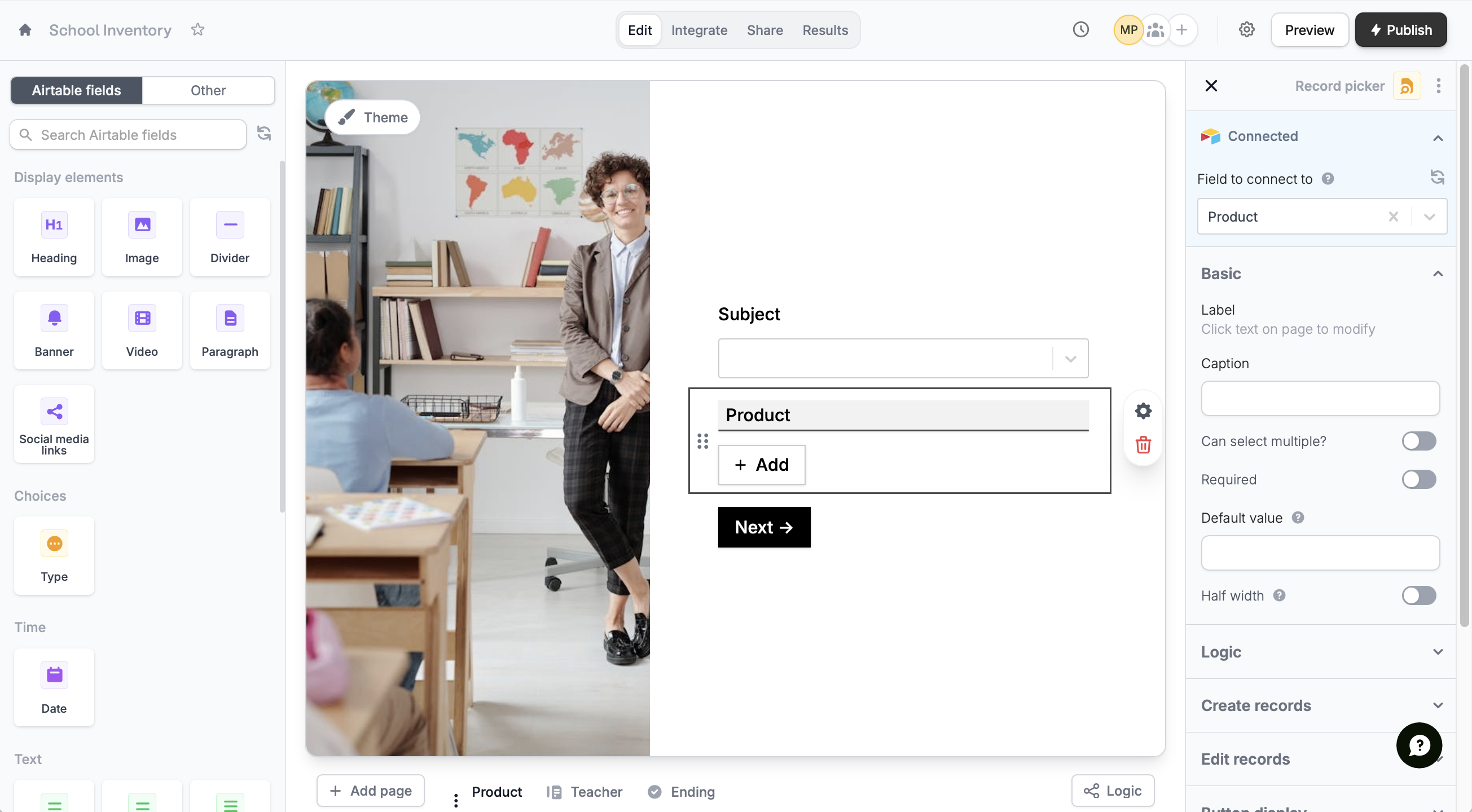
4
Publish & Share
Once you’ve finished creating your form, Publish and share it. Form responses will now automatically populate inside your Airtable database.
Troubleshooting
If the Airtable integration fails, Fillout still saves the submission. You can find it in Results, with the error under View error details. To get an email when this happens, turn on integration error notifications. After you change a mapping or a setting, publish your form again so the change applies to new submissions.Send a failed submission to Airtable again
Once you’ve fixed the problem, open the submission in Results and click Retry integration under the error. This only runs the Airtable integration again. You can also resubmit the response. Resubmitting runs everything connected to the form again, including workflows and emails. Fillout retries one submission at a time. Reconnecting Airtable doesn’t send submissions that failed earlier, so retry each one, or export them from Results and import them into Airtable.”Unknown field name”
A field the form is mapped to was deleted or renamed in Airtable. Click the refresh icon in the left-hand panel of the editor to load your Airtable fields again, then remove or update the mapping and publish your form.”Insufficient permissions to create new select option”
An answer doesn’t match any option in a Single select or Multiple select field, so Airtable tried to add it as a new option, and the connected Airtable account isn’t allowed to.- Use the fields Fillout pulls in from Airtable, so respondents pick from your Airtable options.
- If you map a fixed value, type it exactly like the Airtable option, including capital letters.
- Turn off Other on the question if you don’t want respondents to add their own options.
”Missing authorization”
Fillout can’t write to the table. Check that:- Creating records is allowed in the table, and you’re not updating a record that was deleted.
- The Airtable account you connected has access to the base, as a Creator or an Editor.
- The table isn’t a synced table, and the fields you’re writing to aren’t synced or locked. Fillout can’t write to synced tables.
- If you connected with a personal access token, it has the data.records:read, data.records:write and schema.bases:read scopes, and the base is added to the token.
Wrong field types
Each answer has to fit the Airtable field it’s mapped to. For example, a text answer can’t go into a Number field, and a choice in Airtable needs a choice question in Fillout. If an answer doesn’t fit, map the question to a matching field, or use the field Fillout pulls in from Airtable.”You have reached the maximum access authorizations for this integration”
Airtable has too many saved Fillout connections for your account. In your Airtable account settings, open the integrations, remove the old Fillout authorizations, then connect Airtable again in Fillout.A hidden question’s value is missing
When a condition hides a question, Fillout clears its answer, including any default value, so nothing is sent to Airtable for it. To always send a value, add another question with that default value and turn on Hide always. Questions with Hide always keep their default value.Airtable fields you can’t fill in
These Airtable fields can’t be used in Fillout forms: User fields (collaborators), AI text, Button and Created by. To record a person, add a Single select field with their names in Airtable and map that instead. It saves the name as text, not as an Airtable user. Formula, Rollup, Lookup, Count, Autonumber, Created time, Last modified time and Last modified by fields are read-only. Respondents can’t fill them in, but you can show their values on update forms with answer piping.Specify a condition
You can run your integration only when a specific condition is met. Check out this guide.Airtable specific guides
Update Airtable records
Edit existing records and pre-fill fields.
Create new linked Airtable records
Let respondents create records from your form.
Prevent duplicates
Stop duplicate entries from being saved to your Airtable bases.