

What is SendGrid?
SendGrid is a service that helps websites and apps send emails to their users. It is handy for businesses and developers who want a reliable way to send emails, like signup confirmations or newsletters, to their users.How it works
1
Link your Fillout form to SendGrid
Open your form. Click 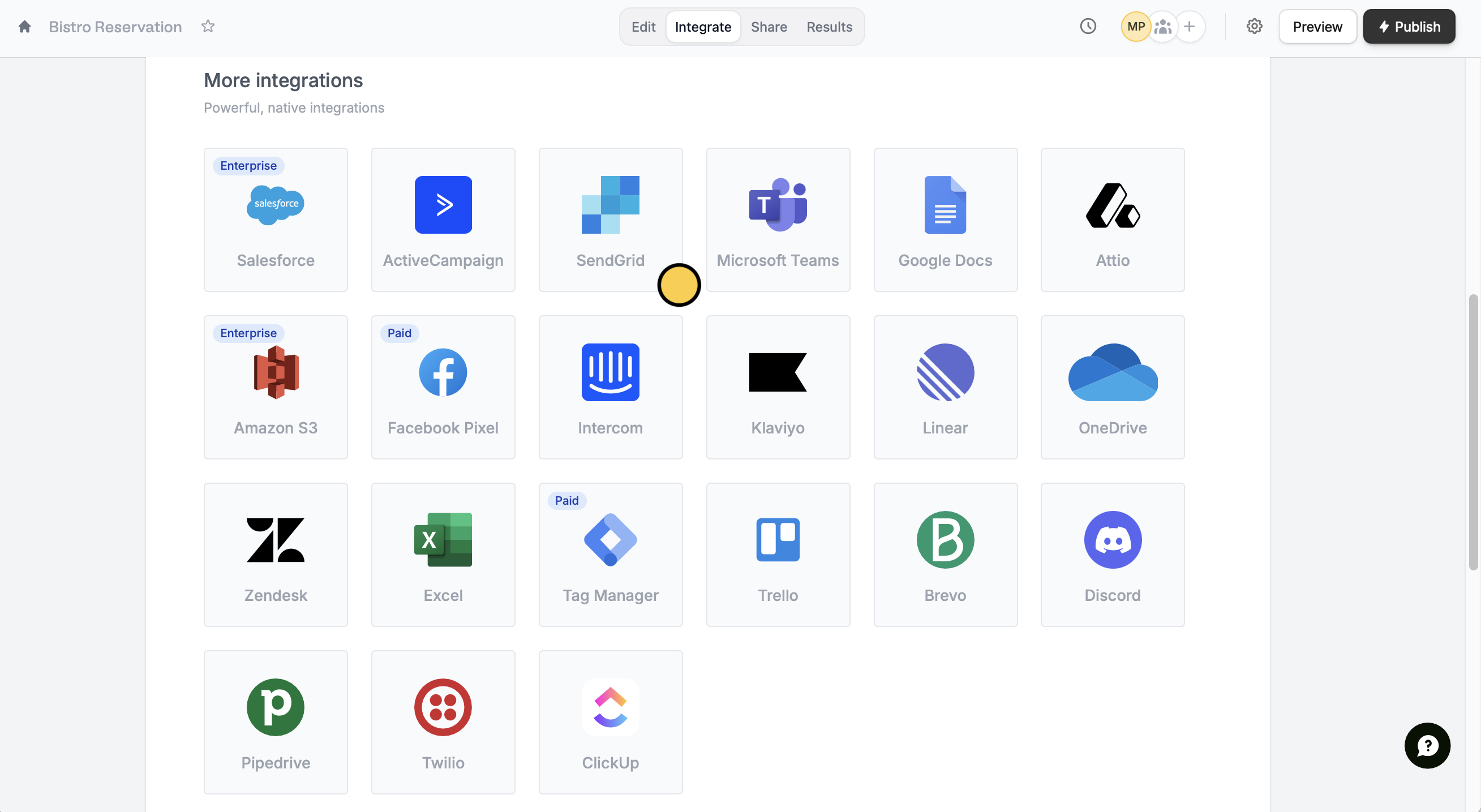
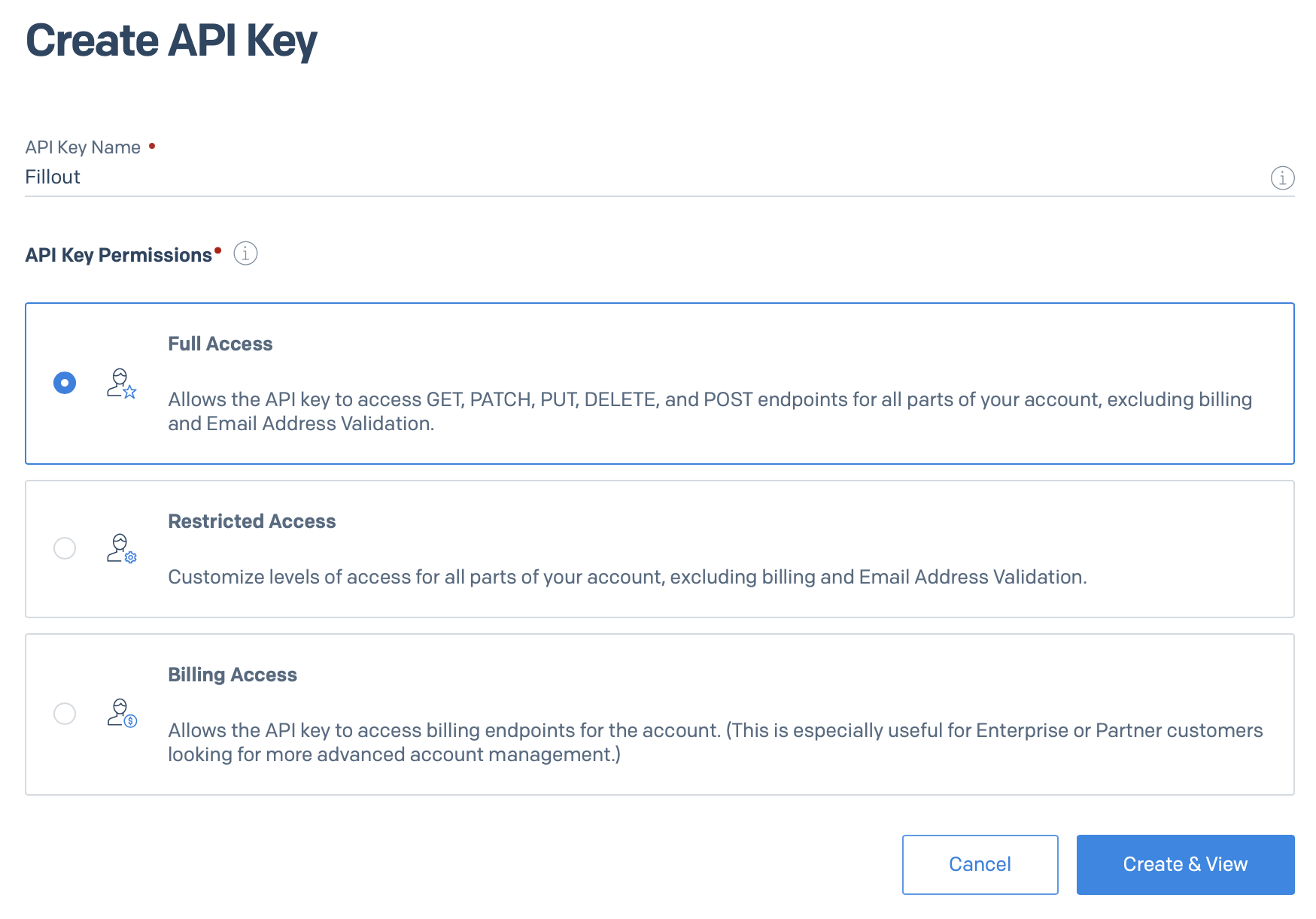
Integrate from the top followed by SendGrid.Create API Key on the upper right corner. Enter a Name, then go with the default Full Access permission.2
Choose to send email with template
If you don’t have a template on SendGrid yet, select 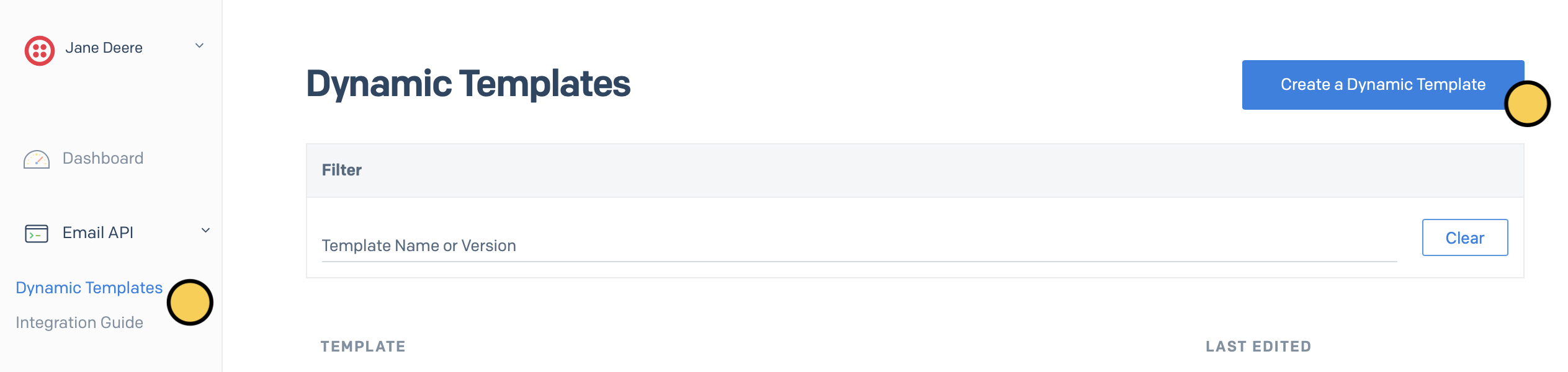
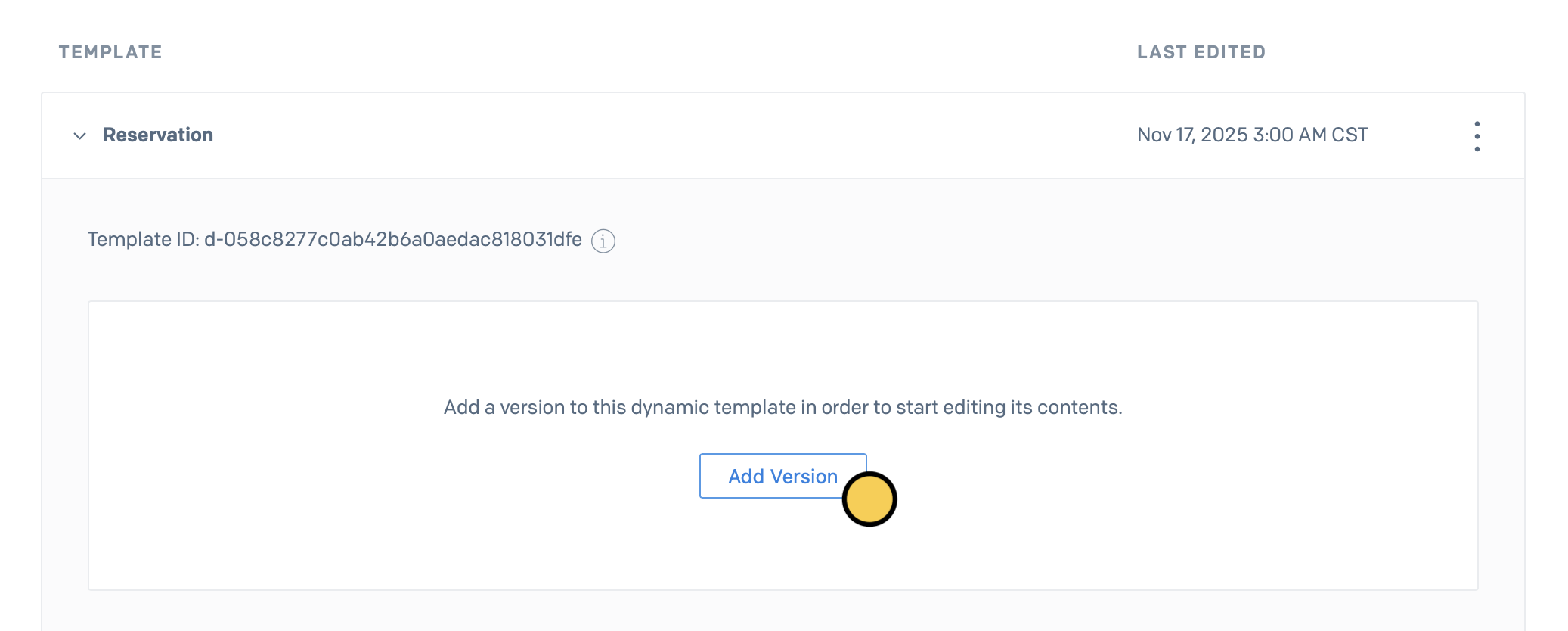
Email API on the left-hand panel followed by Dynamic Templates and Create Dynamic Template.Add Version and start with a blank template or choose a SendGrid Email Design. Customize your email template as you see fit.3
Map your form fields
On Fillout, link your form fields to the corresponding fields in your SendGrid contacts. For example, link the email address to its respective field. Then, fill out the Sender identity section.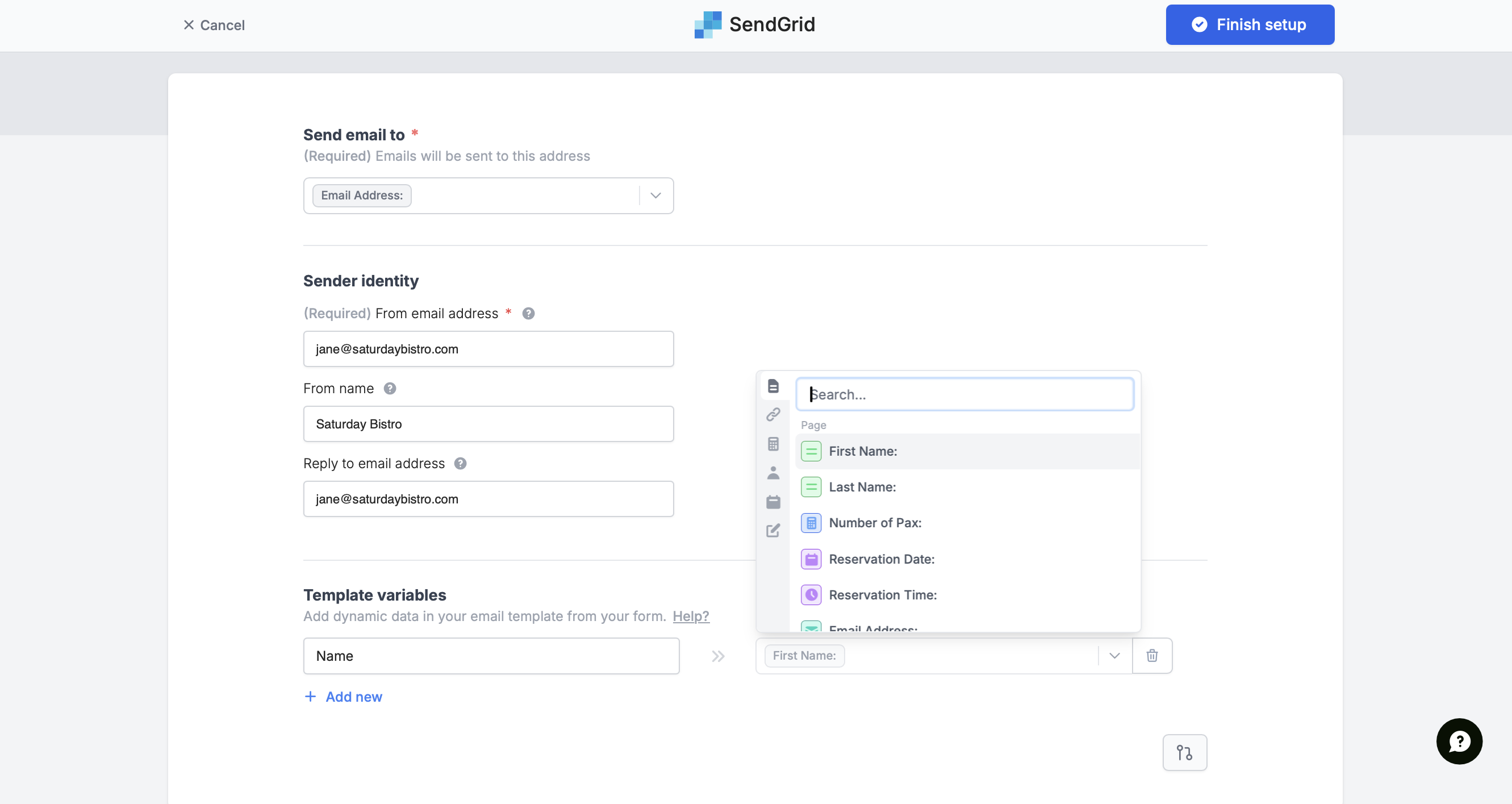
Finish setup.4
Publish and share
Once you’ve finished creating your form, you’re ready to go! Simply
Publish and share the link. Respondents will now receive the email template.SendGrid’s Free plan lets you send up to 100 emails per day, while the Essentials paid plan lets you send up to 50,000 emails per month.
Send a freeform email
You can also send a plain custom-formatted email by choosingSend email without template and entering the recipient and sender details. Reference form fields by clicking the plus icon or typing @.
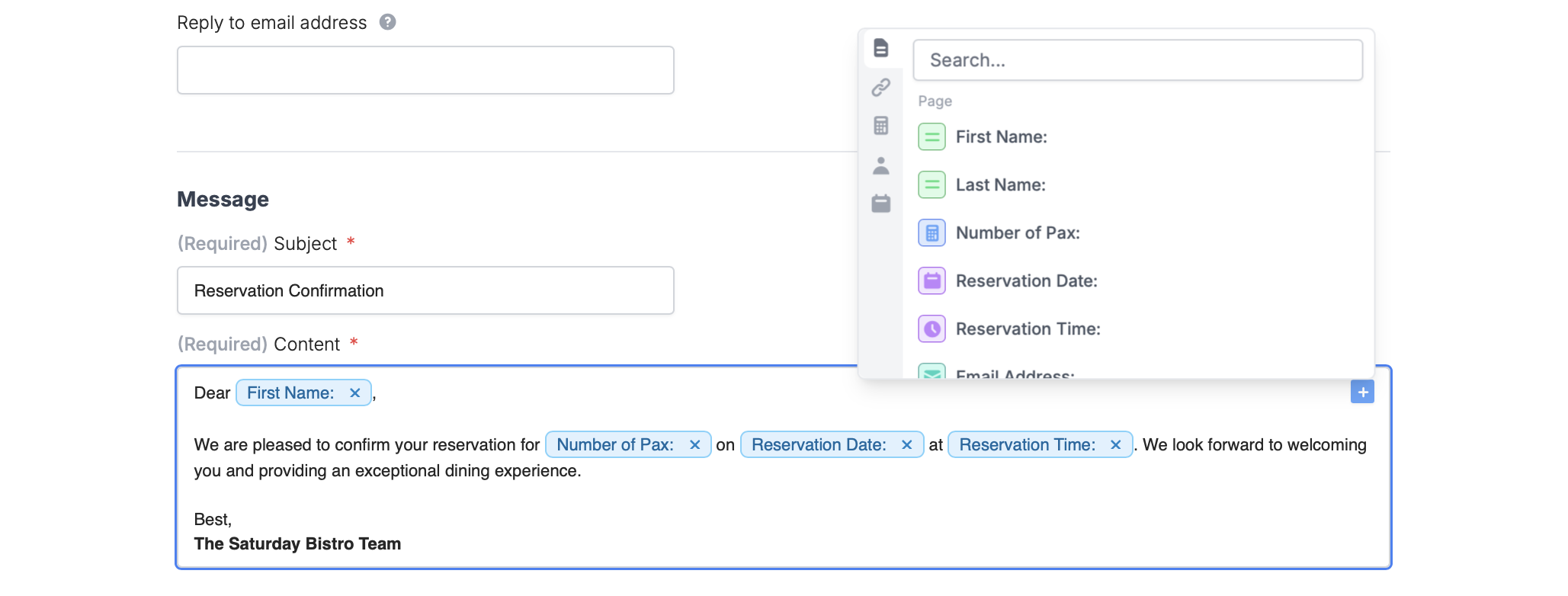
Add or update contact information
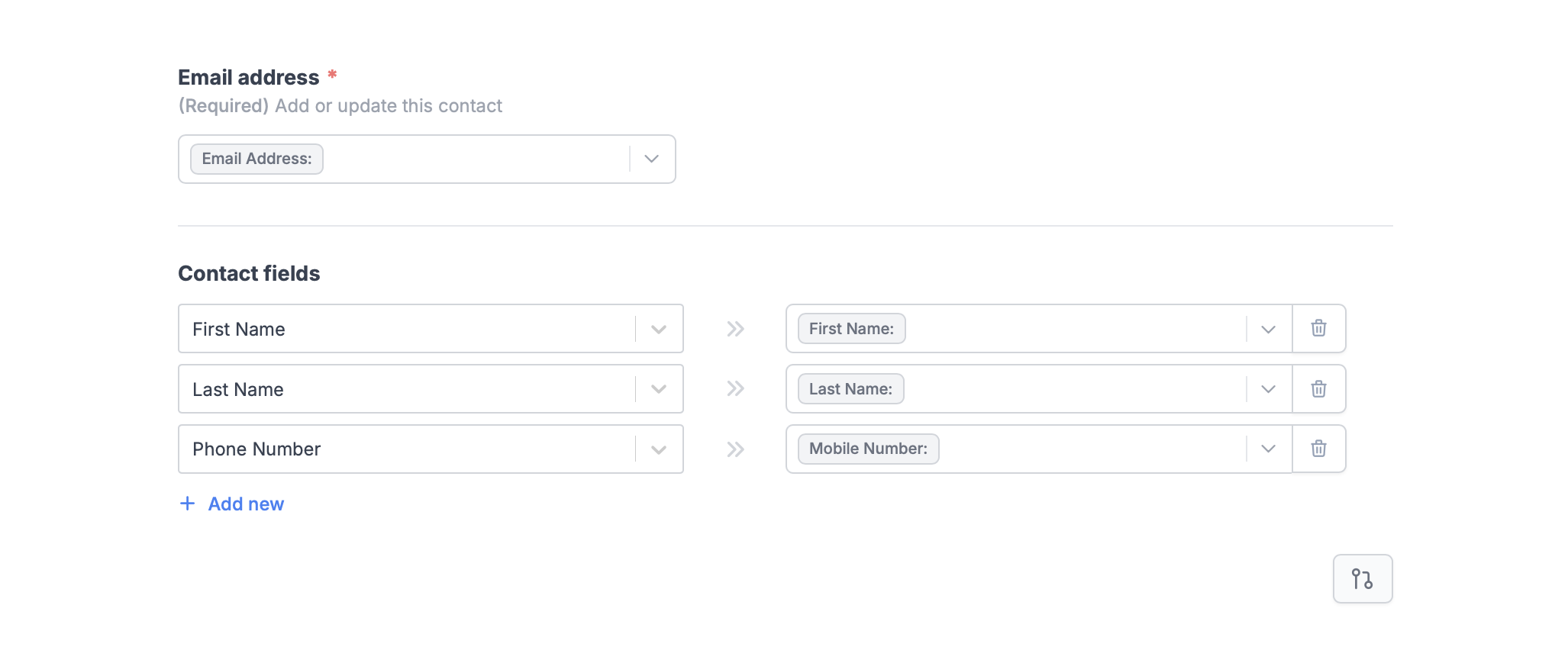
Skip sending an email and simplyAdd or update contact. Choose a List in your SendGrid account. Then, link the Email address field and + Add new Contact fields as you see fit. Map the SendGrid fields on the left to their respective Fillout fields on the right.
Specify a condition
If necessary, you can run your integration only when a specific condition is met. Click here to learn how to.Personalize your email in SendGrid
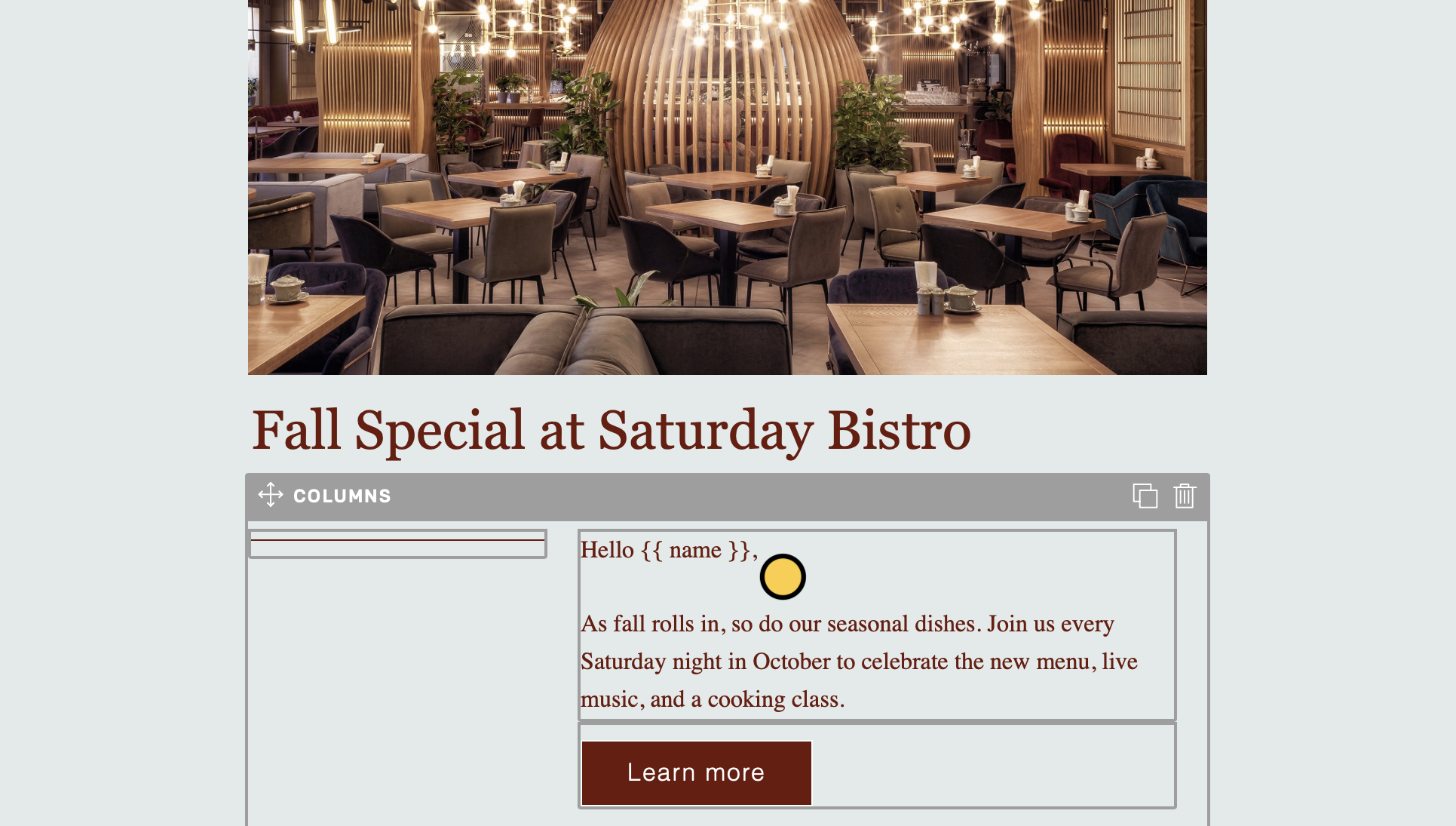
You can use handlebars in SendGrid to pipe a respondent’s information in the notification email. For example, we’ll personalize the email by adding the respondent’s name. Simply type{{ name }} anywhere on your email.

Related articles
Integration logic
Perform an integration only when a certain condition is met.
Calculations
Calculate prices for order forms, compute quiz scores, and more.
Send messages with Twilio
Automate SMS updates to customers.