

What is Slack?
Slack is a communication platform designed for teams to collaborate and work together more effectively. It offers messaging, file sharing, and other features to help teams stay connected and productive.Video tutorial
How it works
1
Link your Fillout form to Slack
Open your form in Fillout and head to the 
Integrate tab, then click Slack.Connect to Slack. The label you choose won’t matter. It’s just for identifying which Slack workspace you connected to in case you reuse the connection on other forms.2
Choose a channel
Select the Channel from your workspace you want to send notifications to, e.g. #random or #general.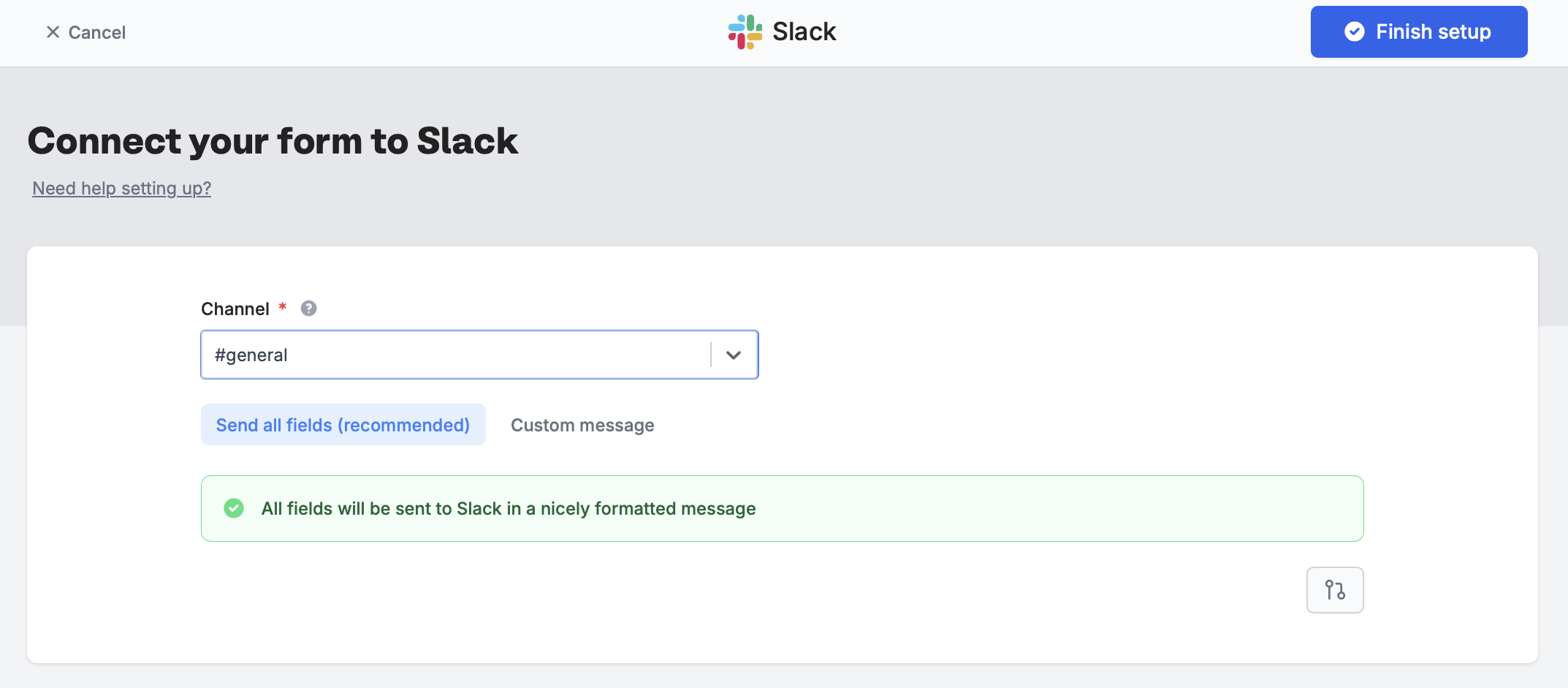
Finish setup. That’s it! You will now receive notifications on the Slack channel whenever a respondent completes your form.3
Publish and share
Remember to
Publish your form to make the changes reflect.Message formatting
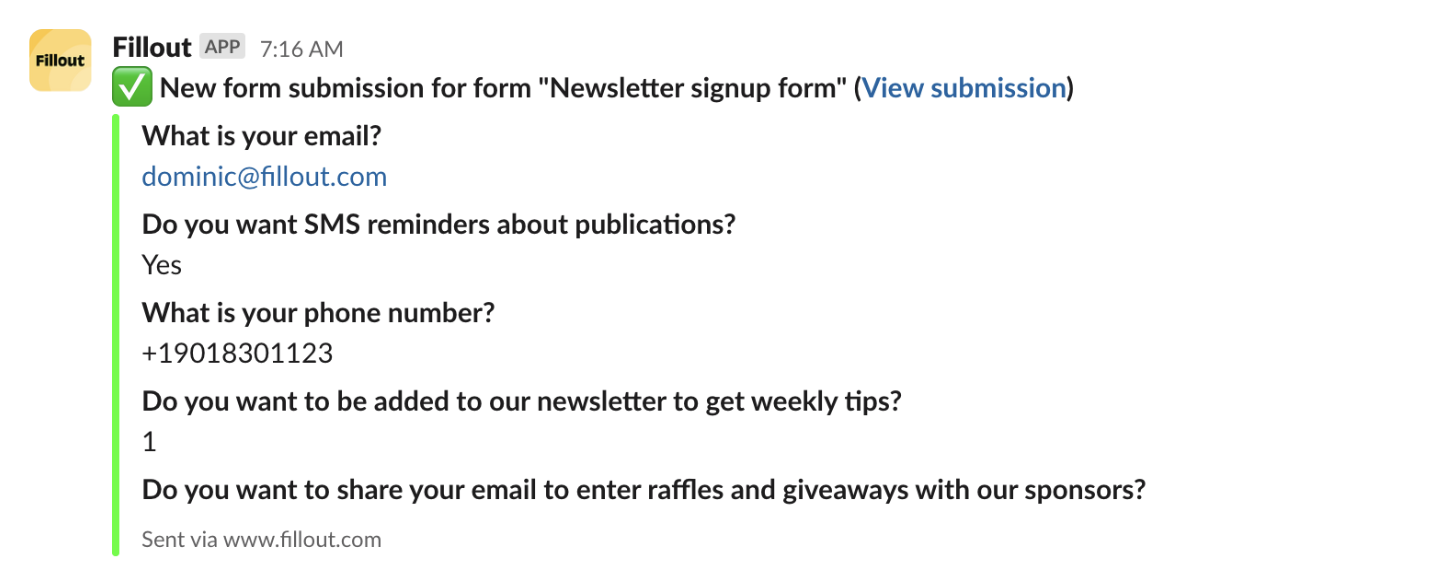
Send all fields to Slack (recommended)
The default option,Send all fields, sends form responses in a nicely formatted message in your channel. You’ll see responses like this in Slack:
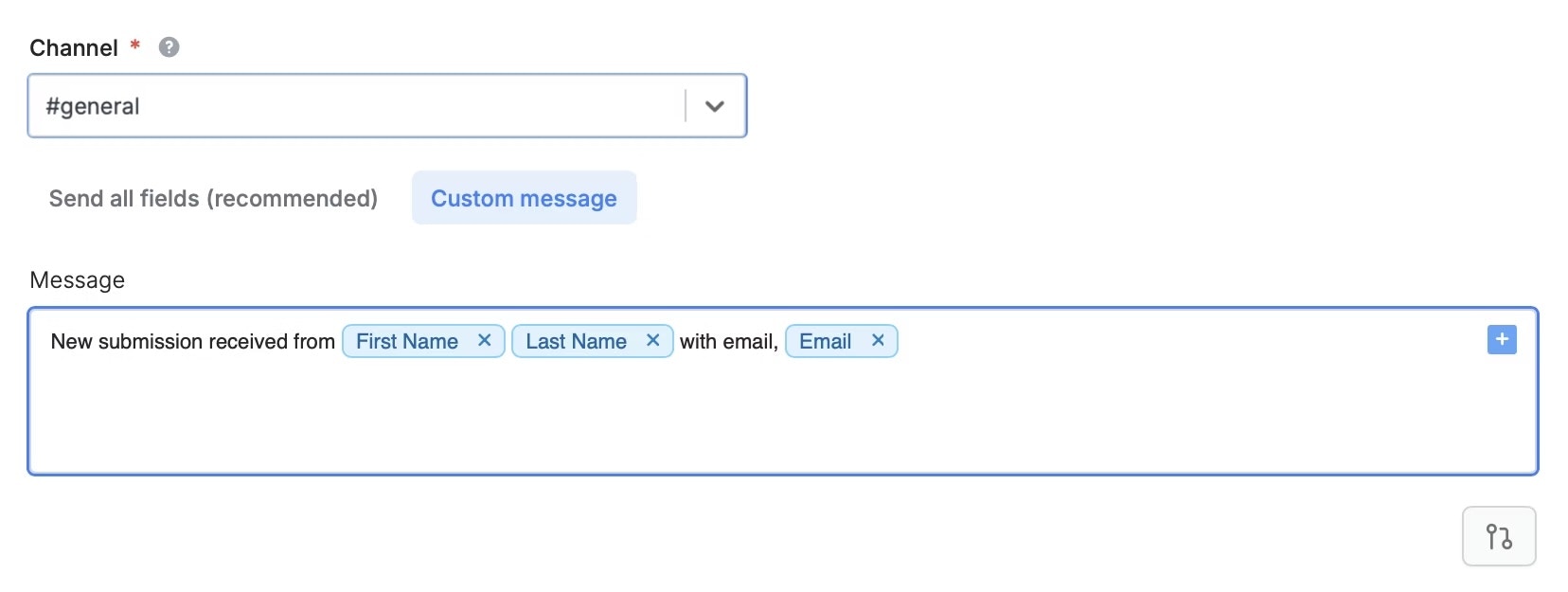
Send a custom message to Slack
Choose the other option,Custom message, if you want to specify the exact information that gets sent to Slack. Click or type @ to reference questions or fields in your form.
Specify a condition
You can run your integration only when a specific condition is met. Check out this guide.Other similar integrations
Send Microsoft Teams notifications
Get response summaries on Teams.
Send Discord messages
Get response summaries on Discord.
Send submissions to a webhook
Send to automation tools or any endpoint.