

How to add a field
Simply click or drag and drop your chosen field type from the left-hand panel, then type your question or text.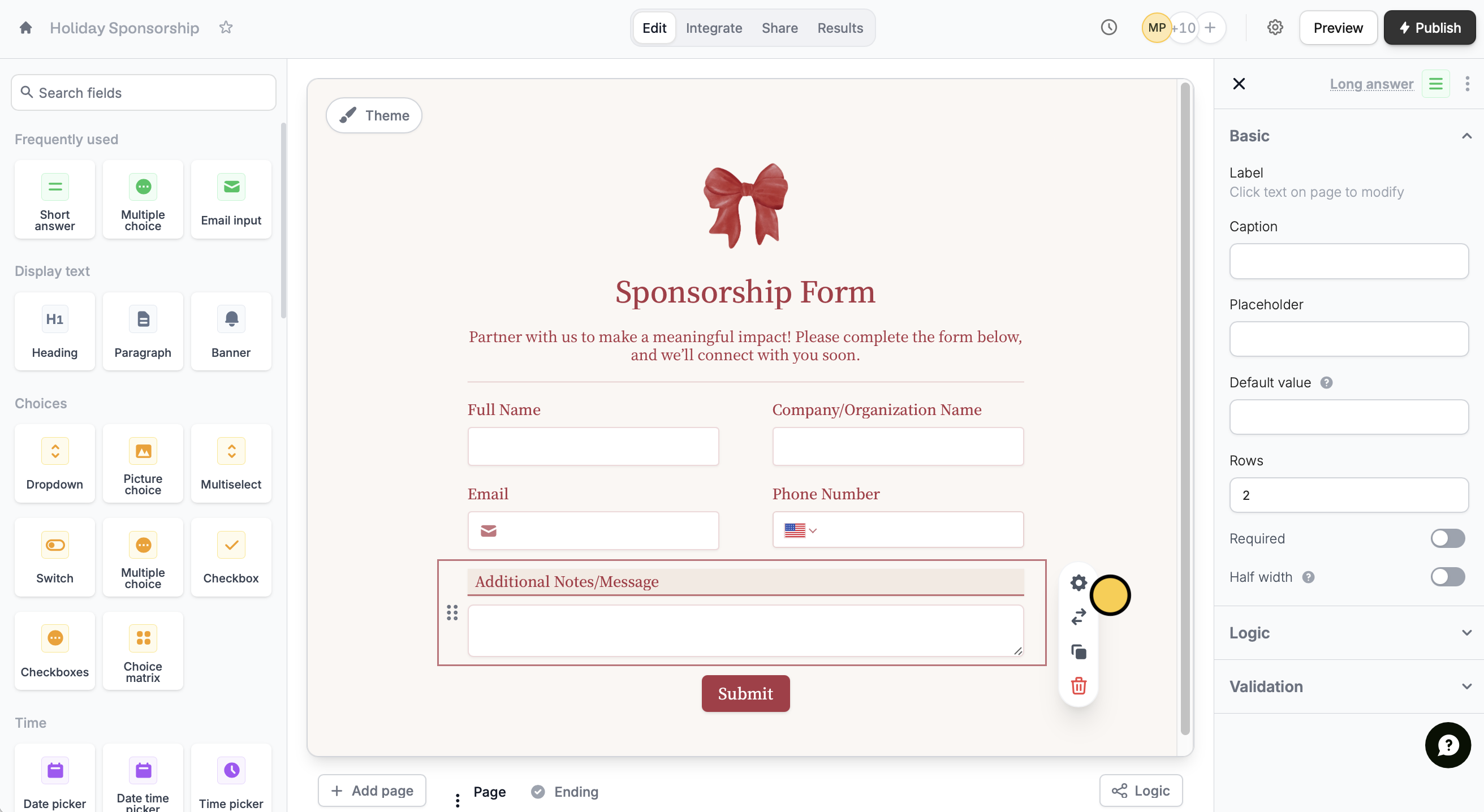
settings icon to open the right-hand panel.
Add supporting details, make it required, set up conditional logic, and more. You can also easily copy and paste or duplicate your field types.
Change field type
Click a field followed by theswap icon to select a different field type.
Switching to a suggested field type keeps your current settings. It only works with compatible types that support the same answers (e.g., Multiselect → Checkboxes, Multiple Choice → Dropdown).
List of field types
Question types with the symbol are available to users in the Starter, Pro, Business, and Enterprise plans. If you are on the Free plan, the pop-up below will show up for these fields.

Related articles
Duplicate questions
Build forms faster by duplicating existing questions or fields.
Hide fields
Hide or show fields based on answers, URL parameters or data.
Add custom values
Assign different values to the choices shown to respondents.