

View and edit existing connections
1
Navigate to Integrations
From the dashboard, click your 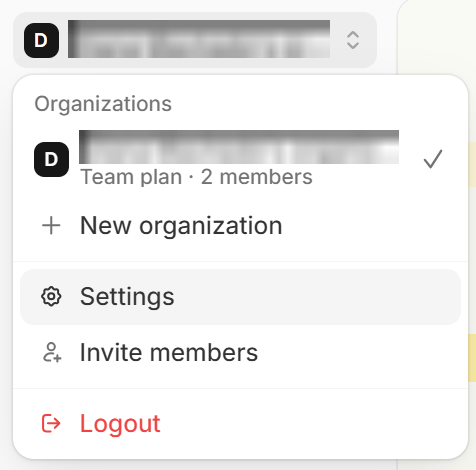
organization name in the upper left corner followed by Settings, then Integrations.2
View connection details
Click any connection to see its name or display label, the user who connected it, its status, and which forms and/or apps it’s used in.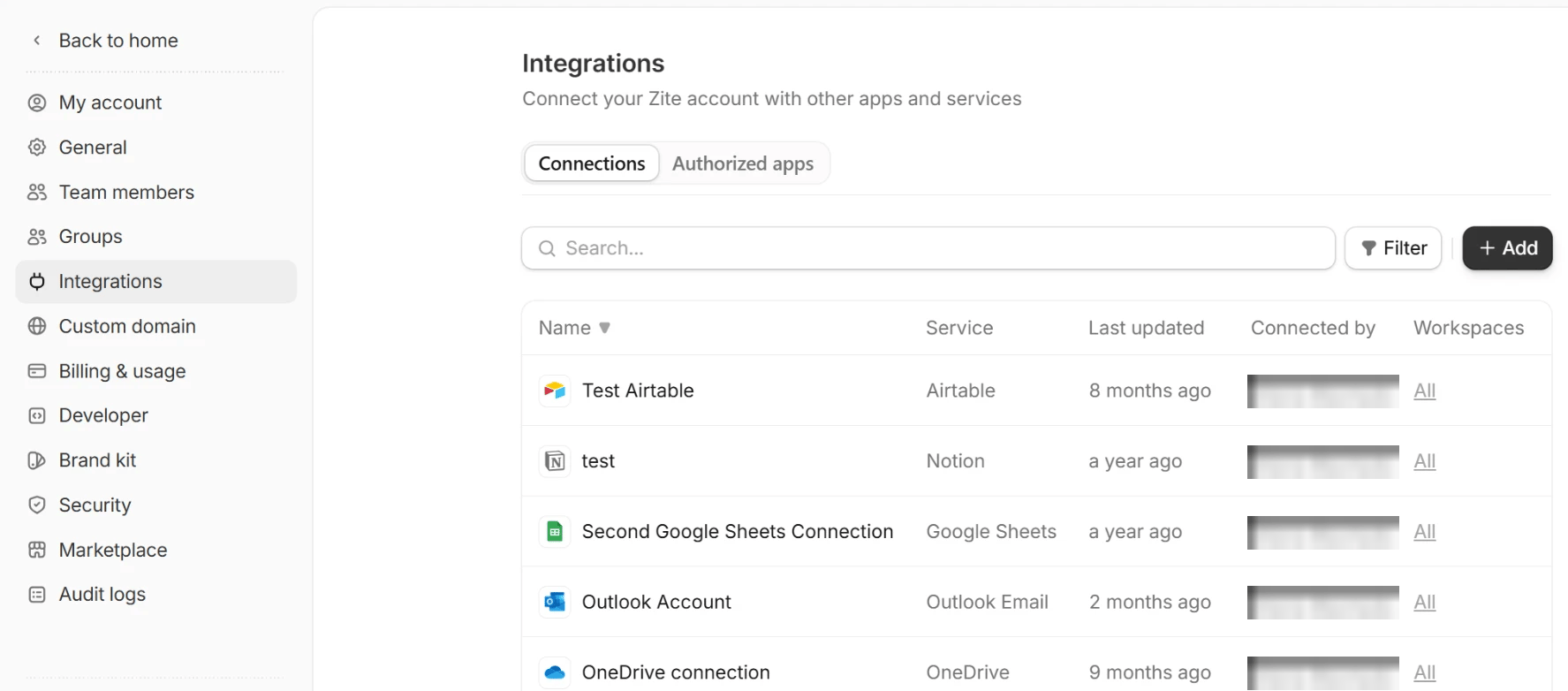
- Connected: The integration is successfully connected, and we were able to verify its connection with the external service in real time. Currently, Slack, Microsoft Teams, Google Sheets, Google Drive, Google Calendar, Notion, HubSpot, and Airtable support real-time verification.
- Configured: The integration has been authenticated and is ready to use. For some integrations, we aren’t currently able to verify the connection in real time, so the status displays Configured instead of Connected. This does not indicate a problem—the integration should still work as expected.
- Disconnected: The connection is no longer valid, usually because the authorization has expired or was removed. Reconnecting the integration should restore functionality.
3
Edit connection
If you have multiple connections for the same integration, it helps to 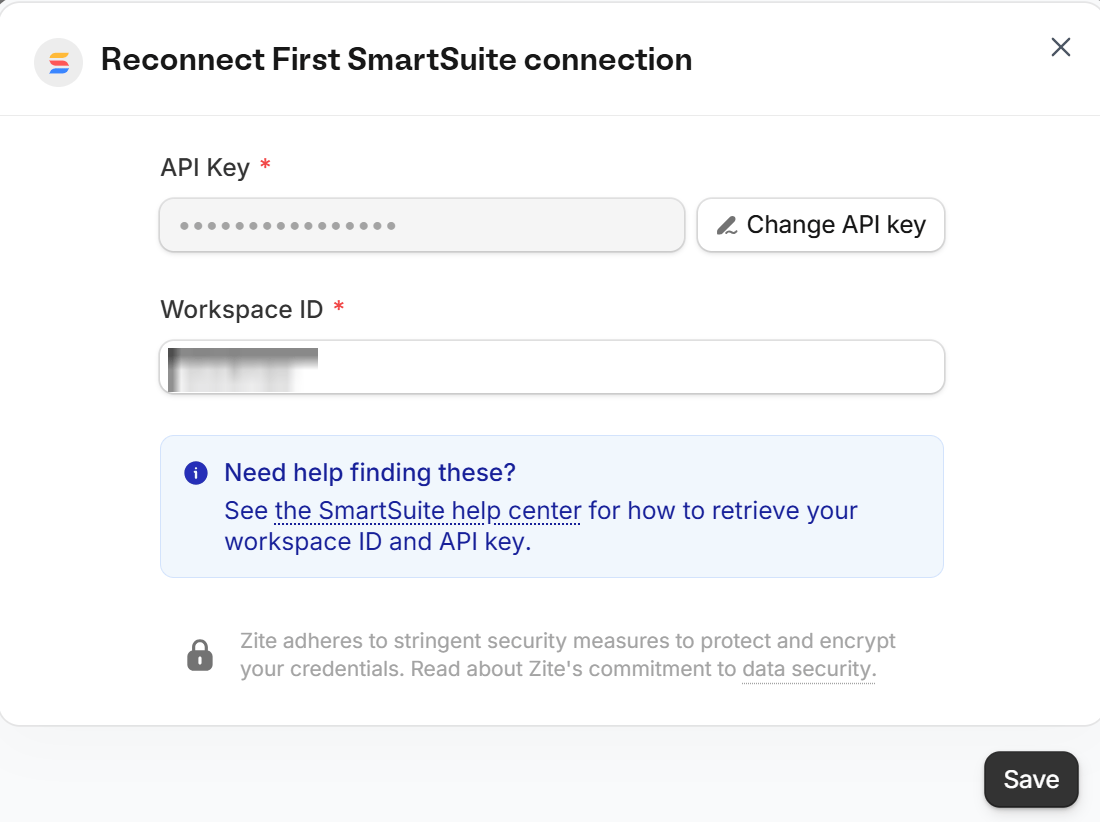
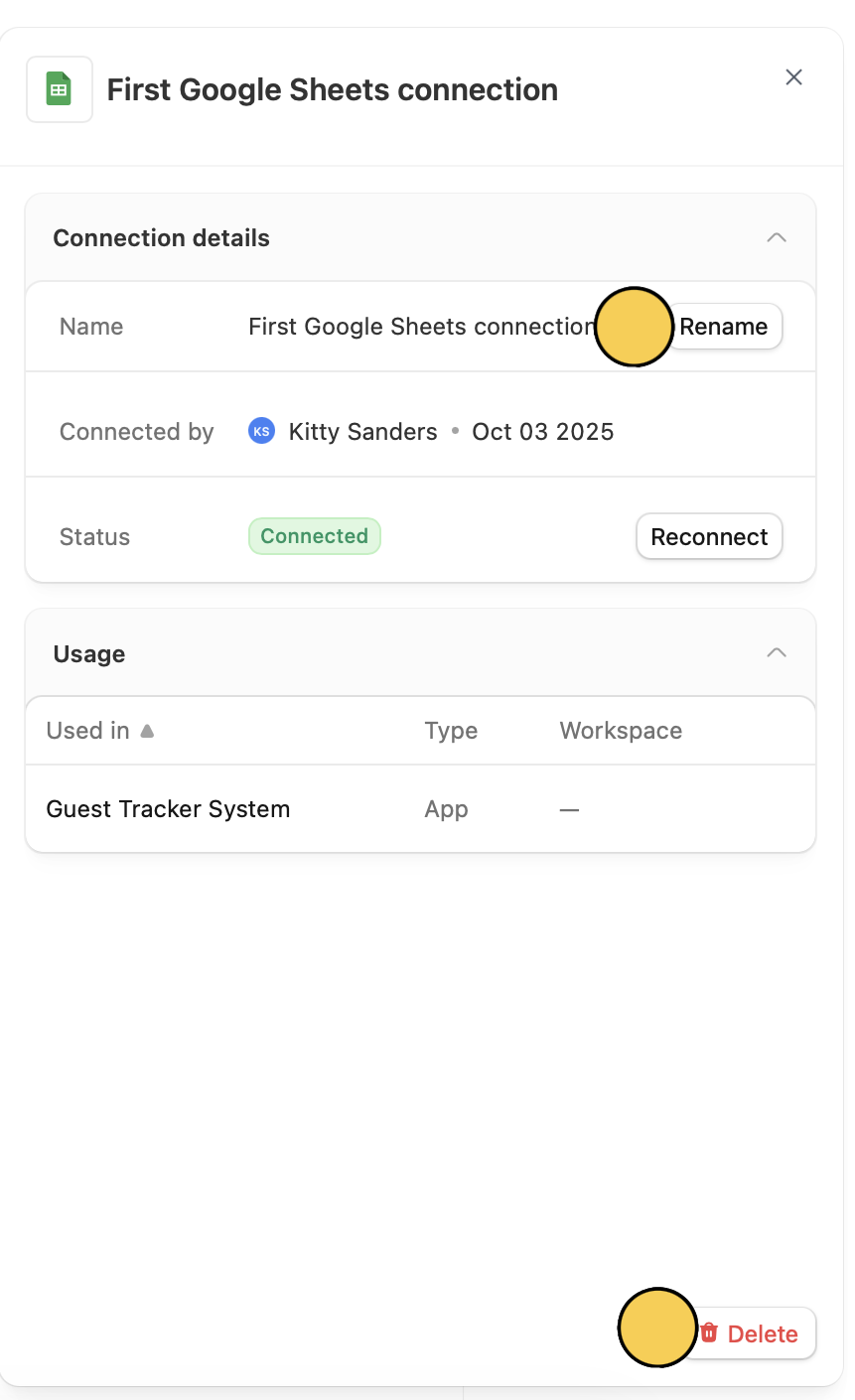
Rename them so you can easily tell them apart.Saved API keys and tokens for Airtable, Monday, SmartSuite, Jotform, and SurveyMonkey are hidden when you reconnect them. The saved key still works, so you don’t need to enter it again. To replace it, click Change API key (or Change token), enter the new one, and click Save.Reconnect and Delete here.Limit workspace connections
You can restrict connections to certain workspaces only. This is helpful if you have clients, partners, or team members with granular permissions in a specific workspace.1
View connection's workspaces
On your chosen connection’s row, click
All.Zapier and Make connections can’t be limited to workspaces. A connection set up by a member only reaches the forms that member can open (more info). For more control, use the per-form webhook integration to trigger external automations.
2
Add workspace(s)
In the popup, click 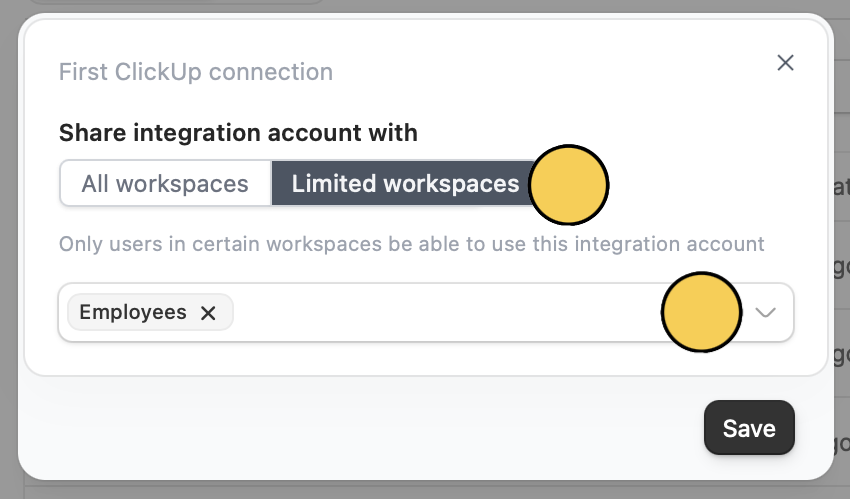
Limited workspaces, then select a workspace from the dropdown. 3
Save changes
Click
Save.Disconnect 3rd party apps
1
Navigate to integrations
From the dashboard, click your
organization name in the upper left corner followed by Settings, then Integrations.2
View apps
Click the 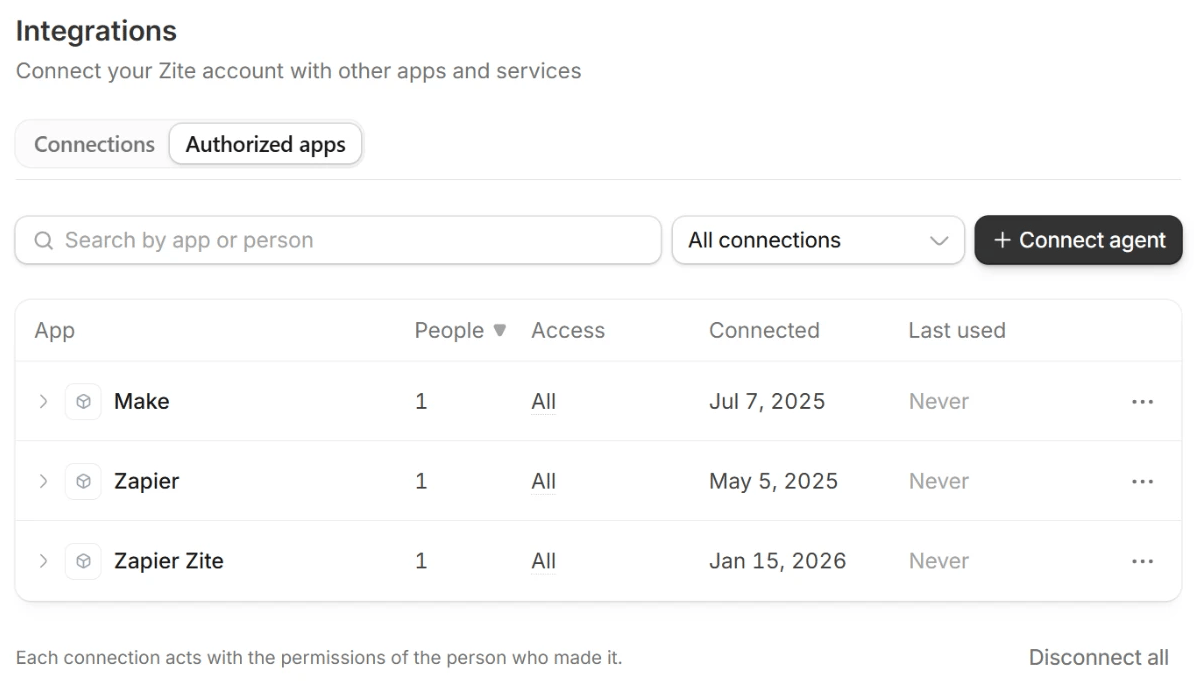
Authorized apps tab. For each app, the list shows how many people connected it, what it can access, when it was connected, and when it was last used. Use Search by app or person to find one.To connect an AI agent like Claude, ChatGPT, or Cursor, click Connect agent. Learn more in Connecting to Zite MCP.3
Choose an app
Click the 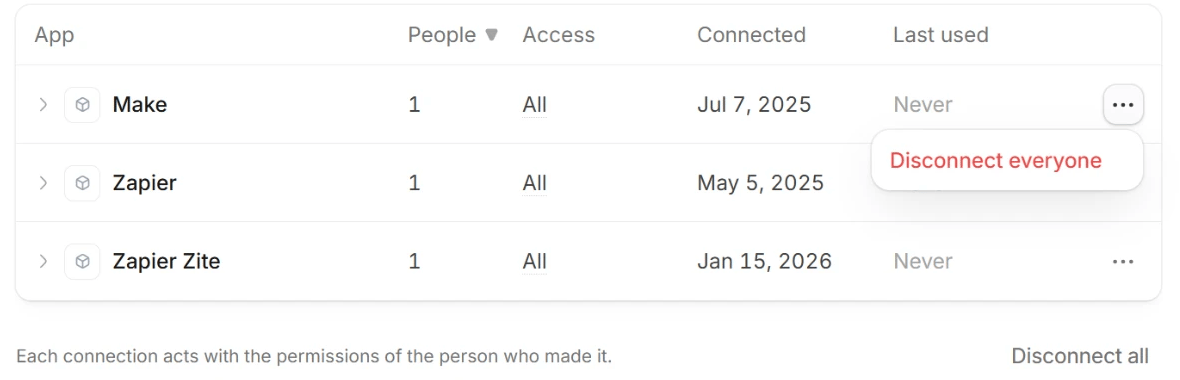
three dots at the end of the app’s row and select Disconnect everyone. This disconnects the app for everyone who connected it.Disconnect all below the list.Related article
Granular permissions
Set member access to view only, and manage existing permissions.