

Overview
You can connect multiple Google or Microsoft calendars in a single organization. This is useful for teams where each member has their own calendar. Fillout checks availability across connected calendars. Each scheduling page can only be linked to one calendar. However, you can still add other team members as hosts, when using round robin or collective meetings, so Fillout can check their availability and assign bookings accordingly.How to connect multiple calendars
1
Invite team members
If you haven’t already, add members to your organization so they can connect their calendars.
2
Connect each member's calendar
Each member should go to
Scheduling in the left panel of their dashboard and connect their Google or Outlook calendar.3
Create a scheduling form with multiple hosts
Create a form and add a Fillout Scheduling page. Choose between a round robin or collective scheduling form, then select which members to add as hosts.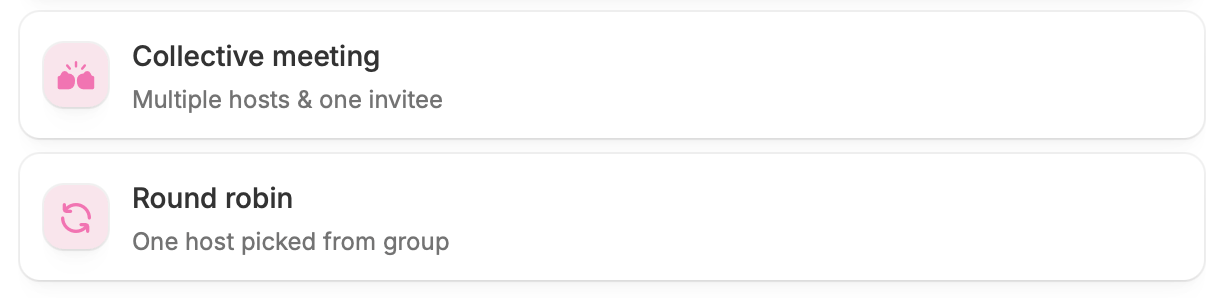
Assign calendars
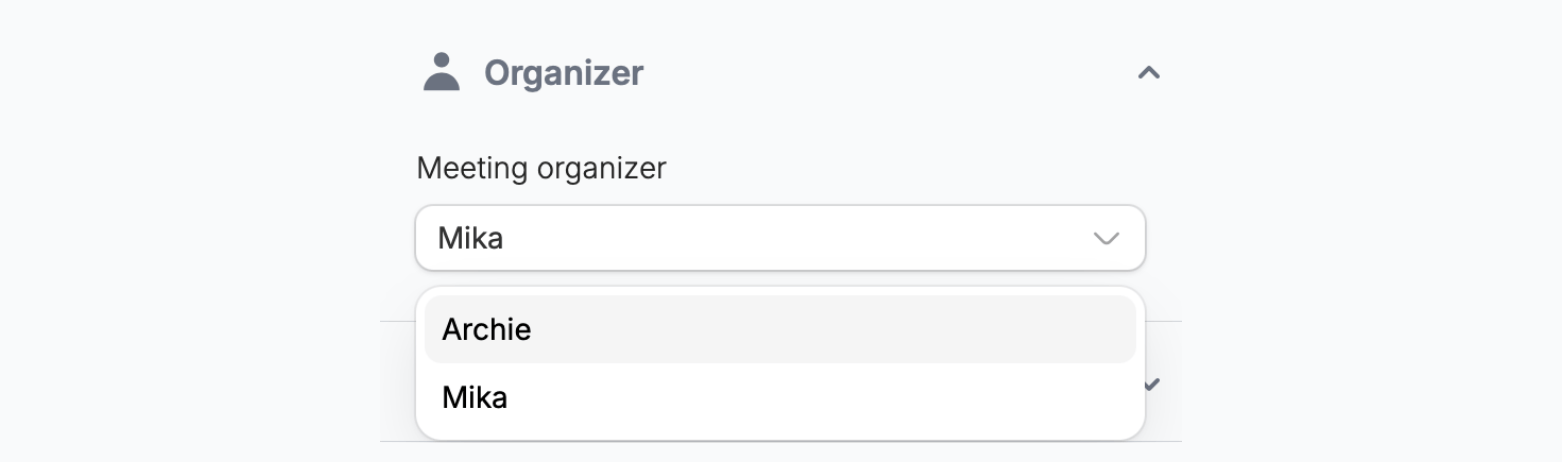
By default, a scheduling page is linked to the calendar of the user who created it. However, you can assign it to another team member or client instead. Their connected calendar will then be used for bookings.Clients must be members of your organization to connect their calendar.
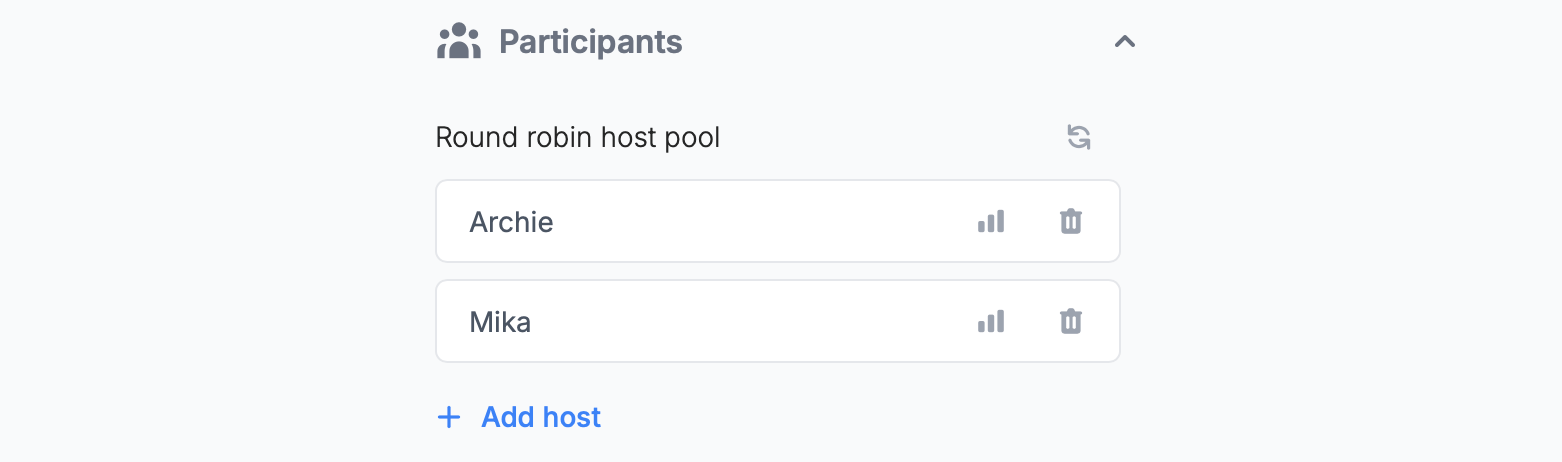
+ Add host. If needed, click the trash icon next to your name to remove yourself as a host.
Show multiple calendars in a form
A scheduling page can only show one calendar. If you need to show separate calendars for different team members, add another scheduling page and connect it to the other team member’s calendar.
Route respondents to different calendars
Fillout scheduling lets you create dynamic forms that redirect a respondent to a specific calendar based on their answers.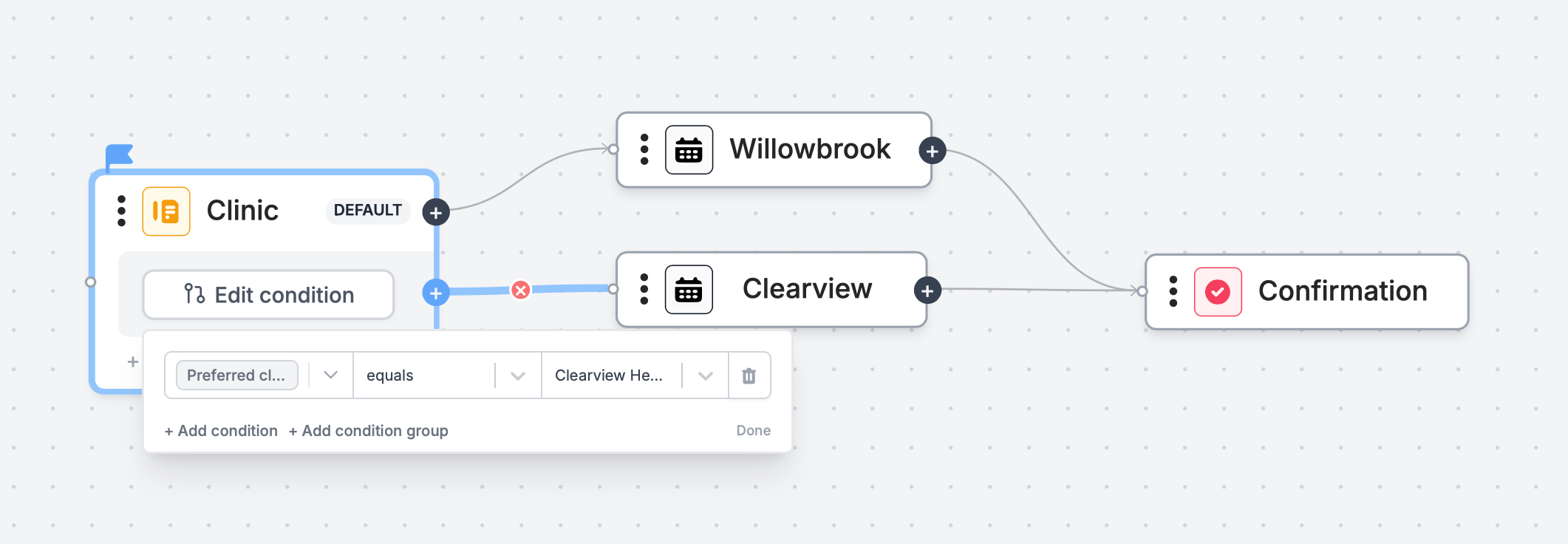
Logic on the bottom right. Follow the steps here.
Related articles
Event types
Select the event type that best fits your agenda.
Set your availability
Specify your available hours and buffer times through forms.
Page logic
Hide or show pages or custom endings based on respondent input.