

How to add an ending page
An Ending page is added by default when you create a new form. You can add more ending pages by clicking+ Add page followed by Ending.
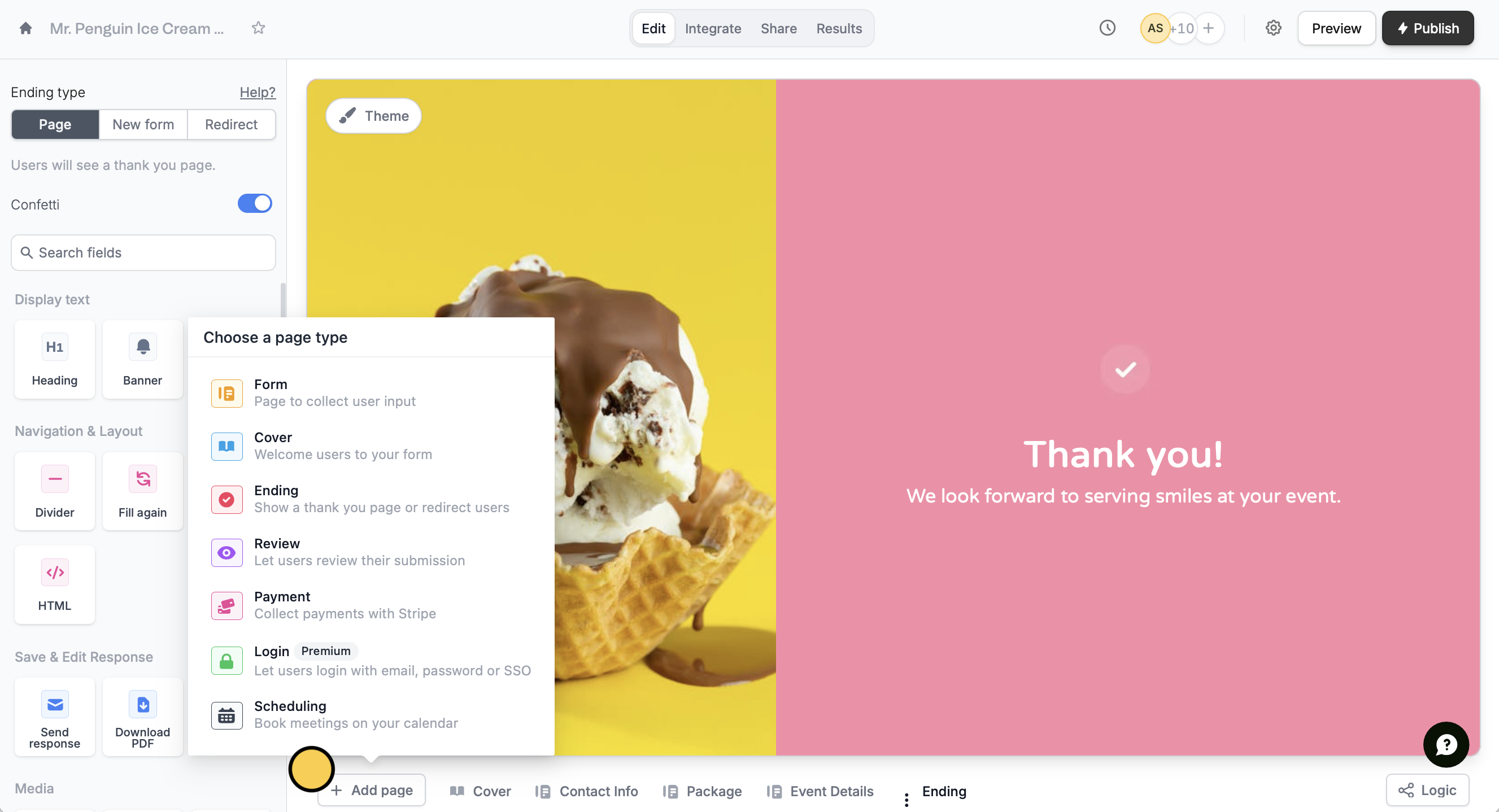
Ending page types
In the left-hand panel, there are three types of ending pages you can choose from: Page, New form and Redirect.Page (default)
The default ending page thanks respondents for submitting a form. Users can customize the thank-you text, add images, banners, and other fields to display upon submission via the left-hand panel or by highlighting text.New form
This ending type lets users redirect respondents to another form and optionally pass URL parameters, such as carrying over the respondent’s name or email to the next form. See here for more information.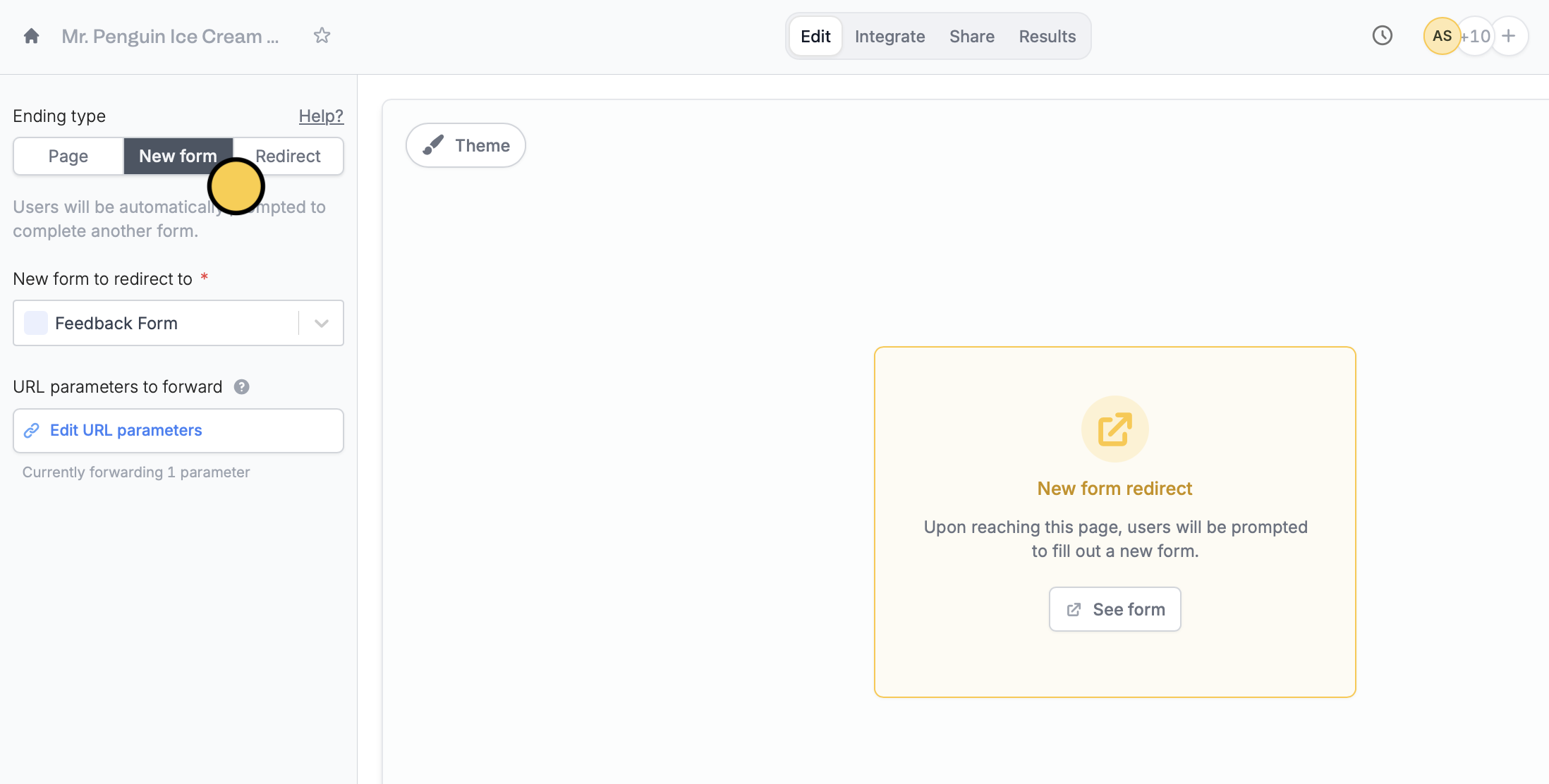
Redirect
This redirects users to another link like your homepage or portal after form submission, skipping the default Fillout ending page.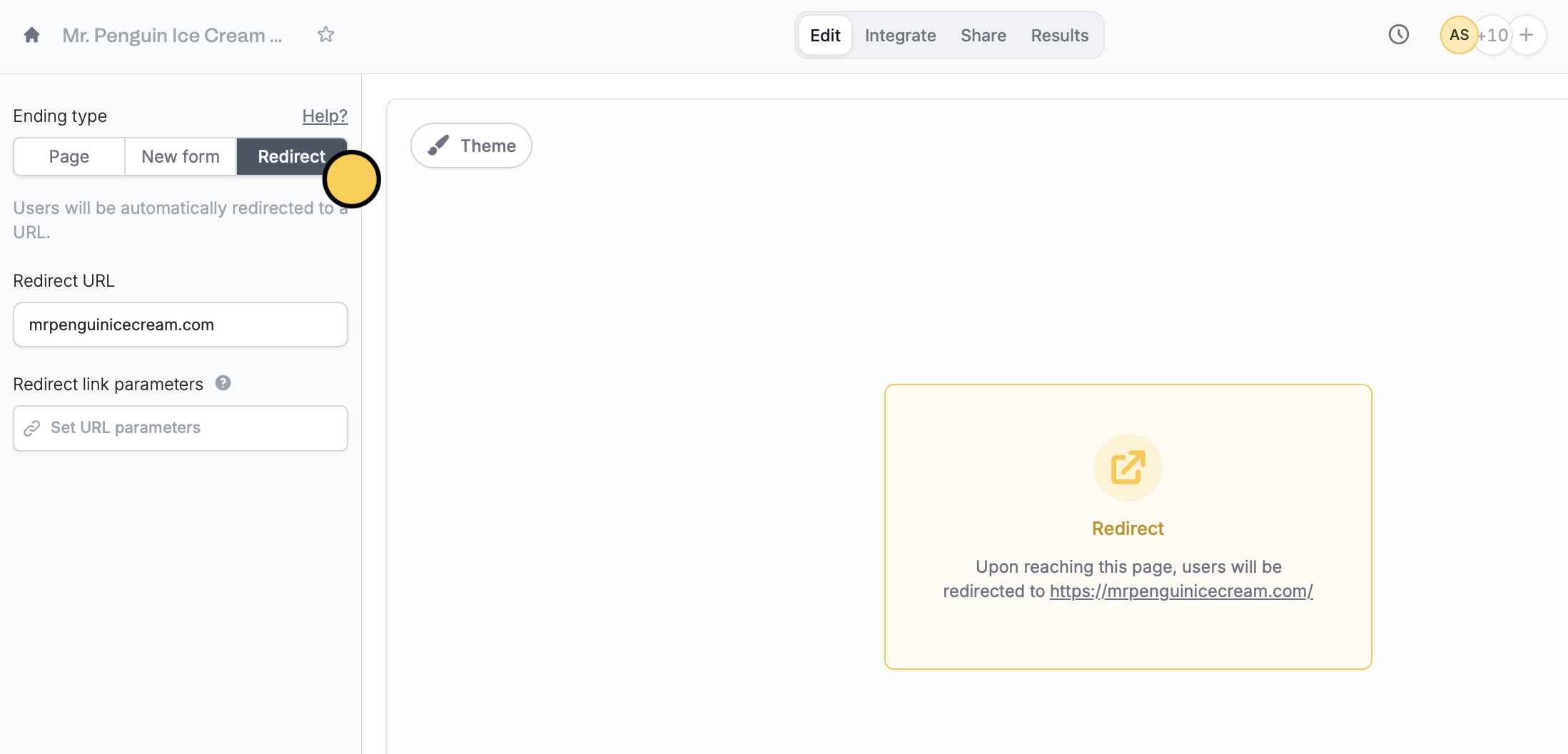
This feature is available on Starter, Pro, Business, and Enterprise plans. Learn more about our pricing plans and advanced features here.
Let respondents fill out your form again
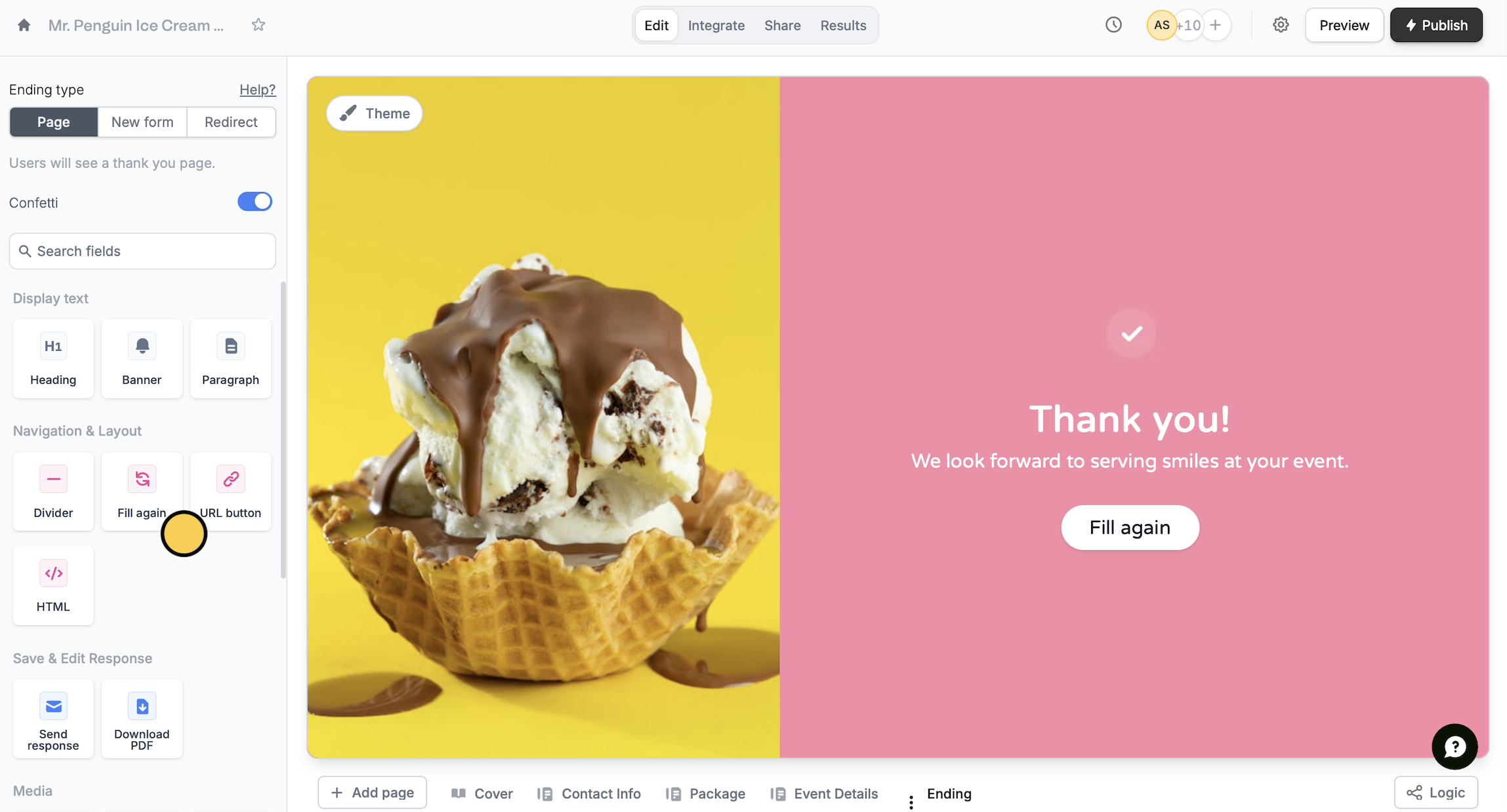
Respondents can fill out your form multiple times. Simply add aFill again button from the left-hand panel. More details here.
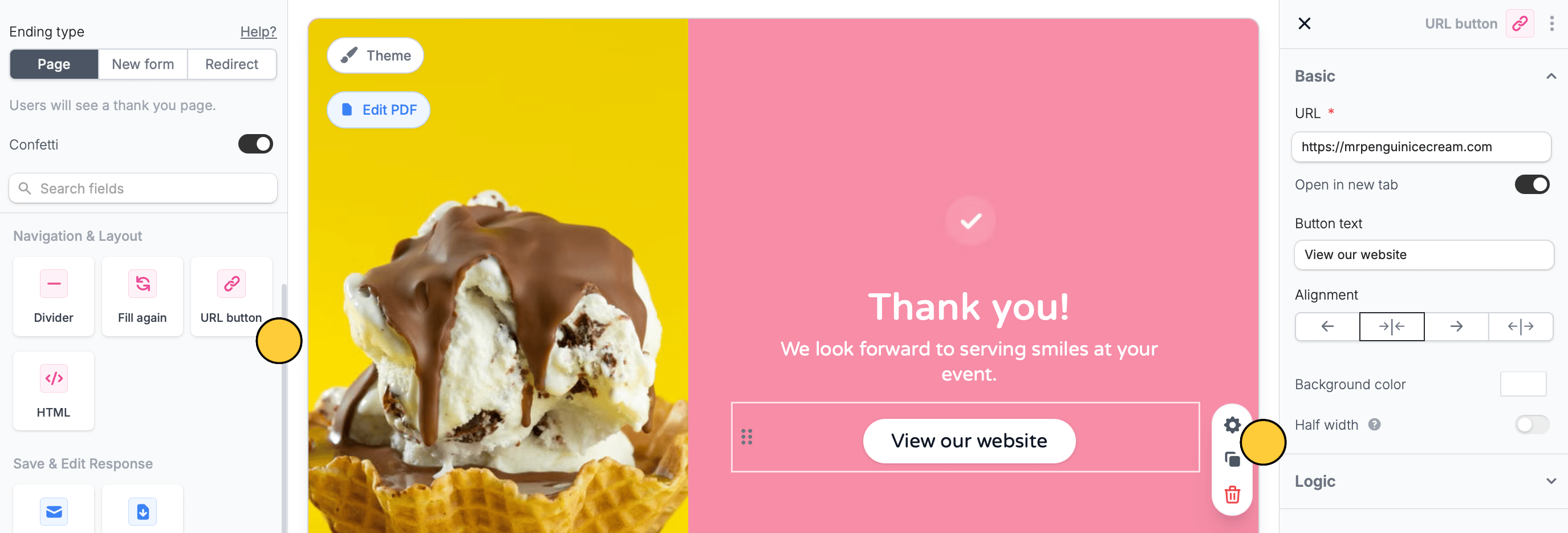
Add a link
Click theURL button in the left-hand panel followed by its settings icon to open the right-hand panel, enter a link, and customize it as you see fit.
Let users save their responses
You can give respondents an option to save their responses.
Send response field to let them receive their submission via email.

Include edit link in the right-hand panel.
Use the Download PDF field to let respondents download a PDF of their submission. To set this up, you must first upload a PDF by following the steps here.

settings icon to open the right-hand panel where you can select the PDF.
Related articles
Disable confetti effect
Remove the confetti on the ending page.
Page logic
Hide or show pages or custom endings based on respondent input.
Combine and repeat forms
Link forms or allow re-submission.