

How to add an image or GIF
1
Add an image field
Click 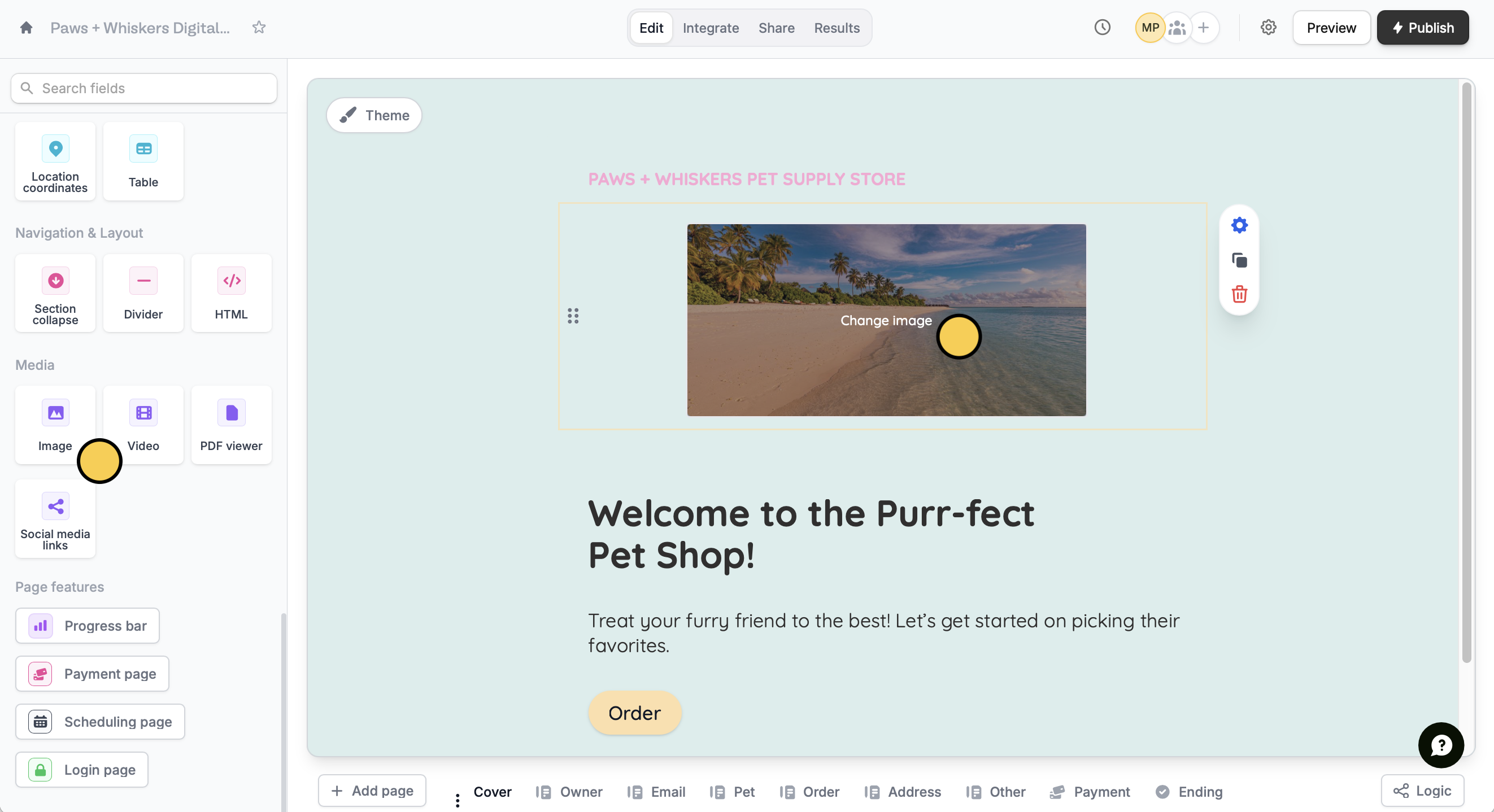
Image in the field choices. Next, click Change image in the center of your screen.2
Choose an image or GIF
You can select an image from Unsplash, copy and paste an image’s Link or Upload an image from your desktop.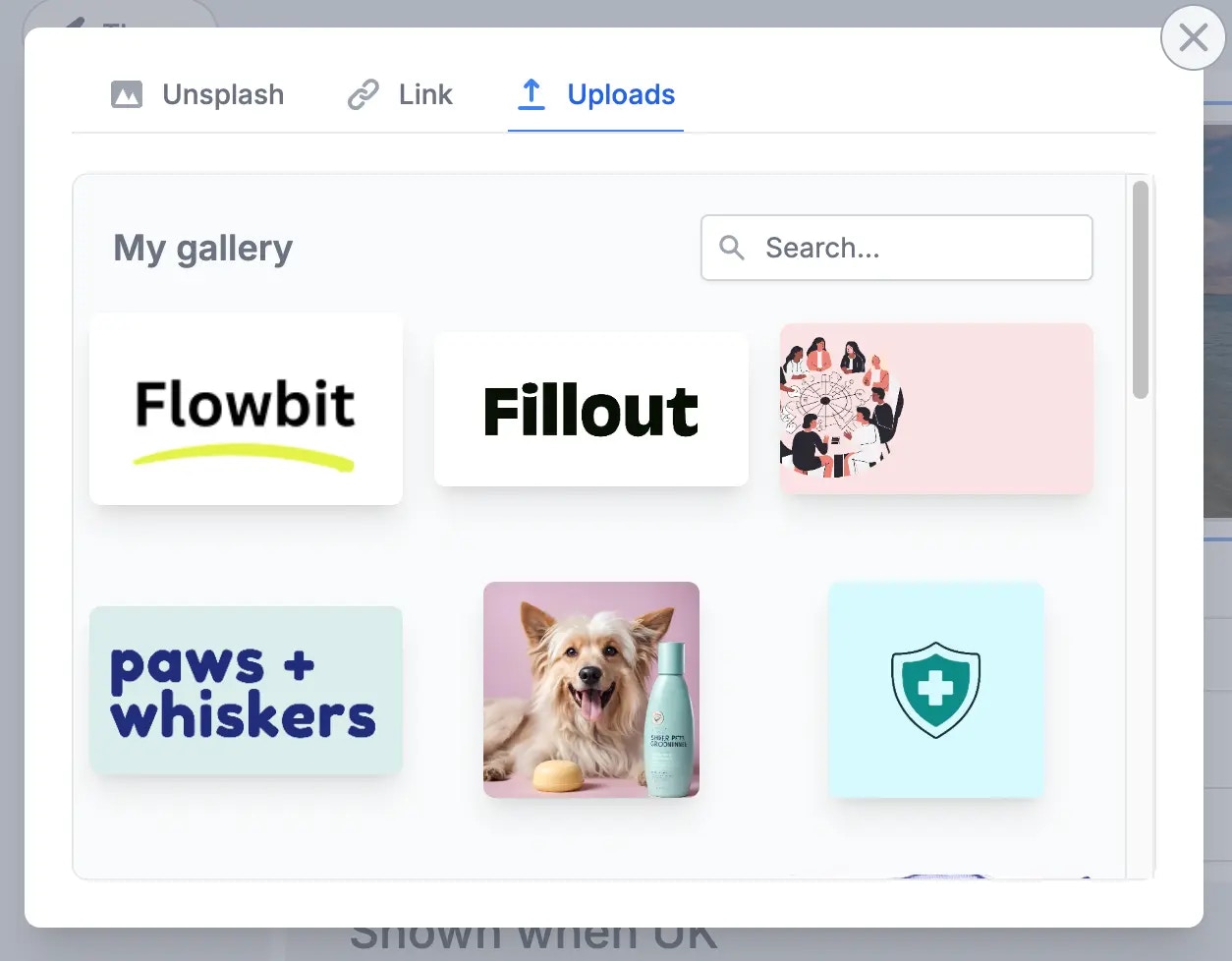
3
Edit dimensions
To change the Max height and Alignment of your image, click its 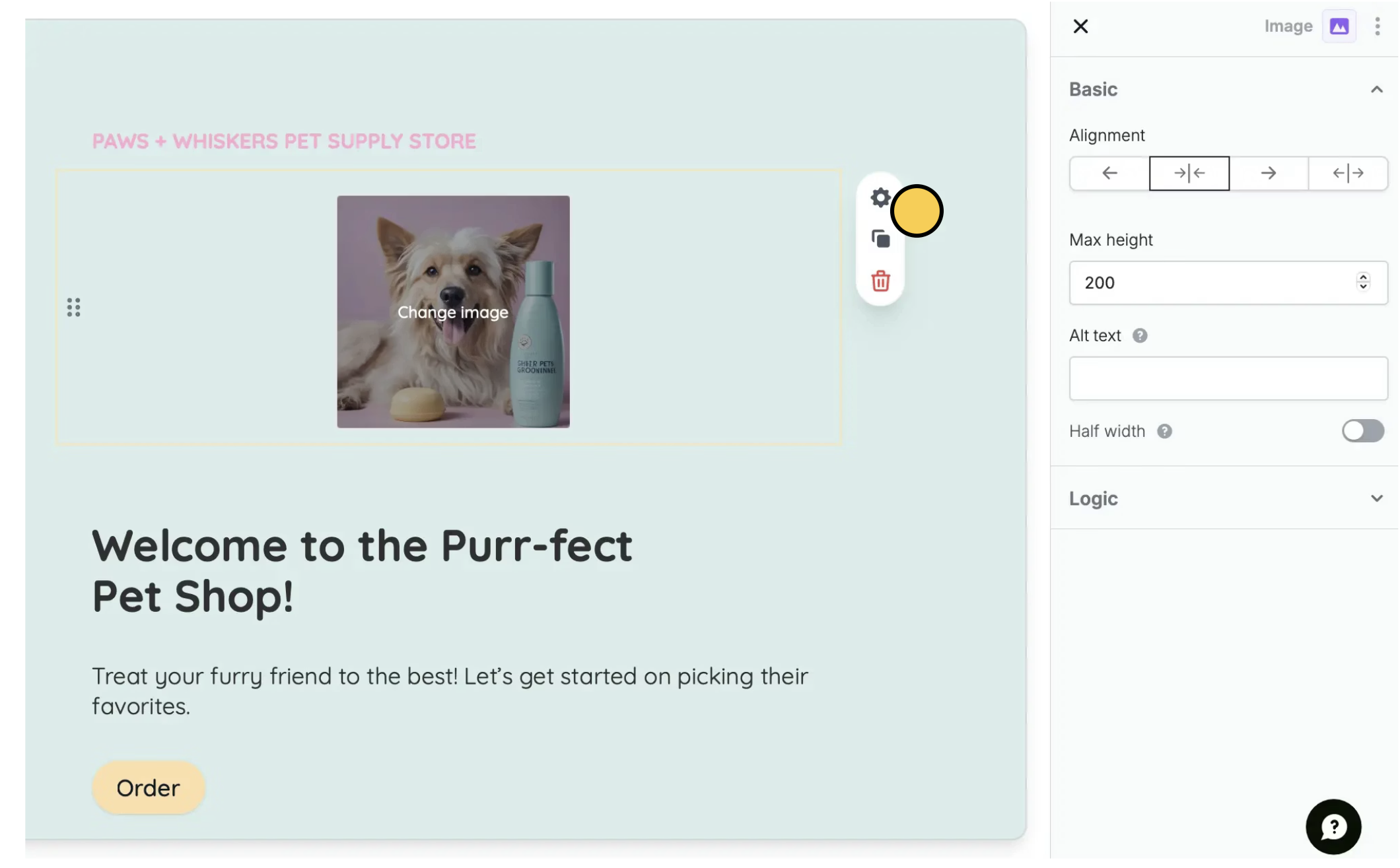
settings icon .Set a background image
ClickTheme to open the Form designer. Then, click Add image.
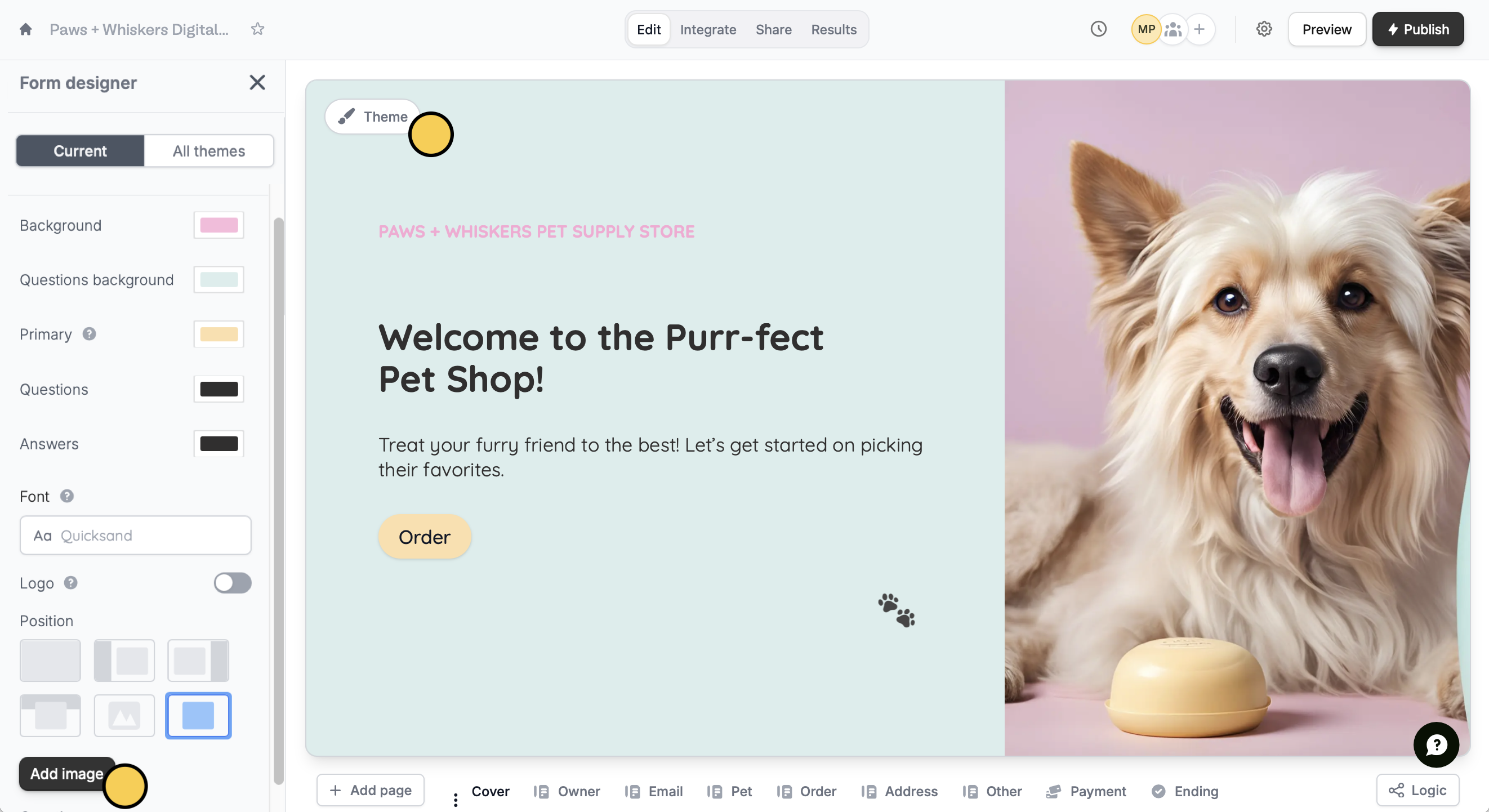
Adjust image view
To adjust which part of the image is visible, hover over it and clickPosition. You can also edit the brightness of your image in the left-hand panel.
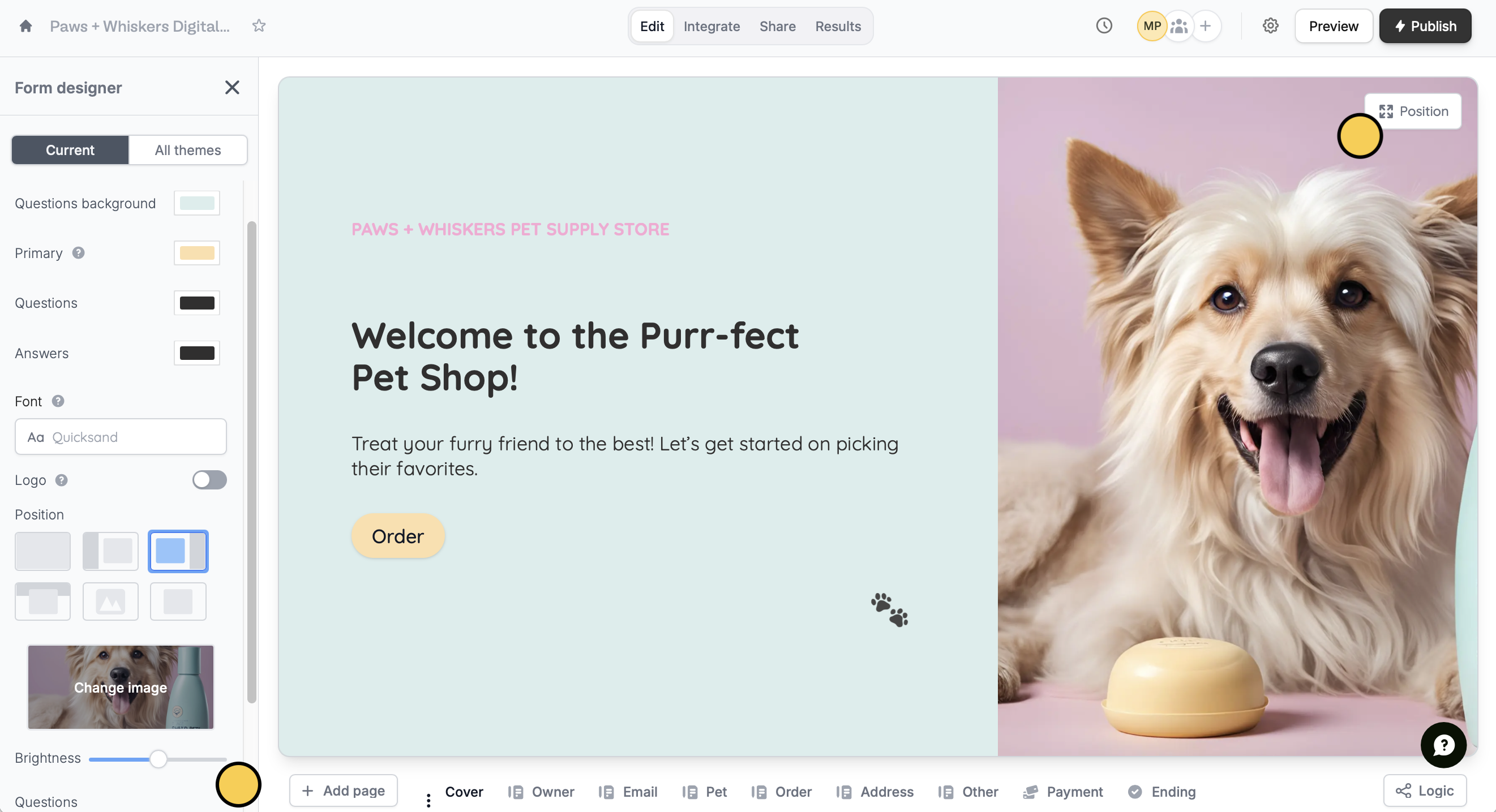
For a full page image, generally 16:9 is best or 1280 x 720. For side-by-side layouts, 512 x 720 is the ideal size.
Add images to choices
1
Add a picture choice field
Click the 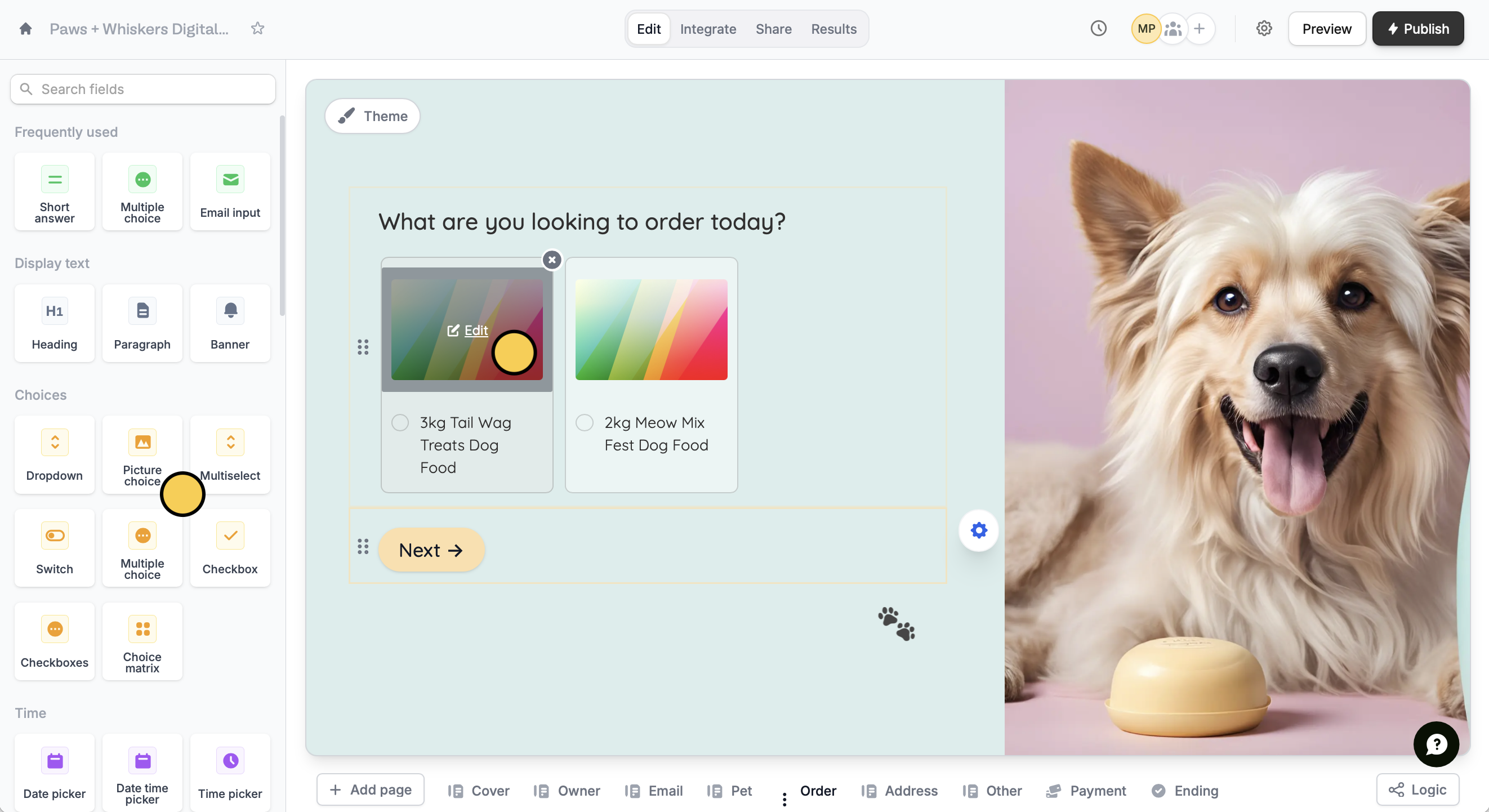
Picture choice field. Next, hover over one of the choices and click Edit followed by Change image. Repeat this for the rest of the choices.2
Edit dimensions
You can change each image’s Height in the right-hand panel by clicking its 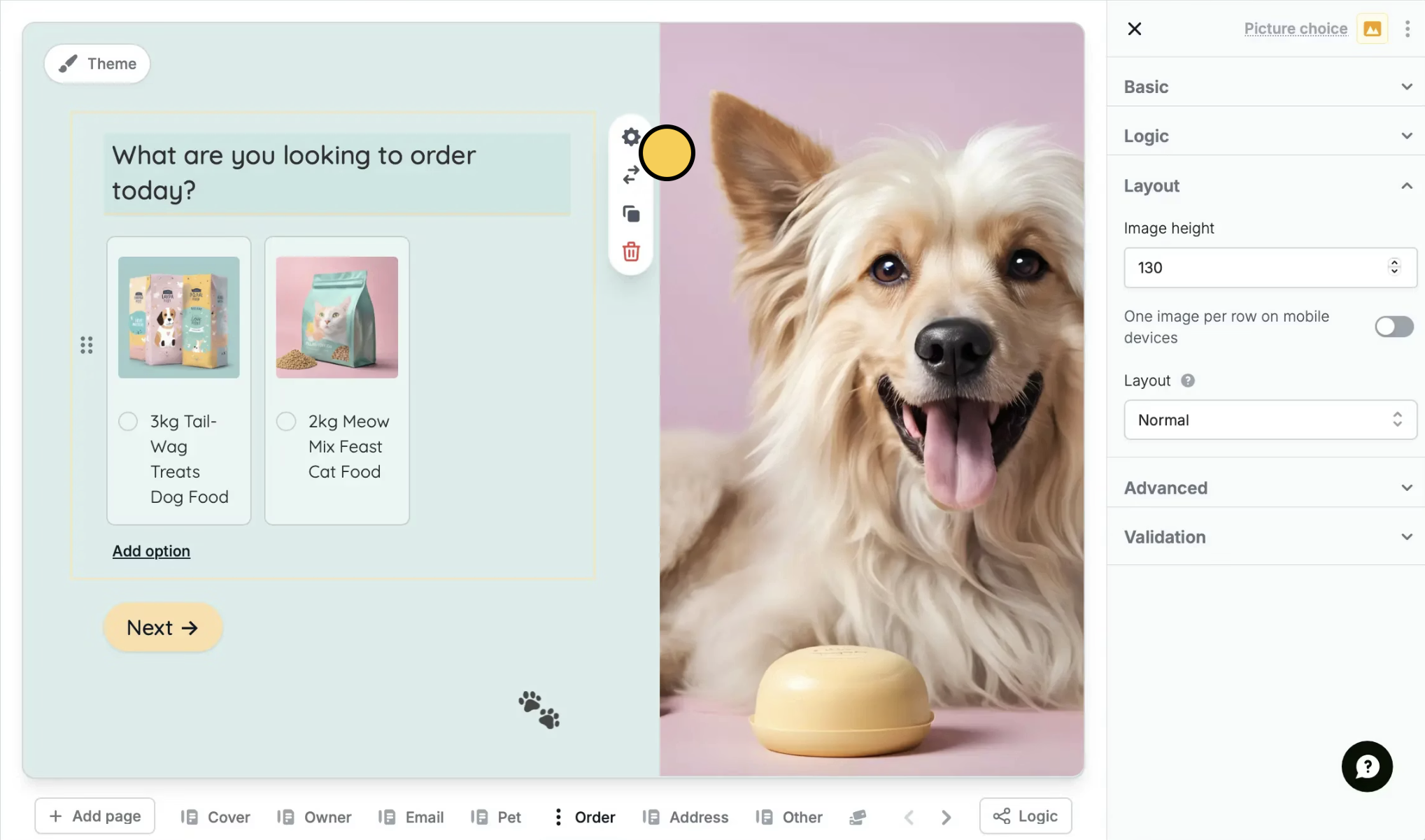
settings icon . In the right-hand panel, go to Layout.3
Edit the choice background color (Optional)
You can also change the default white Option background color under Basic.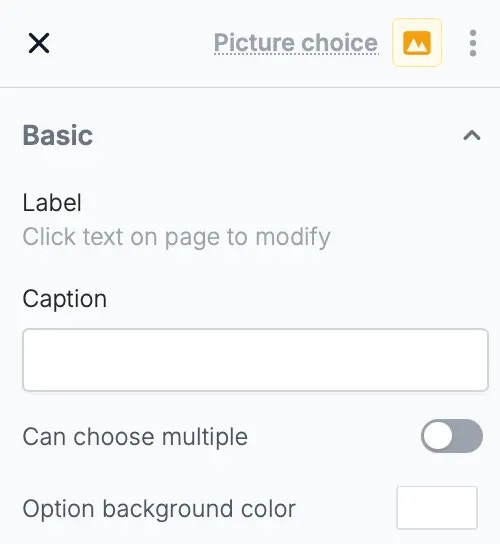
Related articles
Add a logo
Add a professional touch and create strong brand identity.
Page layout
Edit the position of your form’s fields and background image.
Themes
Select from hundreds of themes or create your own.