

Overview
A form can only be connected to one database and table at a time. For example, if your form is connected to Airtable, you cannot connect it to another table or database without disconnecting the current connection first. Google Sheets is an exception. You can connect it alongside a database, such as Airtable, because each connection creates a new sheet automatically. However, you can still use form submissions to create records in multiple tables or databases using the workarounds below.Ways to create records across tables
Combine multiple forms
Create a separate form for each table and connect each form to its corresponding table. Then, link the second form to the Ending Page of the first form to redirect users to it after submission.Use subforms
Add a Subform field to your main form and connect that to a separate form with its own database or table. Check this quick guide.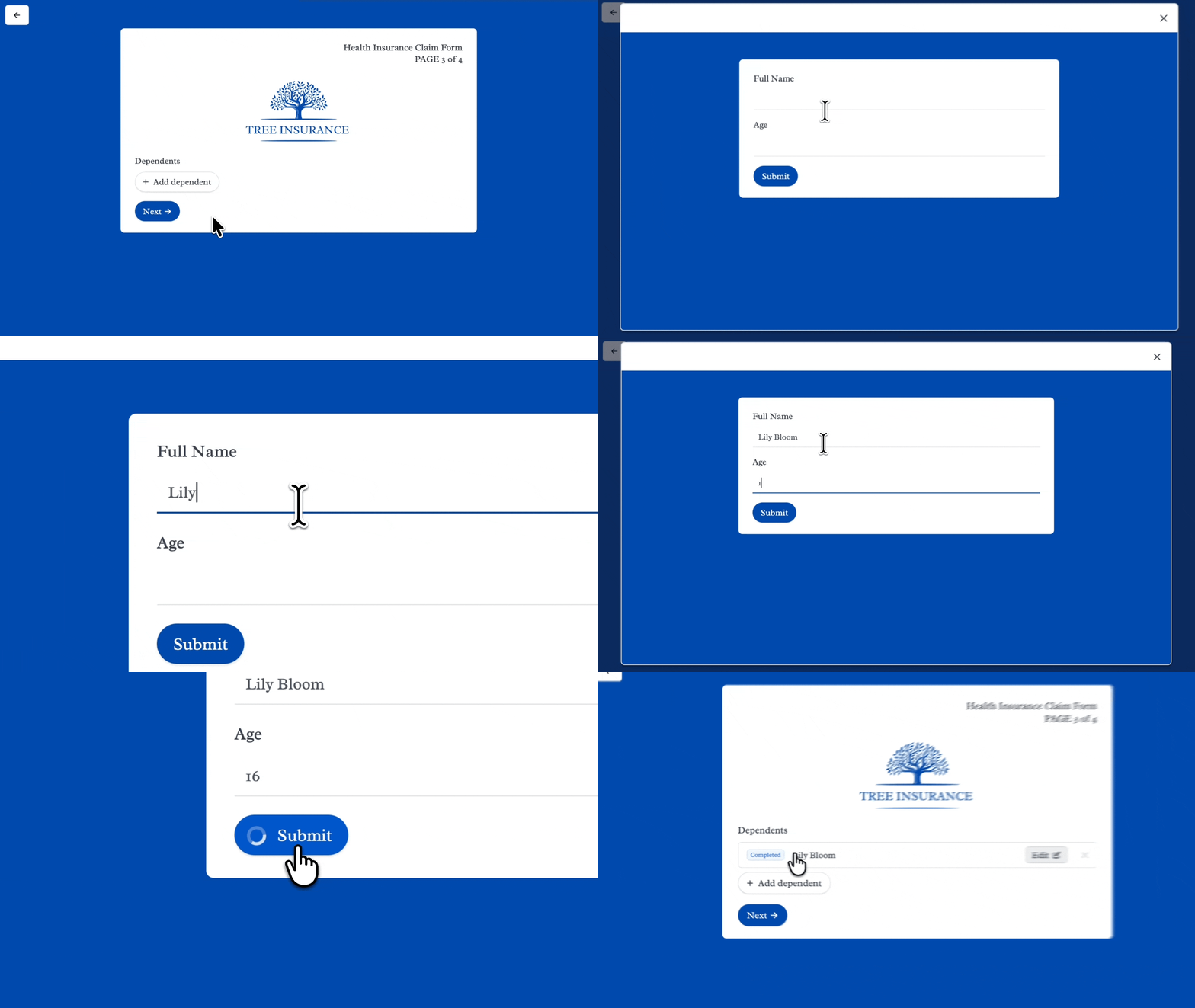
Use Record Pickers with linked tables
In this example, we’ll connect our form to Airtable. Add a Record Picker, then enable create new records in the settings.
Use webhooks and external automation
Add a Webhook to your form and connect it to an automation tool like Zapier or Make. Then, set up the automation to create records in multiple tables or databases. Learn more here. This approach is flexible, but the records are created through the external automation tool rather than Fillout’s native integrations.Related articles
Subforms
Collect repeated data with nested forms.
Record pickers
Set pre-fills, reference fields, and more.
Webhooks
Send to automation tools or any endpoint.