

What is Wix?
Wix started as one of the earliest website builders on the market and has grown to serve over 220 million users worldwide. Its premium plans come with a built-in form builder that lacks a few important features like file upload fields and popular third-party integrations.Video tutorial
How to embed your form
1
Choose an embed style
Start by clicking 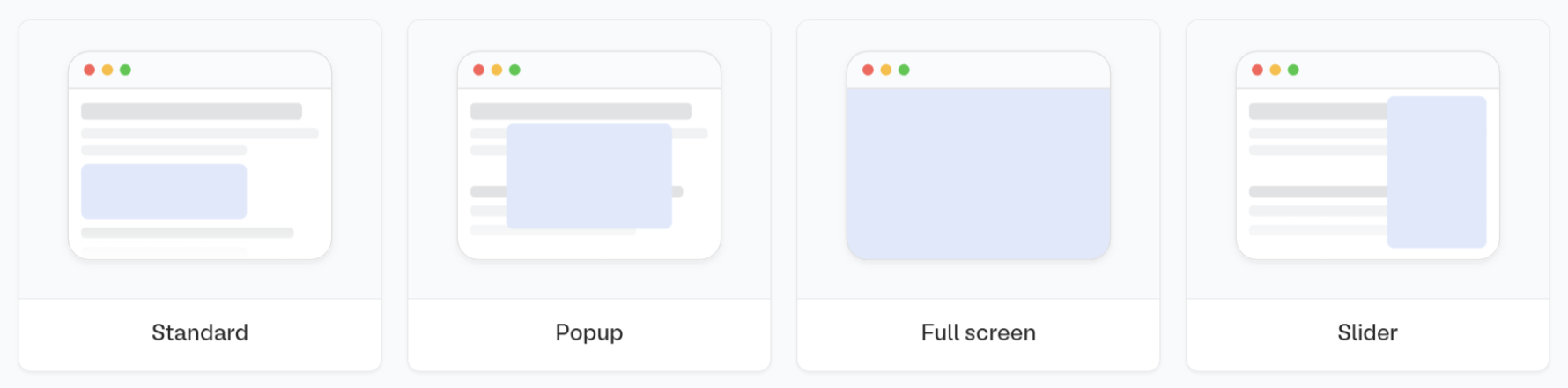
Publish in the upper right corner of the Fillout form editor. A popup will show up where you can pick an embed style.Share in the top middle or top right. Adjust your embed style settings to fit your use case. Then, Get the code.2
Choose the Embed HTML element
In Wix’s drag-and-drop editor, embedded elements live inside containers drawn on the page. Click the 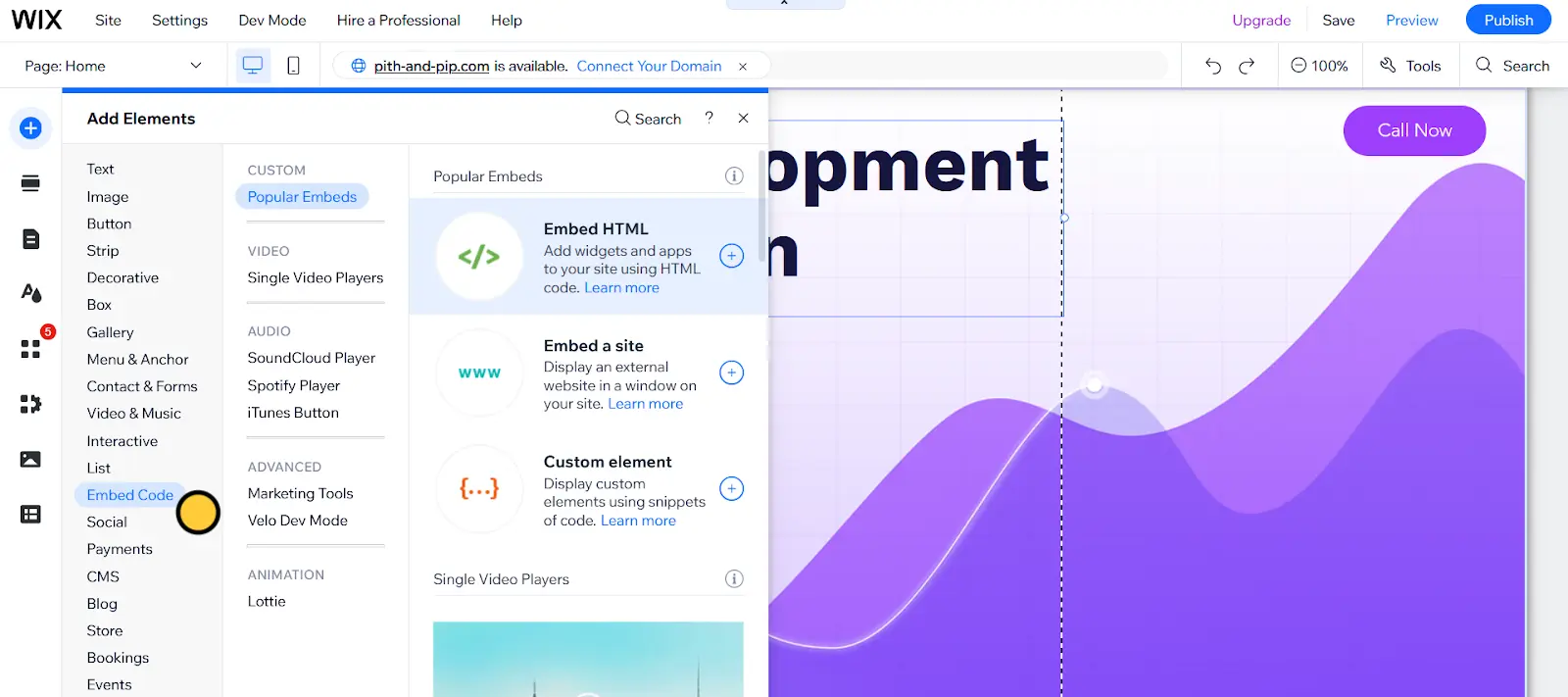
plus icon from the left sidebar to open the Embed code menu, and click the plus icon next to Embed HTML.3
Paste embed code
Paste the copied embed code from Fillout below Add your code here (HTTPS only): and click the 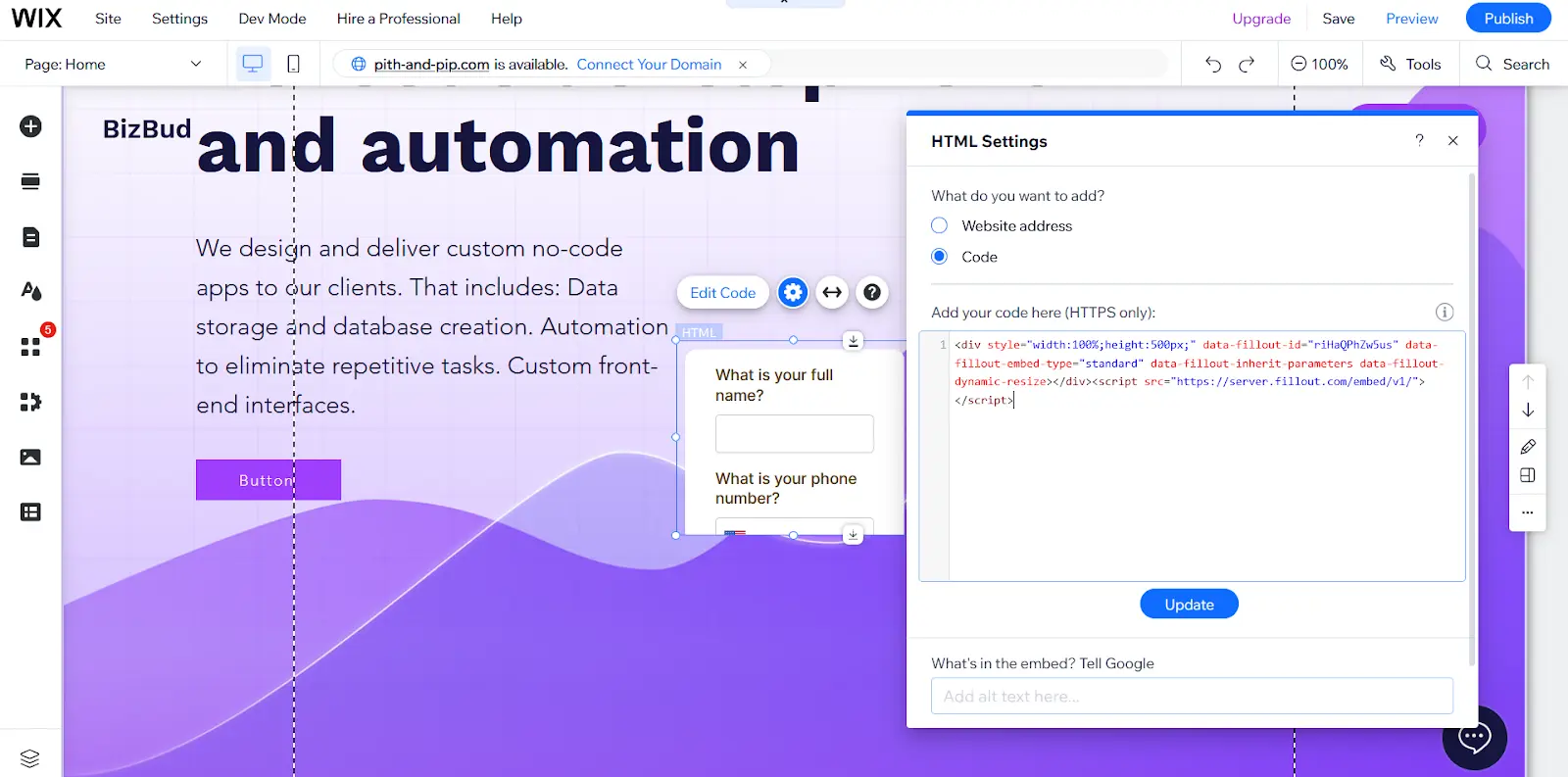
Update button below the textbox.Resizing your embed
Certain fields require a 600px minimum height to display properly. If your form includes any of the fields below, the embed cannot be resized below 600px.- Date, Date-Time, or Date Range Picker
- Color Picker
- Visible Captcha (V2)
- Submission Picker
- Record Picker
- Address
- Signature
- Subform
Add a lightbox
To get around embed container limitations, use a lightbox. Although you can add custom code to create popup forms that render outside the bounds of an embed element’s borders, there’s an easier solution.1
Choose a template
Click the 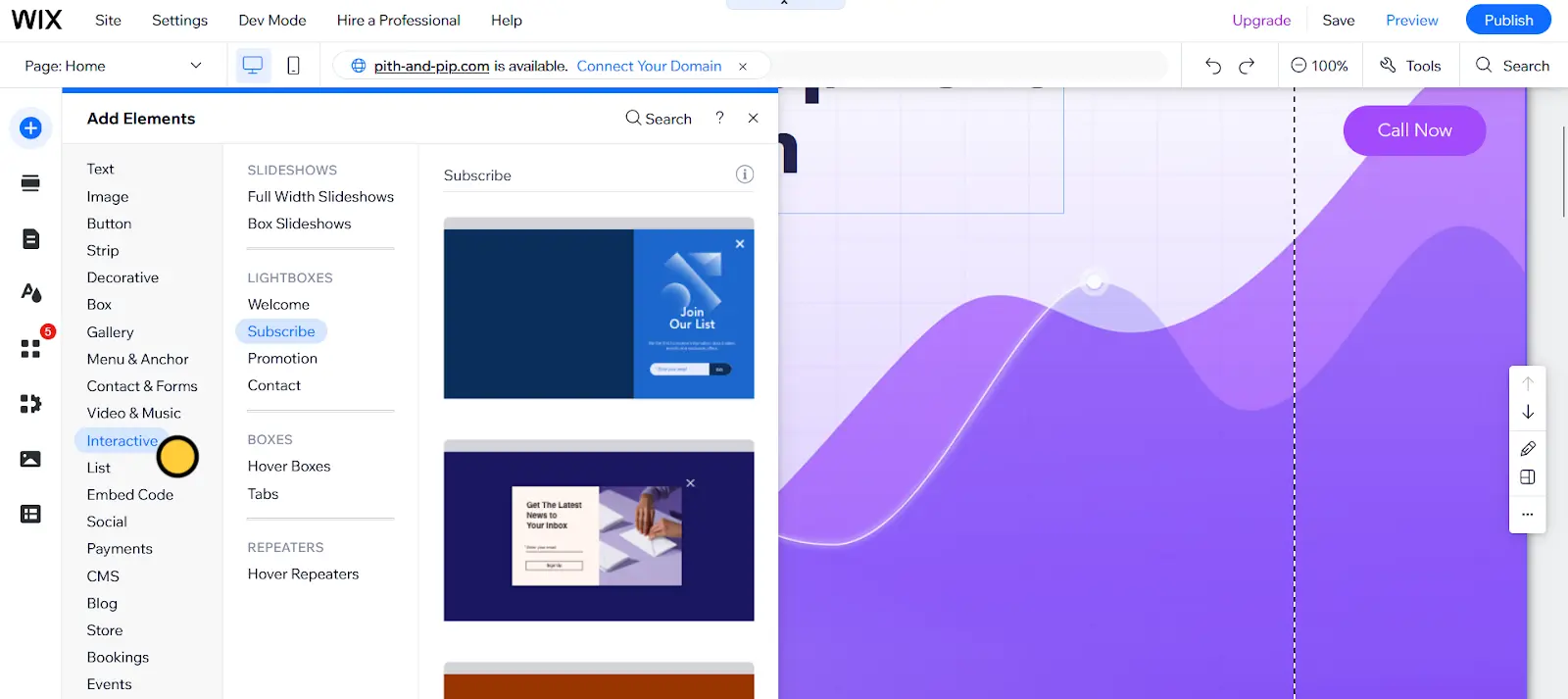
plus icon from the left sidebar to open the Interactive menu, and choose a template from the Lightboxes submenu. That will open a new page editor for a popup.2
Add an Embed HTML element
Add an Embed HTML element inside the lightbox section (using the steps above) and resize the element as needed.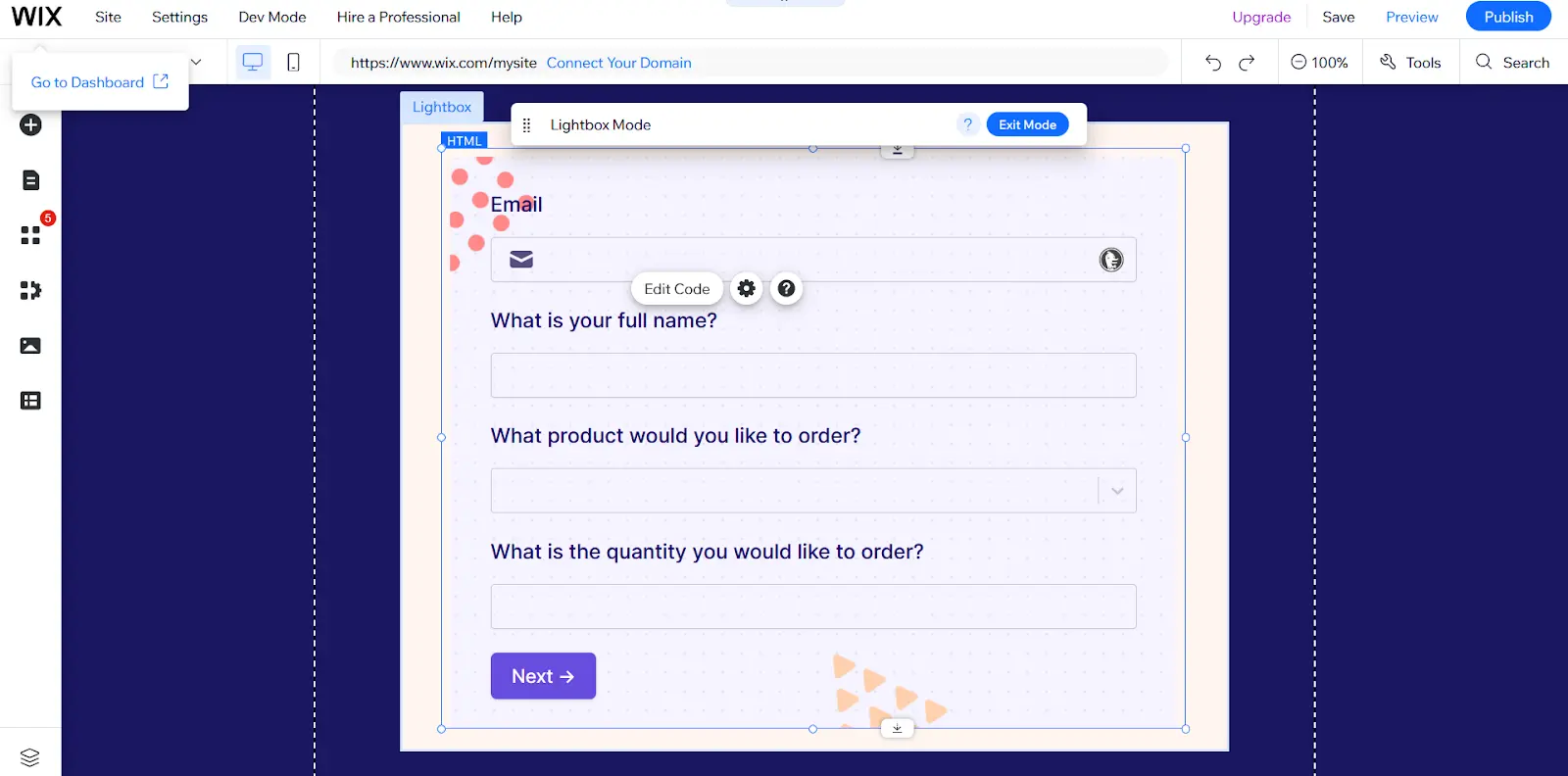
Exit Mode on top or click the dropdown menu in the upper left corner of the screen to return to editing the previous page.3
Choose lightbox
To link a button element or URL text to the lightbox popup, click the 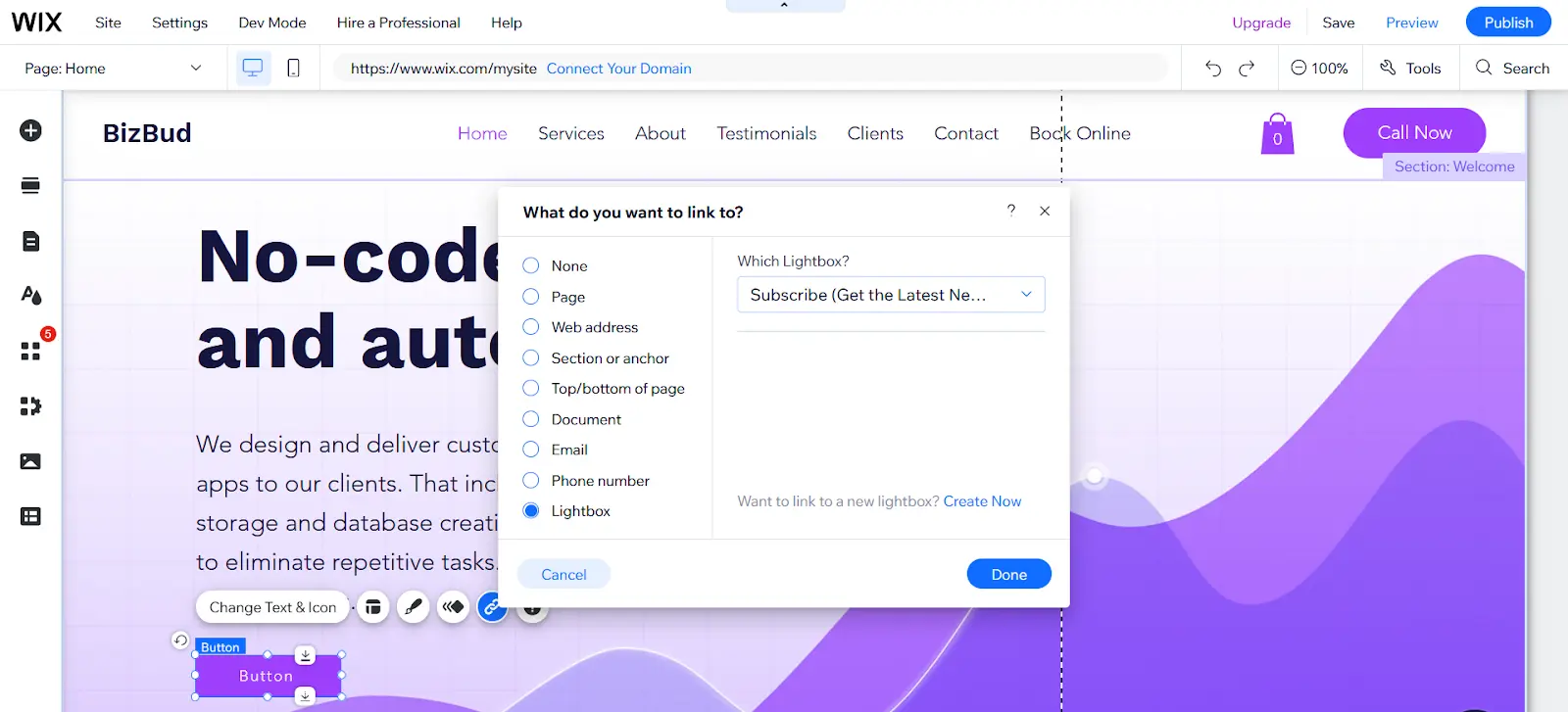
link icon , choose the Lightbox option, and select the lightbox page with your Fillout form from the dropdown list.Add custom code
If you have a premium Wix account and your site is on a custom domain, you can use Wix’s custom code feature to embed your form anywhere, without the limitations of the iframe embed.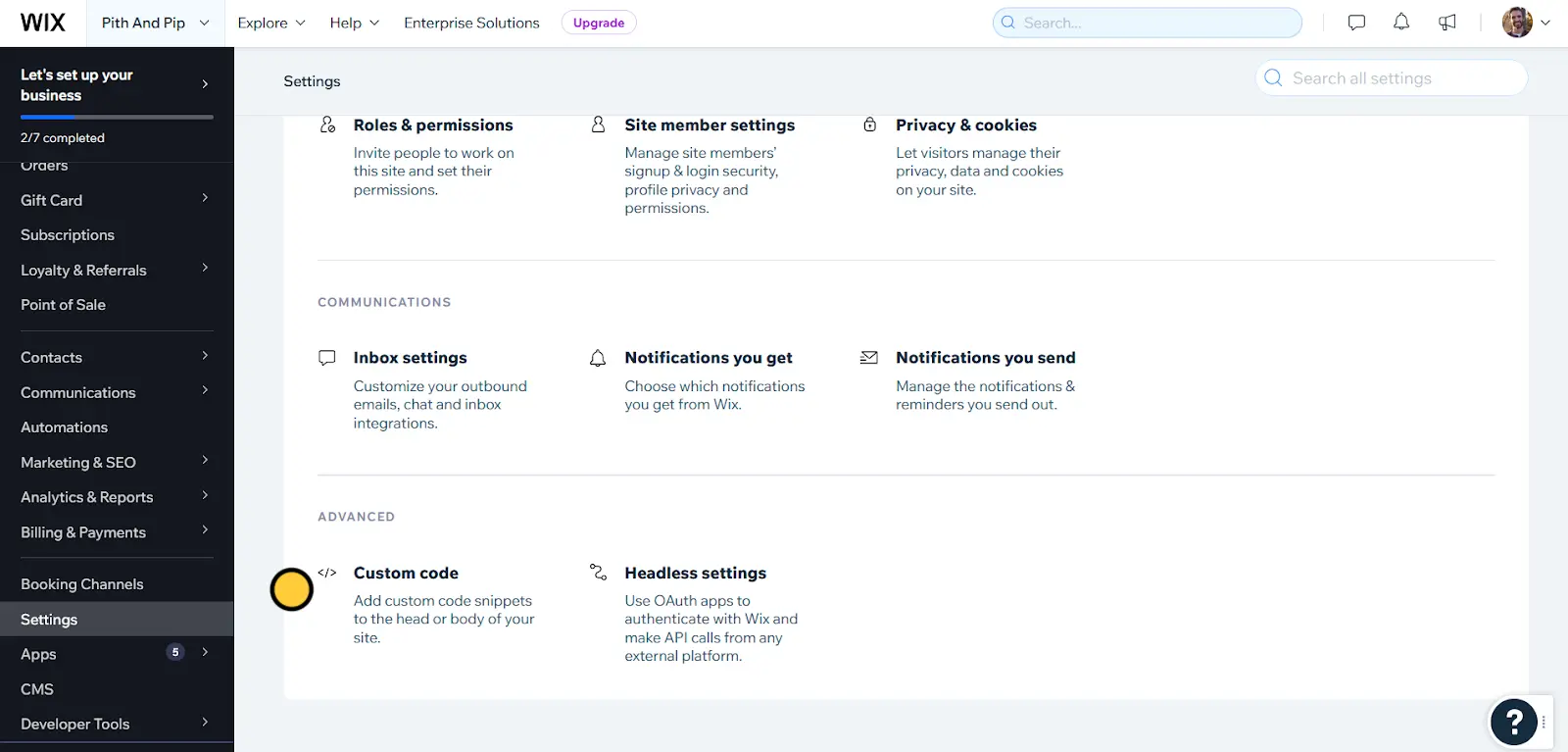
1
Create custom code
From your Wix account dashboard, open the 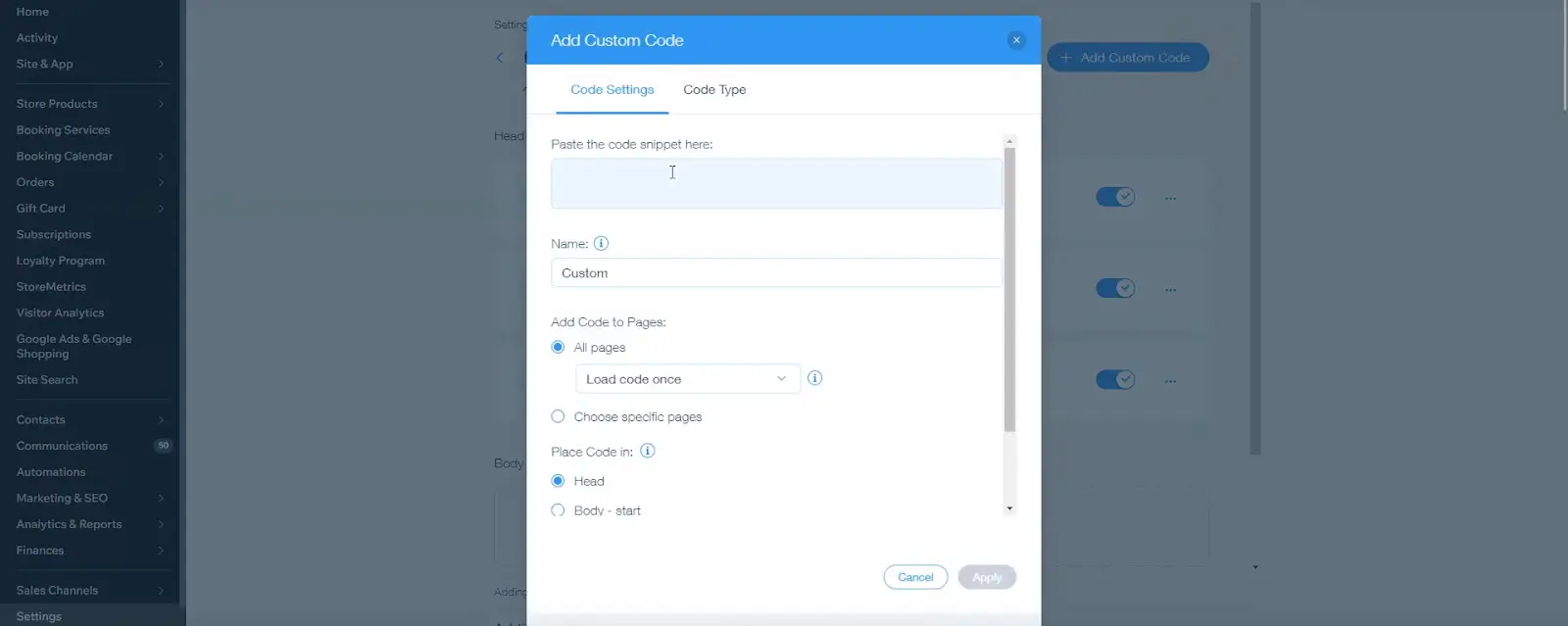
Settings menu from the left sidebar. Scroll to the bottom of the page and click Custom code.2
Paste the embed code
Paste a Fillout embed code into the text box. Choose which pages should use the code snippet and select Body - start from the Place Code in: list. Click
Apply and preview your site to confirm the changes.Related article
Share & embed
Share your form by link or embed it on your website.