

Overview
WordPress released form blocks, and their logic features and results tracking aren’t as powerful as those that come with a dedicated form builder. There are three basic ways to embed a Fillout form in WordPress:- Add a Fillout Form URL to an Embed block using the Visual editor
- Add a Fillout embed code to a Custom HTML block using the Visual editor
- Add a Fillout embed code to your page’s HTML code using the Code editor
Add a Fillout Form URL to an Embed block
1
Copy form link
First, 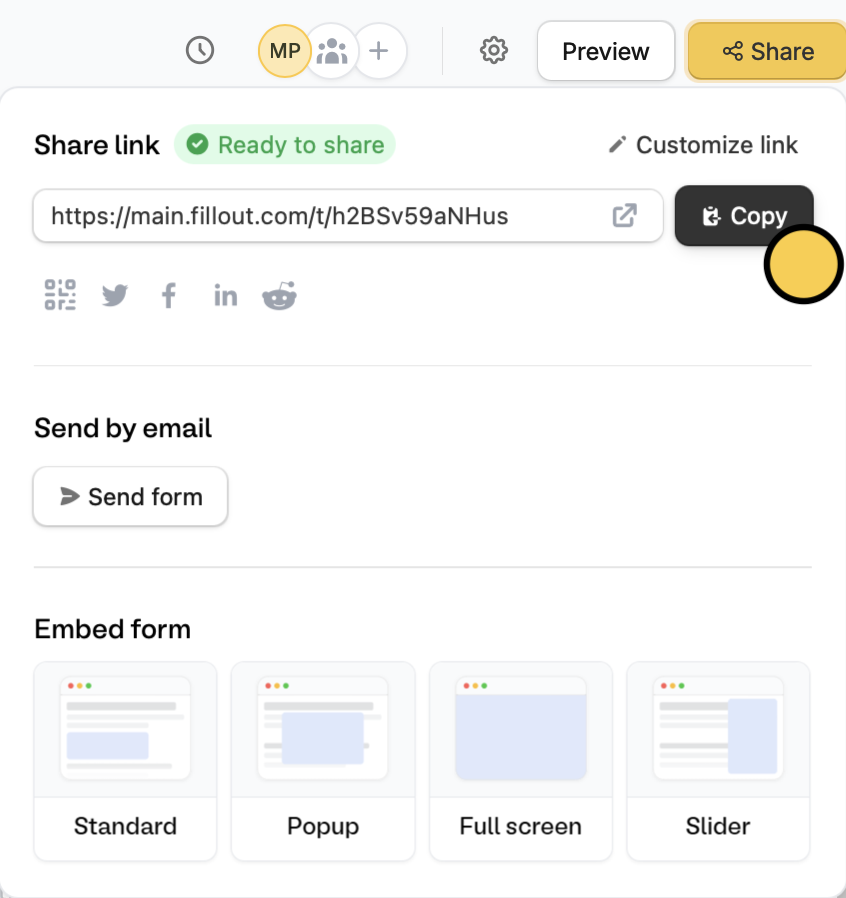
Publish your form and Copy the link. Alternatively, you can go to the Share tab.2
Add an embed block
In WordPress, open the page where you want to embed the form. Click 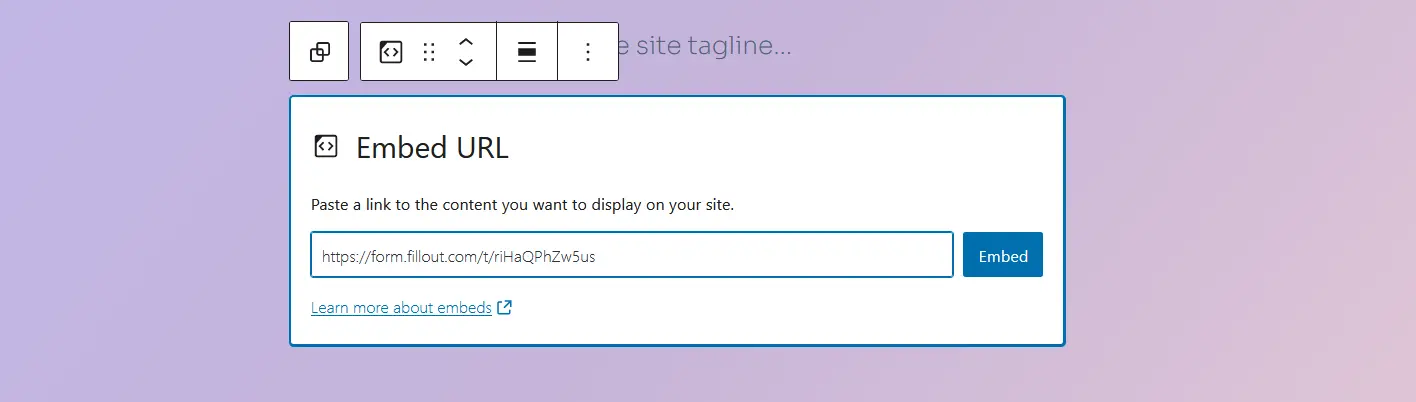
+ in the upper left corner of the page editor to open the Block Inserter in the left side (or press Ctrl + Alt + Y to insert a block below your cursor’s current position) and search for the Embed block.3
Paste form link
Paste the 
Form Link into the block’s text field and click Embed.Resizing your embed
Certain fields require a 600px minimum height to display properly. If your form includes any of the fields below, the embed cannot be resized below 600px.- Date, Date-Time, or Date Range Picker
- Color Picker
- Visible Captcha (V2)
- Submission Picker
- Record Picker
- Address
- Signature
- Subform
Add a Fillout embed code to a Custom HTML block (Recommended)
The best way to add a Fillout form to your WordPress website is by using one of the embed codes since it gives you more control over the layout and often looks better on the page than using theForm Link.
1
Choose an embed style
Start by clicking 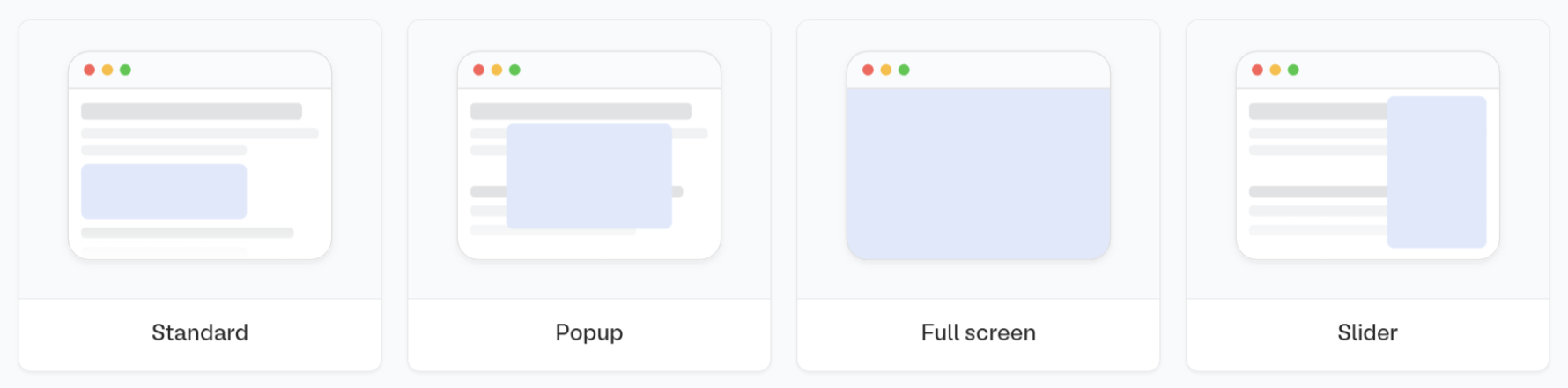
Publish in the upper right corner of the Fillout form editor. A popup will show up where you can pick an embed style.Share in the top middle or top right. Adjust your embed style settings to fit your use case. Then, Get the code.2
Add a custom HTML block
On the WordPress page where you want to embed the form, click 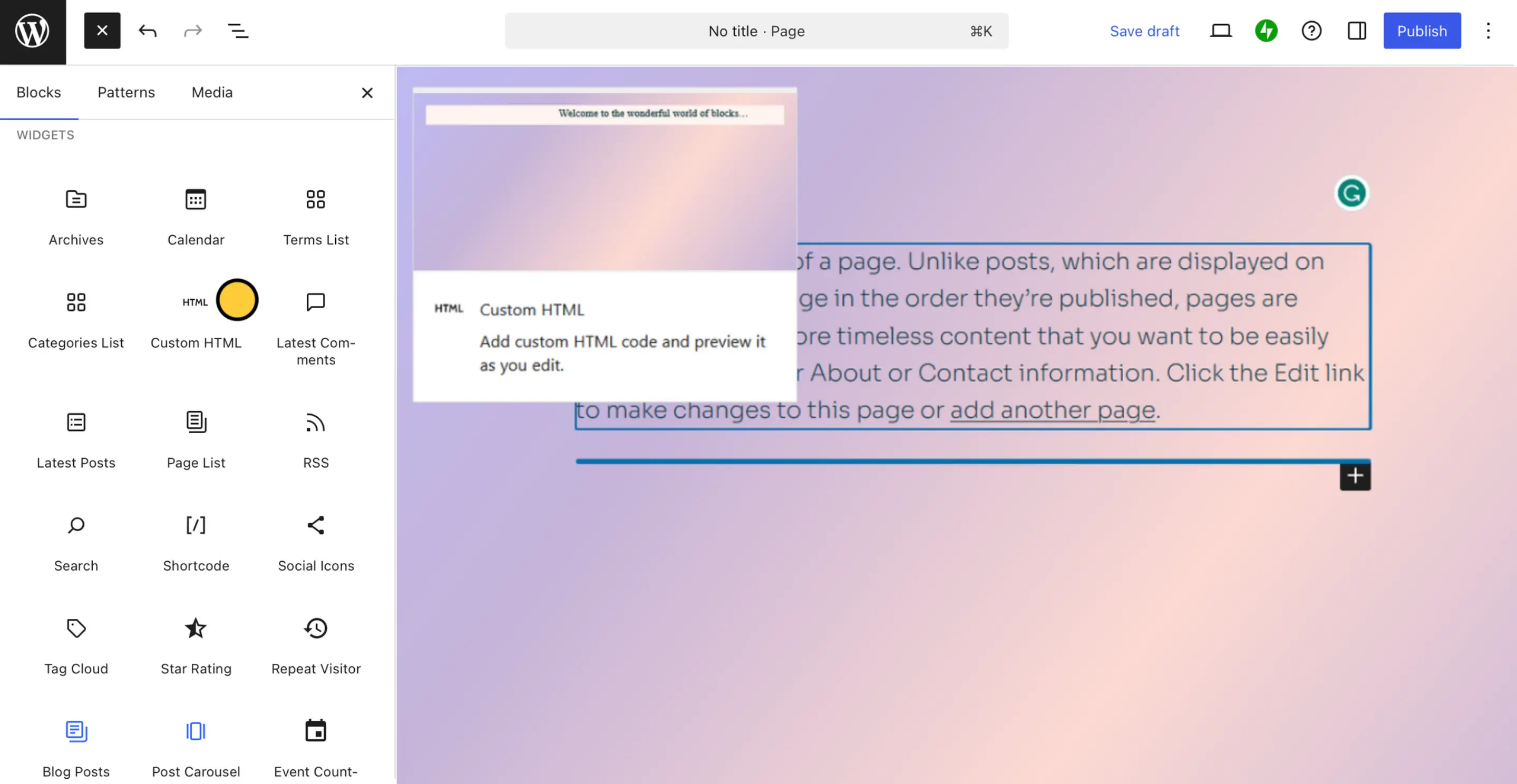
+ in the upper left corner of the page editor to open the Block Inserter in the left side (or press Ctrl + Alt + Y to insert a block below your cursor’s current position) and search for the Custom HTML block.3
Paste embed code
Paste the embed code from Fillout into the block’s text field and click 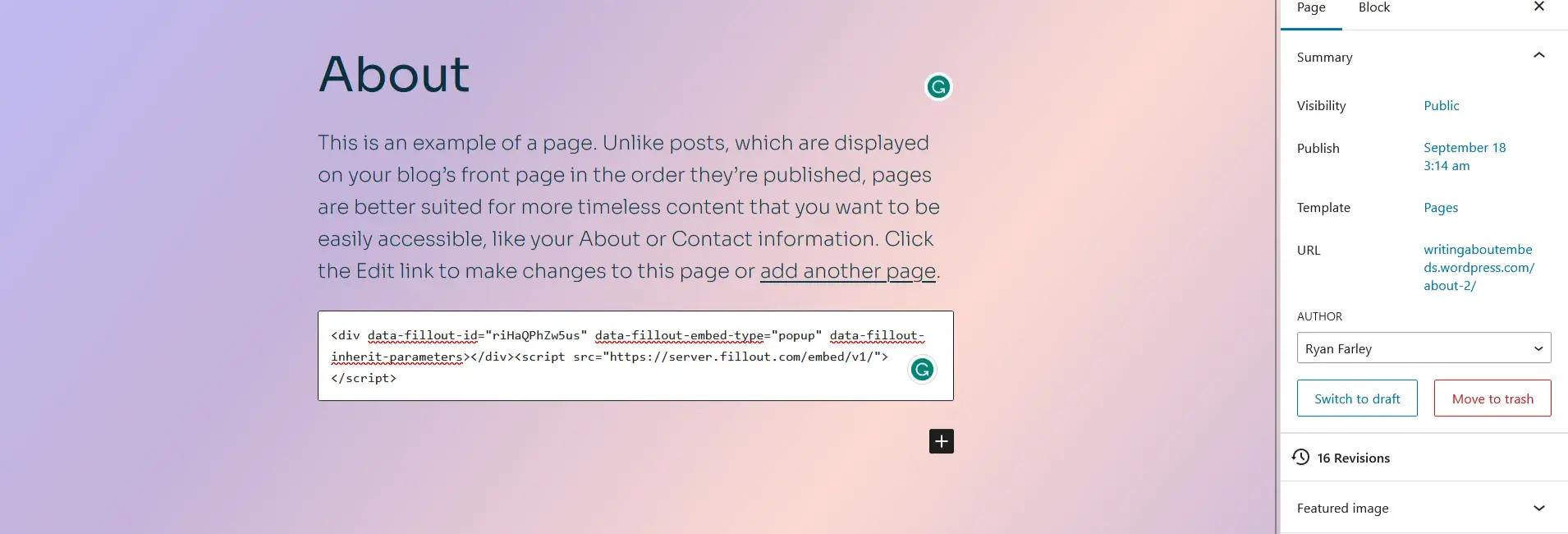
Update.Add a Fillout embed code to your page’s HTML code
If you want or need to see all of a page’s HTML before adding your embed code, you need to switch to WordPress’s Code editor. This will help you make granular adjustments or troubleshoot code or style-related issues.1
Choose an embed style
Start by clicking
Publish in the upper right corner of the Fillout form editor. A popup will show up where you can pick an embed style.Share in the top middle or top right. Adjust your embed style settings to fit your use case. Then, Get the code.2
Navigate to code editor
In WordPress, use the visual editor first to open the page where you want to embed your form. Then, click the 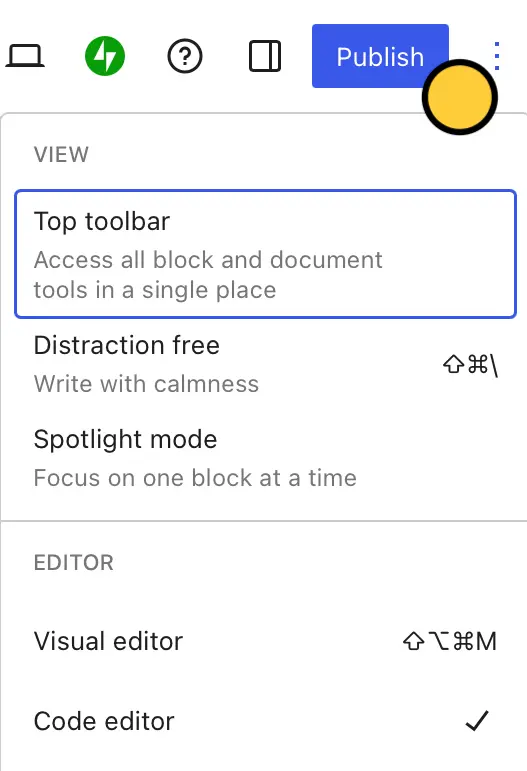
three dots in the upper right corner of the screen, followed by Code Editor (or press Ctrl+Shift+Alt+M from anywhere in the visual editor).3
Paste embed code
Paste the embed code from Fillout into the block’s text field and click 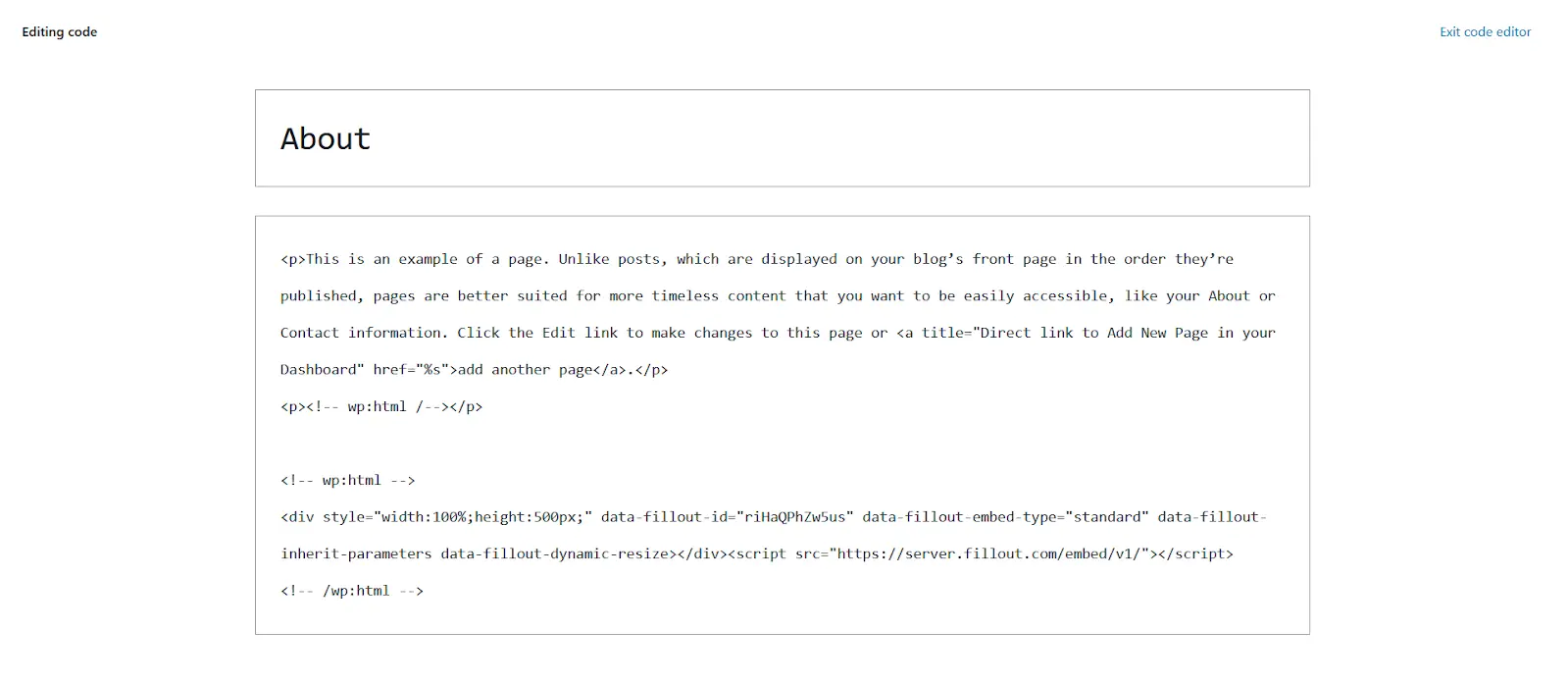
Update.Related article
Share & embed
Share your form by link or embed it on your website.