

What is run history?
Every time a workflow runs, Zite keeps a detailed log of what happened. You can see the inputs, outputs, and each step in between—making it easy to understand what’s working and debug what isn’t.Logs are retained for 90 days.
Viewing run history
Open any workflow and click the History tab to see all past runs.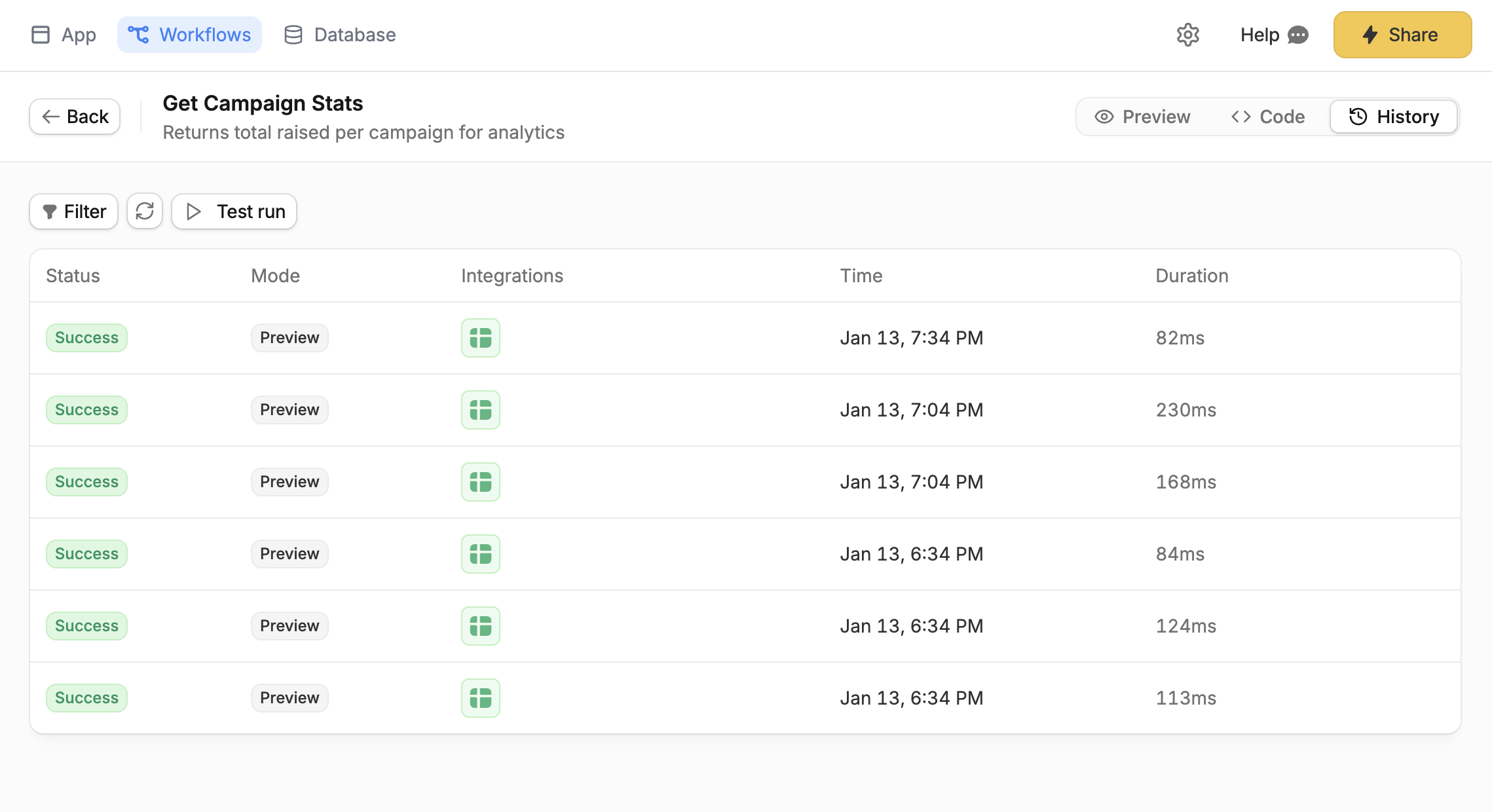
- Status – Whether it succeeded or failed
- Mode –
Live(production) orPreview(testing) - Time – When it ran
- Duration – How long it took
Understanding a run
When you open a run, you’ll see a step-by-step timeline of everything that happened: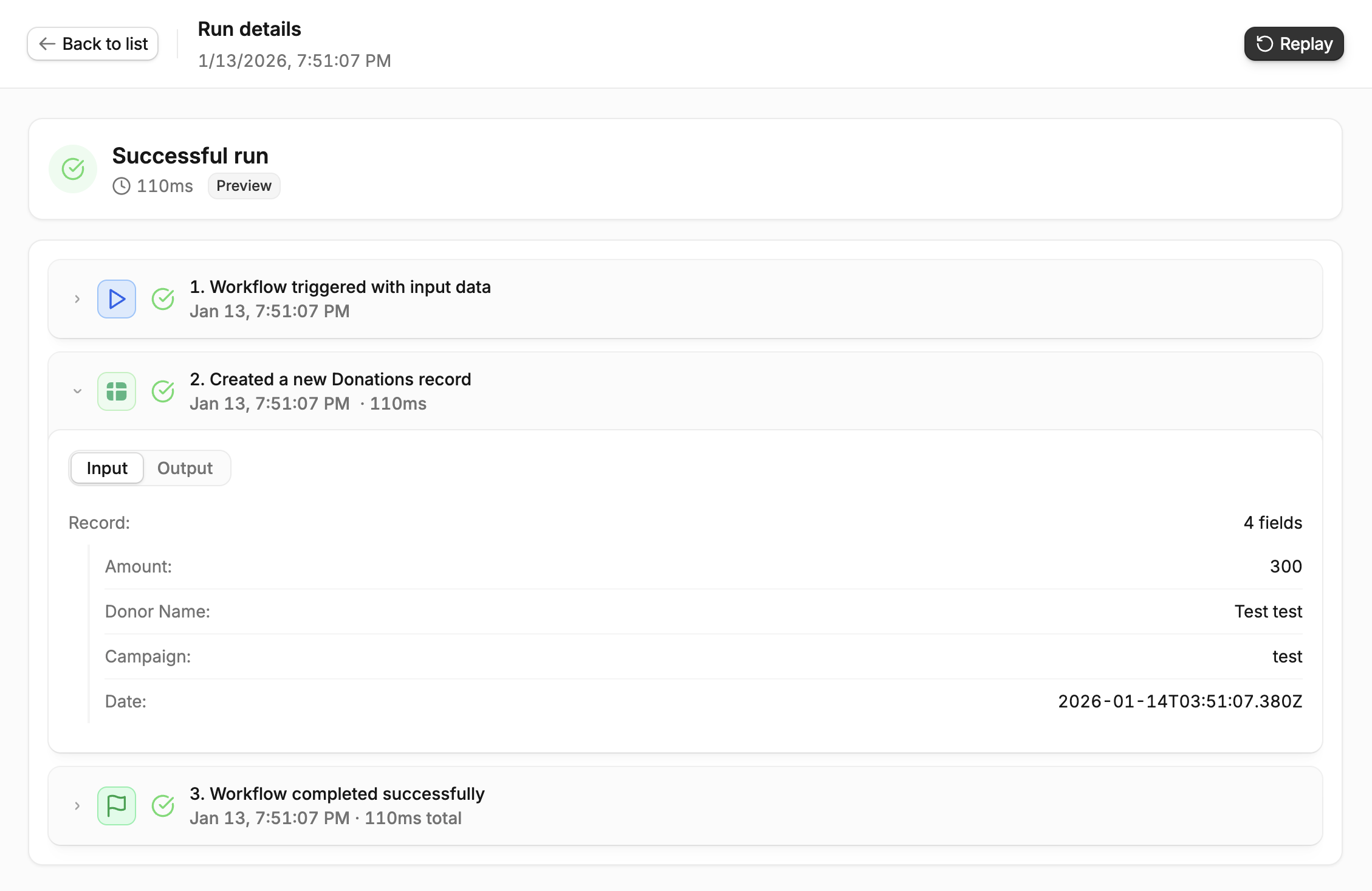
- Input – The data that triggered the workflow
- Database calls – Records that were read, created, or updated
- External requests – API calls to other services
- Output – The final result returned by the workflow
Filtering runs
Use the filters at the top to find specific runs:- Mode – Show only
LiveorPreviewruns - Status – Show only successful or failed runs
- Time range – Last hour, 24 hours, 7 days, etc.
Clear all to reset the filters.
Testing with custom inputs
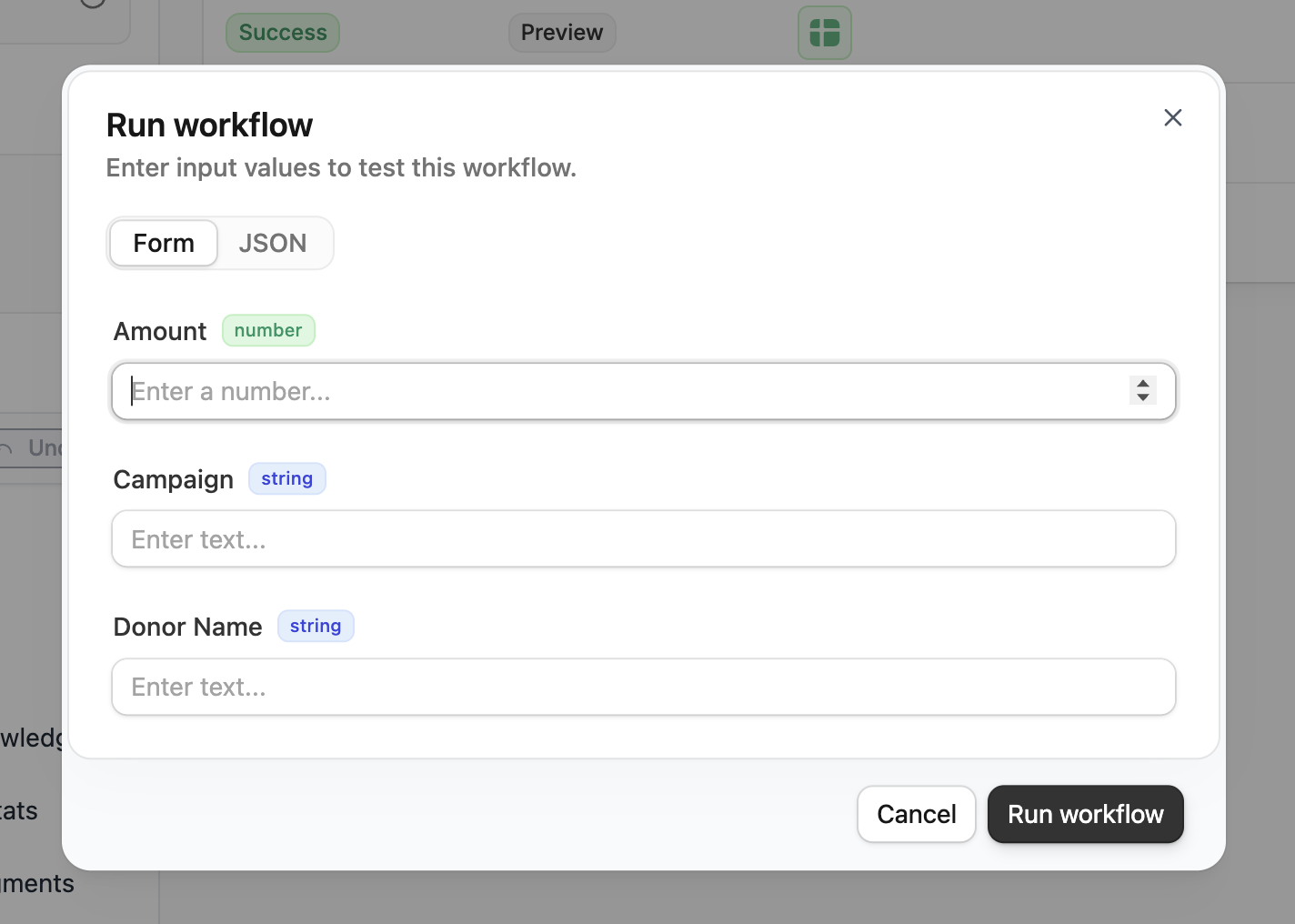
ClickTest run to manually run a workflow with your own inputs.
Replaying a run
Want to run a workflow again with the same inputs? ClickReplay from the run detail view. This creates a new run with identical input data—useful for testing a fix or reproducing an issue.
Debugging with AI
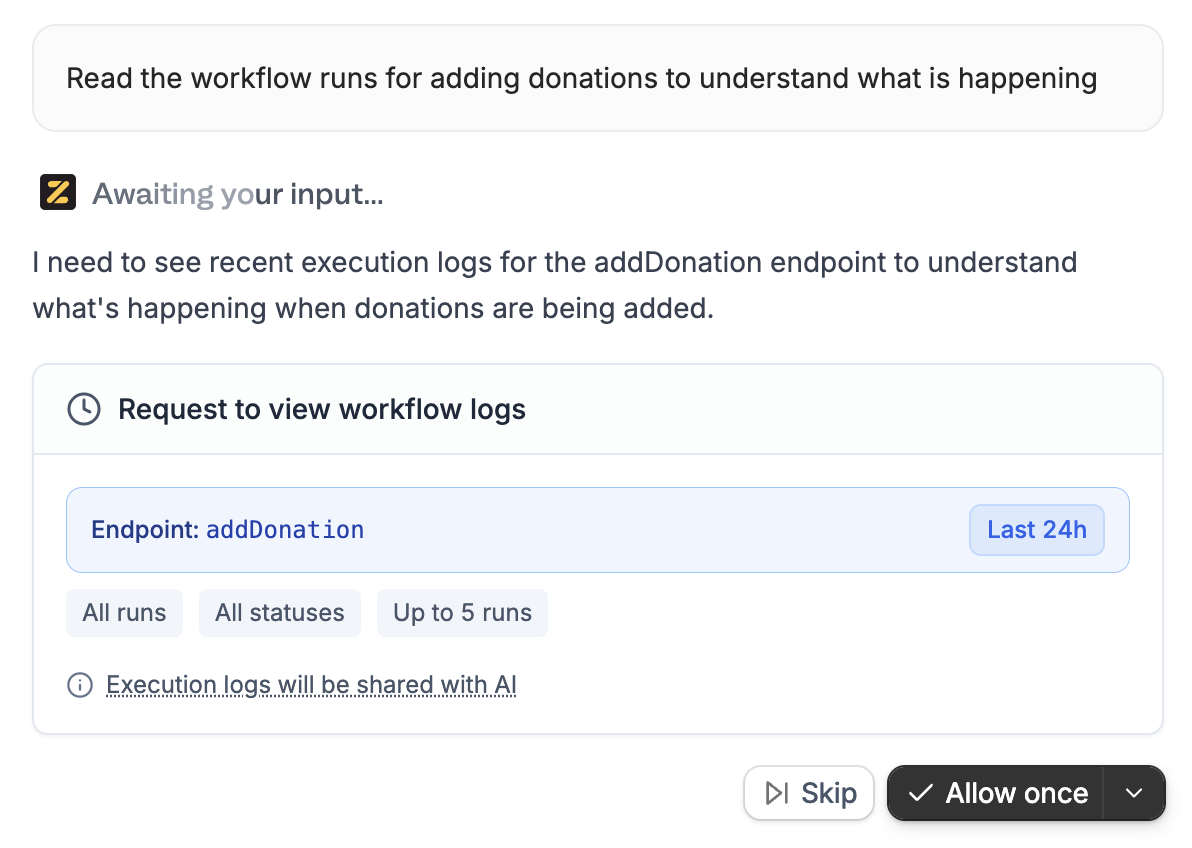
If something isn’t working, ask Zite for help. The AI can read your workflow logs to identify what went wrong. Try prompts like:- “Why is my workflow failing?”
- “What’s causing the error in my getOrders workflow?”
- “Help me debug this endpoint”
Allow once– Share logs for this request onlyAllow always– Let Zite read logs anytime (you can change this in settings)Skip– Don’t share logs
Need help? Contact our support team at support@fillout.com.
Related articles
Workflows
Learn how to create and manage workflows.
Connect to integrations
Link your accounts and use external services.
Troubleshooting
Tips for debugging and fixing common issues.