

How it works
When you create an account, you set up your own organization to create various forms. You can invite others to join as collaborators and control their access to specific workspaces with granular permissions.Each organization has its own subscription plan. Creating a new one won’t share or carry over a subscription from another.
How to create another organization
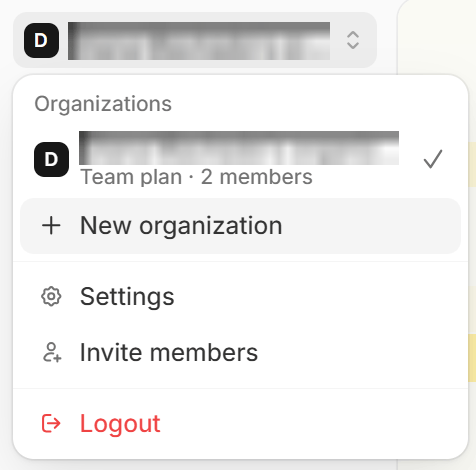
In the upper left corner, click yourorganization name followed by New organization.
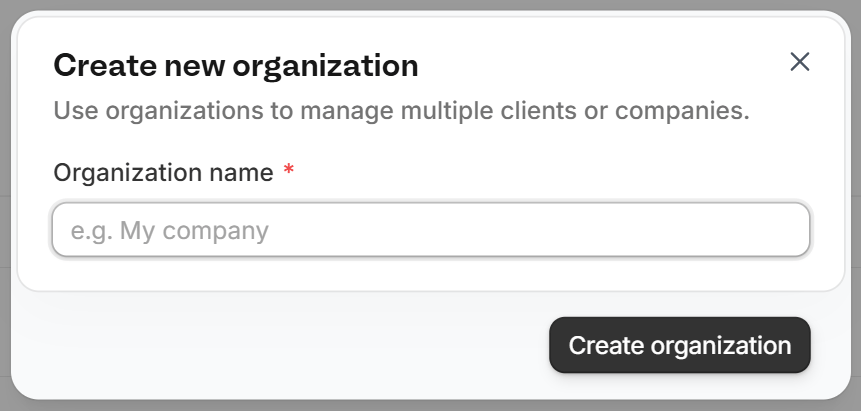
Create organization.
Identifying your current organization
To check which organization you’re currently in, look at the organization name in the upper left corner of your dashboard. Click it to see your plan, the number of members, and your other organizations. If you’re inside a workspace, click the workspace name at the top of the sidebar and selectAll workspaces to get back to your dashboard.
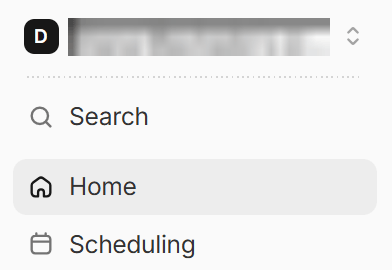
If you can’t find forms, apps, and databases, make sure you’re in the correct organization.
Leave an organization
1
Go to account settings
From the dashboard, click your
organization name in the upper left corner followed by Settings in the dropdown.If you decide to come back to Fillout, you can create a new account using the same email address you used before.
2
Leave organization
Click 
My account in the left-hand panel. Scroll down to Leave organization. This will automatically remove you from your organization.Delete organization
Leaving an organization only removes your access. If you want to permanently delete the entire organization—including all forms, apps, databases, and other data—see this guide.Related articles
Invite team members to your forms
View results, and edit forms with free seats.
Workspaces
Organize forms in folders and control user access.
Import and export forms
Transfer between different accounts.