> ## Documentation Index
> Fetch the complete documentation index at: https://fillout.com/help/llms.txt
> Use this file to discover all available pages before exploring further.
# Voice recording
> Request audio recordings from respondents in your forms, and automatically transcribe them with our speech-to-text feature to speed up the form-filling process.
export const SupportBanner = () => {
const titleId = React.useId();
return ;
};
## How to add a voice recording field
On the left-hand panel of your form, click `Voice recording`. Then, type your question or instruction.
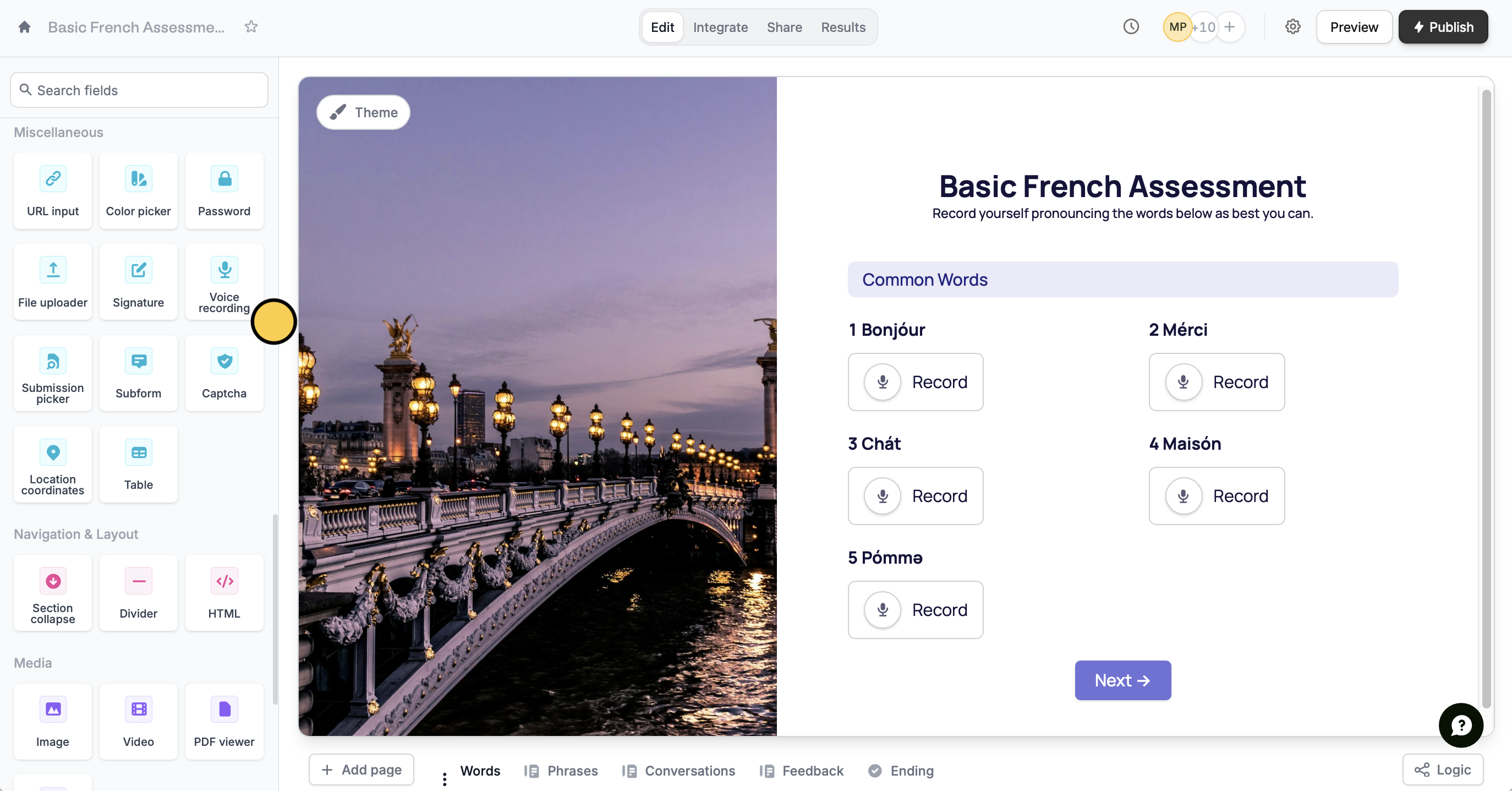 That's it! `Publish` your form and share the link to your respondents.
### Upload limits
Voice recording limits match your plan’s [file upload allowance](https://www.fillout.com/help/file-upload#upload-limits), as long as usage is within our [**fair use policy**](https://www.fillout.com/help/fair-use-policy).
| | **Free** | **Starter** | **Pro** | **Business** | Enterprise | **Team** |
| ------------------------------ | ----------- | ----------- | ----------- | ------------ | ---------- | ---------- |
| Max recording size per upload | Up to 20 MB | Up to 20 MB | Up to 20 MB | Up to 1 GB | Up to 5 GB | Up to 1 GB |
| No. of file recordings allowed | Unlimited | Unlimited | Unlimited | Unlimited | Unlimited | Unlimited |
### Why There’s No Fixed Time Limit
The **length of a recording in minutes is variable** because the final file size depends on multiple factors including but not limited to:
* Audio quality – higher quality (higher bitrate, sample rate) produces larger files for the same duration
* background noise & complexity – Recordings with more complex sounds can result in slightly larger file sizes than simple voices.
Because of these variables, we can’t define a universal “minutes limit,” only the maximum file size for each plan.
## Enable auto-transcribe
Click the of your question to open the right-hand panel. Under **AI Transcription**, toggle the `Enable transcription` switch.
That's it! `Publish` your form and share the link to your respondents.
### Upload limits
Voice recording limits match your plan’s [file upload allowance](https://www.fillout.com/help/file-upload#upload-limits), as long as usage is within our [**fair use policy**](https://www.fillout.com/help/fair-use-policy).
| | **Free** | **Starter** | **Pro** | **Business** | Enterprise | **Team** |
| ------------------------------ | ----------- | ----------- | ----------- | ------------ | ---------- | ---------- |
| Max recording size per upload | Up to 20 MB | Up to 20 MB | Up to 20 MB | Up to 1 GB | Up to 5 GB | Up to 1 GB |
| No. of file recordings allowed | Unlimited | Unlimited | Unlimited | Unlimited | Unlimited | Unlimited |
### Why There’s No Fixed Time Limit
The **length of a recording in minutes is variable** because the final file size depends on multiple factors including but not limited to:
* Audio quality – higher quality (higher bitrate, sample rate) produces larger files for the same duration
* background noise & complexity – Recordings with more complex sounds can result in slightly larger file sizes than simple voices.
Because of these variables, we can’t define a universal “minutes limit,” only the maximum file size for each plan.
## Enable auto-transcribe
Click the of your question to open the right-hand panel. Under **AI Transcription**, toggle the `Enable transcription` switch.
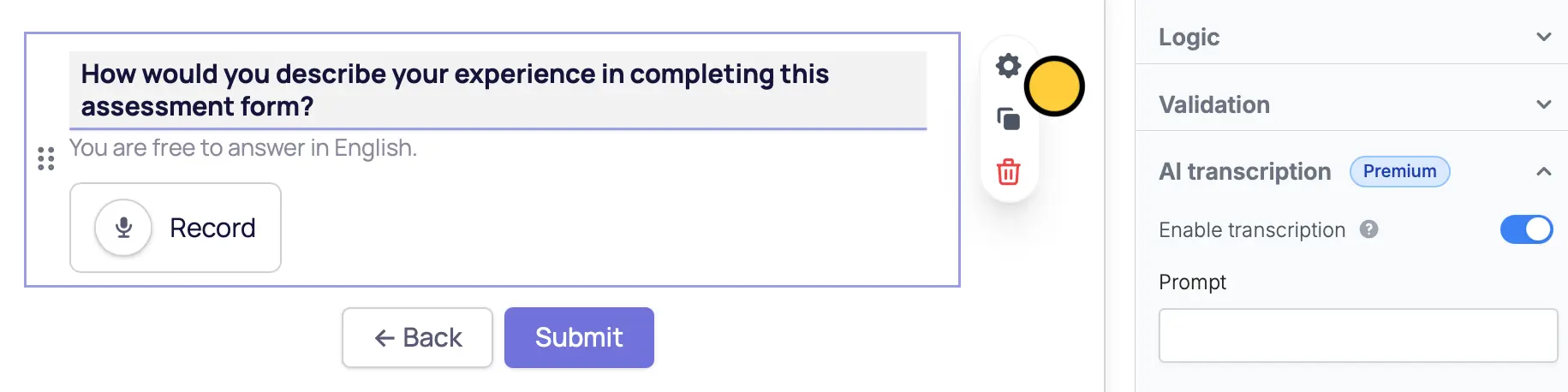 This feature is available to **Business** and **Enterprise** users via OpenAI. For more details on pricing, click [here](https://www.fillout.com/pricing).
## Referencing voice recordings
Both audio files and written transcriptions can be used in your preferred [integration](/help/integrations) when mapping fields. You can also set up [logic](/help/page-logic) to show only relevant pages based on your respondent's answers.
Respondents can listen to their voice recordings while filling out the form and view transcripts. They can also pause, delete, or make new recordings, and edit transcripts if needed.
## Mapping to Airtable, Notion and other databases
Follow the [step above](/help/voice-recording#how-to-add-a-voice-recording-field).
Click `Integrate` in top menu and choose [Airtable](https://www.fillout.com/help/airtable), [Notion](https://www.fillout.com/help/notion) or another [database](https://www.fillout.com/help/integrations#spreadsheet-%26-database).
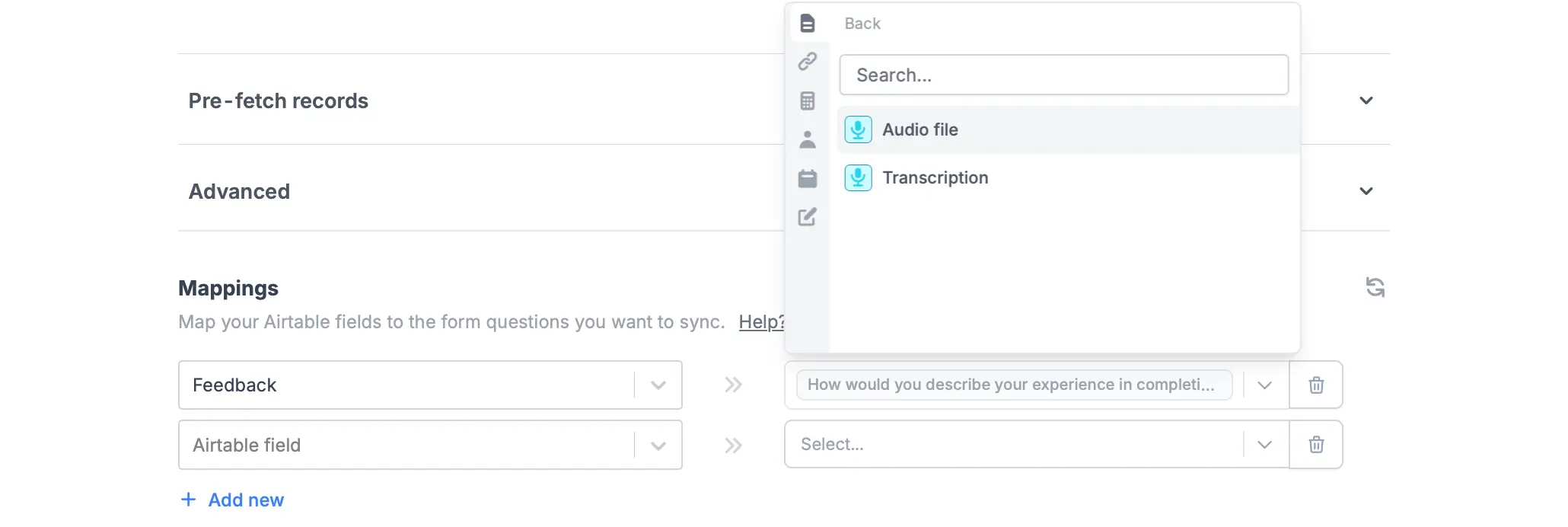
Under [**Mappings**](https://www.fillout.com/help/additional-integration-mappings), reference your integration column fields from the left to Fillout form fields in the right. Look for your voice recording question, and choose between **Audio file** or **Transcription**.
This feature is available to **Business** and **Enterprise** users via OpenAI. For more details on pricing, click [here](https://www.fillout.com/pricing).
## Referencing voice recordings
Both audio files and written transcriptions can be used in your preferred [integration](/help/integrations) when mapping fields. You can also set up [logic](/help/page-logic) to show only relevant pages based on your respondent's answers.
Respondents can listen to their voice recordings while filling out the form and view transcripts. They can also pause, delete, or make new recordings, and edit transcripts if needed.
## Mapping to Airtable, Notion and other databases
Follow the [step above](/help/voice-recording#how-to-add-a-voice-recording-field).
Click `Integrate` in top menu and choose [Airtable](https://www.fillout.com/help/airtable), [Notion](https://www.fillout.com/help/notion) or another [database](https://www.fillout.com/help/integrations#spreadsheet-%26-database).
Under [**Mappings**](https://www.fillout.com/help/additional-integration-mappings), reference your integration column fields from the left to Fillout form fields in the right. Look for your voice recording question, and choose between **Audio file** or **Transcription**.