> ## Documentation Index
> Fetch the complete documentation index at: https://fillout.com/help/llms.txt
> Use this file to discover all available pages before exploring further.

# Video

> Add a video anywhere in your form from YouTube, Vimeo or any video platform.

export const SupportBanner = () => {
  const titleId = React.useId();
  return <div className="support-banner" role="region" aria-labelledby={titleId}>
      <span className="support-banner__ring support-banner__ring--outer" aria-hidden="true" />
      <span className="support-banner__ring support-banner__ring--middle" aria-hidden="true" />
      <span className="support-banner__ring support-banner__ring--inner" aria-hidden="true" />
      <span className="support-banner__ring support-banner__ring--center" aria-hidden="true" />

      <div className="support-banner__content">
        <div className="support-banner__title" id={titleId} role="heading" aria-level="2">Still have questions?</div>

        <div className="support-banner__copy">
          <span className="support-banner__line">Our team is happy to help. Start a live chat using the</span>
          <span className="support-banner__line">
            chat bubble <span className="support-banner__chat-icon" aria-hidden="true" /> in the bottom right, or email us at
          </span>
          <span className="support-banner__line">
            <a href="mailto:support@fillout.com">support{'@'}fillout.com</a>
          </span>
        </div>

        <a className="support-banner__cta" href="mailto:support@fillout.com">Contact us</a>
      </div>
    </div>;
};

## How to add a video

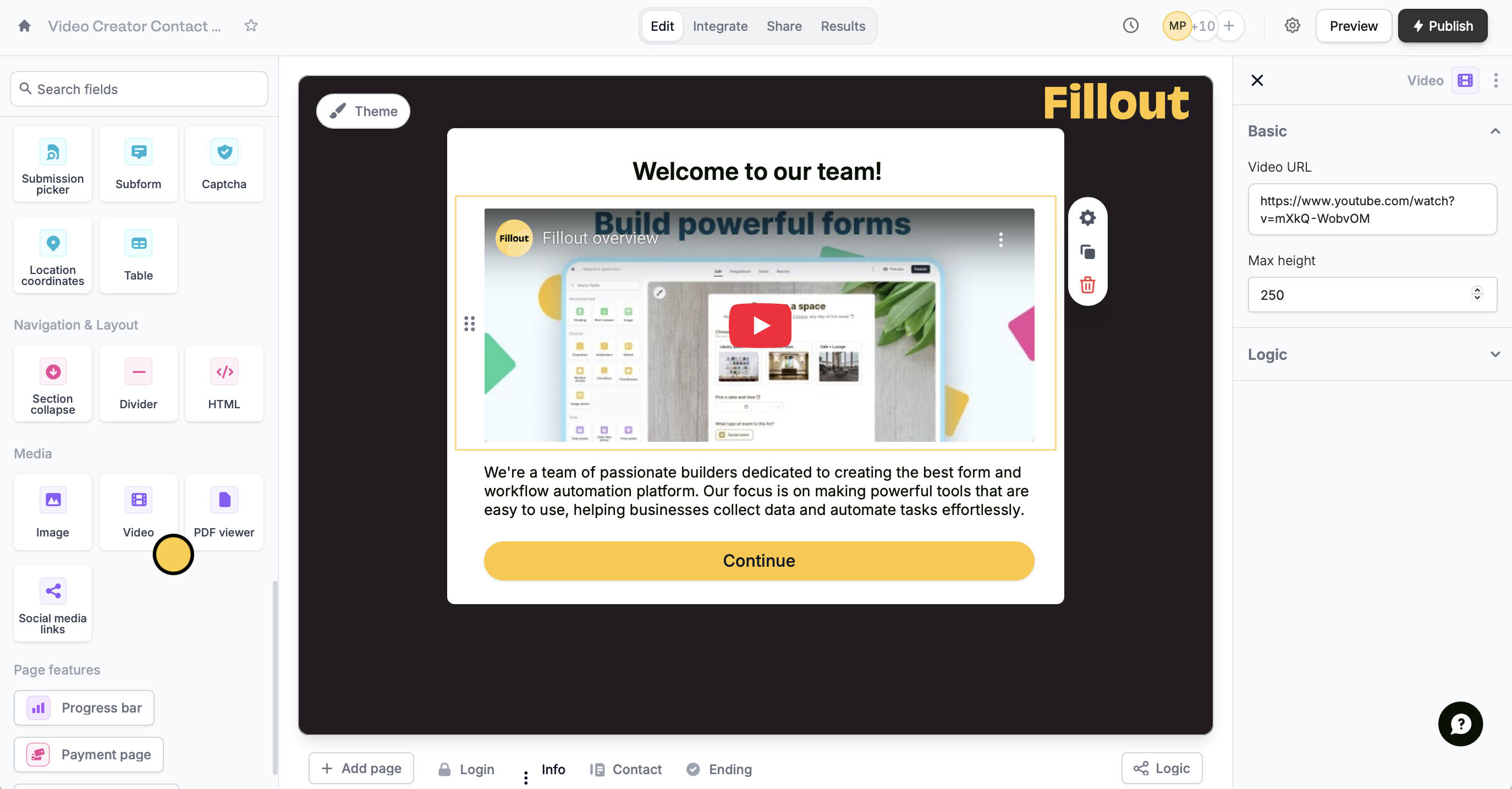
First, drag the `Video` field onto your form.
<img src="https://mintcdn.com/fillout-005a867b/Gd2PHoon2L9H40Pi/images/Screenshot2025-10-06at6.18.59PM.png?fit=max&auto=format&n=Gd2PHoon2L9H40Pi&q=85&s=ab3b7c7ca2ac792c5c148c6166d9befa" alt="Screenshot 2025-10-06 at 6.18.59 PM.png" width="2749" height="1434" data-path="images/Screenshot2025-10-06at6.18.59PM.png" />

Click <Icon icon="gear-complex" iconType="solid" /> to open the right-hand panel. Paste the **Video URL** of the video you want to display. Adjust the **Max height** as needed.

## Let respondents upload a video

To collect video submissions from your respondents, simply click the `File uploader` field in the left-hand panel. Check out our quick guide [here](/help/file-upload).

## Related article

<CardGroup cols={3}>
  <Card title="File uploads" icon="upload" iconType="regular" color="#FFC738" href="/help/file-upload">
    Collect files and restrict to certain file types or size.
  </Card>
</CardGroup>

<SupportBanner />
