> ## Documentation Index
> Fetch the complete documentation index at: https://fillout.com/help/llms.txt
> Use this file to discover all available pages before exploring further.

# Section collapse

> Group questions together and show or hide many questions at a time.

export const SupportBanner = () => {
  const titleId = React.useId();
  return <div className="support-banner" role="region" aria-labelledby={titleId}>
      <span className="support-banner__ring support-banner__ring--outer" aria-hidden="true" />
      <span className="support-banner__ring support-banner__ring--middle" aria-hidden="true" />
      <span className="support-banner__ring support-banner__ring--inner" aria-hidden="true" />
      <span className="support-banner__ring support-banner__ring--center" aria-hidden="true" />

      <div className="support-banner__content">
        <div className="support-banner__title" id={titleId} role="heading" aria-level="2">Still have questions?</div>

        <div className="support-banner__copy">
          <span className="support-banner__line">Our team is happy to help. Start a live chat using the</span>
          <span className="support-banner__line">
            chat bubble <span className="support-banner__chat-icon" aria-hidden="true" /> in the bottom right, or email us at
          </span>
          <span className="support-banner__line">
            <a href="mailto:support@fillout.com">support{'@'}fillout.com</a>
          </span>
        </div>

        <a className="support-banner__cta" href="mailto:support@fillout.com">Contact us</a>
      </div>
    </div>;
};

## How to group questions

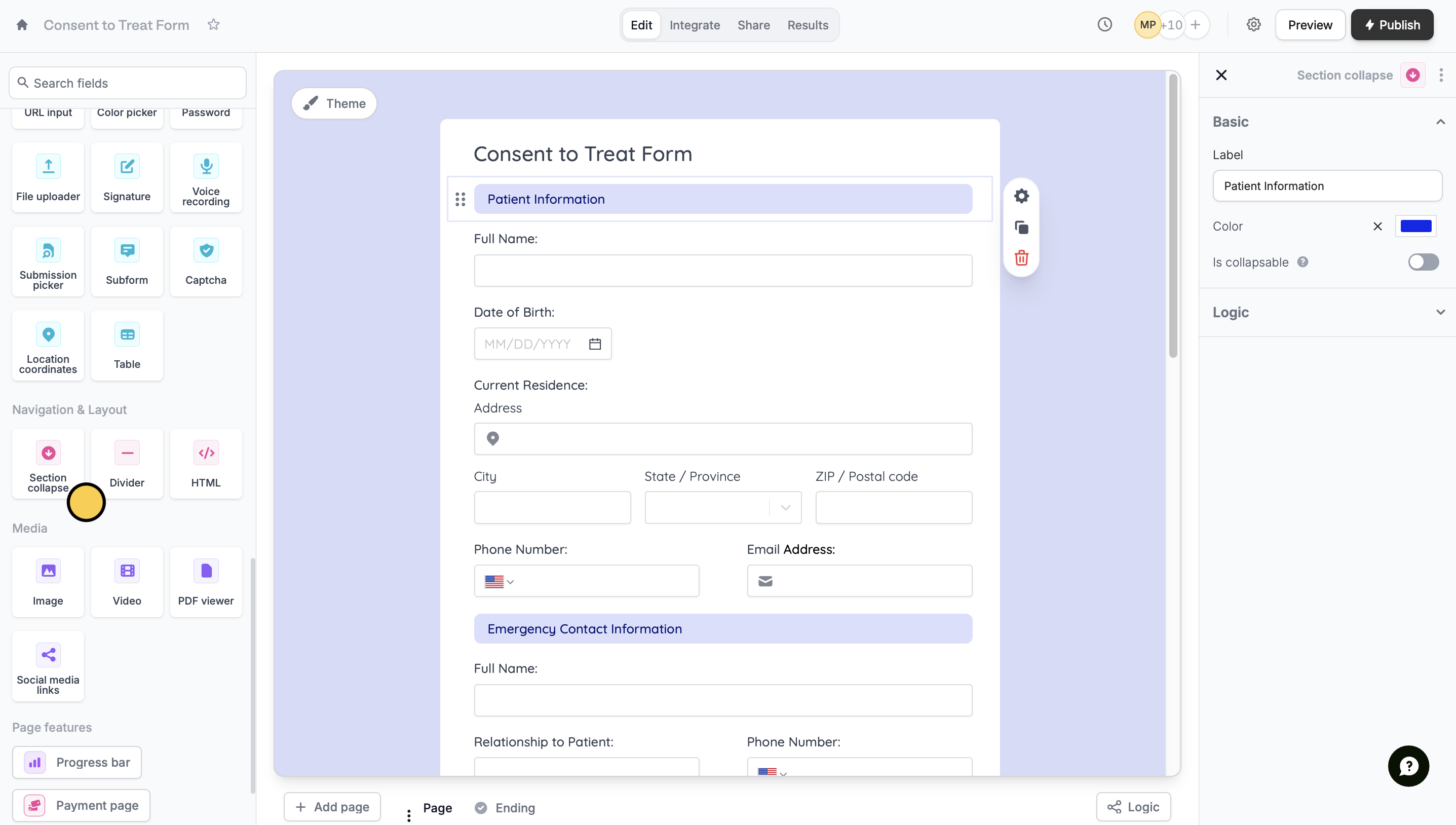
Simply drag the `Section collapse` field onto your form.
<img src="https://mintcdn.com/fillout-005a867b/aAlkwN1aTz2LB7UY/images/Screenshot2025-10-06at4.50.20PM.png?fit=max&auto=format&n=aAlkwN1aTz2LB7UY&q=85&s=cb841d42566c260581bc46df35751f30" alt="Screenshot 2025-10-06 at 4.50.20 PM.png" width="2874" height="1628" data-path="images/Screenshot2025-10-06at4.50.20PM.png" />

To end a section and start a new one on the same page, add another `Section collapse` field.

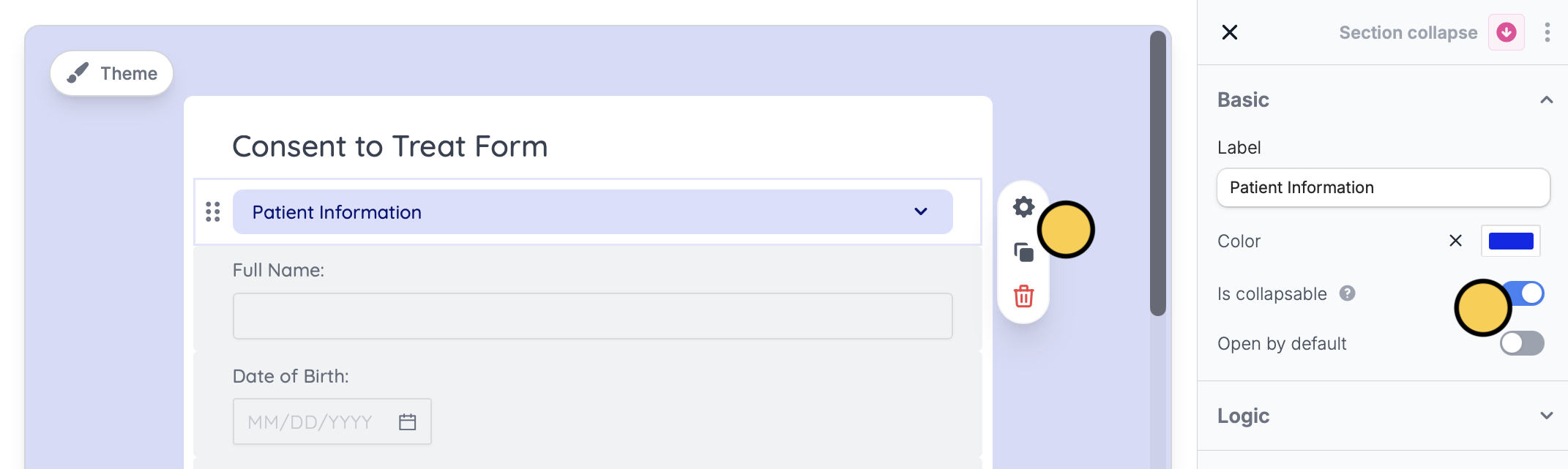
You can also enable `Is collapsable` to allow the user to open or close a particular section. Click the field followed by its <Icon icon="gear-complex" iconType="solid" /> to toggle the switch on the right-hand panel.
<img src="https://mintcdn.com/fillout-005a867b/7OK1PTSnbejUKQkl/images/Screenshot2026-01-12at3.56.36PM.png?fit=max&auto=format&n=7OK1PTSnbejUKQkl&q=85&s=40ede9b57102d16a32e19356ca007037" alt="Screenshot 2026 01 12 At 3 56 36 PM" title="Screenshot 2026 01 12 At 3 56 36 PM" style={{ width:"78%" }} width="2142" height="641" data-path="images/Screenshot2026-01-12at3.56.36PM.png" />

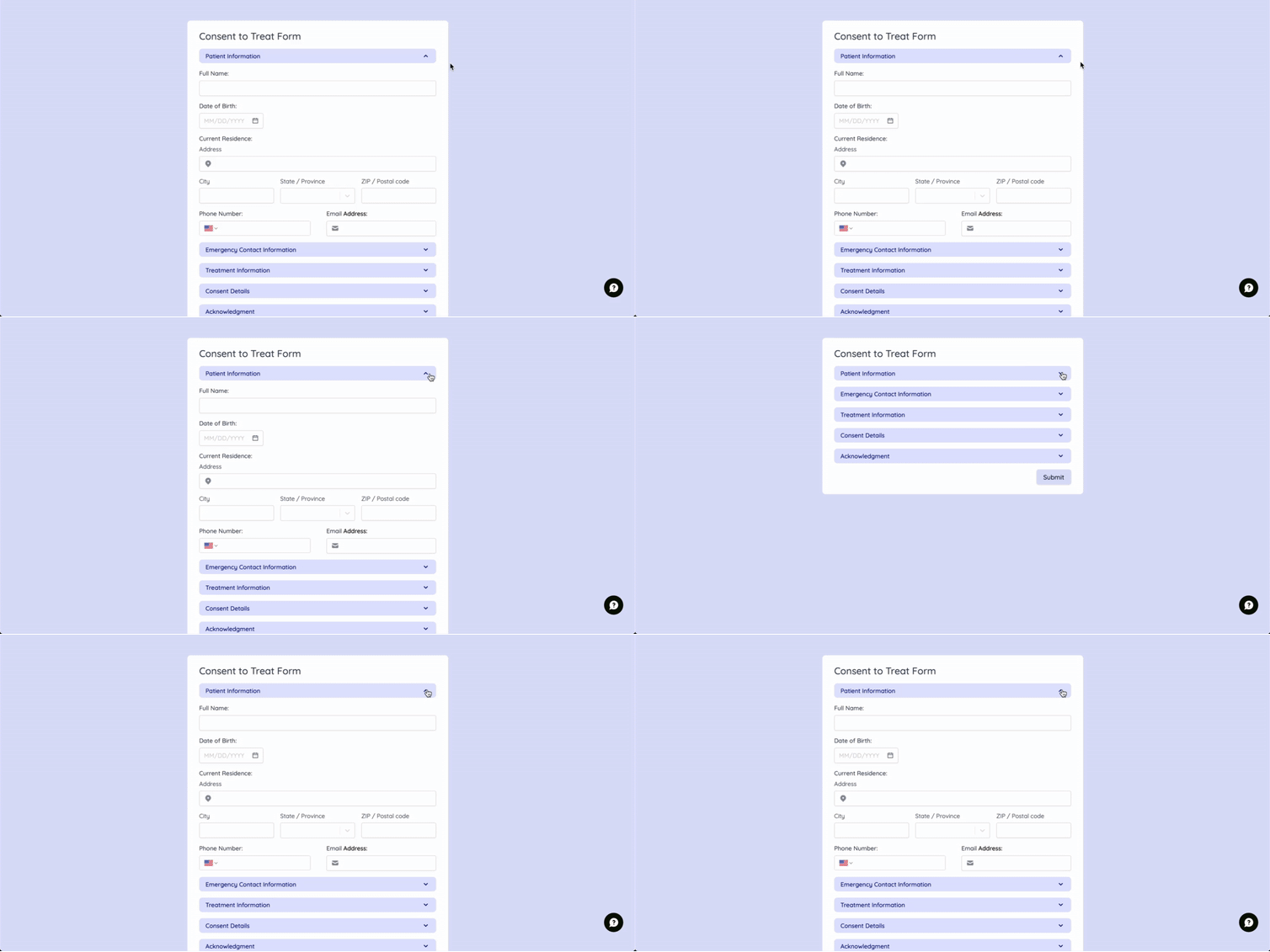
This is what it would look like from your respondents' point of view.
<img src="https://mintcdn.com/fillout-005a867b/CKiuqsV2M8JgNFaD/images/images/image-27.gif?s=b99744be769edb70c280350dfc0ae0c0" alt="Screenshot of the Form designer tab of a form" width="754" height="377" data-path="images/images/image-27.gif" />

## Conditionally hide many questions at once

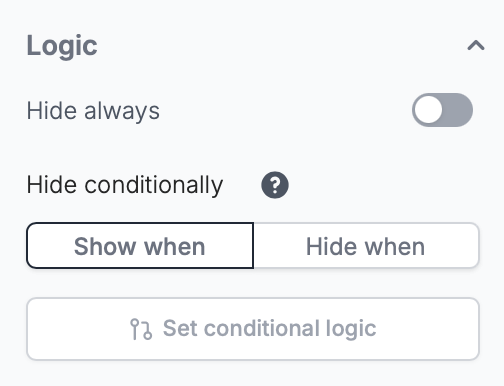
If you set [conditional hiding](/help/conditional-hiding) logic on a section, all the questions in that section will be shown/hidden based on that logic. This can be done on the right-hand panel.
<img src="https://mintcdn.com/fillout-005a867b/aAlkwN1aTz2LB7UY/images/Screenshot2025-10-06at4.50.33PM.png?fit=max&auto=format&n=aAlkwN1aTz2LB7UY&q=85&s=5a133a1dbe83d3f1c74938bb9b560d52" alt="Screenshot 2025-10-06 at 4.50.33 PM.png" title="Screenshot 2025-10-06 at 4.50.33 PM.png" style={{ width:"41%" }} width="504" height="386" data-path="images/Screenshot2025-10-06at4.50.33PM.png" />

## Related article

<CardGroup cols={3}>
  <Card title="Hide fields" icon="eye-slash" iconType="regular" color="#FFC738" href="/help/conditional-hiding">
    Hide or show fields based on answers, URL parameters or data.
  </Card>
</CardGroup>

<SupportBanner />
