> ## Documentation Index
> Fetch the complete documentation index at: https://fillout.com/help/llms.txt
> Use this file to discover all available pages before exploring further.
# Reorder with drag and drop on Fillout
> Easily reorder form pages and field options for multiple choice, dropdown, checkboxes & picture choice questions with drag and drop.
export const SupportBanner = () => {
const titleId = React.useId();
return ;
};
## How to reorder pages
Simply drag pages in the bottom toolbar and position them in the order you would like the form pages to be shown.
 You cannot put any page before a cover page and after an ending page. Reordering is also disabled if you have added [branching](/help/page-logic) logic to your form.
## How to reorder questions or field options
This can be applied to **Multiple choice**, **Dropdown**, **Checkboxes**, and **Picture choice** field types.
**Multiple choice**
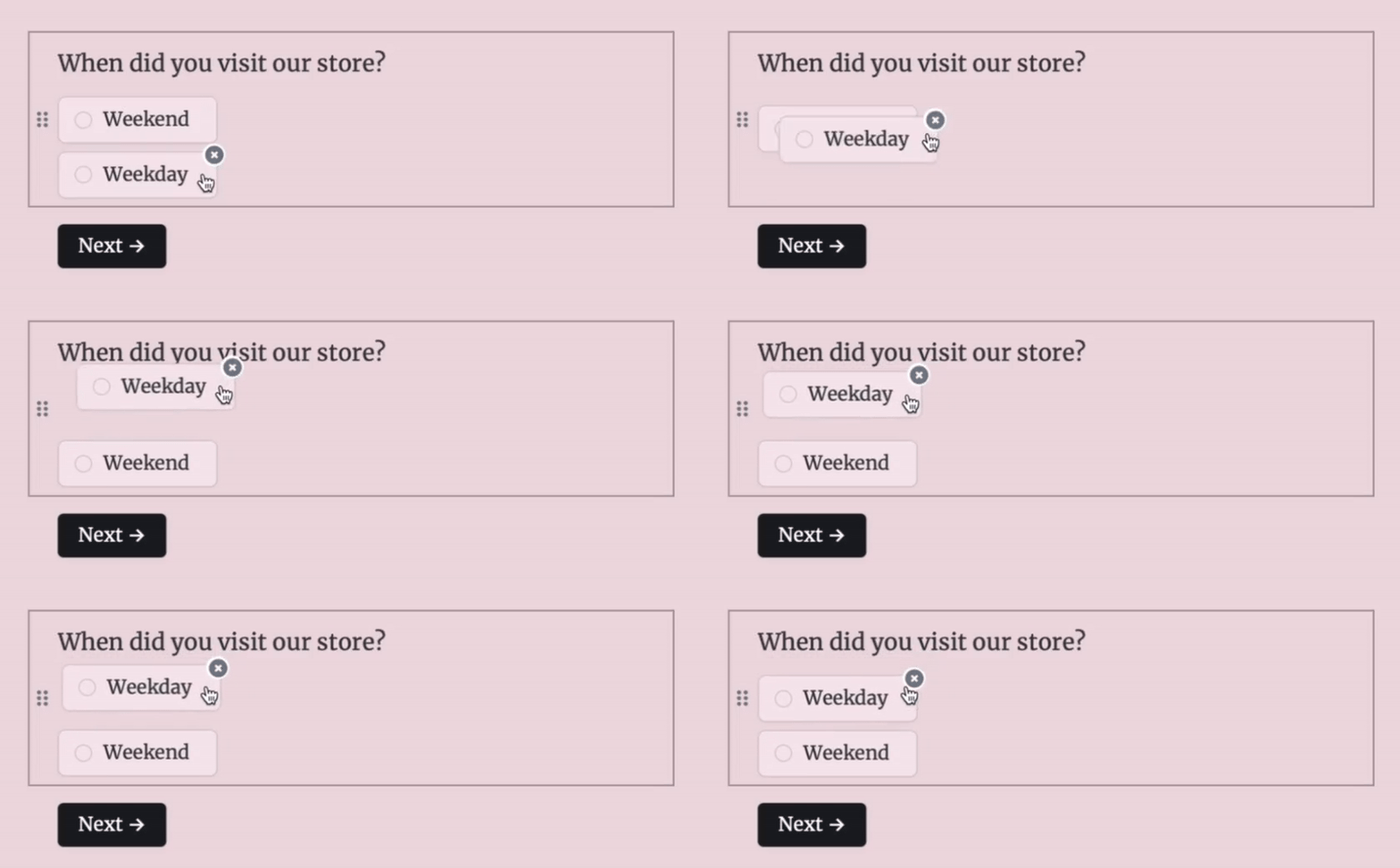
Drag the options in the center of the screen to reorder choices.
You cannot put any page before a cover page and after an ending page. Reordering is also disabled if you have added [branching](/help/page-logic) logic to your form.
## How to reorder questions or field options
This can be applied to **Multiple choice**, **Dropdown**, **Checkboxes**, and **Picture choice** field types.
**Multiple choice**
Drag the options in the center of the screen to reorder choices.
 **Dropdown and multi-select**
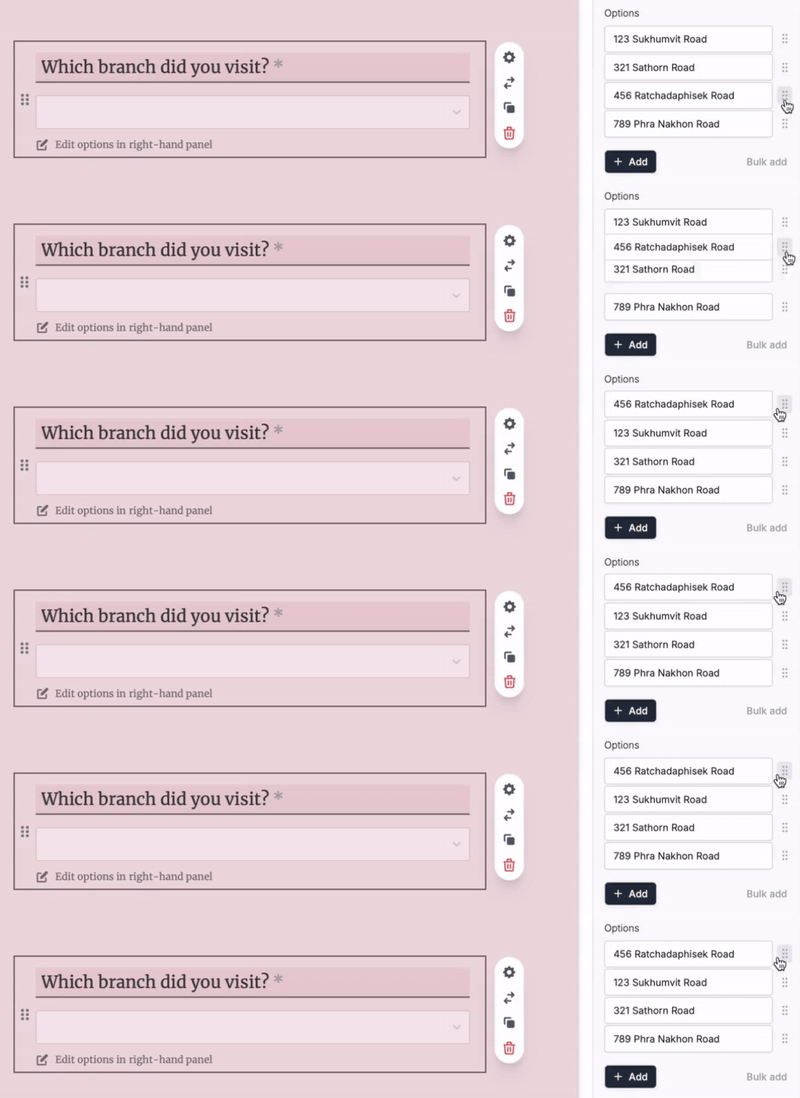
Click the field's to open the right-hand panel. Drag options there to reorder them.
**Dropdown and multi-select**
Click the field's to open the right-hand panel. Drag options there to reorder them.
 **Checkboxes**
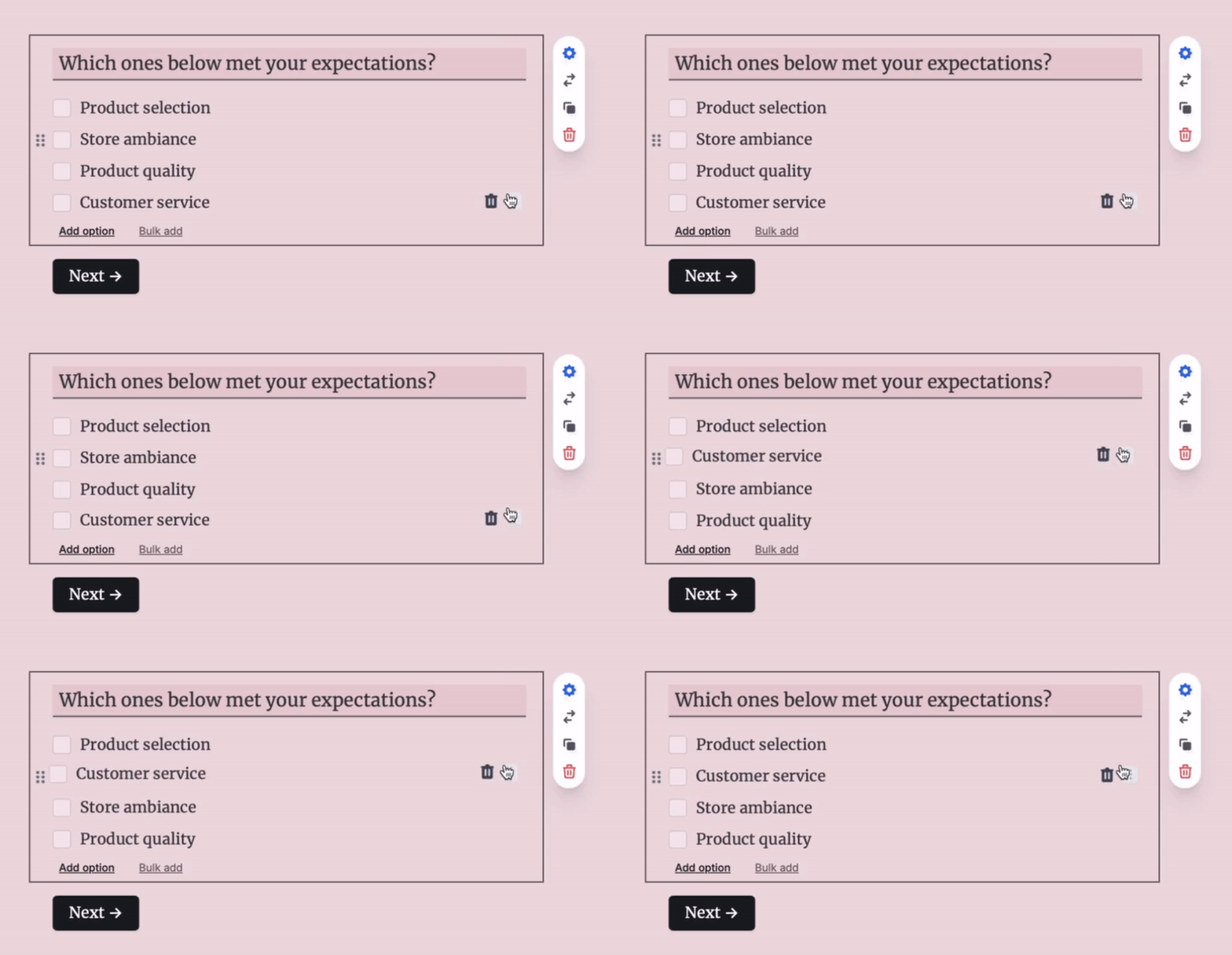
Hover towards the right side of the checkbox option you want to reorder then drag to where you want the option to be placed.
**Checkboxes**
Hover towards the right side of the checkbox option you want to reorder then drag to where you want the option to be placed.
 **Picture choices**
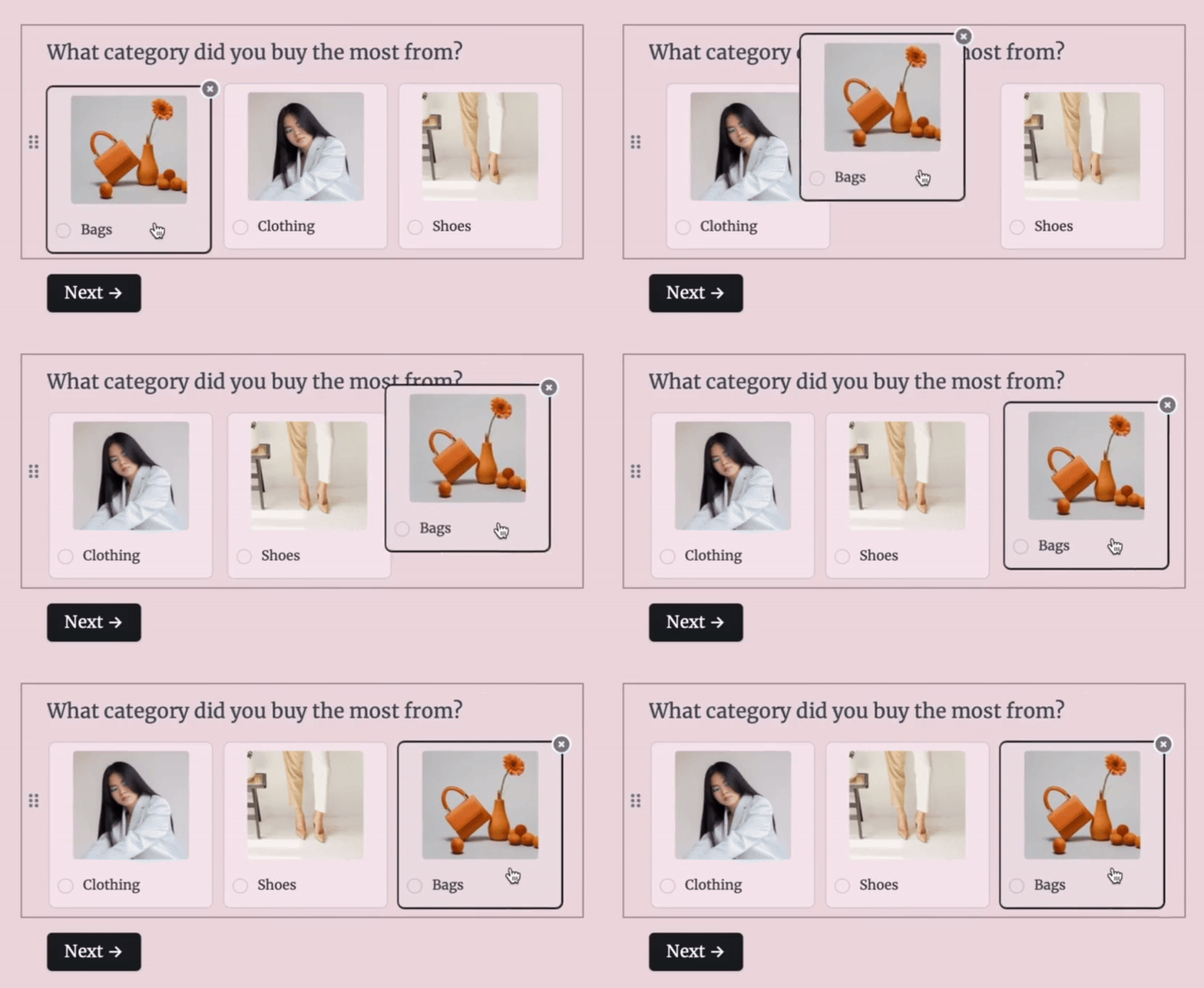
Simply drag the picture of choice you want to move and drop where you want it to be placed.
**Picture choices**
Simply drag the picture of choice you want to move and drop where you want it to be placed.