> ## Documentation Index
> Fetch the complete documentation index at: https://fillout.com/help/llms.txt
> Use this file to discover all available pages before exploring further.
# Print a form submission as PDF
> Keep hard copies of individual form submissions for your records.
export const SupportBanner = () => {
const titleId = React.useId();
return ;
};
## How to print a submission as PDF
Navigate to `Results` on top. Hover over the submission you'd like to print and click .
 A window containing the respondent's answers will appear. Click to `Print`.
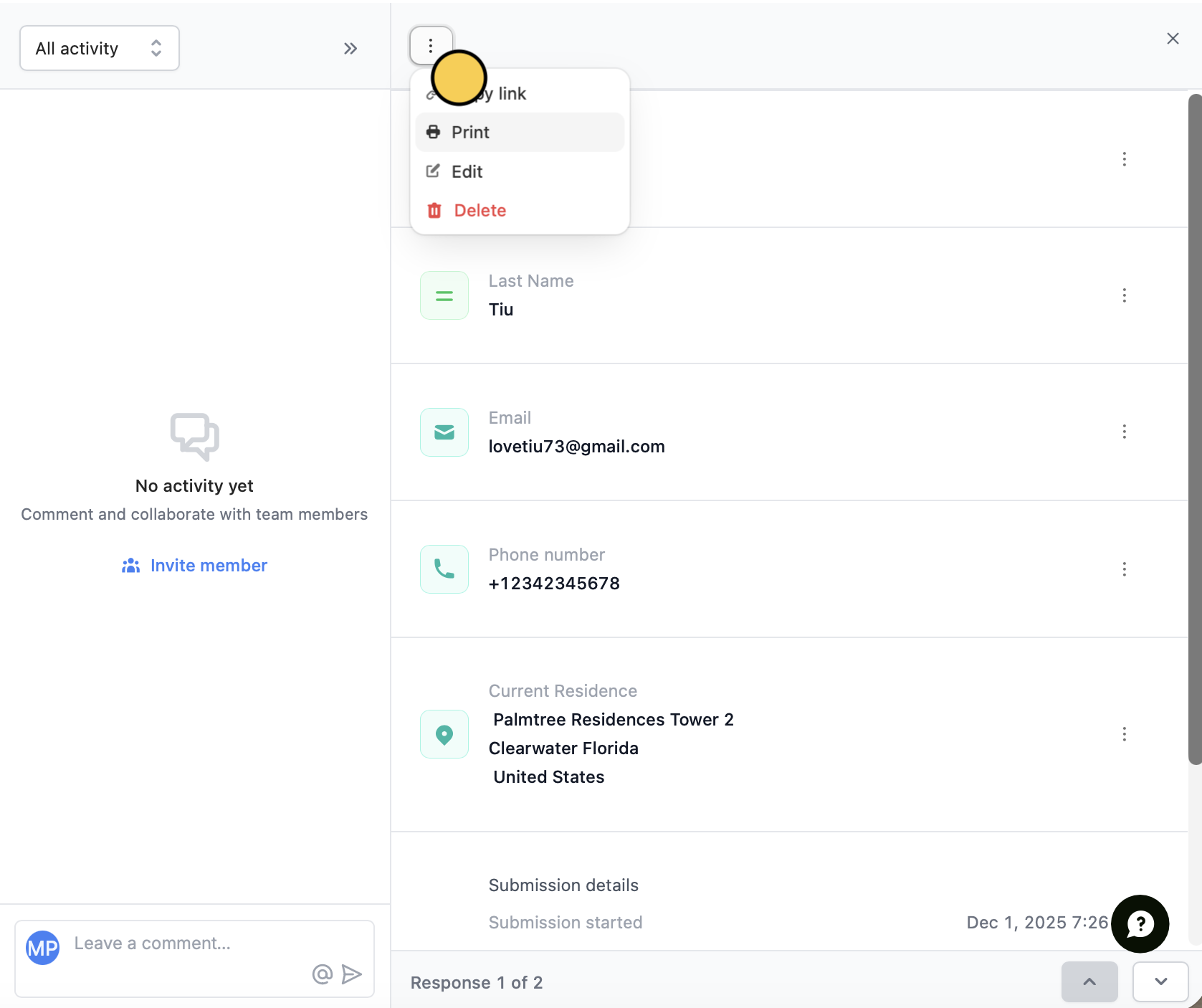 Click or to quickly go to other submissions.
## Where hard copies can help you
### Annotate responses
Printing submissions makes it easy to review submission data in a format that works best for you. With hard copies, you can read, highlight, and annotate responses, making data analysis more accessible and convenient.
### Share data
Printed copies of individual responses are an easy way to share data with colleagues, stakeholders, or clients. They are a quick way to share insights with those who may not have access to your survey results or prefer physical copies.
## Related articles
Identify patterns, trends, and improve drop-off rates.
View all submissions to your form. Filter, sort, or export to CSV.
Keep hard copies of submissions.
Click or to quickly go to other submissions.
## Where hard copies can help you
### Annotate responses
Printing submissions makes it easy to review submission data in a format that works best for you. With hard copies, you can read, highlight, and annotate responses, making data analysis more accessible and convenient.
### Share data
Printed copies of individual responses are an easy way to share data with colleagues, stakeholders, or clients. They are a quick way to share insights with those who may not have access to your survey results or prefer physical copies.
## Related articles
Identify patterns, trends, and improve drop-off rates.
View all submissions to your form. Filter, sort, or export to CSV.
Keep hard copies of submissions.