> ## Documentation Index
> Fetch the complete documentation index at: https://fillout.com/help/llms.txt
> Use this file to discover all available pages before exploring further.
# Prevent duplicate submissions in Airtable
> Prevent duplicate form submissions from being saved to Airtable using Fillout.
export const SupportBanner = () => {
const titleId = React.useId();
return ;
};
## Enable duplicate prevention
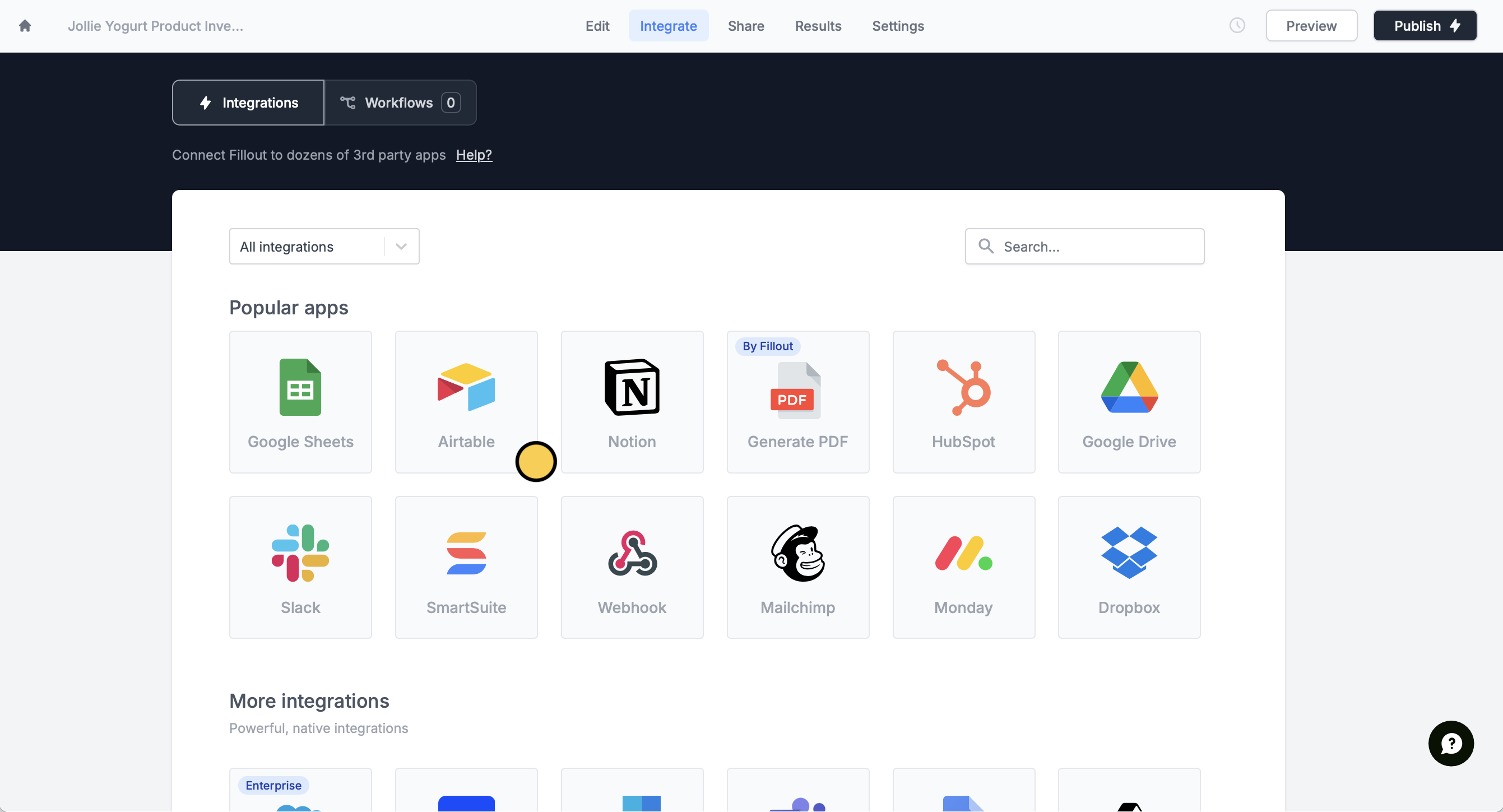
In the `Integrate` page, select `Airtable`. Then, connect to your Airtable account if you haven't yet.
 This feature is available to **Business** and **Enterprise** users. For more details on pricing, click [here](https://www.fillout.com/pricing).
Under **Advanced**, enable the `Prevent duplicates?` toggle.
This feature is available to **Business** and **Enterprise** users. For more details on pricing, click [here](https://www.fillout.com/pricing).
Under **Advanced**, enable the `Prevent duplicates?` toggle.
 Next, pick the field to base duplication checks on. In this example, we will prevent submissions from getting saved to Airtable if they match another entry in the Product Name field.
This feature currently works with email and single line fields. Support for other Airtable fields is on our roadmap.
That’s it! Your form will no longer create duplicate entries. Make sure to `Publish` your form to make the changes reflect.
## Airtable specific guides
Upload signatures from a custom Fillout form.
Schedule meetings and sync them directly to Airtable.
Create new records for every purchase.
Next, pick the field to base duplication checks on. In this example, we will prevent submissions from getting saved to Airtable if they match another entry in the Product Name field.
This feature currently works with email and single line fields. Support for other Airtable fields is on our roadmap.
That’s it! Your form will no longer create duplicate entries. Make sure to `Publish` your form to make the changes reflect.
## Airtable specific guides
Upload signatures from a custom Fillout form.
Schedule meetings and sync them directly to Airtable.
Create new records for every purchase.