> ## Documentation Index
> Fetch the complete documentation index at: https://fillout.com/help/llms.txt
> Use this file to discover all available pages before exploring further.
# Organizations
> Create multiple organizations for different companies or groups using the same email.
export const SupportBanner = () => {
const titleId = React.useId();
return ;
};
## How it works
When you create an account, you set up your own **organization** to create various forms. You can invite others to join as [collaborators](/help/invite-collaborators) and control their access to specific workspaces with [granular permissions](/help/invite-collaborators).
Each organization has its own subscription plan. Creating a new one won’t share or carry over a subscription from another.
## How to create another organization
On the upper left corner, click your `Account name` followed by `Create organization`.
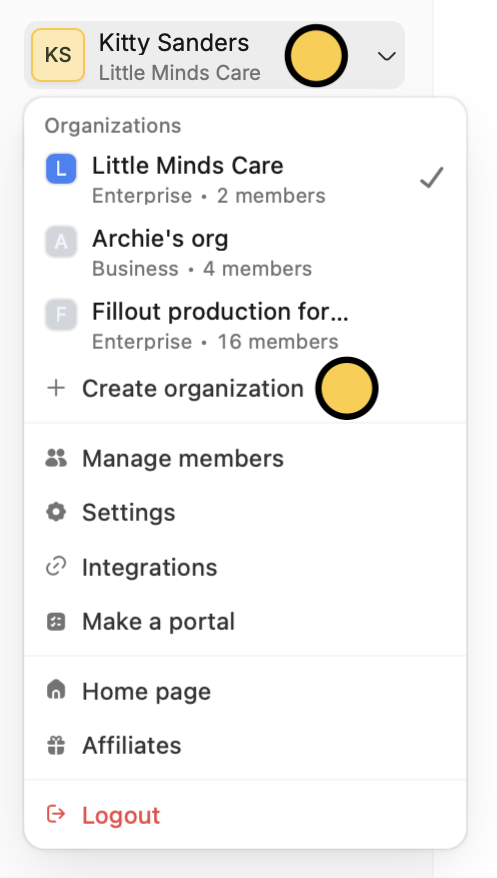 Each organization has its own forms, apps, and databases. Items created in one organization are only available within that organization and won’t appear in others. This separation helps keep data organized and secure.
## Identifying your current organization
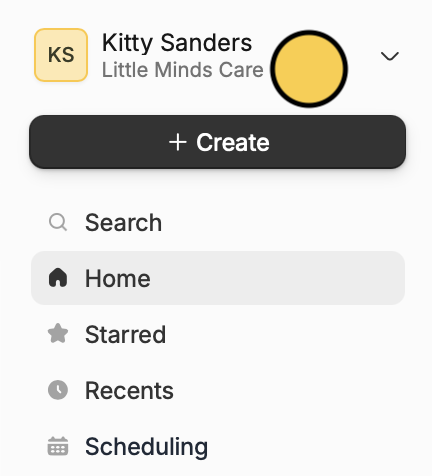
To check which organization you’re currently in, look at the text displayed under your account name in the upper-left corner of your dashboard.
Each organization has its own forms, apps, and databases. Items created in one organization are only available within that organization and won’t appear in others. This separation helps keep data organized and secure.
## Identifying your current organization
To check which organization you’re currently in, look at the text displayed under your account name in the upper-left corner of your dashboard.
 Apps, forms, and databases are specific to each organization, so you’ll only see them when you’re viewing the appropriate one. Search results are also limited to content within the current organization.
If you can't find forms, apps, and databases, make sure you're in the correct organization.
## Leave an organization
If you need to just change the email you use, head over to [account settings](https://www.fillout.com/help/account#change-account-email).
From the dashboard, click your `Account Name` on the upper left corner followed by [Settings](https://app.zite.com/home/settings/my-account) in the dropdown.
If you decide to come back to Fillout, you can create a new account using the same email address you used before.
Click `My account` in the left-hand panel. Scroll down to `Leave organization`. This will automatically remove you from your organization.
Apps, forms, and databases are specific to each organization, so you’ll only see them when you’re viewing the appropriate one. Search results are also limited to content within the current organization.
If you can't find forms, apps, and databases, make sure you're in the correct organization.
## Leave an organization
If you need to just change the email you use, head over to [account settings](https://www.fillout.com/help/account#change-account-email).
From the dashboard, click your `Account Name` on the upper left corner followed by [Settings](https://app.zite.com/home/settings/my-account) in the dropdown.
If you decide to come back to Fillout, you can create a new account using the same email address you used before.
Click `My account` in the left-hand panel. Scroll down to `Leave organization`. This will automatically remove you from your organization.
 Type **LEAVE ORGANIZATION** in the popup window to confirm.
## Delete organization
Leaving an organization **only removes** **your access**. If you want to permanently delete the entire organization—including all forms, apps, databases, and other data—see [this guide](https://www.fillout.com/help/delete-user-account).
## Related articles
View results, and edit forms with free seats.
Organize forms in folders and control user access.
Transfer between different accounts.
Type **LEAVE ORGANIZATION** in the popup window to confirm.
## Delete organization
Leaving an organization **only removes** **your access**. If you want to permanently delete the entire organization—including all forms, apps, databases, and other data—see [this guide](https://www.fillout.com/help/delete-user-account).
## Related articles
View results, and edit forms with free seats.
Organize forms in folders and control user access.
Transfer between different accounts.