> ## Documentation Index
> Fetch the complete documentation index at: https://fillout.com/help/llms.txt
> Use this file to discover all available pages before exploring further.
# Choice matrix
> Collect a grid or table of selections from respondents, matching corresponding rows and columns with radio buttons or checkboxes.
export const SupportBanner = () => {
const titleId = React.useId();
return ;
};
## Overview
The **choice matrix** field type can be used to collect data organized in a grid or table, where users need to select one or multiple options per row. Common use cases include:
* Selecting dates and corresponding slots or appointment times
* Ranking multiple options in a grid on a likert scale (e.g., unlikely to likely)
* Compare several products or features across multiple dimensions (e.g., performance, cost, reliability)
## How to put a choice matrix
Simply drag and drop the `Choice matrix` field from the left-hand panel.
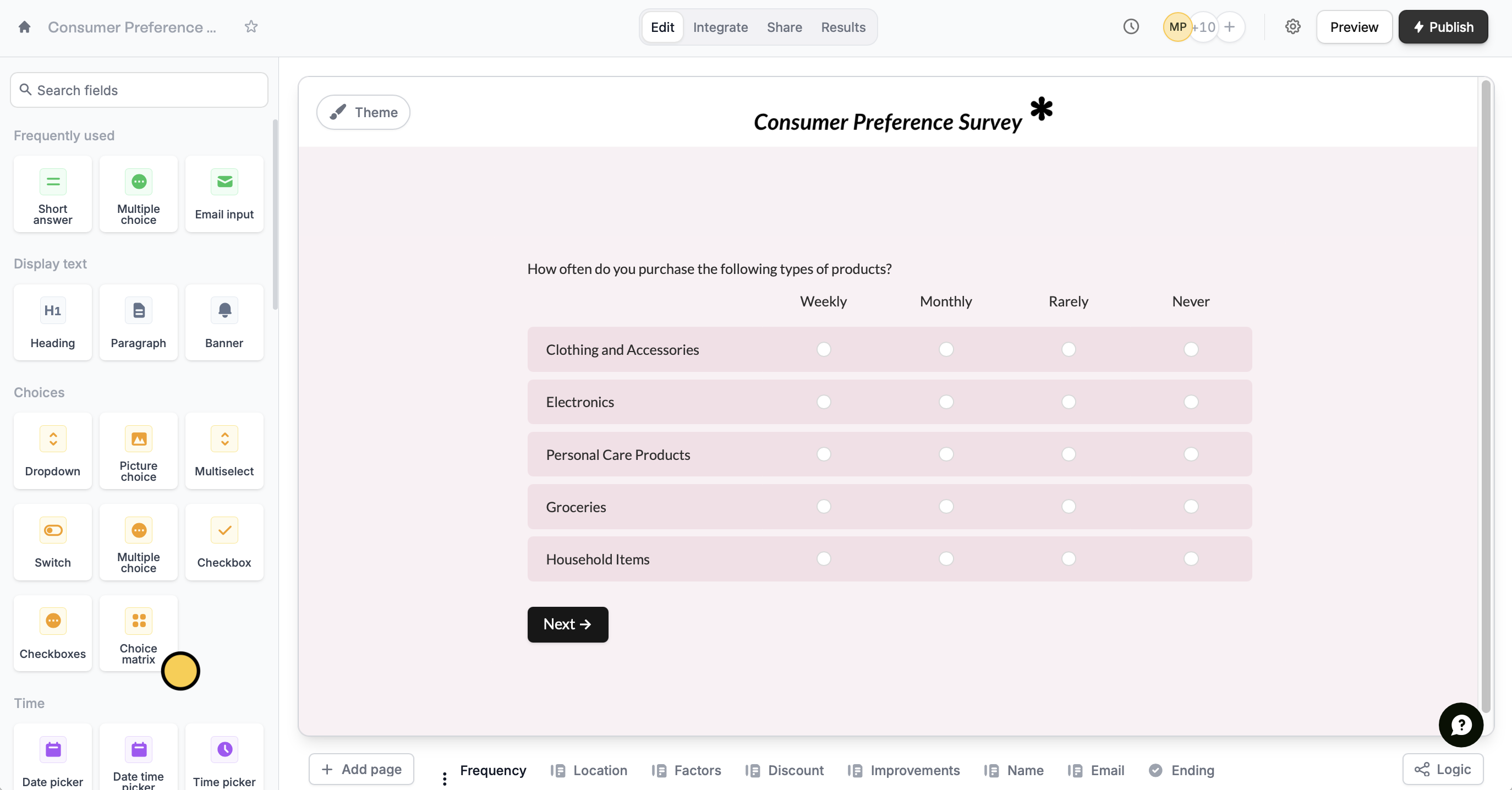 The rows of your matrix will typically define the options or questions you want to have choices chosen for. In the example above, we’ve added item categories for the rows, and frequencies as the columns.
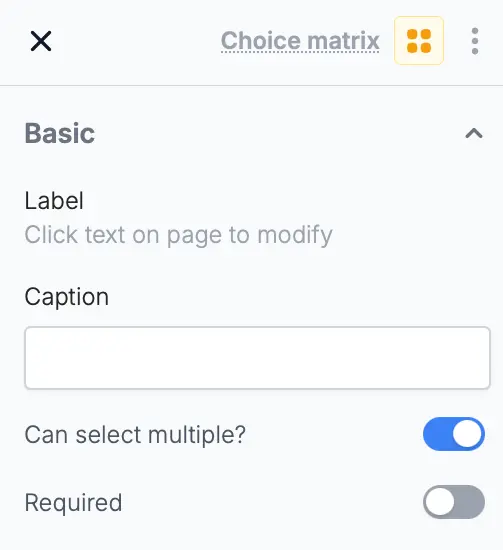
You can configure the choice matrix to allow single or multiple selections. Click the choice matrix followed by its , and toggle `Can select multiple?` in the right-hand panel.
The rows of your matrix will typically define the options or questions you want to have choices chosen for. In the example above, we’ve added item categories for the rows, and frequencies as the columns.
You can configure the choice matrix to allow single or multiple selections. Click the choice matrix followed by its , and toggle `Can select multiple?` in the right-hand panel.
 For single questions that may have multiple answers, use checkboxes, a multi-select or a picture choice field. More info [**here**](https://www.fillout.com/help/multiple-option-answers).
## Connect a choice matrix to integrations
When integrating the choice matrix (e.g., with Airtable, Notion, or HubSpot), you can map each row to different fields or properties separately.
Click `Integrate` in the top menu and choose Airtable, Notion or another [integration](/help/integrations).
Click `Edit` in the top menu. In the left-hand panel under **Other**, click `Choice matrix`.
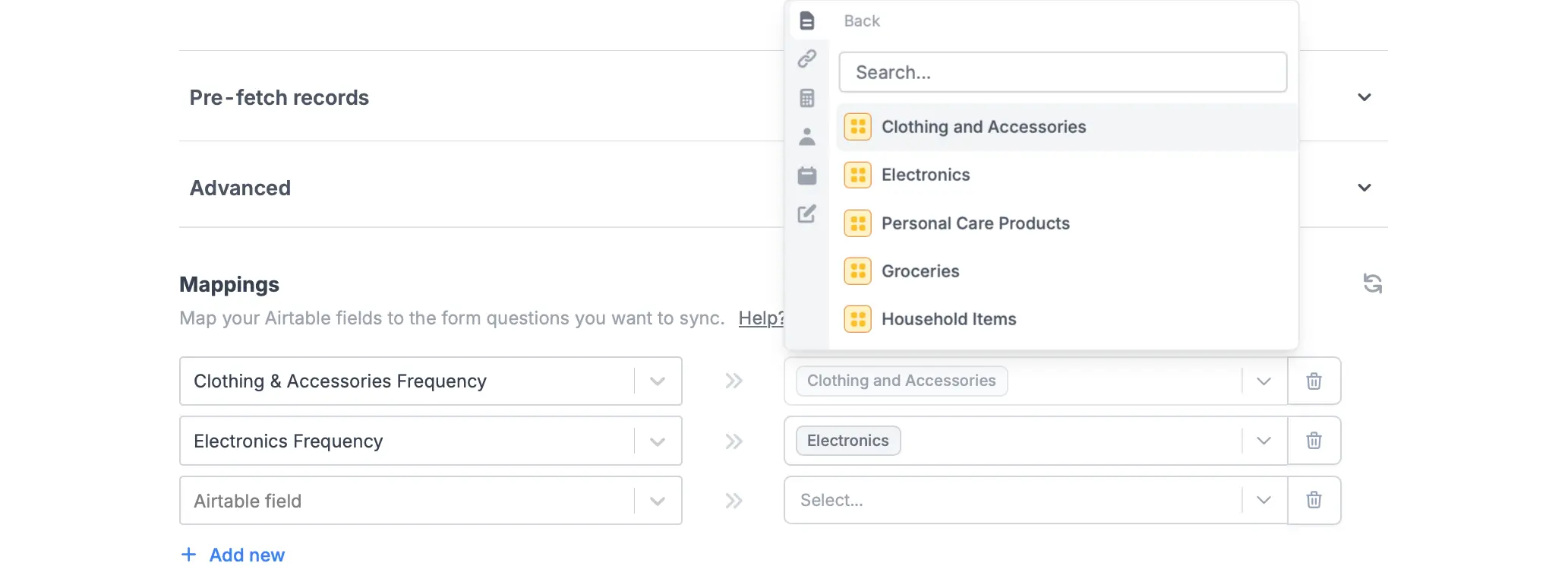
Go back to the `Integrate` page. Under **Mappings**, look for the question followed by a row in your choice matrix to the fields in your chosen integration. Repeat this process for any other rows you need to send to your integration.
For single questions that may have multiple answers, use checkboxes, a multi-select or a picture choice field. More info [**here**](https://www.fillout.com/help/multiple-option-answers).
## Connect a choice matrix to integrations
When integrating the choice matrix (e.g., with Airtable, Notion, or HubSpot), you can map each row to different fields or properties separately.
Click `Integrate` in the top menu and choose Airtable, Notion or another [integration](/help/integrations).
Click `Edit` in the top menu. In the left-hand panel under **Other**, click `Choice matrix`.
Go back to the `Integrate` page. Under **Mappings**, look for the question followed by a row in your choice matrix to the fields in your chosen integration. Repeat this process for any other rows you need to send to your integration.
 If your choice matrix is set to **select** **multiple**, you should make sure to pick a property/field in your integration which allows multiple selections.
## Related articles
Create choice questions that support multiple answers.
Let respondents enter data in a spreadsheet-like format.
If your choice matrix is set to **select** **multiple**, you should make sure to pick a property/field in your integration which allows multiple selections.
## Related articles
Create choice questions that support multiple answers.
Let respondents enter data in a spreadsheet-like format.