> ## Documentation Index
> Fetch the complete documentation index at: https://fillout.com/help/llms.txt
> Use this file to discover all available pages before exploring further.
# Make a form
> Create powerful forms, surveys, and quizzes with Fillout in a few easy steps.
export const SupportBanner = () => {
const titleId = React.useId();
return ;
};
## How to build a form in minutes
Sign up [here](https://app.fillout.com/signup) or log in [here](https://app.fillout.com/login) using your Google account, Microsoft account, or any email.
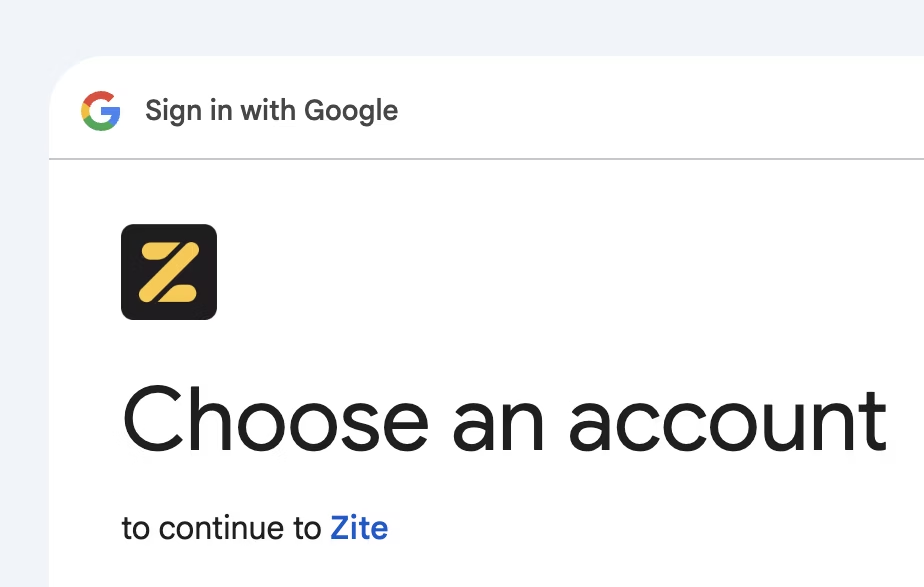 Signing in to Fillout with Google shows our company logo, Zite.
Click `+ Create` or `Form`, then choose between a **Blank form**, **Template**, or **Connect** with 3rd party apps like Airtable, Notion, HubSpot, and more.
Signing in to Fillout with Google shows our company logo, Zite.
Click `+ Create` or `Form`, then choose between a **Blank form**, **Template**, or **Connect** with 3rd party apps like Airtable, Notion, HubSpot, and more.
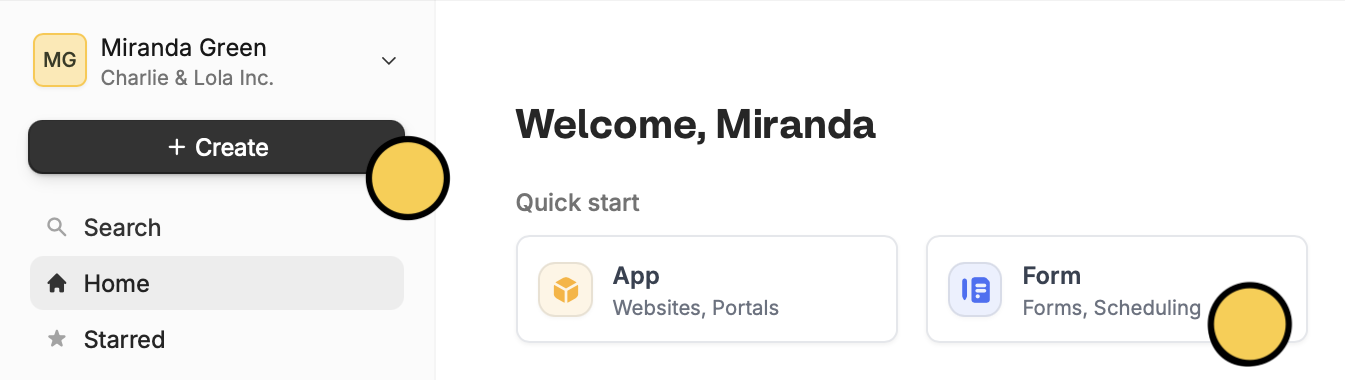 If you’re unsure about which to use, choose `Blank form`. You can always connect to an [integration](/help/integrations) later.
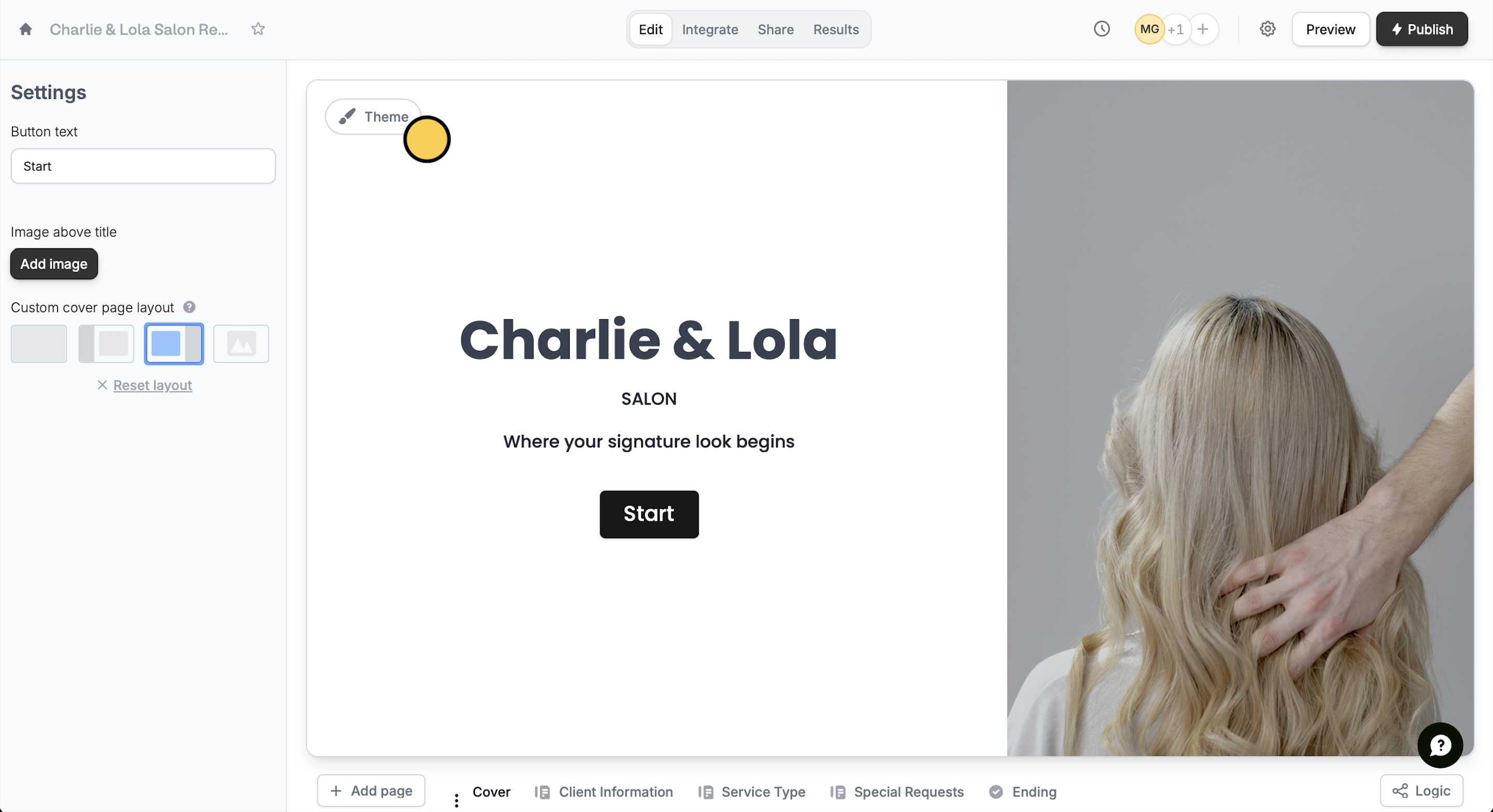
Click `Theme` to pick from one of the pre-made themes or [customize your own](/help/themes).
If you’re unsure about which to use, choose `Blank form`. You can always connect to an [integration](/help/integrations) later.
Click `Theme` to pick from one of the pre-made themes or [customize your own](/help/themes).
 Click or drag and drop your desired [field types](/help/question-types) from the left-hand panel. Choose between over 50 different types.
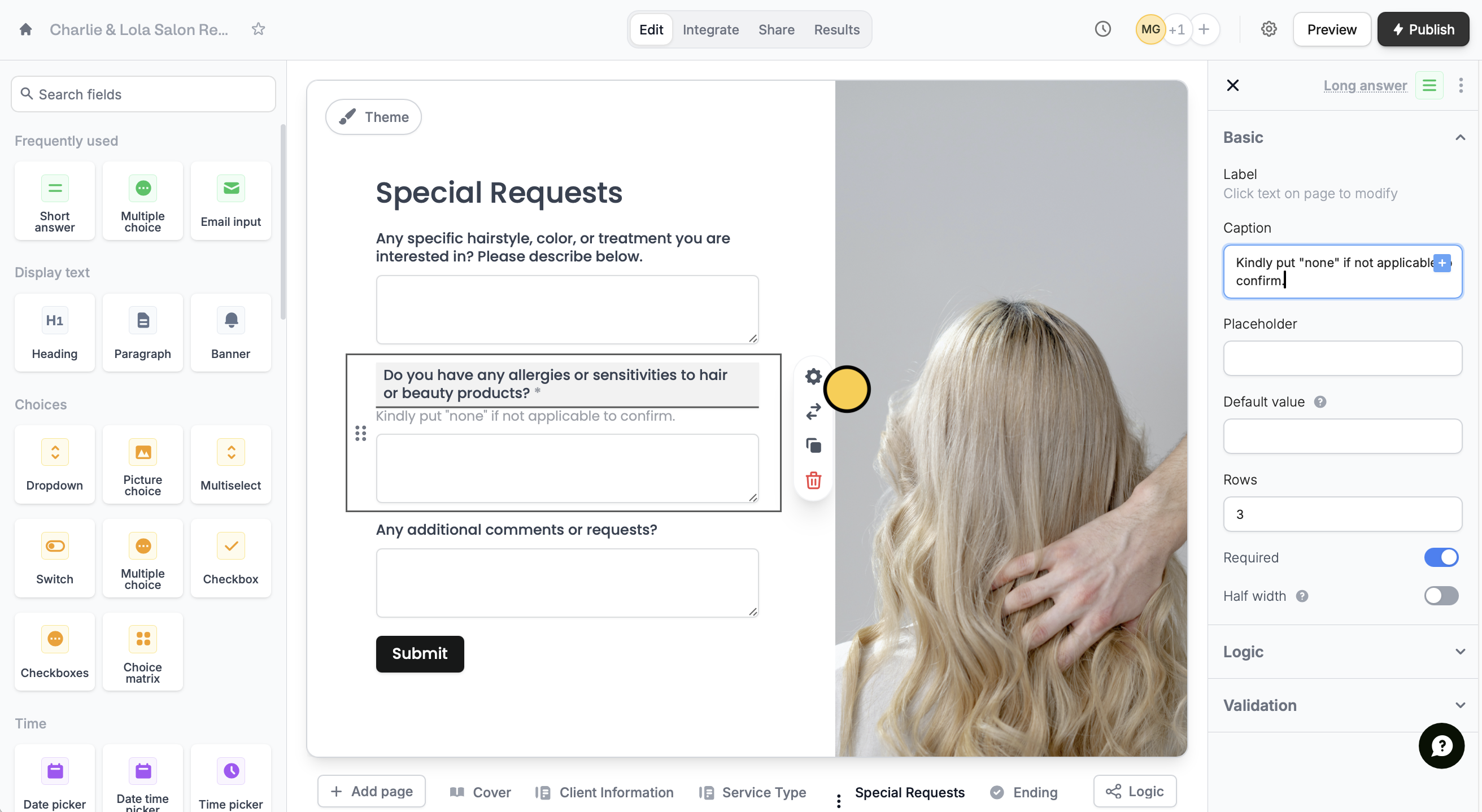 Then, enter the question or text. Click its icon to customize it in the right-hand panel.
`Preview` your form to test it. Once everything's good to go, press `Publish`.
Then, enter the question or text. Click its icon to customize it in the right-hand panel.
`Preview` your form to test it. Once everything's good to go, press `Publish`.
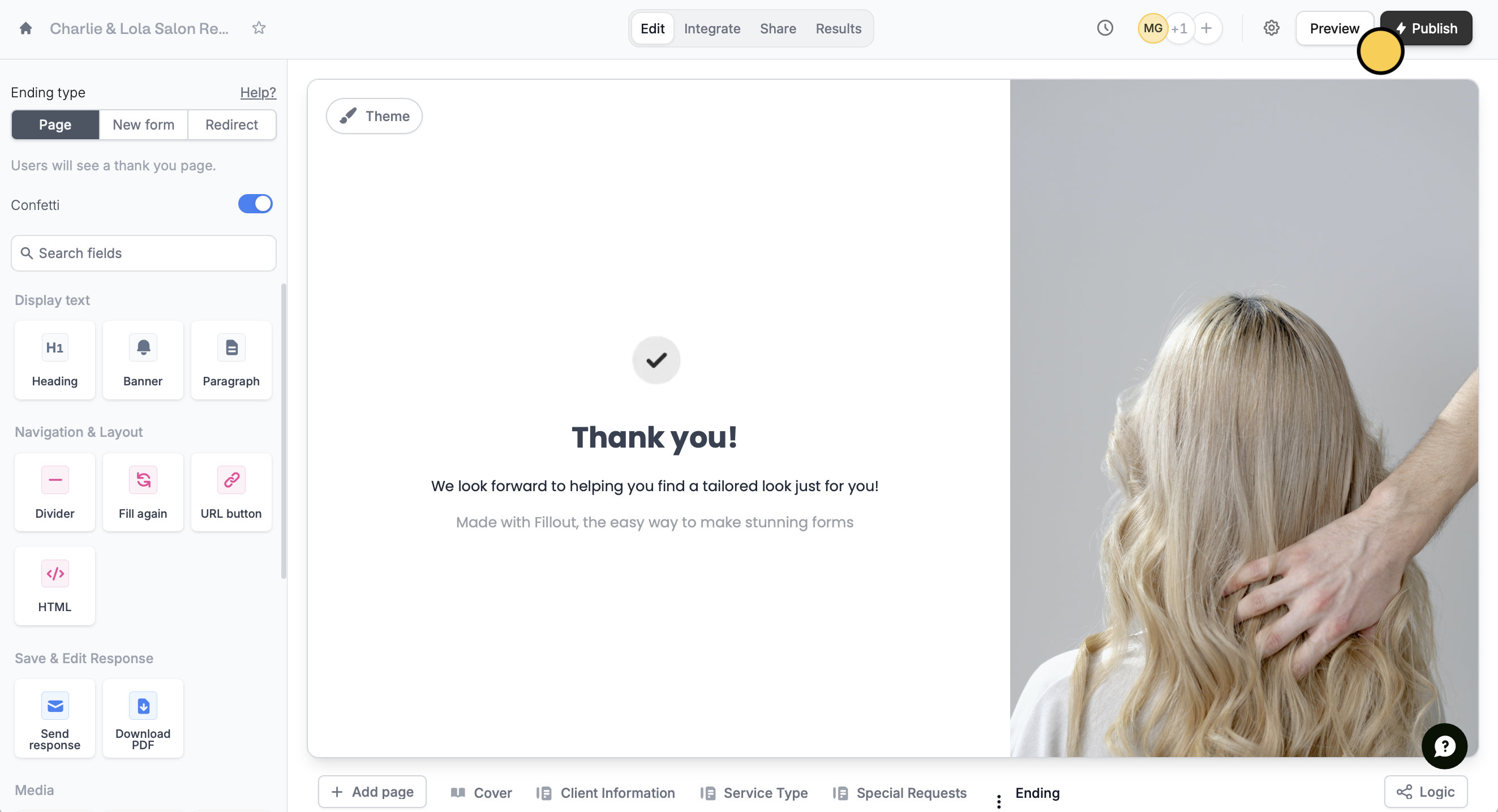 That’s it! Share your **form link** anywhere or **embed your form** on any website. To view form submissions, head over to [**Results**](/help/view-responses) in the top menu.
## Related articles
Select from hundreds of themes or create your own.
Customize or change over 50 field types, add captions, and more.
View all submissions to your form. Filter, sort, or export to CSV.
That’s it! Share your **form link** anywhere or **embed your form** on any website. To view form submissions, head over to [**Results**](/help/view-responses) in the top menu.
## Related articles
Select from hundreds of themes or create your own.
Customize or change over 50 field types, add captions, and more.
View all submissions to your form. Filter, sort, or export to CSV.