> ## Documentation Index
> Fetch the complete documentation index at: https://fillout.com/help/llms.txt
> Use this file to discover all available pages before exploring further.
# Add a logo to your form
> Add a professional touch and create strong brand identity by adding your logo to your Fillout form, survey, or quiz.
export const SupportBanner = () => {
const titleId = React.useId();
return ;
};
If you’re looking for the `Fillout logo`, you can find it in our press kit [here](https://www.fillout.com/brand).
## How to add a logo
Open your form and click `Theme`. If you haven't chosen one yet, hover over the theme you like and click `Edit`.
Next, toggle the switch next to `Logo`, and click `Add logo`.
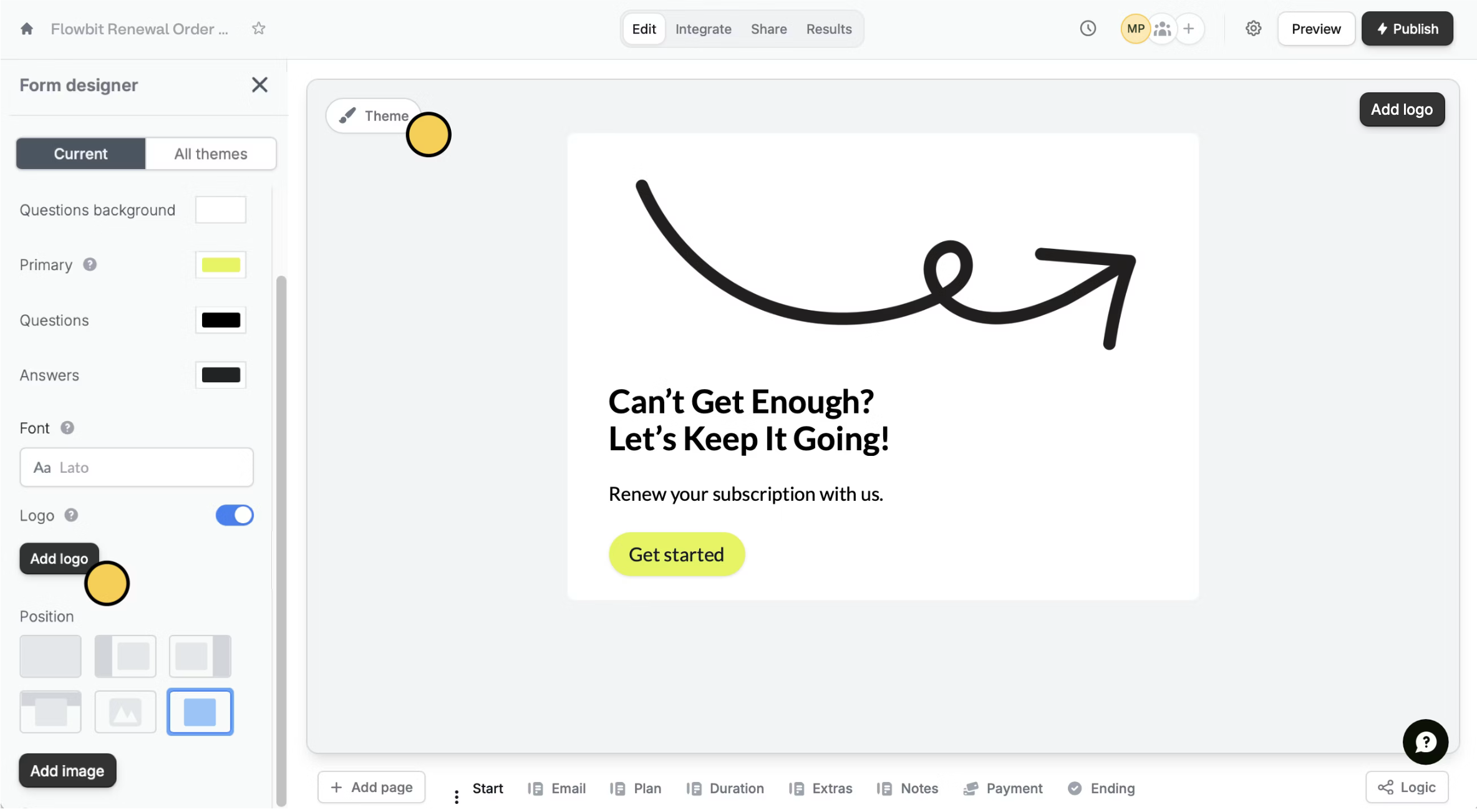 This feature is available to **Starter** users and above. For more details on pricing, click [**here**](https://www.fillout.com/pricing).
**Upload** the logo file from your desktop or **drag and drop** it to the pop-up window. You can also choose to copy and paste the **Link** of your logo instead.
This feature is available to **Starter** users and above. For more details on pricing, click [**here**](https://www.fillout.com/pricing).
**Upload** the logo file from your desktop or **drag and drop** it to the pop-up window. You can also choose to copy and paste the **Link** of your logo instead.
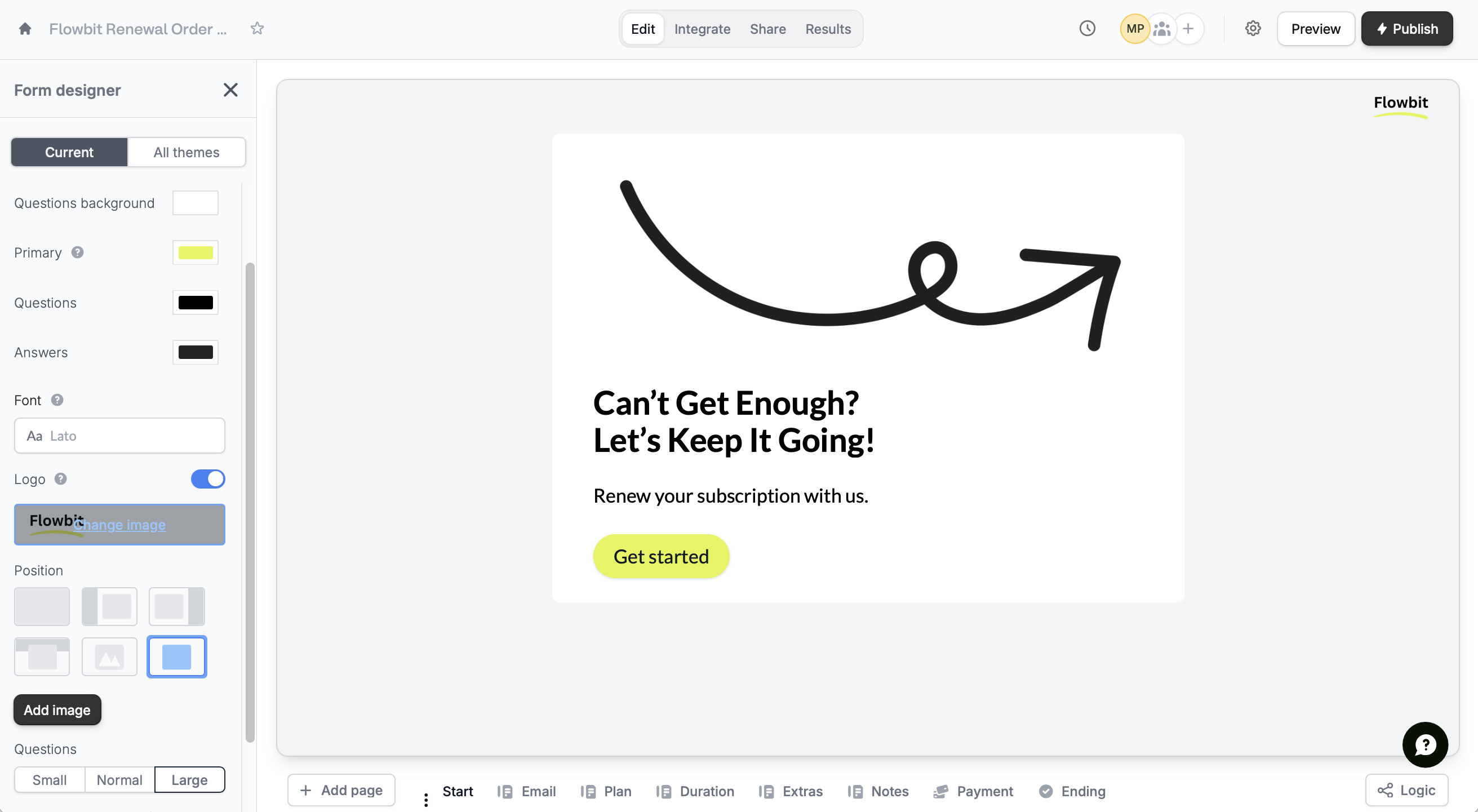 That's it! Your logo will automatically appear in the top right of all pages except for the cover page.
### Change or hide the logo
In the left-hand panel, hover over the logo, and click **Change image**. To hide it, untoggle the `Logo` switch.
## Related articles
Select from hundreds of themes or create your own.
Use images, GIFs, picture choices, or combine them.
Improve your form's structure and user experience.
That's it! Your logo will automatically appear in the top right of all pages except for the cover page.
### Change or hide the logo
In the left-hand panel, hover over the logo, and click **Change image**. To hide it, untoggle the `Logo` switch.
## Related articles
Select from hundreds of themes or create your own.
Use images, GIFs, picture choices, or combine them.
Improve your form's structure and user experience.