> ## Documentation Index
> Fetch the complete documentation index at: https://fillout.com/help/llms.txt
> Use this file to discover all available pages before exploring further.
# Invite team members to your forms
> View responses, analyze results, and edit forms with collaborators by adding free seats to your account.
export const SupportBanner = () => {
const titleId = React.useId();
return ;
};
Inviting more team members to your account is free of charge on all plans.
## How to send an organization invite
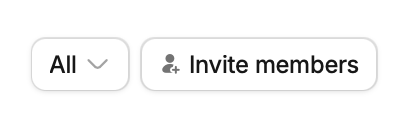
On your dashboard, click `Invite members` in the upper right area.
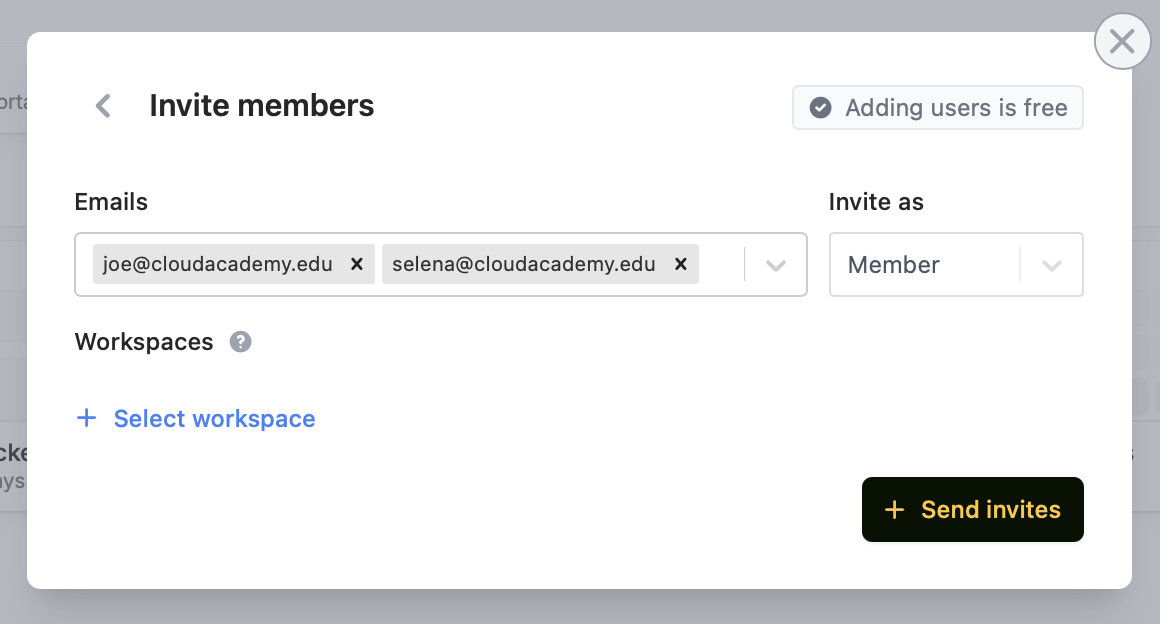
 Enter the emails of the people you would like to invite. You can choose to invite them as:
* **Admin** - have full access to the workspace enabling them to view and edit settings
* **Member** - can create their own forms and scheduling links, but cannot edit anyone else's
Enter the emails of the people you would like to invite. You can choose to invite them as:
* **Admin** - have full access to the workspace enabling them to view and edit settings
* **Member** - can create their own forms and scheduling links, but cannot edit anyone else's
 The invitee will get notified through their email. Upon clicking the link, they will be redirected to a sign up page and prompted to join the organization.
Invites sent expire after 14 days, however you may send them another invite after the expiration date.
You can limit access to specific workspaces only through [granular permissions](/help/granular-permissions).
## View pending invites
Click your `Account name` on the upper left corner followed by `Manage members`.
Only admin accounts have access to view and edit team members.
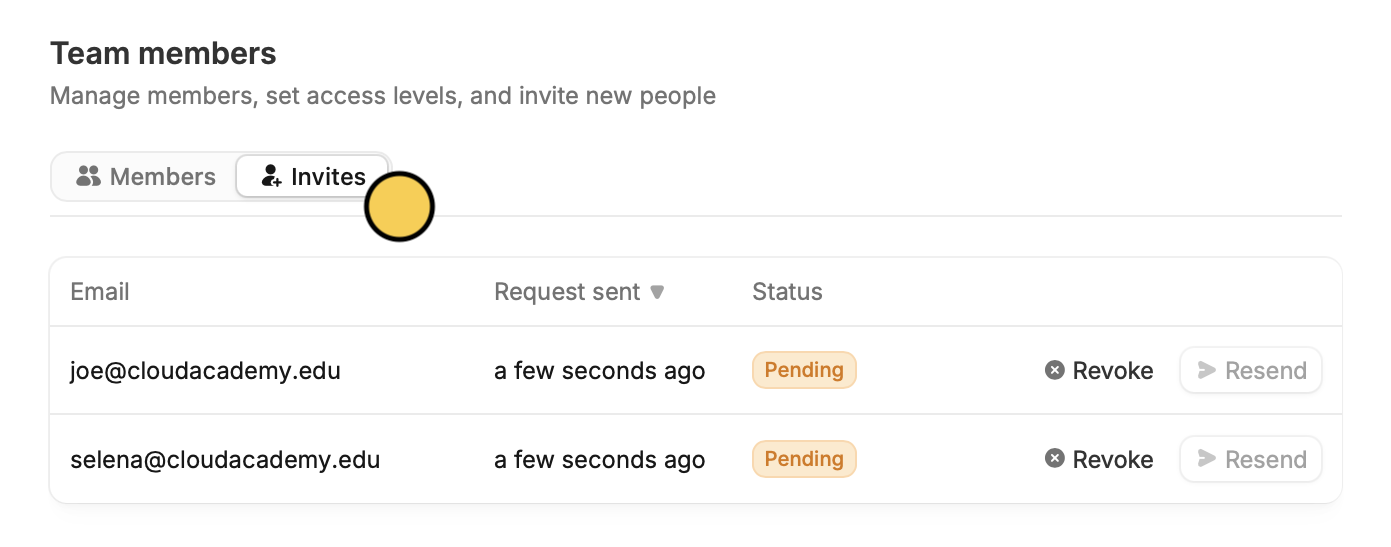
Then, navigate to `Invites` from the top menu. You can also `Resend` or `Delete` an invite from here.
The invitee will get notified through their email. Upon clicking the link, they will be redirected to a sign up page and prompted to join the organization.
Invites sent expire after 14 days, however you may send them another invite after the expiration date.
You can limit access to specific workspaces only through [granular permissions](/help/granular-permissions).
## View pending invites
Click your `Account name` on the upper left corner followed by `Manage members`.
Only admin accounts have access to view and edit team members.
Then, navigate to `Invites` from the top menu. You can also `Resend` or `Delete` an invite from here.
 ## Share a specific form
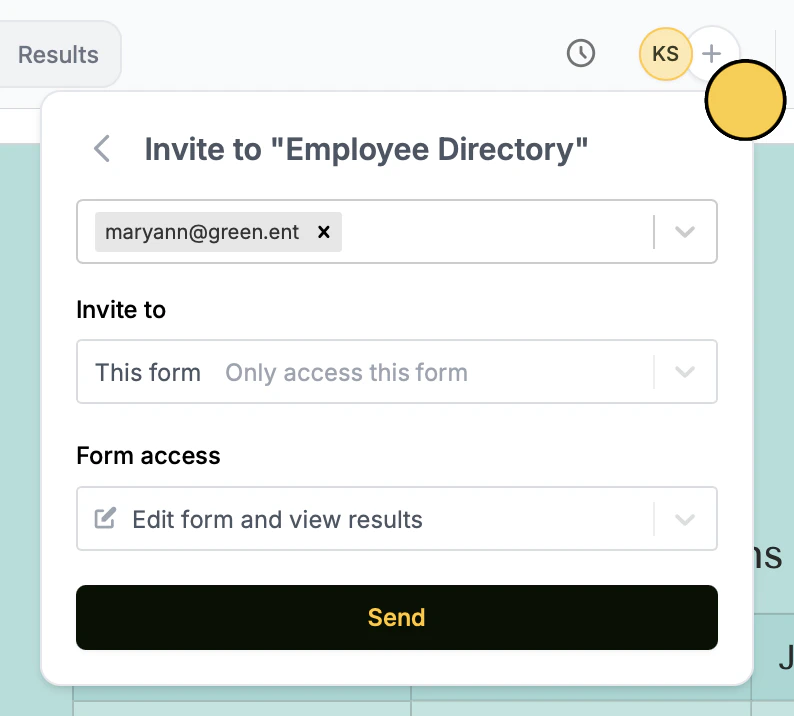
Quickly share a single form by clicking the `circle plus icon` on the top right. Add specific people to share with or generate a link for anyone. Adjust read and write permissions as needed.
## Share a specific form
Quickly share a single form by clicking the `circle plus icon` on the top right. Add specific people to share with or generate a link for anyone. Adjust read and write permissions as needed.
 ## How to effectively work with collaborators
**View and discuss form submissions together**
Gain insights by analyzing data together as a team. Individual members can apply personalized filters to focus on desired analytics for tailored analyses. Additionally, they can [leave comments](/help/comment) and tag other users.
**Work on separate forms at the same time**
With multiple collaborators working in tandem, tasks can be divided and accomplished more quickly, reducing the time required for form creation and data collection. Collaborators cannot edit the same form at the same time, but can edit different forms simultaneously.
**Invite an expert to help build a form or consult on it**
You can invite consultants or anyone involved in your workflow to help build your forms. Note that consultants may also want to [import/export forms](/help/importing-and-exporting-forms) from their accounts instead.
## Related articles
Configure member settings including their email and access.
Set member access to view only, and restrict integration accounts.
Transfer between different accounts.
## How to effectively work with collaborators
**View and discuss form submissions together**
Gain insights by analyzing data together as a team. Individual members can apply personalized filters to focus on desired analytics for tailored analyses. Additionally, they can [leave comments](/help/comment) and tag other users.
**Work on separate forms at the same time**
With multiple collaborators working in tandem, tasks can be divided and accomplished more quickly, reducing the time required for form creation and data collection. Collaborators cannot edit the same form at the same time, but can edit different forms simultaneously.
**Invite an expert to help build a form or consult on it**
You can invite consultants or anyone involved in your workflow to help build your forms. Note that consultants may also want to [import/export forms](/help/importing-and-exporting-forms) from their accounts instead.
## Related articles
Configure member settings including their email and access.
Set member access to view only, and restrict integration accounts.
Transfer between different accounts.