> ## Documentation Index
> Fetch the complete documentation index at: https://fillout.com/help/llms.txt
> Use this file to discover all available pages before exploring further.
# Track form conversion data in Google Ads
> Easily track and upload form conversions and use enhanced conversion in Google Ads with Fillout. Upload phone number, GCLID and email to let Google Ads optimize Ad bidding.
export const SupportBanner = () => {
const titleId = React.useId();
return ;
};
## What is Google Ads
[**Google Ads**](https://ads.google.com/?ref=filloutforms-helparticle) is a platform that enables businesses to display ads on Google's search results and other affiliated websites. It offers a powerful tool for businesses to reach their target audience, increase visibility, and drive traffic to their websites.
## Why upload form conversion data to Google Ads?
Uploading form submission conversion data to Google Ads lets you measure the effectiveness of your ad campaigns in driving desired user actions, such as lead generation for specific ad clicks. Furthermore, with enhanced conversions, you can improve **conversion measurement accuracy**, providing more data for optimizing your ad strategies automatically.
The Google Ads integration is part of the conversion kit paid add-on. Learn more and get started [here](https://www.fillout.com/conversion-kit).
## Enable Google Ads tracking for your form
Click on the upper right area followed by `Conversion kit` in the left-hand panel.
 Click **Google Ads** followed by `Enable Google Ads tracking`. This collects the **GCLID** parameter from the landing page URL when someone submits your form after clicking a Google Ad.
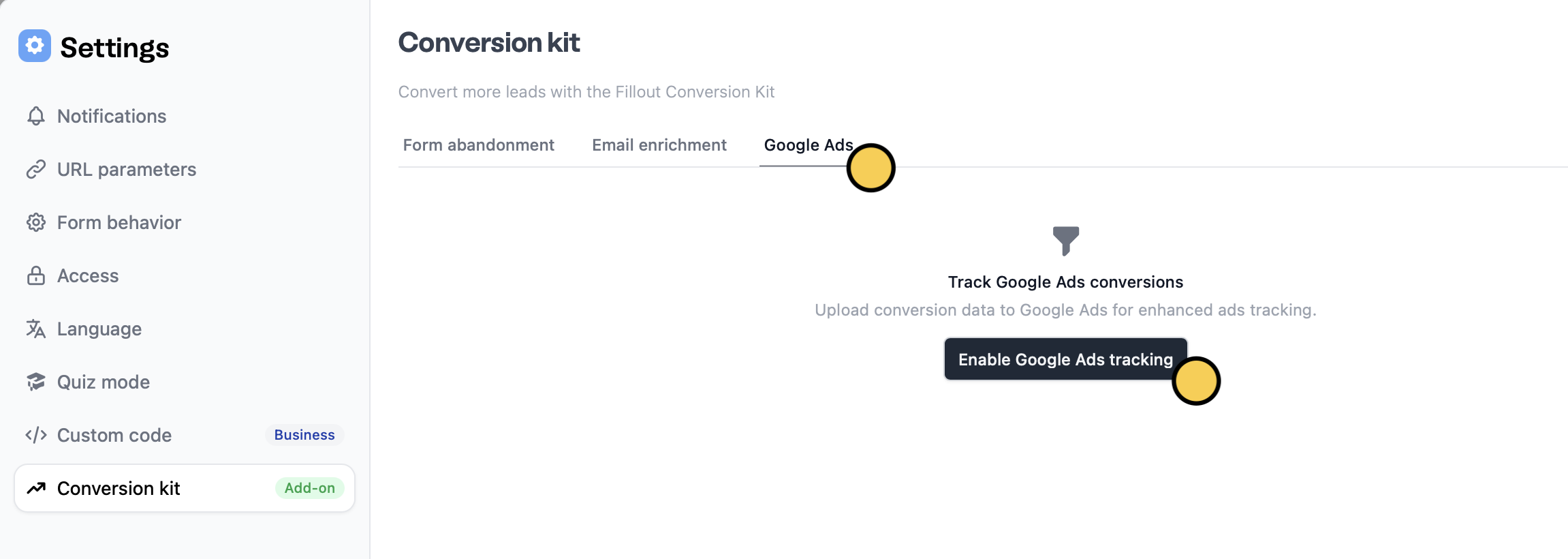 The GCLID isn’t saved from cookies. If someone leaves the landing page and comes back later, it won’t be captured with their form submission.
That's it! `Publish` your form to reflect the recent change.
## Upload conversion data to Google Ads
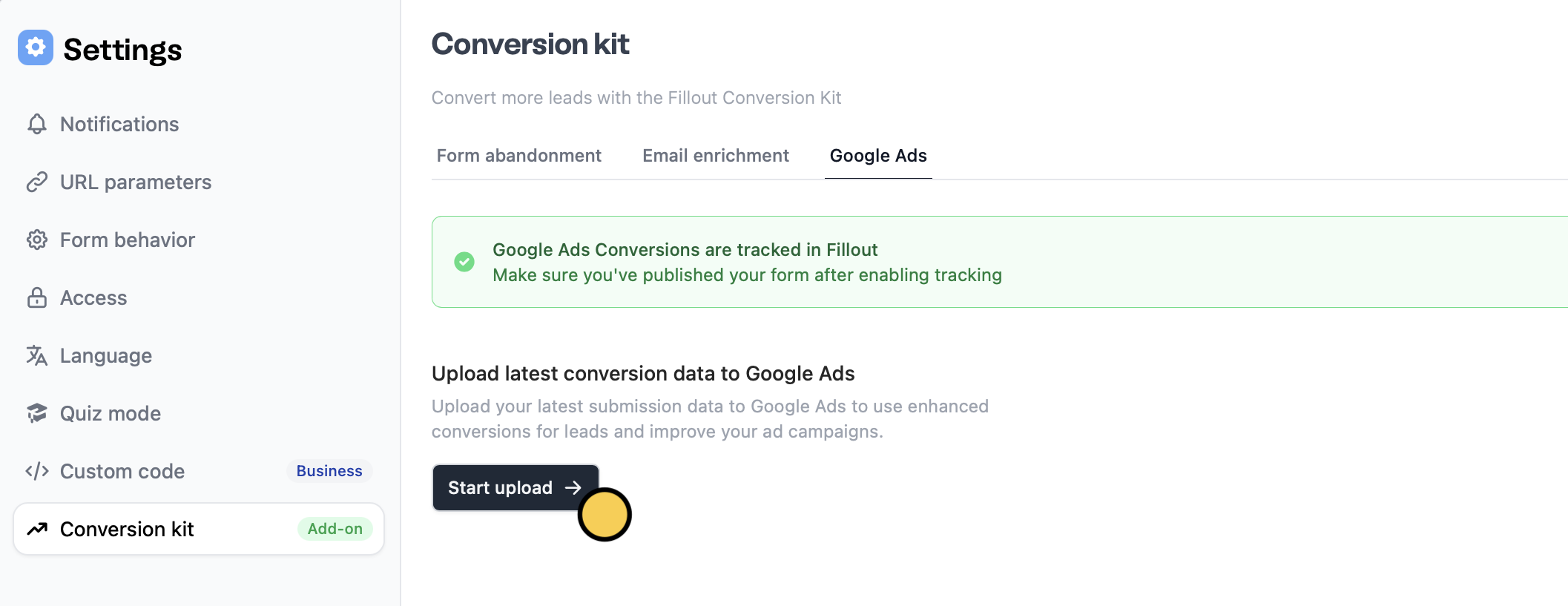
You can use enhanced conversions for leads by updating Google Ads with your latest submission data to improve tracking and campaign outcomes.
After following the steps above and enabling tracking, `Start upload`.
The GCLID isn’t saved from cookies. If someone leaves the landing page and comes back later, it won’t be captured with their form submission.
That's it! `Publish` your form to reflect the recent change.
## Upload conversion data to Google Ads
You can use enhanced conversions for leads by updating Google Ads with your latest submission data to improve tracking and campaign outcomes.
After following the steps above and enabling tracking, `Start upload`.
 Enter the details below.
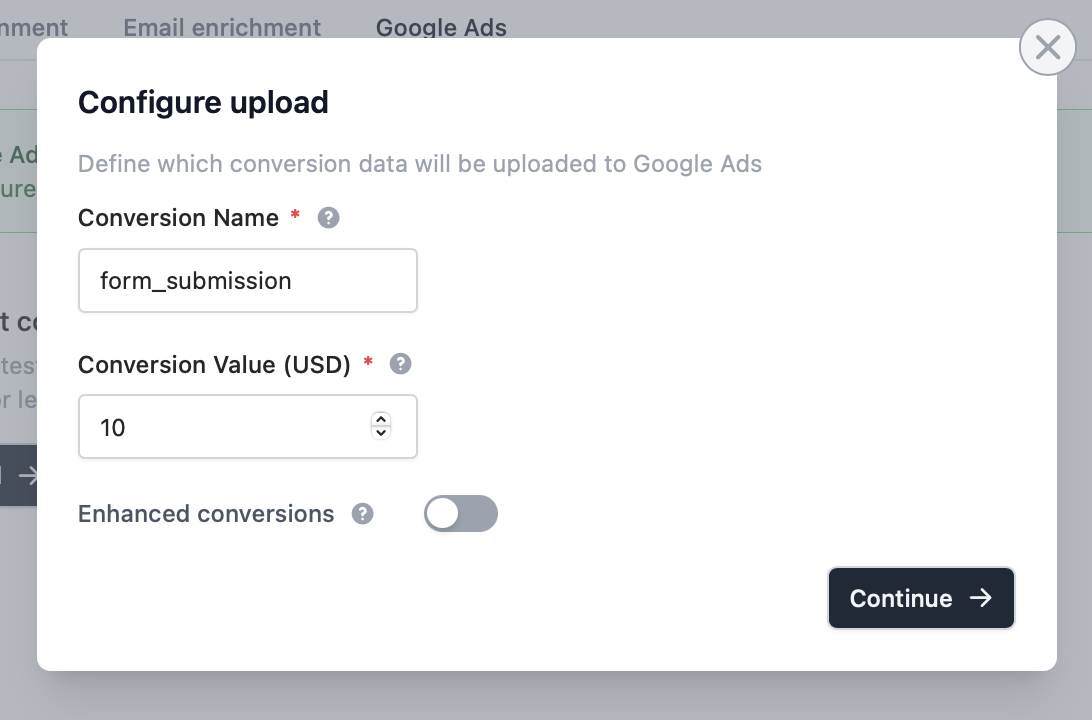 Make sure that the conversion name you type matches a Conversion Action name (case sensitive) that is defined in your Google Ads account.
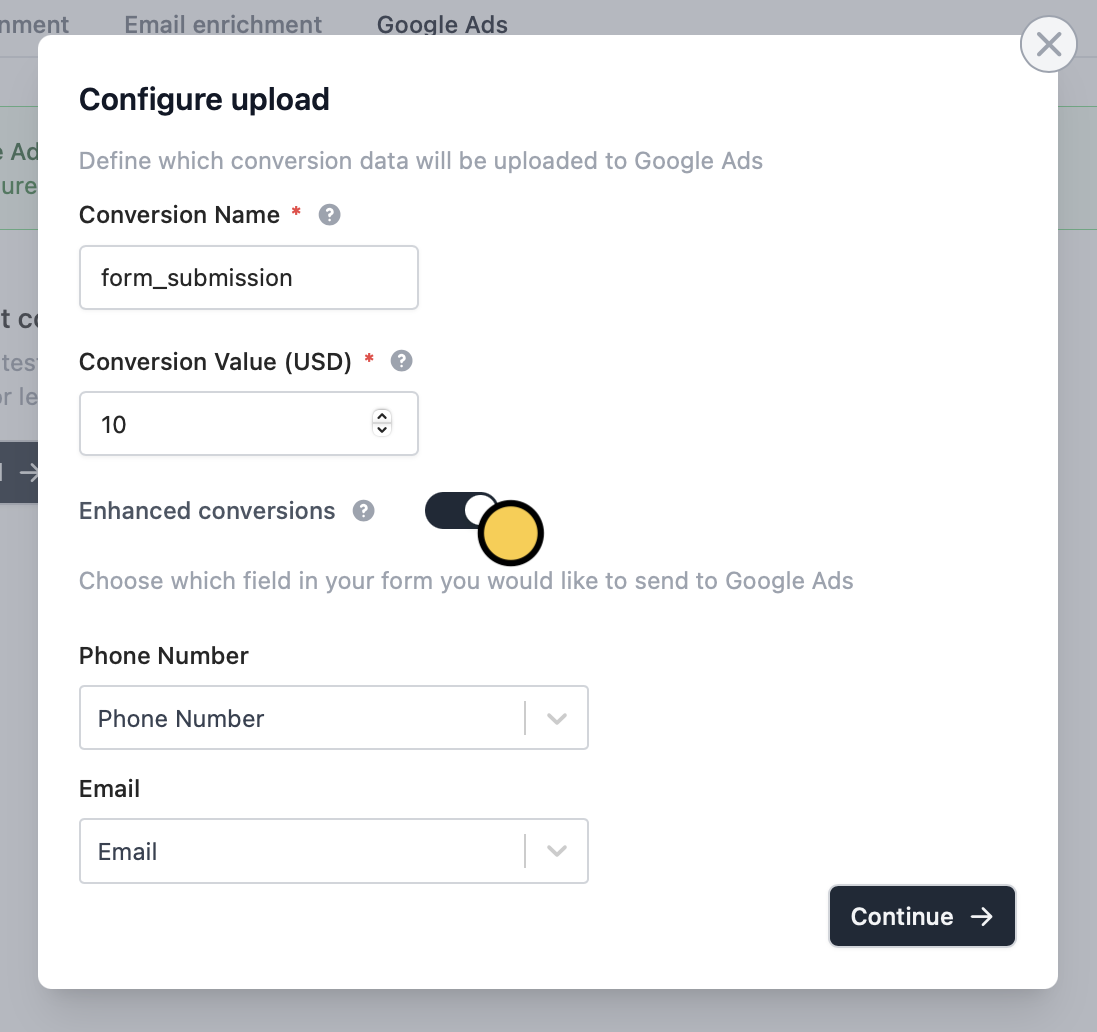
Enhanced conversions can give you more accurate tracking and better bidding results. Learn more [here.](https://support.google.com/google-ads/answer/9888656?hl=en)
Toggle the `Enhanced conversions` switch. Then, select the question you wish to pull data from for Phone Number and Email fields.
Make sure that the conversion name you type matches a Conversion Action name (case sensitive) that is defined in your Google Ads account.
Enhanced conversions can give you more accurate tracking and better bidding results. Learn more [here.](https://support.google.com/google-ads/answer/9888656?hl=en)
Toggle the `Enhanced conversions` switch. Then, select the question you wish to pull data from for Phone Number and Email fields.
 `Download CSV` to export a pre-formatted file with all the necessary conversion data.
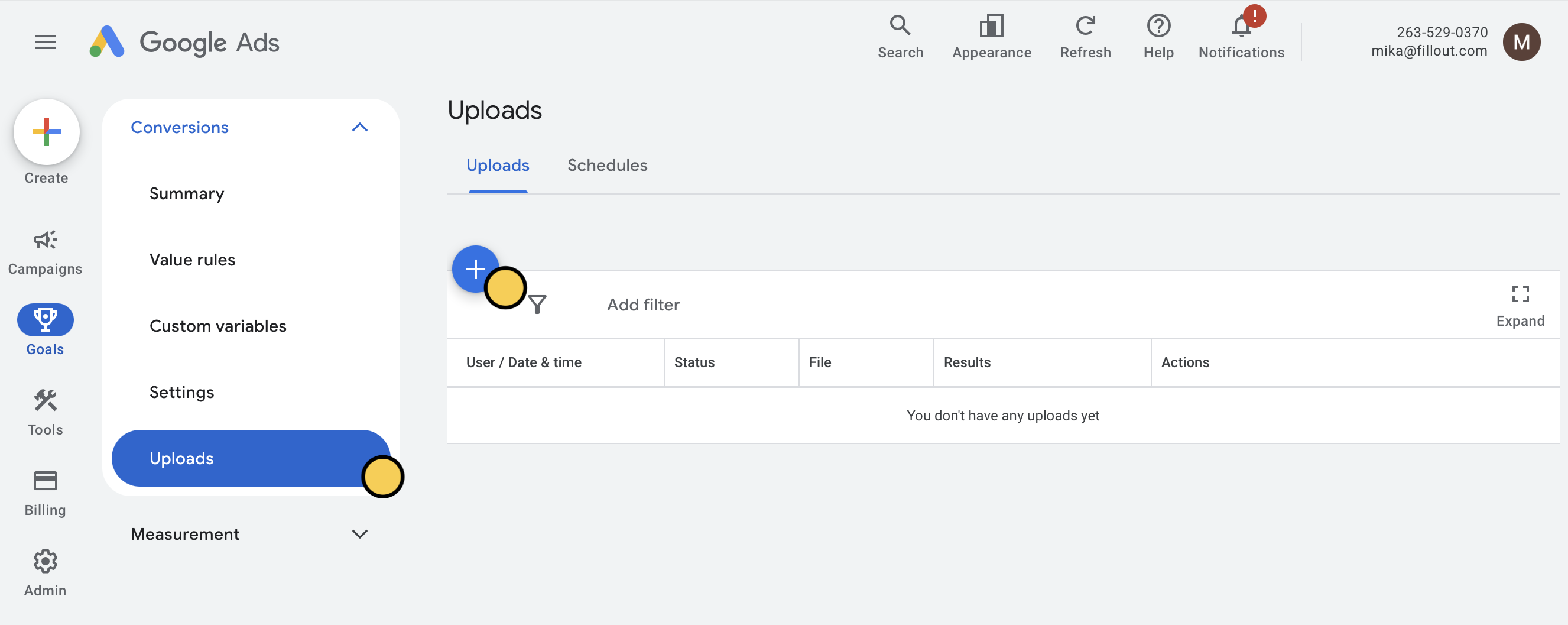
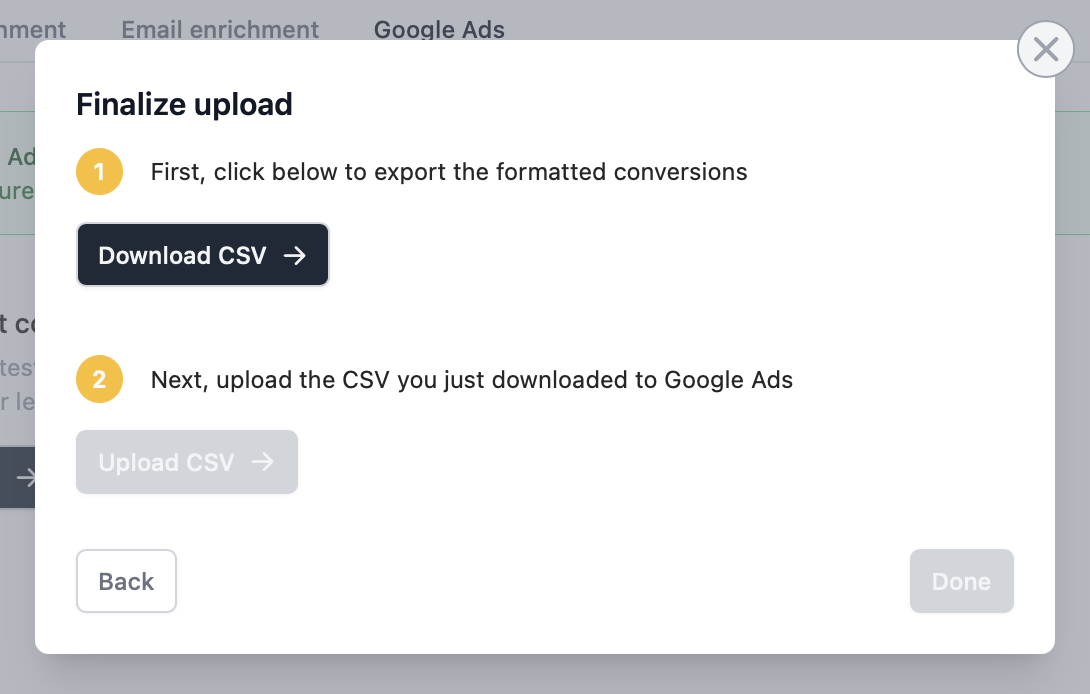 Then, `Upload CSV` and select your Google Ads account in the Google Ads dashboard. On the left-hand panel, go to `Goals` . Then, click `Uploads` followed by .
 Choose `Upload a file` as the source. Select the file you just downloaded and choose **Unhashed private customer data**.
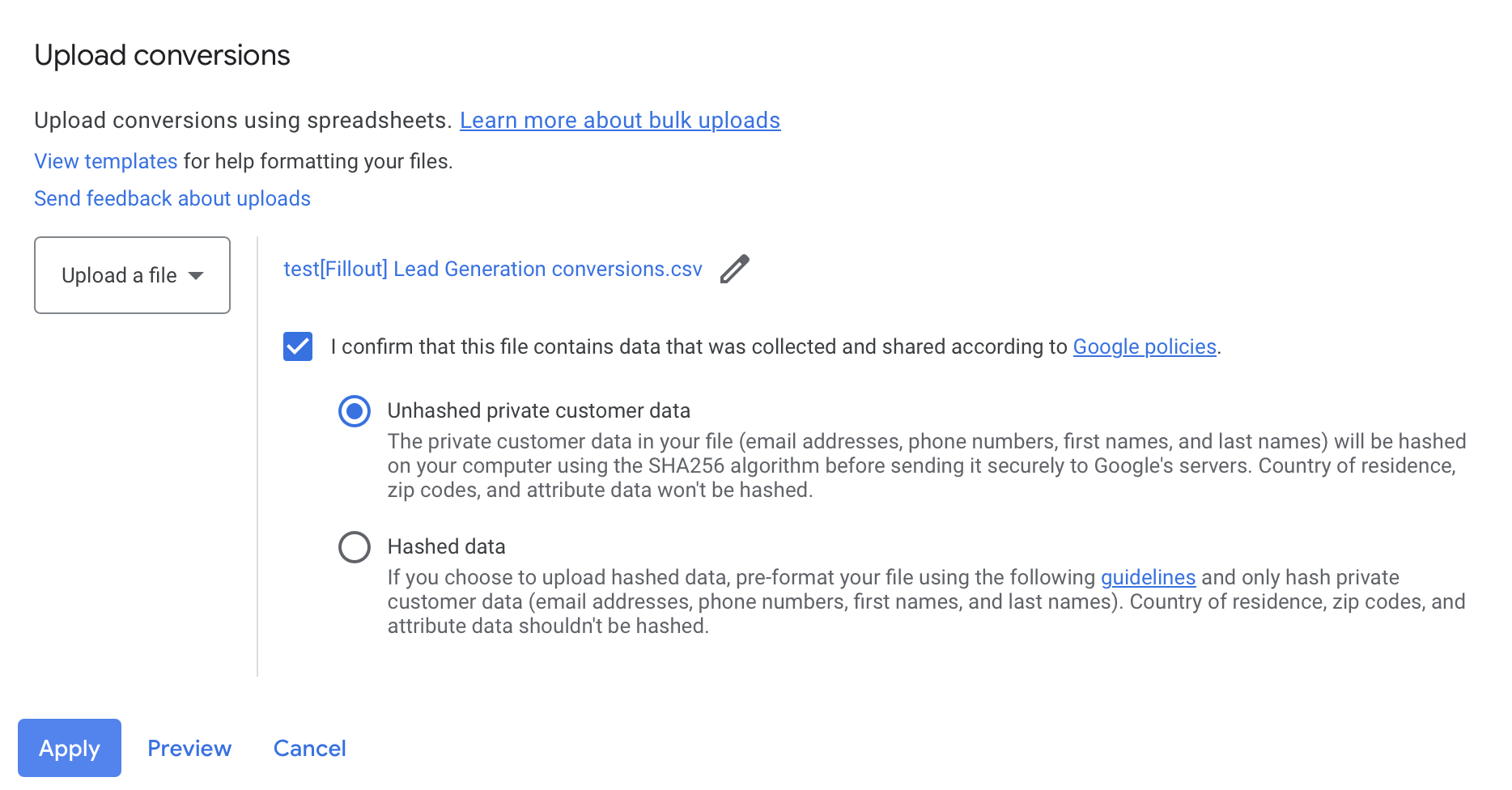 That's it! You’ve now successfully uploaded conversion data to Google Ads.
Remember to `Publish` your form to reflect the latest change.
## Automatic uploads to Google Ads
This feature is planned but not yet available.
## Related articles
Enrich and validate emails, route leads, and more.
Check conversions and ROI through responses.
That's it! You’ve now successfully uploaded conversion data to Google Ads.
Remember to `Publish` your form to reflect the latest change.
## Automatic uploads to Google Ads
This feature is planned but not yet available.
## Related articles
Enrich and validate emails, route leads, and more.
Check conversions and ROI through responses.