> ## Documentation Index
> Fetch the complete documentation index at: https://fillout.com/help/llms.txt
> Use this file to discover all available pages before exploring further.
# Form templates
> Choose from over hundreds of customizable pre-made Fillout form, survey, and quiz templates designed to suit your needs.
export const SupportBanner = () => {
const titleId = React.useId();
return ;
};
## How to choose a template
First, find the template you would like to clone [here.](https://fillout.com/templates) Then, click `Use template`.
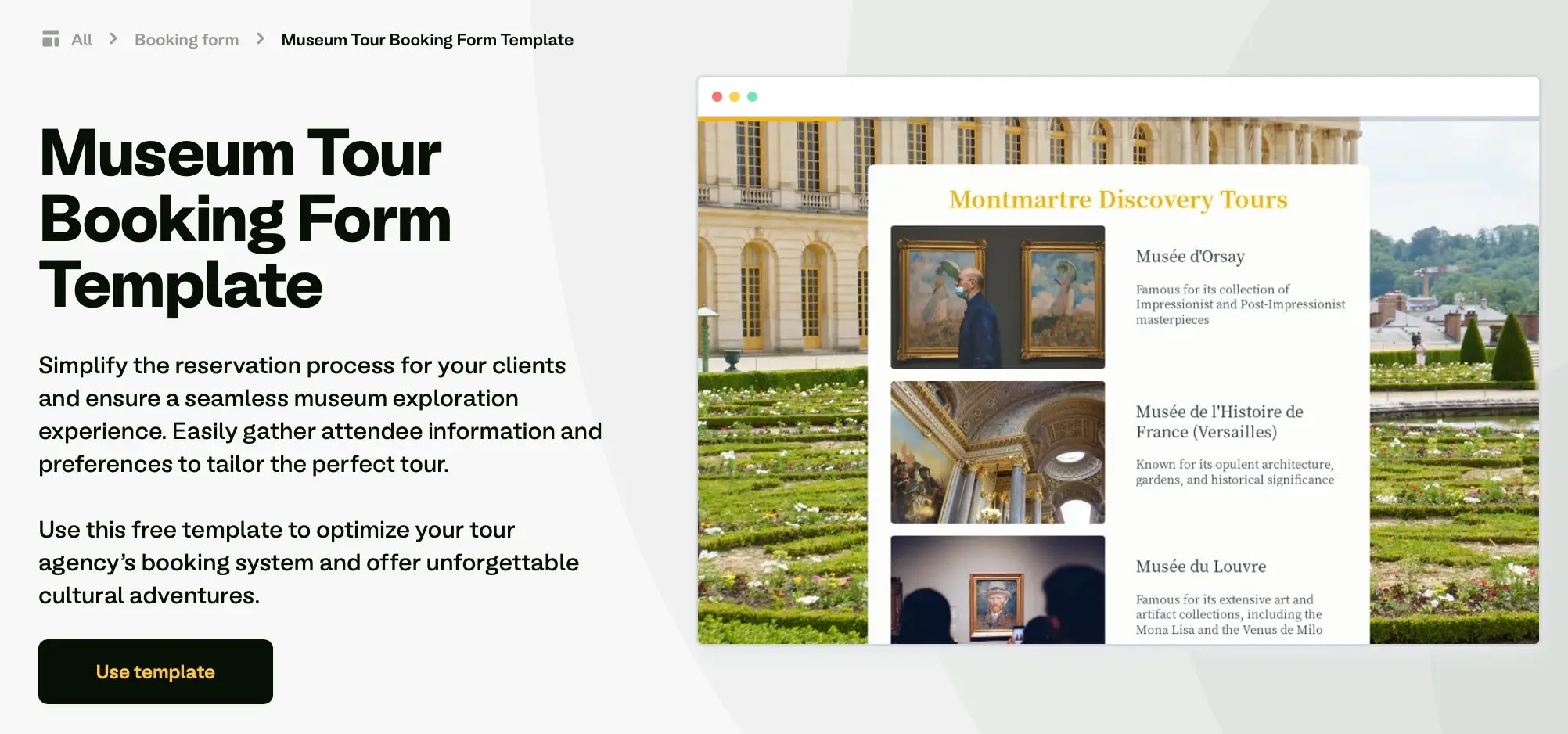 Alternatively, you can `+ Create` a form and choose to start with a `Template`.
That’s it! You now have a copy of that template as a form in your account. Make any changes you need, [customize it](/help/styling), [connect an integration](/help/integrations), and [share or embed](https://www.fillout.com/help/sharing) once you’re good to go.
## Make your own template
You can even make your own template from one of your forms and share it inside or outside of your organization. More details [here](/help/make-a-form-template).
## **Related articles**
Select from hundreds of themes or create your own.
Turn your Fillout forms into templates.
Display questions side by side, rather than stacked vertically.
Alternatively, you can `+ Create` a form and choose to start with a `Template`.
That’s it! You now have a copy of that template as a form in your account. Make any changes you need, [customize it](/help/styling), [connect an integration](/help/integrations), and [share or embed](https://www.fillout.com/help/sharing) once you’re good to go.
## Make your own template
You can even make your own template from one of your forms and share it inside or outside of your organization. More details [here](/help/make-a-form-template).
## **Related articles**
Select from hundreds of themes or create your own.
Turn your Fillout forms into templates.
Display questions side by side, rather than stacked vertically.