> ## Documentation Index
> Fetch the complete documentation index at: https://fillout.com/help/llms.txt
> Use this file to discover all available pages before exploring further.

# Fill again button

> Let respondents fill out your form multiple times. Only available on ending pages.

export const SupportBanner = () => {
  const titleId = React.useId();
  return <div className="support-banner" role="region" aria-labelledby={titleId}>
      <span className="support-banner__ring support-banner__ring--outer" aria-hidden="true" />
      <span className="support-banner__ring support-banner__ring--middle" aria-hidden="true" />
      <span className="support-banner__ring support-banner__ring--inner" aria-hidden="true" />
      <span className="support-banner__ring support-banner__ring--center" aria-hidden="true" />

      <div className="support-banner__content">
        <div className="support-banner__title" id={titleId} role="heading" aria-level="2">Still have questions?</div>

        <div className="support-banner__copy">
          <span className="support-banner__line">Our team is happy to help. Start a live chat using the</span>
          <span className="support-banner__line">
            chat bubble <span className="support-banner__chat-icon" aria-hidden="true" /> in the bottom right, or email us at
          </span>
          <span className="support-banner__line">
            <a href="mailto:support@fillout.com">support{'@'}fillout.com</a>
          </span>
        </div>

        <a className="support-banner__cta" href="mailto:support@fillout.com">Contact us</a>
      </div>
    </div>;
};

## How to add a fill again button

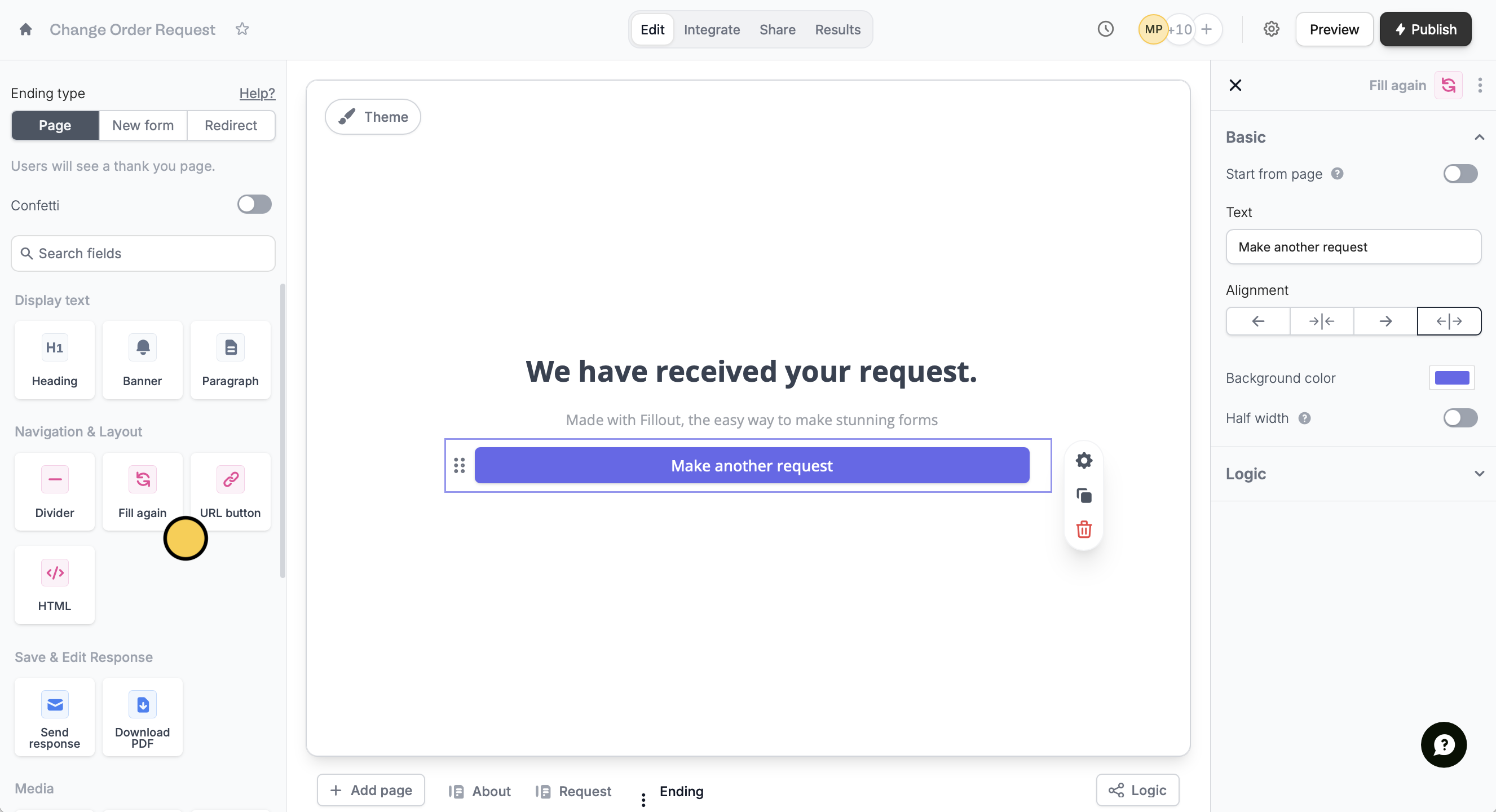
On your **Ending** page, drag the `Fill again` button from the left-hand-panel.
<img src="https://mintcdn.com/fillout-005a867b/eFTfxTsCf0OUbOXl/images/Screenshot2025-10-02at7.23.44PM.png?fit=max&auto=format&n=eFTfxTsCf0OUbOXl&q=85&s=1e76af87fff33d78d8b8f87d55d6002f" alt="Screenshot 2025-10-02 at 7.23.44 PM.png" width="2653" height="1440" data-path="images/Screenshot2025-10-02at7.23.44PM.png" />

You can edit your button in the right-hand panel by clicking its <Icon icon="gear" iconType="solid" />.

<Info>
  The Fill again button is only available on [ending pages](/help/ending-page).
</Info>

## Restart the form from a specific page

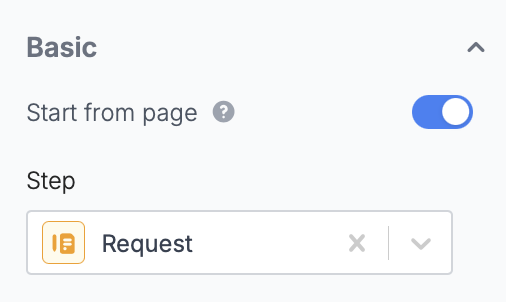
You can set the first page respondents see when they refill the form. Click the button on your form followed by the <Icon icon="gear-complex" iconType="solid" />. In the right-hand panel, toggle `Start from page` and choose a page under **Step**. Skipped pages will auto-fill with their previous responses.
<img src="https://mintcdn.com/fillout-005a867b/eFTfxTsCf0OUbOXl/images/Screenshot2025-10-02at7.24.01PM.png?fit=max&auto=format&n=eFTfxTsCf0OUbOXl&q=85&s=45303a935e6bf1578bbb973a44d237c7" alt="Screenshot 2025-10-02 at 7.24.01 PM.png" title="Screenshot 2025-10-02 at 7.24.01 PM.png" style={{ width:"54%" }} width="506" height="302" data-path="images/Screenshot2025-10-02at7.24.01PM.png" />

Skipped pages will auto-fill with their previous responses.

## Related article

<CardGroup cols={3}>
  <Card title="Ending page" icon="party-bell" iconType="regular" color="#FFC738" href="/help/ending-page">
    Show a thank you page, redirect, or allow re-submission.
  </Card>
</CardGroup>

<SupportBanner />
