> ## Documentation Index
> Fetch the complete documentation index at: https://fillout.com/help/llms.txt
> Use this file to discover all available pages before exploring further.
# Edit form submissions
> Edit form responses with Fillout to update the provided information and rerun integrations.
export const SupportBanner = () => {
const titleId = React.useId();
return ;
};
Want to allow respondents to edit their own submissions? See [our guide here](/help/edit-form-submissions).
## How to edit responses
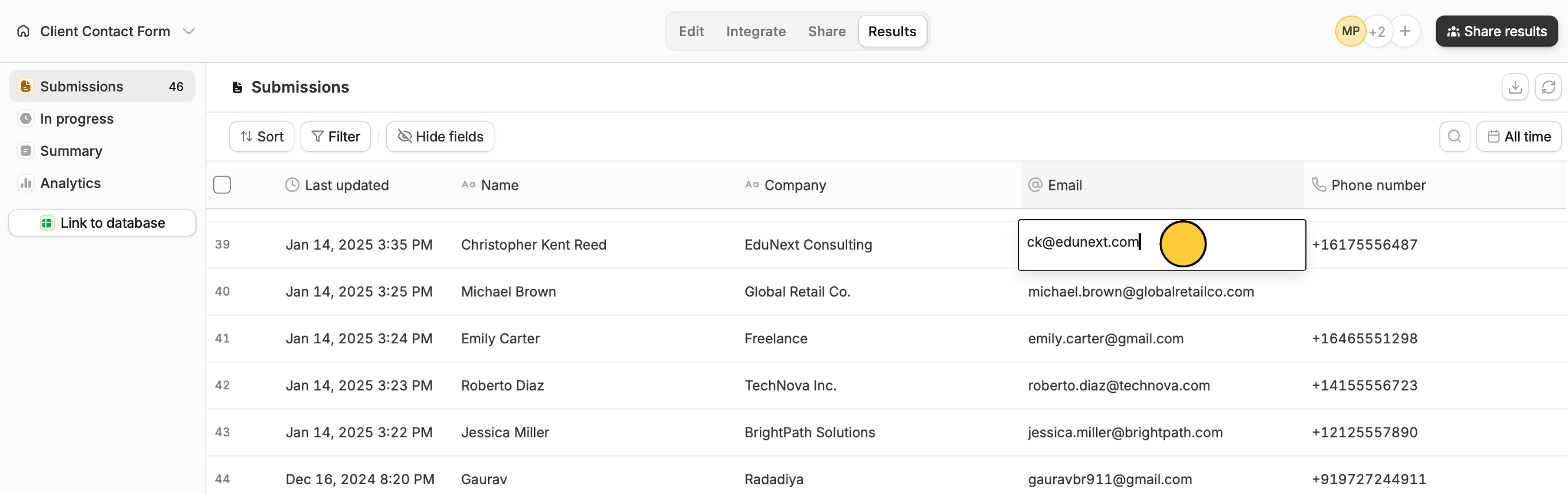
Go to your form's `Results` tab and locate the response you'd like to edit. **Double-click any field** to update or remove its text.
 ## Resubmit form to rerun integration
Sometimes there's nothing you need to edit, but if your form is connected to an integration that previously failed or has been updated, you may need to resubmit a response instead.
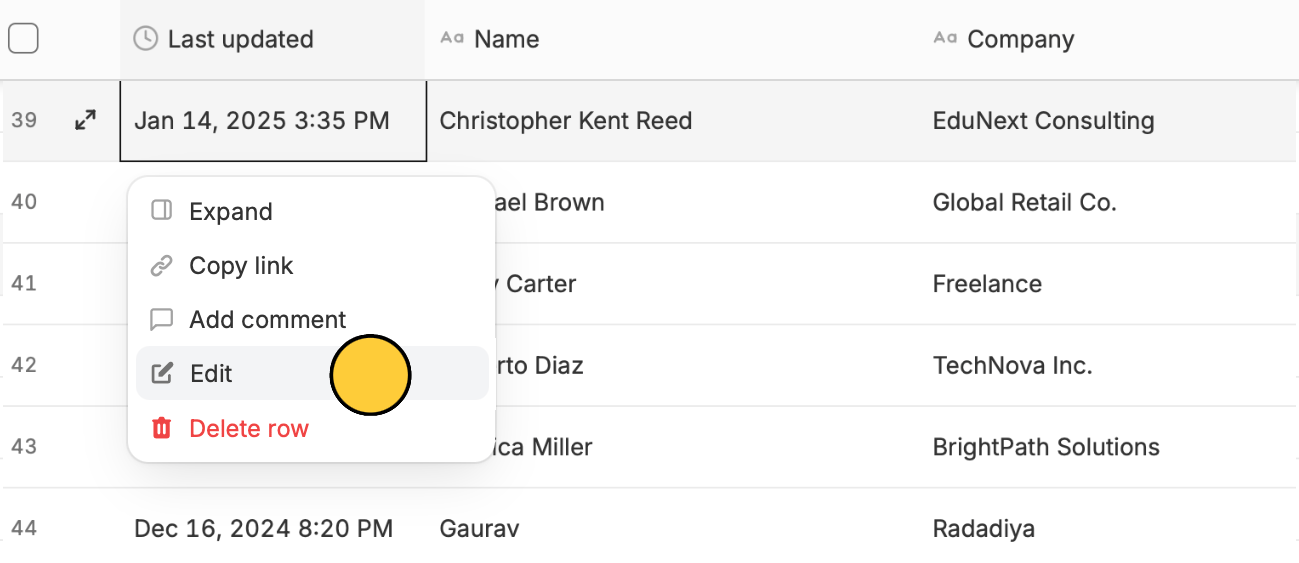
To do this, simply **right-click** on any cell in the response you need to `Edit`.
## Resubmit form to rerun integration
Sometimes there's nothing you need to edit, but if your form is connected to an integration that previously failed or has been updated, you may need to resubmit a response instead.
To do this, simply **right-click** on any cell in the response you need to `Edit`.
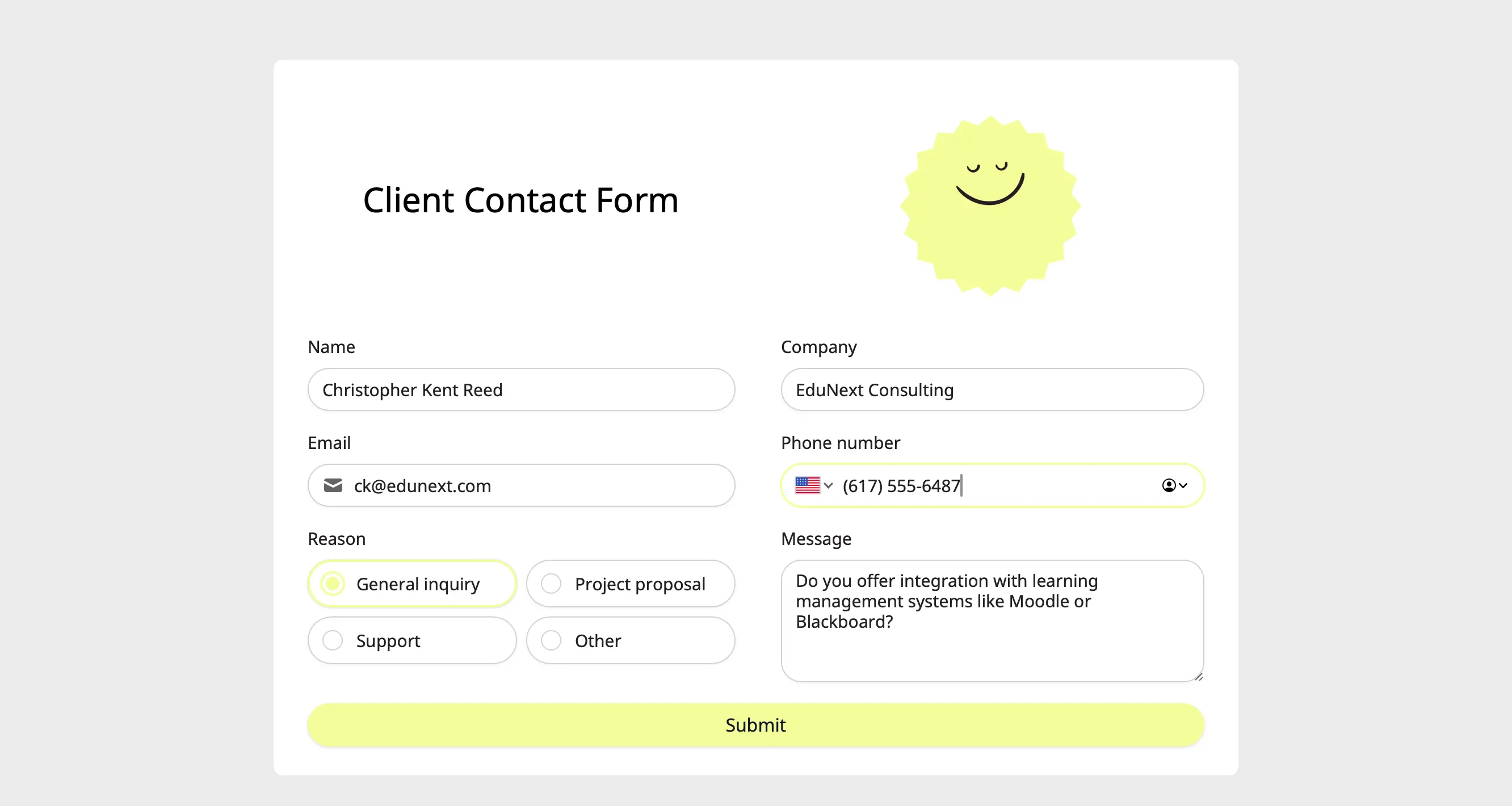
 This won't edit or overwrite the response. Instead, you’ll be redirected to the form pre-filled with the respondent’s answers. Simply click `Submit`.
 Editing form submissions automatically updates data synced through [**integrations**](/help/integrations). This will update existing records in Airtable or Notion, send new alerts on Slack, update Dropbox folders, and etc.
**Preview submissions**
Editing form submissions automatically updates data synced through [**integrations**](/help/integrations). This will update existing records in Airtable or Notion, send new alerts on Slack, update Dropbox folders, and etc.
**Preview submissions**
 An `eye icon` indicates that a submission was made in **Preview mode**. Since Preview mode is typically used to test how a form works by the form owner or collaborators, these submissions can't be edited.
**Let respondents edit their submissions**
You can also send the **link** of this pre-filled form to the respondent in case they want to edit their answers. Simply **right-click** on a cell and choose `Copy link`. Check out other methods [here](https://www.fillout.com/help/edit-form-submissions).
## Related articles
Auto-save progress so respondents can resume later.
View results, and edit forms with free seats.
Keep form responses updated.
An `eye icon` indicates that a submission was made in **Preview mode**. Since Preview mode is typically used to test how a form works by the form owner or collaborators, these submissions can't be edited.
**Let respondents edit their submissions**
You can also send the **link** of this pre-filled form to the respondent in case they want to edit their answers. Simply **right-click** on a cell and choose `Copy link`. Check out other methods [here](https://www.fillout.com/help/edit-form-submissions).
## Related articles
Auto-save progress so respondents can resume later.
View results, and edit forms with free seats.
Keep form responses updated.