> ## Documentation Index
> Fetch the complete documentation index at: https://fillout.com/help/llms.txt
> Use this file to discover all available pages before exploring further.
# Let respondents edit their form submissions
> Fillout lets respondents edit their own submissions, so you always have the most up-to-date information—no Fillout account required.
export const SupportBanner = () => {
const titleId = React.useId();
return ;
};
## When do I need an editable form?
Making your forms editable improves the accuracy of the data you collect and reduces back-and-forth with your users. Common use cases include:
* Event RSVPs — let respondents update their answers if plans change.
* Surveys — allow edits when users have new information to share.
* Newsletter signups — let users adjust their notification preferences later.
There are different ways to enable form edits in Fillout, depending on your needs.
## Option 1: Auto-send edit links
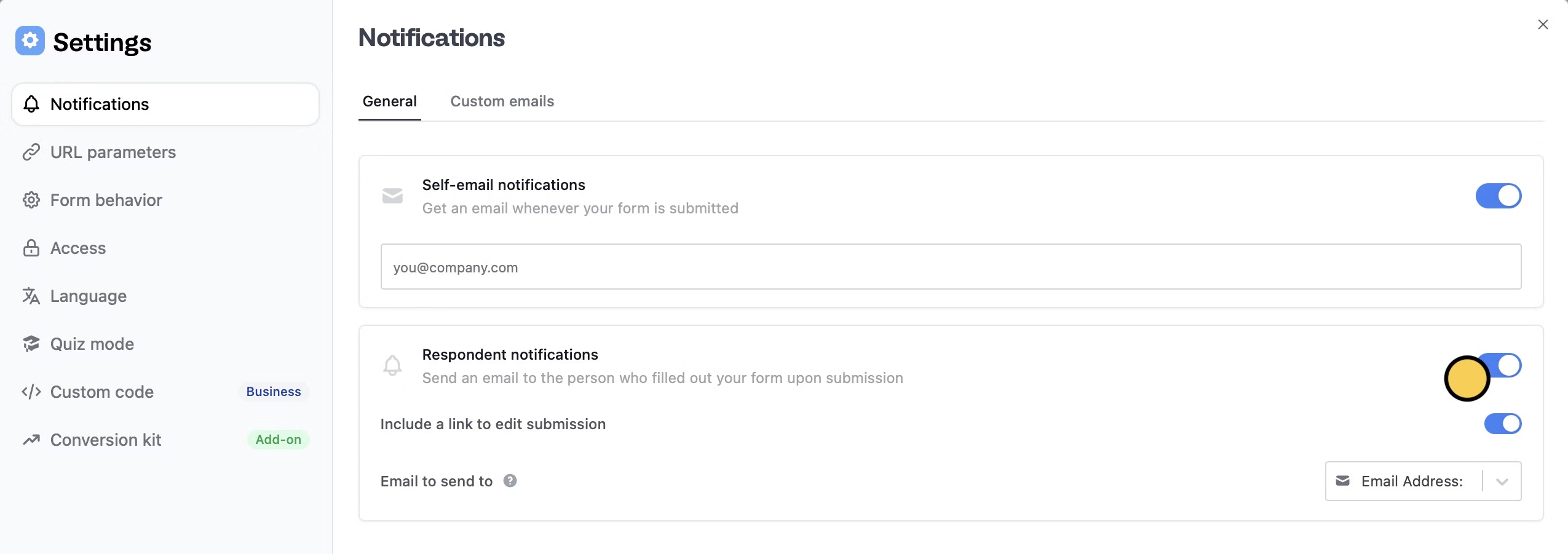
If you want all respondents to receive an edit link by default, use this approach. First, quickly enable [respondent notifications](/help/respondent-emails). Make sure to toggle `Include a link to edit submission`.
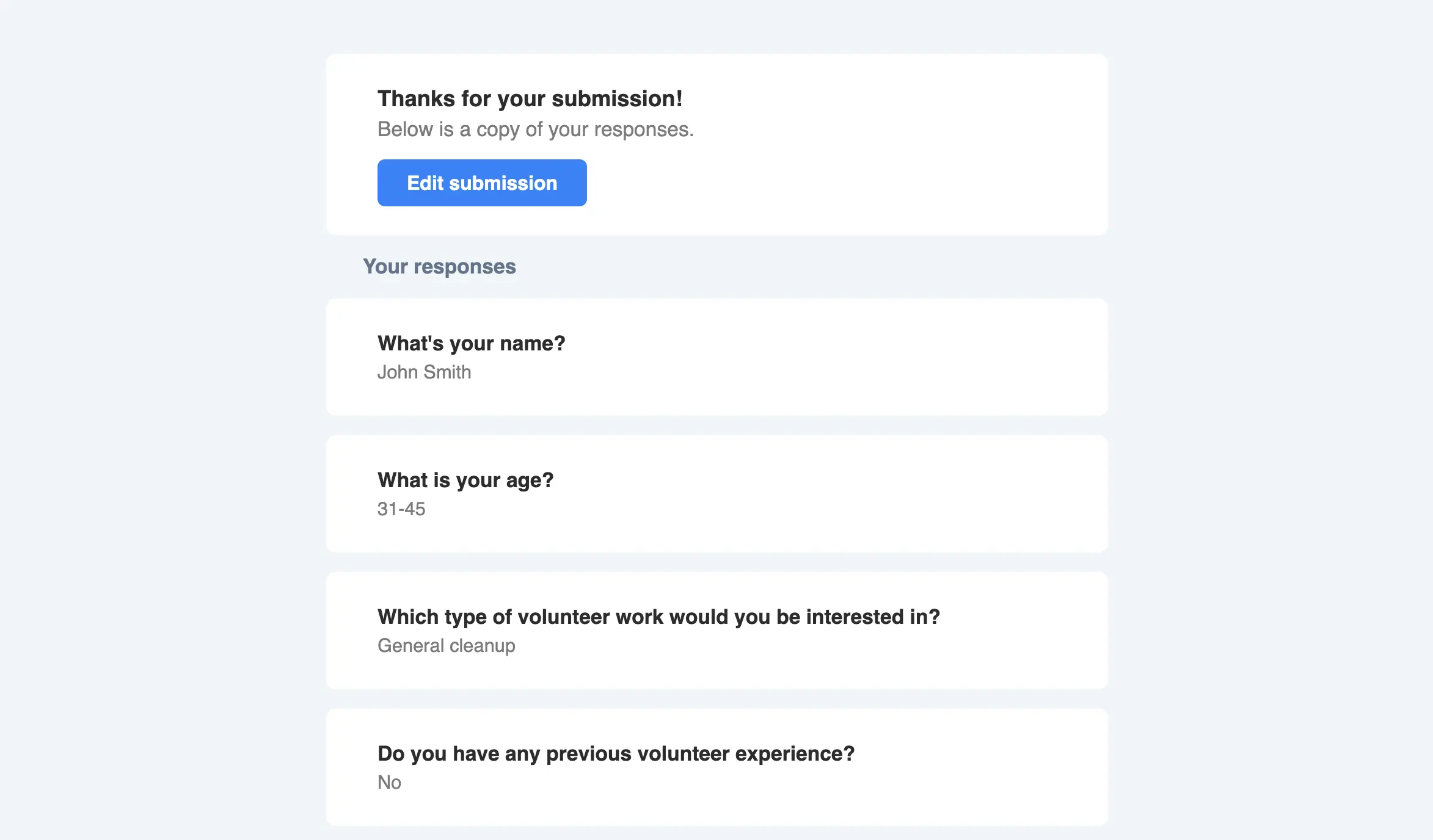
 Upon submissions, respondents will receive an email with a clear button to `Edit submission`.
 ## Option 2: Use the Send response field
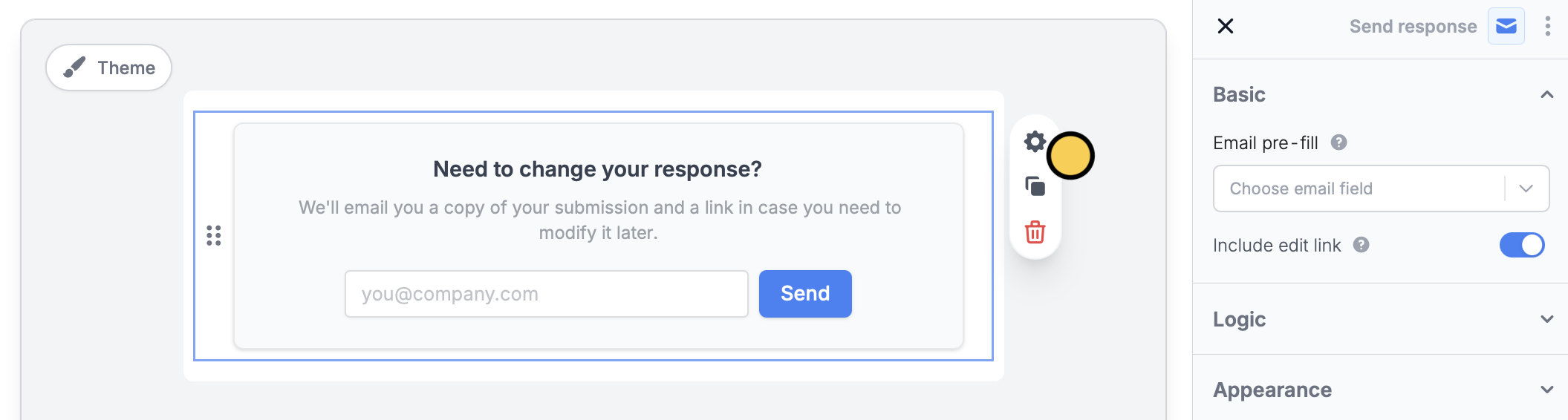
If you want to make the respondent opt-in, use this approach instead. On your form’s [ending page](/help/ending-page), drag-and-drop the `Send response` field type from the left-hand panel.
Click to `Include edit link` in the right-hand panel.
## Option 2: Use the Send response field
If you want to make the respondent opt-in, use this approach instead. On your form’s [ending page](/help/ending-page), drag-and-drop the `Send response` field type from the left-hand panel.
Click to `Include edit link` in the right-hand panel.
 ## Option 3: Manually share the edit link
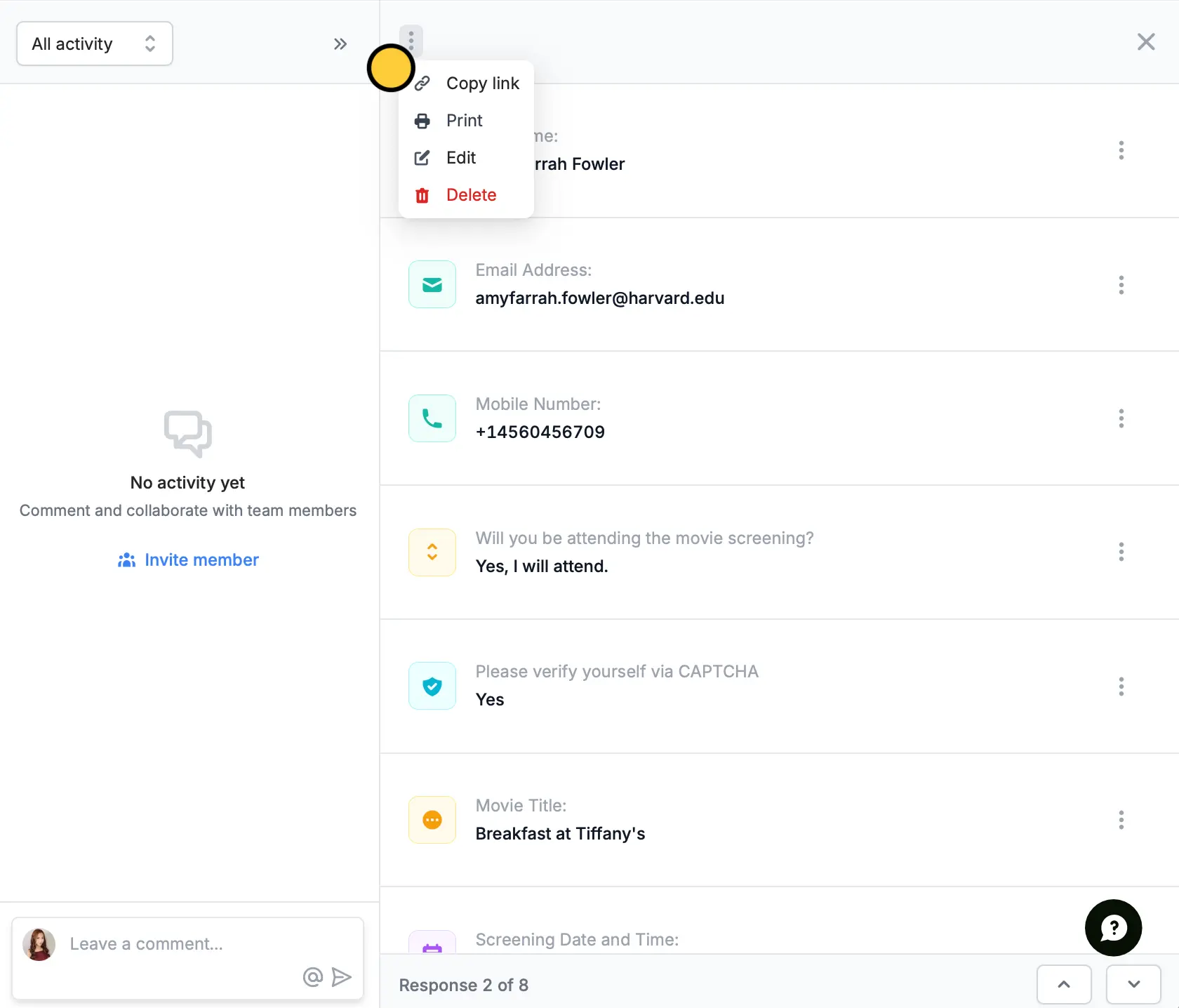
First, head to the `Results` tab on your form and [open the submission in question](https://www.fillout.com/help/view-responses#view-individual-submissions). Click followed by `Edit`. A new tab will open with the filled submission. Copy the link and share it.
## Option 3: Manually share the edit link
First, head to the `Results` tab on your form and [open the submission in question](https://www.fillout.com/help/view-responses#view-individual-submissions). Click followed by `Edit`. A new tab will open with the filled submission. Copy the link and share it.
 ## Option 4: Add a submission overview in the email
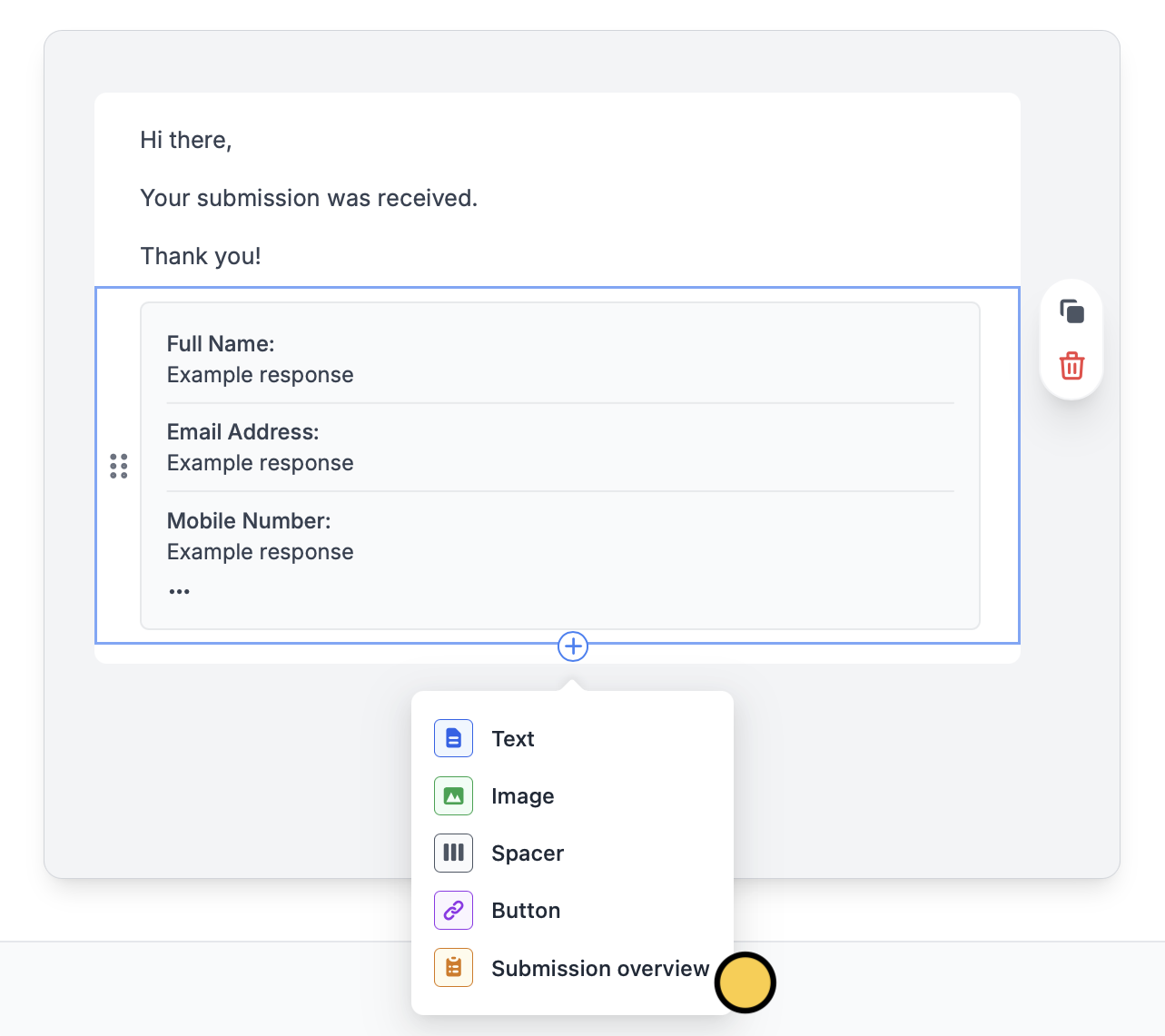
You can also automate custom emails with a submission overview, letting respondents update their responses from the link provided in the email. More info [here](https://www.fillout.com/help/custom-emails).
## Option 4: Add a submission overview in the email
You can also automate custom emails with a submission overview, letting respondents update their responses from the link provided in the email. More info [here](https://www.fillout.com/help/custom-emails).
 ## Option 5: Use a login page
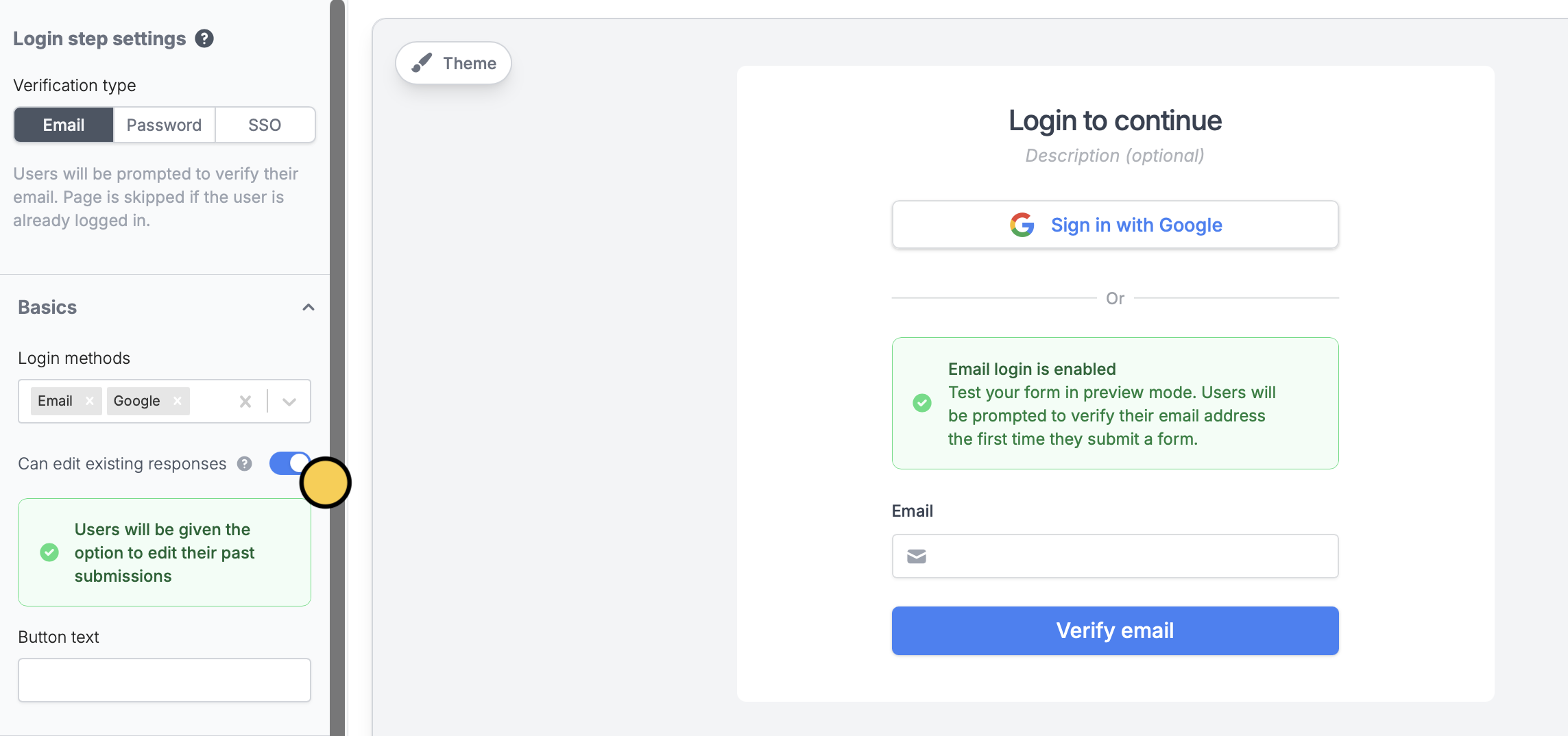
Add a [login page](https://www.fillout.com/help/login-page) to your form and enable `Can edit existing responses`.
## Option 5: Use a login page
Add a [login page](https://www.fillout.com/help/login-page) to your form and enable `Can edit existing responses`.
 ## Updating integrations
With the approaches described above, your connected 3rd-party integrations will automatically be updated whenever someone submits the edit link. For example, if your form is connected to Airtable, re-submitting the form from a respondent notification link will update the record in Airtable.
You can also set up edit links for specific integrations. See these guides or follow the same instructions for other integrations, like SmartSuite or Monday.com.
Edit existing records and pre-fill fields.
Edit existing pages and pre-fill fields.
## Closing the form
If you’ve sent out an edit link but no longer want to accept submissions, you can always [close your form](https://www.fillout.com/help/manage-form-access#close-form) to new submissions and edits.
## Updating integrations
With the approaches described above, your connected 3rd-party integrations will automatically be updated whenever someone submits the edit link. For example, if your form is connected to Airtable, re-submitting the form from a respondent notification link will update the record in Airtable.
You can also set up edit links for specific integrations. See these guides or follow the same instructions for other integrations, like SmartSuite or Monday.com.
Edit existing records and pre-fill fields.
Edit existing pages and pre-fill fields.
## Closing the form
If you’ve sent out an edit link but no longer want to accept submissions, you can always [close your form](https://www.fillout.com/help/manage-form-access#close-form) to new submissions and edits.