> ## Documentation Index
> Fetch the complete documentation index at: https://fillout.com/help/llms.txt
> Use this file to discover all available pages before exploring further.

# Duplicate a form

> Duplicate an existing form as a starting point for a new form.

export const SupportBanner = () => {
  const titleId = React.useId();
  return <div className="support-banner" role="region" aria-labelledby={titleId}>
      <span className="support-banner__ring support-banner__ring--outer" aria-hidden="true" />
      <span className="support-banner__ring support-banner__ring--middle" aria-hidden="true" />
      <span className="support-banner__ring support-banner__ring--inner" aria-hidden="true" />
      <span className="support-banner__ring support-banner__ring--center" aria-hidden="true" />

      <div className="support-banner__content">
        <div className="support-banner__title" id={titleId} role="heading" aria-level="2">Still have questions?</div>

        <div className="support-banner__copy">
          <span className="support-banner__line">Our team is happy to help. Start a live chat using the</span>
          <span className="support-banner__line">
            chat bubble <span className="support-banner__chat-icon" aria-hidden="true" /> in the bottom right, or email us at
          </span>
          <span className="support-banner__line">
            <a href="mailto:support@fillout.com">support{'@'}fillout.com</a>
          </span>
        </div>

        <a className="support-banner__cta" href="mailto:support@fillout.com">Contact us</a>
      </div>
    </div>;
};

## Overview

Duplicating an entire form can be useful if you want to keep all of your fields and just make a few adjustments, or make a new version of your form without updating the old one.

## How to duplicate a form

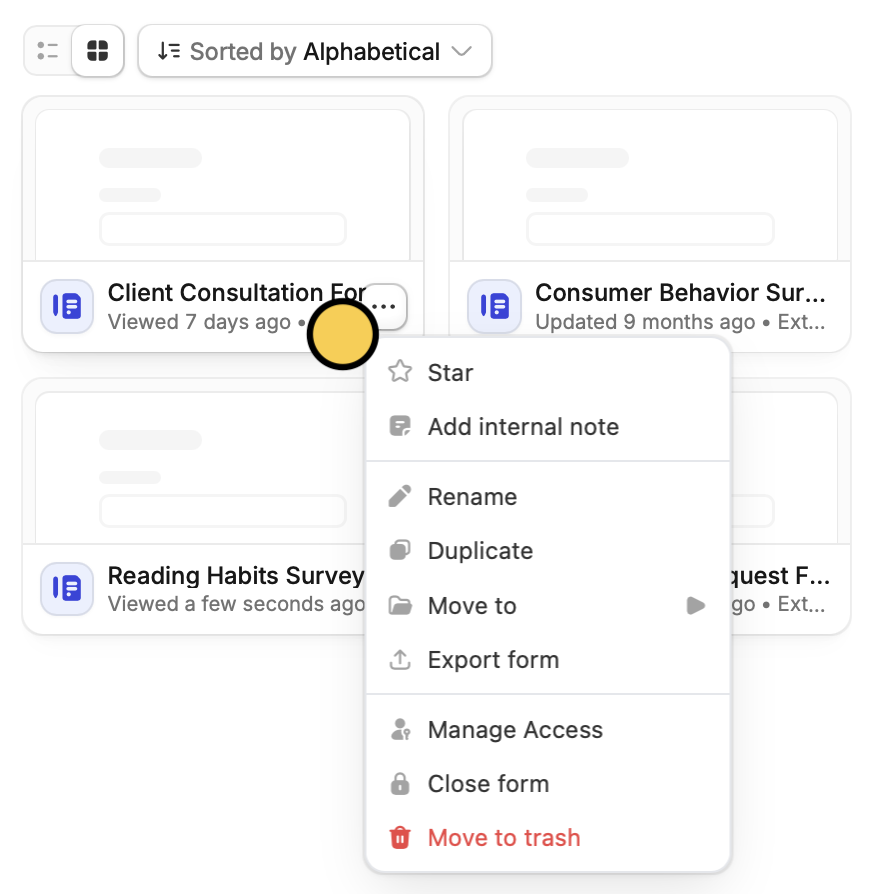
From your dashboard, hover over the form you want to duplicate and click <Icon icon="ellipsis" /> to `Duplicate`.

<img src="https://mintcdn.com/fillout-005a867b/9bmqfK71ValfVJYn/images/Screenshot2025-10-16at6.52.25PM.png?fit=max&auto=format&n=9bmqfK71ValfVJYn&q=85&s=fc860c29958d04a2aab19e53694fe351" alt="Screenshot 2025-10-16 at 6.52.25 PM.png" title="Screenshot 2025-10-16 at 6.52.25 PM.png" style={{ width:"58%" }} width="875" height="894" data-path="images/Screenshot2025-10-16at6.52.25PM.png" />

That’s it! You will now have two identical forms, with different unique links.\
From here, you can also `Rename` your form. Alternatively, if your form is already open in the editor, you can edit the default name in the upper-left corner next to the home icon.

## Related articles

<CardGroup cols={3}>
  <Card title="Import and export forms" color="#FFC738" icon="folder-open" iconType="regular" href="/help/importing-and-exporting-forms">
    Transfer between different accounts.
  </Card>

  <Card title="Copy and paste a question" color="#FFC738" icon="paste" iconType="regular" href="/help/copy-paste-fields">
    Copy and paste fields on any Fillout form.
  </Card>

  <Card title="Duplicate questions" color="#FFC738" icon="clone" iconType="regular" href="/help/duplicate-fields">
    Build forms faster by duplicating questions or fields.
  </Card>
</CardGroup>

<SupportBanner />