> ## Documentation Index
> Fetch the complete documentation index at: https://fillout.com/help/llms.txt
> Use this file to discover all available pages before exploring further.
# Customize Fillout Scheduling form branding
> Tweak your Fillout Scheduling form’s design, link, and avatar.
export const SupportBanner = () => {
const titleId = React.useId();
return ;
};
## Design your form
Click `Theme` to open the form designer, where you can edit the colors, font, and layout of your current [theme](/help/themes). To change this, go to `All themes`.
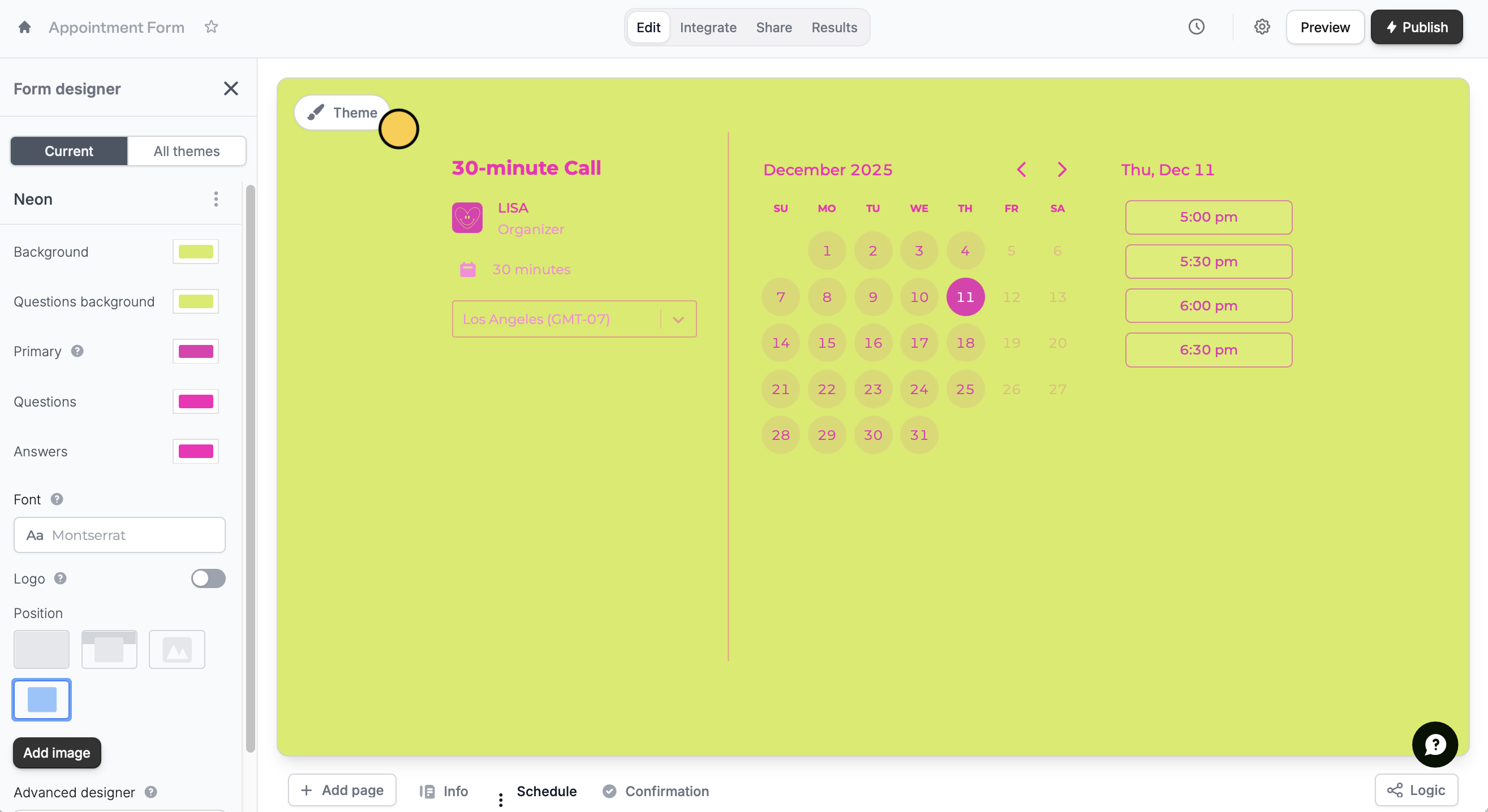 To make [advanced customizations](/help/advanced-designer), scroll down in the left-hand panel to open the `Advanced designer`.
## Edit form link
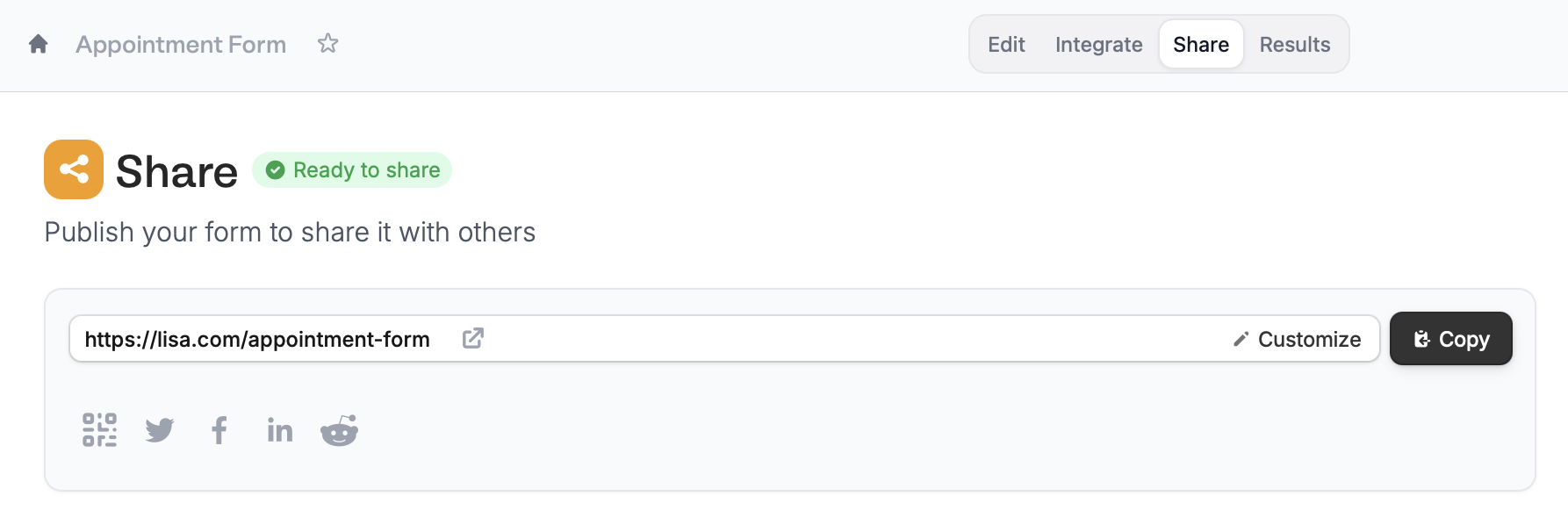
In the `Share` page of your form, you can easily customize your link ending or slug. More info [here](/help/custom-link).
To make [advanced customizations](/help/advanced-designer), scroll down in the left-hand panel to open the `Advanced designer`.
## Edit form link
In the `Share` page of your form, you can easily customize your link ending or slug. More info [here](/help/custom-link).
 Paid Fillout accounts can also [add a custom domain](/help/custom-domains) for fully branded scheduling forms.
## Change your avatar
Simply hover over the avatar in your form to `Customize` it. Alternatively, you may do so by clicking `Booking page` on the left-hand panel.
Paid Fillout accounts can also [add a custom domain](/help/custom-domains) for fully branded scheduling forms.
## Change your avatar
Simply hover over the avatar in your form to `Customize` it. Alternatively, you may do so by clicking `Booking page` on the left-hand panel.
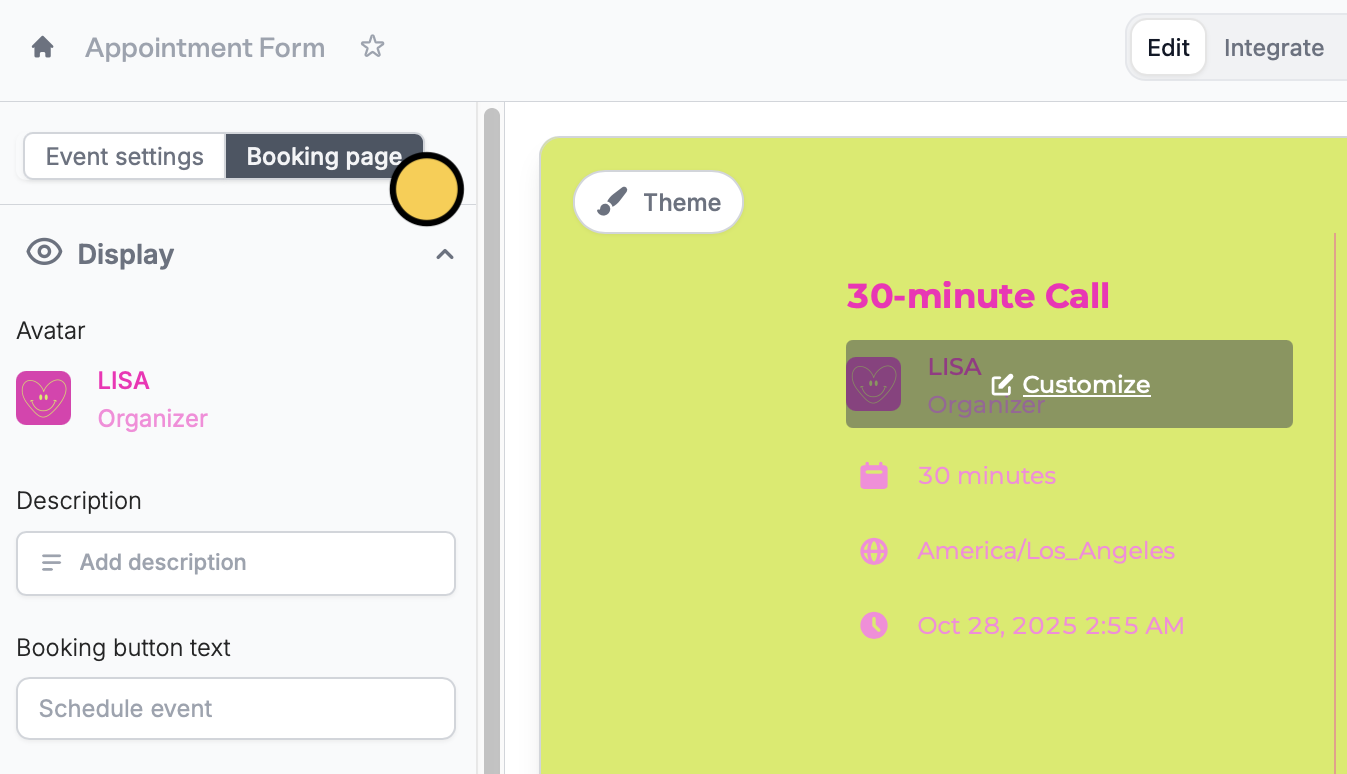 The new avatar will show up on all of your Fillout forms and scheduling forms, automatically replacing the previous one.
## Related articles
Select from hundreds of themes or create your own.
Add a custom CSS, edit button style, change text padding, and more.
Customize your form's link ending, domain, and preview image.
The new avatar will show up on all of your Fillout forms and scheduling forms, automatically replacing the previous one.
## Related articles
Select from hundreds of themes or create your own.
Add a custom CSS, edit button style, change text padding, and more.
Customize your form's link ending, domain, and preview image.