> ## Documentation Index
> Fetch the complete documentation index at: https://fillout.com/help/llms.txt
> Use this file to discover all available pages before exploring further.
# Add custom values to answer options
> Set unique values for each option, different from the labels shown to respondents. Helpful for reducing bias in studies, creating multilingual forms, and keeping answers consistent.
export const SupportBanner = () => {
const titleId = React.useId();
return ;
};
## Overview
By default, when a respondent selects a choice, that same label appears in the `Results` page.\
For example, if they choose "Los Angeles International Airport", that’s what will show up in Results.
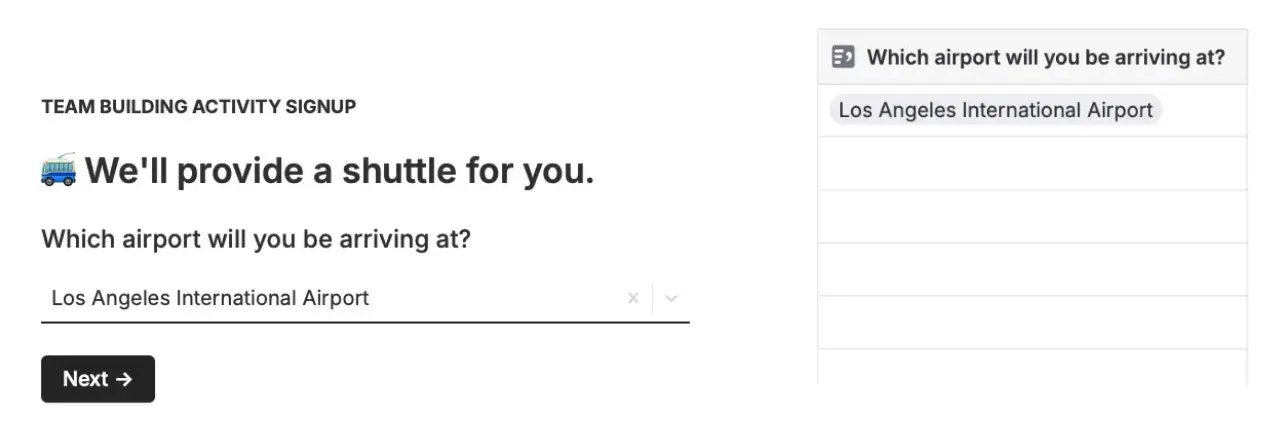 By adding **Custom values**, you can change the text that will appear on the results page. For example, we can specify the value of the same choice, "Los Angeles International Airport", to be "LAX". This can be helpful when integrating your form to CRMs, databases or other tools.
This feature is applicable to Multiple choice, Dropdown, Checkboxes, Picture choice, and Multiselect field types.
## How to add custom values
Select your question followed by the to open the right-hand panel. Then, scroll down to **Advanced** and toggle the `Custom values` switch.
By adding **Custom values**, you can change the text that will appear on the results page. For example, we can specify the value of the same choice, "Los Angeles International Airport", to be "LAX". This can be helpful when integrating your form to CRMs, databases or other tools.
This feature is applicable to Multiple choice, Dropdown, Checkboxes, Picture choice, and Multiselect field types.
## How to add custom values
Select your question followed by the to open the right-hand panel. Then, scroll down to **Advanced** and toggle the `Custom values` switch.
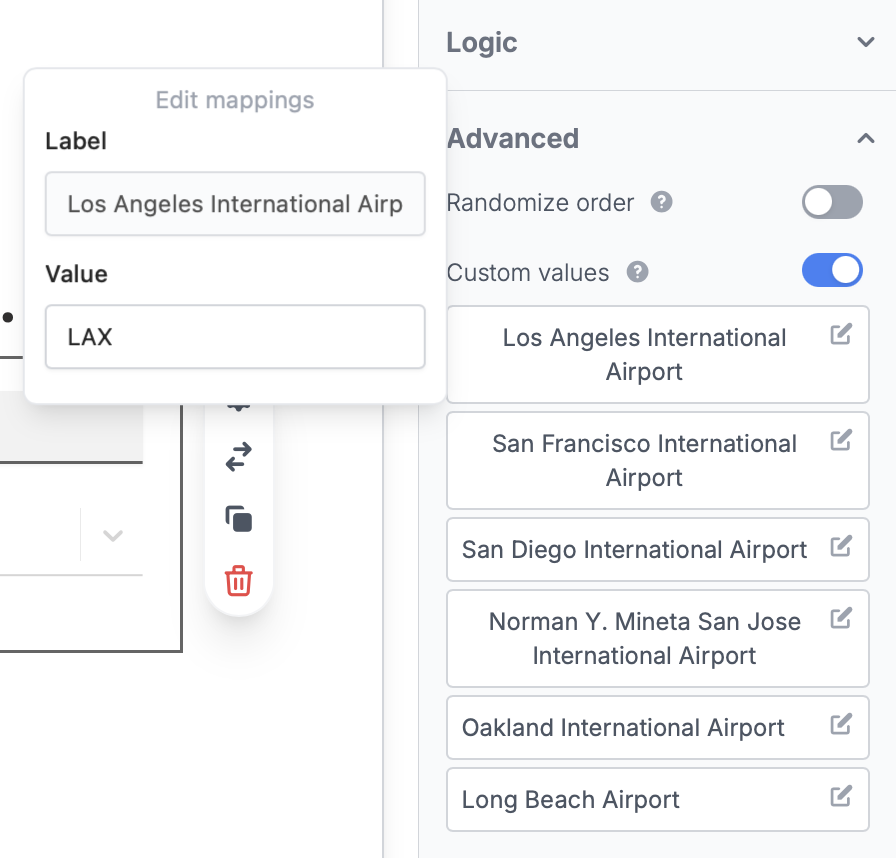
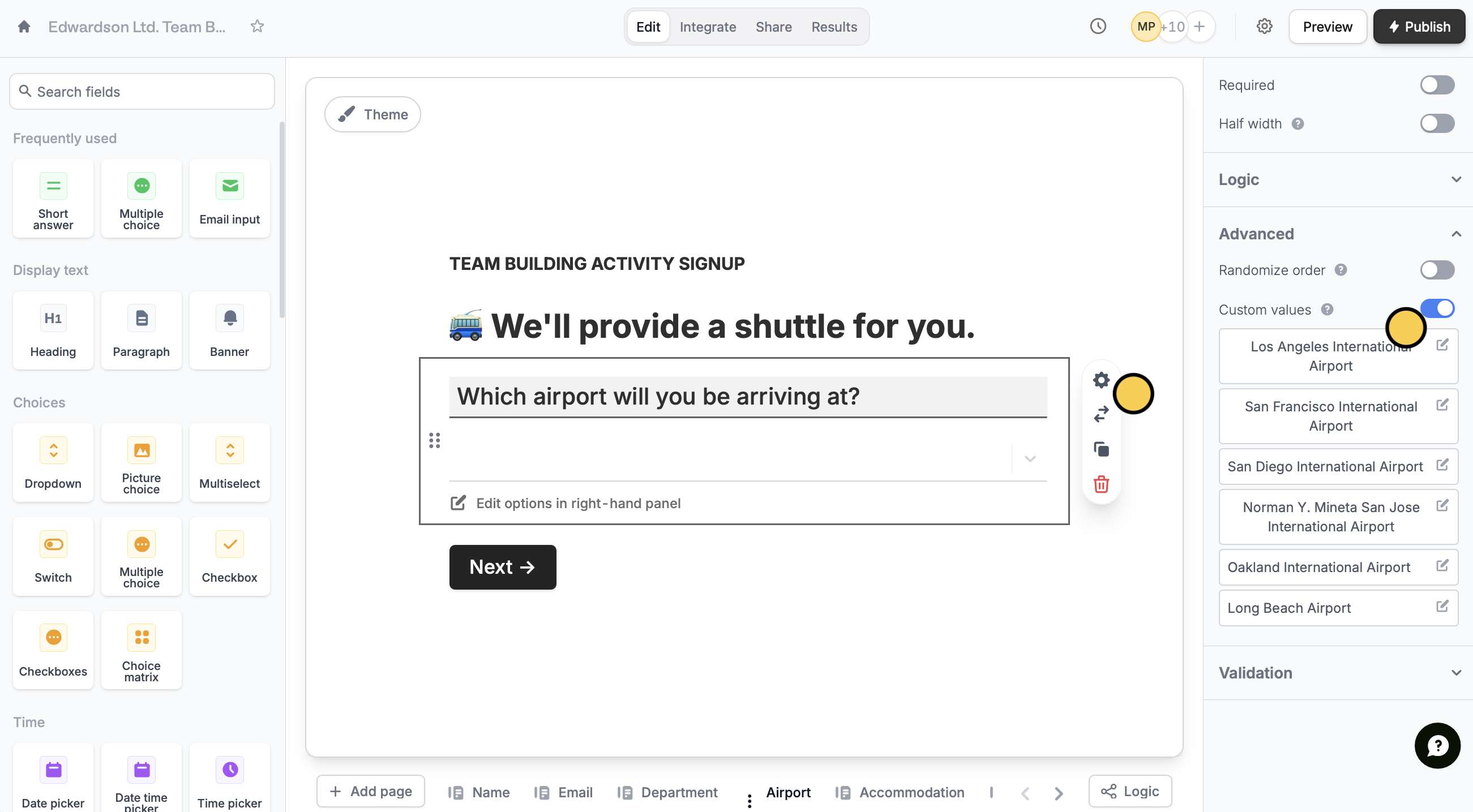 Click an option to edit the **Value** as you see fit. Once the form is ready, click `Publish` on the upper right corner.
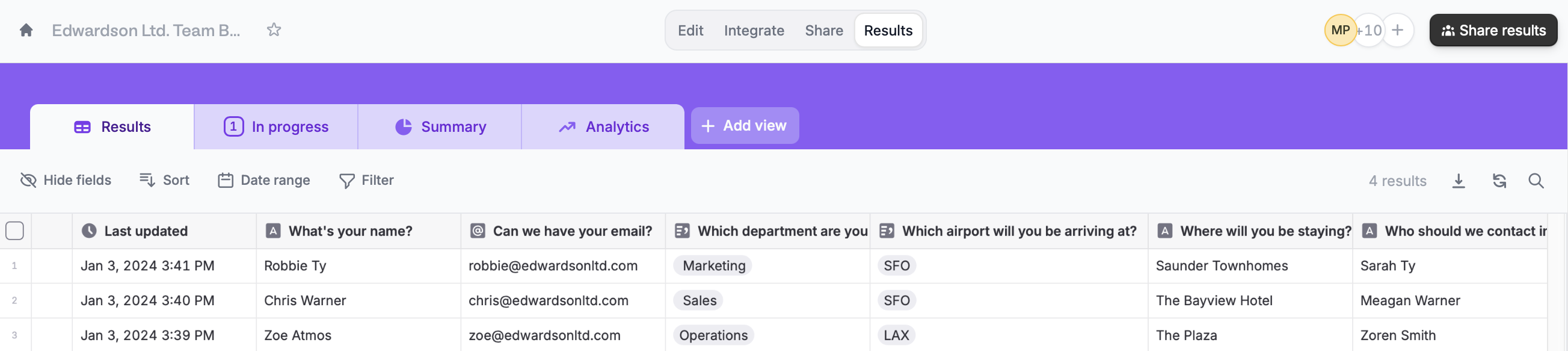
 That's it! Now you'll see the **Values** of the options in the results page.
 ## Use cases
**Studies and research**
In academic studies, use custom values to frame questions in a participant-friendly manner.
**Multilingual forms**
For forms in different languages, use custom values to show options in one language while your backend understands them in another.
**Order fulfillment**
For example, in an e-commerce form, use custom values to display product variations with user-friendly labels while maintaining specific backend values for inventory and processing.
## Other advanced features
Shuffle the order in which answers are displayed.
Pass information to a form to support pre-filling.
Pre-populate fields based on previous inputs and more.
## Use cases
**Studies and research**
In academic studies, use custom values to frame questions in a participant-friendly manner.
**Multilingual forms**
For forms in different languages, use custom values to show options in one language while your backend understands them in another.
**Order fulfillment**
For example, in an e-commerce form, use custom values to display product variations with user-friendly labels while maintaining specific backend values for inventory and processing.
## Other advanced features
Shuffle the order in which answers are displayed.
Pass information to a form to support pre-filling.
Pre-populate fields based on previous inputs and more.