> ## Documentation Index
> Fetch the complete documentation index at: https://fillout.com/help/llms.txt
> Use this file to discover all available pages before exploring further.

# Copy and paste a question

> Copy and paste your Fillout fields on the same page or across pages.

export const SupportBanner = () => {
  const titleId = React.useId();
  return <div className="support-banner" role="region" aria-labelledby={titleId}>
      <span className="support-banner__ring support-banner__ring--outer" aria-hidden="true" />
      <span className="support-banner__ring support-banner__ring--middle" aria-hidden="true" />
      <span className="support-banner__ring support-banner__ring--inner" aria-hidden="true" />
      <span className="support-banner__ring support-banner__ring--center" aria-hidden="true" />

      <div className="support-banner__content">
        <div className="support-banner__title" id={titleId} role="heading" aria-level="2">Still have questions?</div>

        <div className="support-banner__copy">
          <span className="support-banner__line">Our team is happy to help. Start a live chat using the</span>
          <span className="support-banner__line">
            chat bubble <span className="support-banner__chat-icon" aria-hidden="true" /> in the bottom right, or email us at
          </span>
          <span className="support-banner__line">
            <a href="mailto:support@fillout.com">support{'@'}fillout.com</a>
          </span>
        </div>

        <a className="support-banner__cta" href="mailto:support@fillout.com">Contact us</a>
      </div>
    </div>;
};

## How to copy and paste form fields

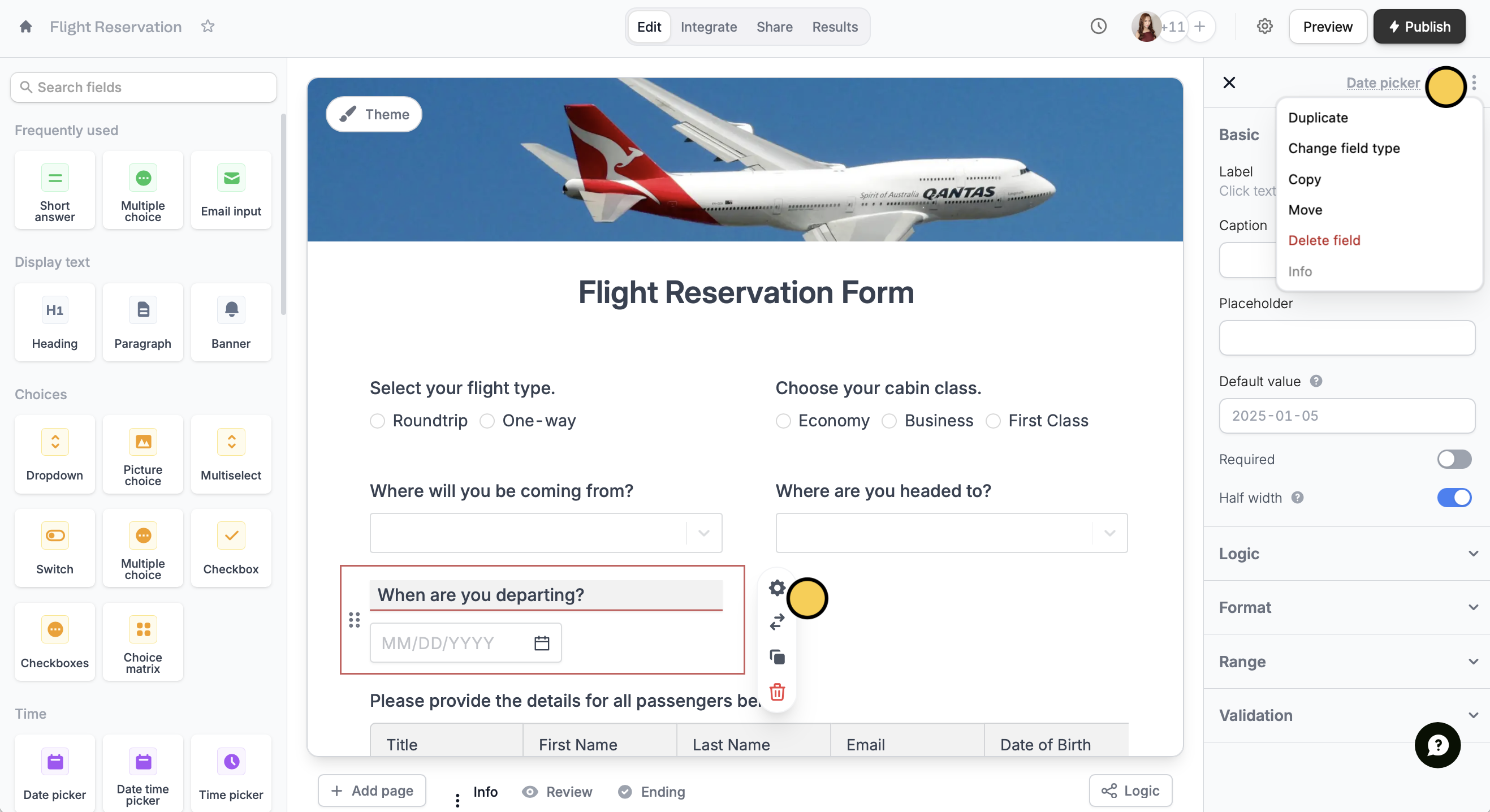
Select the field you want to copy. Then click `⌘ + C` or `Ctrl + C`. Alternatively, you may click its <Icon icon="gear-complex" iconType="solid" /> followed by <Icon icon="ellipsis-vertical" />to `Copy`.

<img src="https://mintcdn.com/fillout-005a867b/dSzPX8KTcFP1y6fT/images/Screenshot2025-10-20at2.43.40PM.png?fit=max&auto=format&n=dSzPX8KTcFP1y6fT&q=85&s=f34e1009b78a41832330ca5dc4f636b7" alt="Screenshot 2025-10-20 at 2.43.40 PM.png" width="2635" height="1436" data-path="images/Screenshot2025-10-20at2.43.40PM.png" />

Then, paste anywhere using `⌘ + V` or `Ctrl + V`.

<Check>
  You can paste questions and fields on different pages of your form or even on entirely different forms.
</Check>

## Related articles

<CardGroup cols={3}>
  <Card title="Duplicate questions" icon="clone" iconType="regular" color="#FFC738" href="/help/duplicate-fields">
    Build forms faster by duplicating questions or fields.
  </Card>

  <Card title="Duplicate a form" icon="copy" iconType="regular" color="#FFC738" href="/help/duplicate-a-form">
    Use an existing form as a starting point for a new form.
  </Card>

  <Card title="Import and export forms" icon="folder-open" iconType="regular" color="#FFC738" href="/help/importing-and-exporting-forms">
    Transfer between different accounts.
  </Card>
</CardGroup>

<SupportBanner />