> ## Documentation Index
> Fetch the complete documentation index at: https://fillout.com/help/llms.txt
> Use this file to discover all available pages before exploring further.
# Enable auto jump on your form
> Instantly take users to the next page after they select an option. Boost completion rates and streamline your form with Fillout’s auto jump.
export const SupportBanner = () => {
const titleId = React.useId();
return ;
};
## Overview
By default, when respondents finish answering a page, they have to click a button to go to the next page. With **auto jump**, the respondent is automatically redirected to the next page after making a selection, without having to click a button.
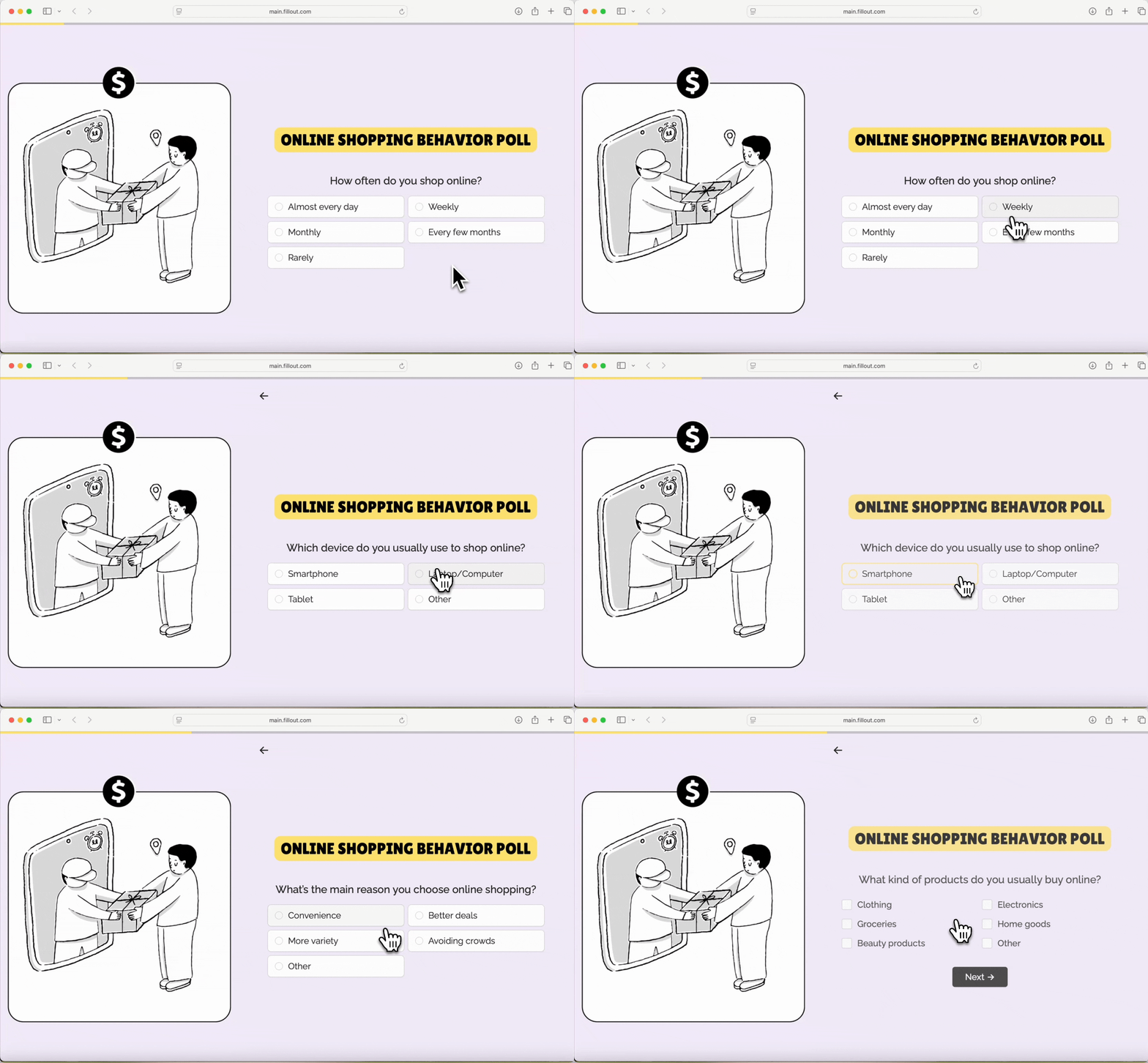 Respondents still need to click the **submit** button at the last form page to complete the form.
## How to enable auto jump
Open your form settings by clicking on the upper right area.
Respondents still need to click the **submit** button at the last form page to complete the form.
## How to enable auto jump
Open your form settings by clicking on the upper right area.
 On the left side, choose `Form behavior` to toggle `Auto-jump to the next page`.
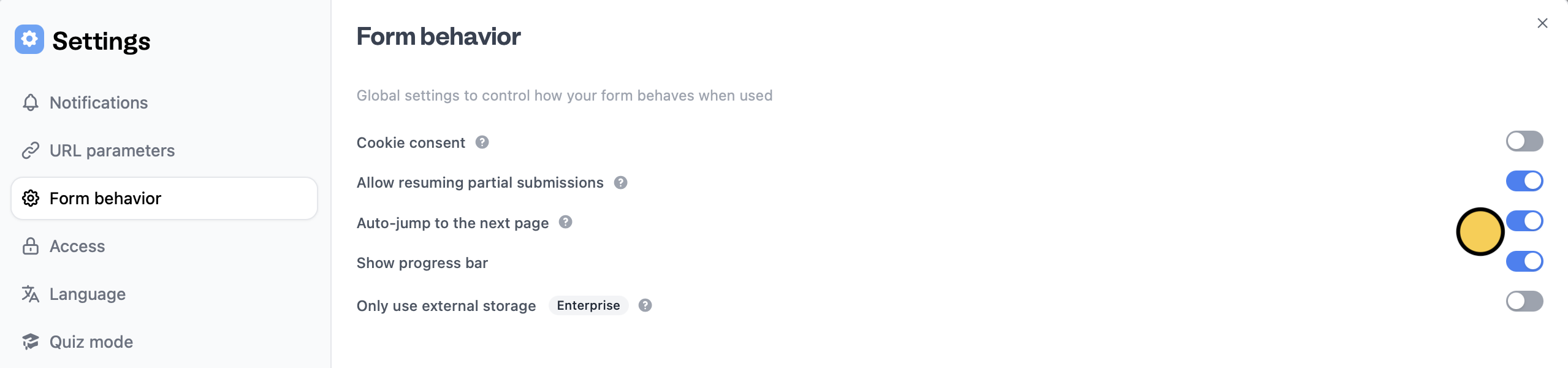 This only works for form pages with a single choice answer. The following fields are supported: Dropdown, Multiple choice, Picture choice, Opinion scale, and Star rating.
Remember to `Publish` your form to reflect the changes. Now, respondents will no longer need to click a button to proceed to the next page.
## Hide buttons
You can also create forms without buttons if you want respondents to focus only on answering. Click the button followed by its to open the right panel. Under **Logic**, toggle `Hide always`.
This only works for form pages with a single choice answer. The following fields are supported: Dropdown, Multiple choice, Picture choice, Opinion scale, and Star rating.
Remember to `Publish` your form to reflect the changes. Now, respondents will no longer need to click a button to proceed to the next page.
## Hide buttons
You can also create forms without buttons if you want respondents to focus only on answering. Click the button followed by its to open the right panel. Under **Logic**, toggle `Hide always`.
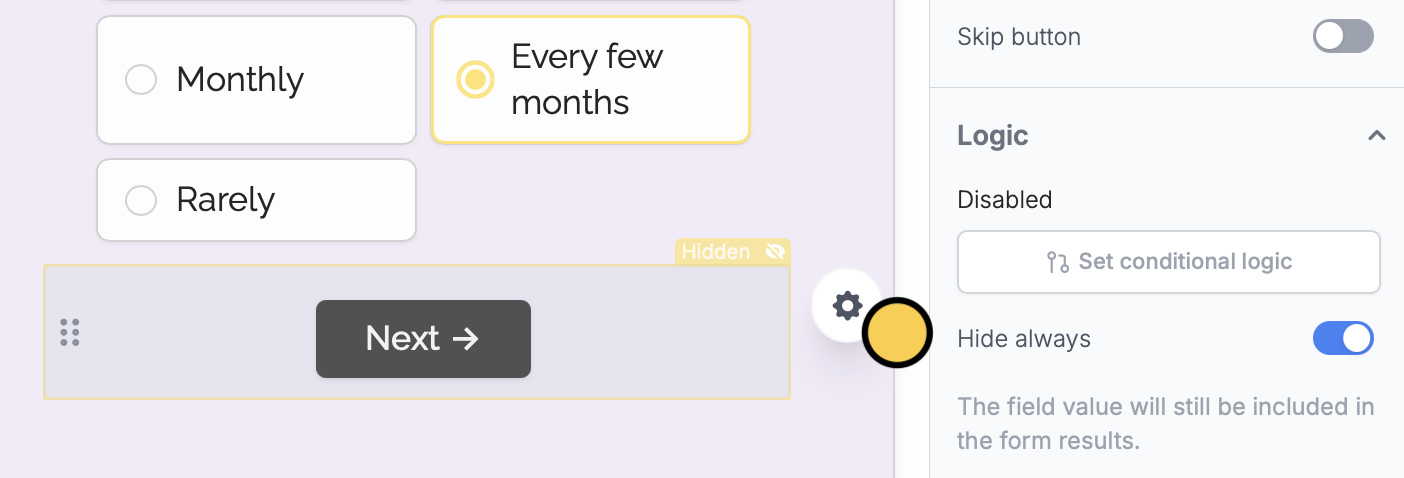 You still need to make the button at the last page visible so that respondents can submit your form.
## Other features to enhance UX
Customize the default progress bar on your form.
Pre-populate fields based on previous inputs and more.
Get alerts for submissions or integration issues.
You still need to make the button at the last page visible so that respondents can submit your form.
## Other features to enhance UX
Customize the default progress bar on your form.
Pre-populate fields based on previous inputs and more.
Get alerts for submissions or integration issues.