> ## Documentation Index
> Fetch the complete documentation index at: https://fillout.com/help/llms.txt
> Use this file to discover all available pages before exploring further.
# Fillout Approvals
> Automate project approvals, HR requests, job applications, and other workflow types. Easily track and manage submissions in one place, assign tasks, and request approvals via email or Slack.
export const SupportBanner = () => {
const titleId = React.useId();
return
Still have questions?
Our team is happy to help. Start a live chat using the
chat bubble in the bottom right, or email us at
support{'@'}fillout.com
;
};
## How to automate approvals
In the [**Workflows page**](https://www.fillout.com/help/workflows#how-to-create-a-workflow), select your preferred **Approval** template.
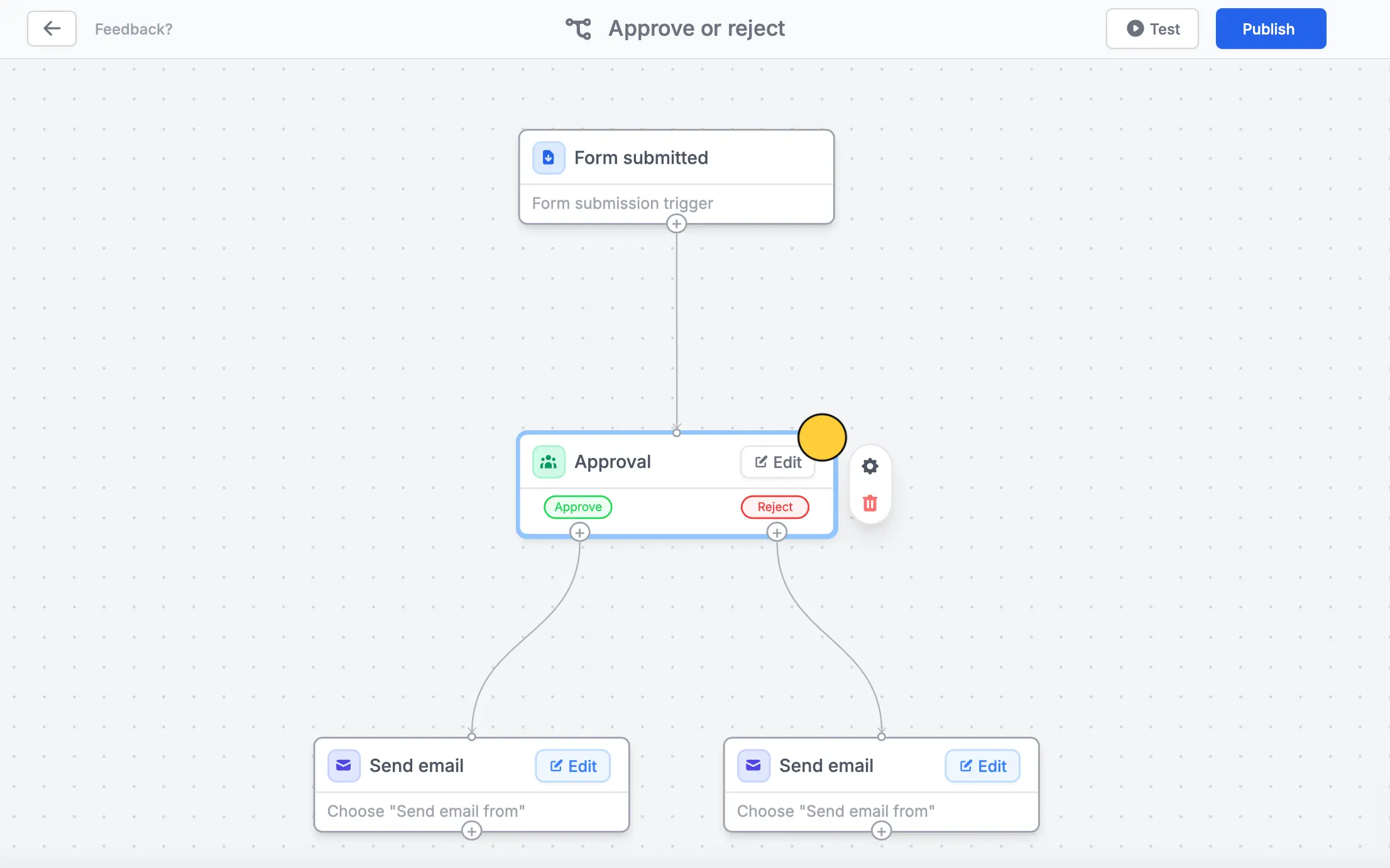
### Approve or reject submissions
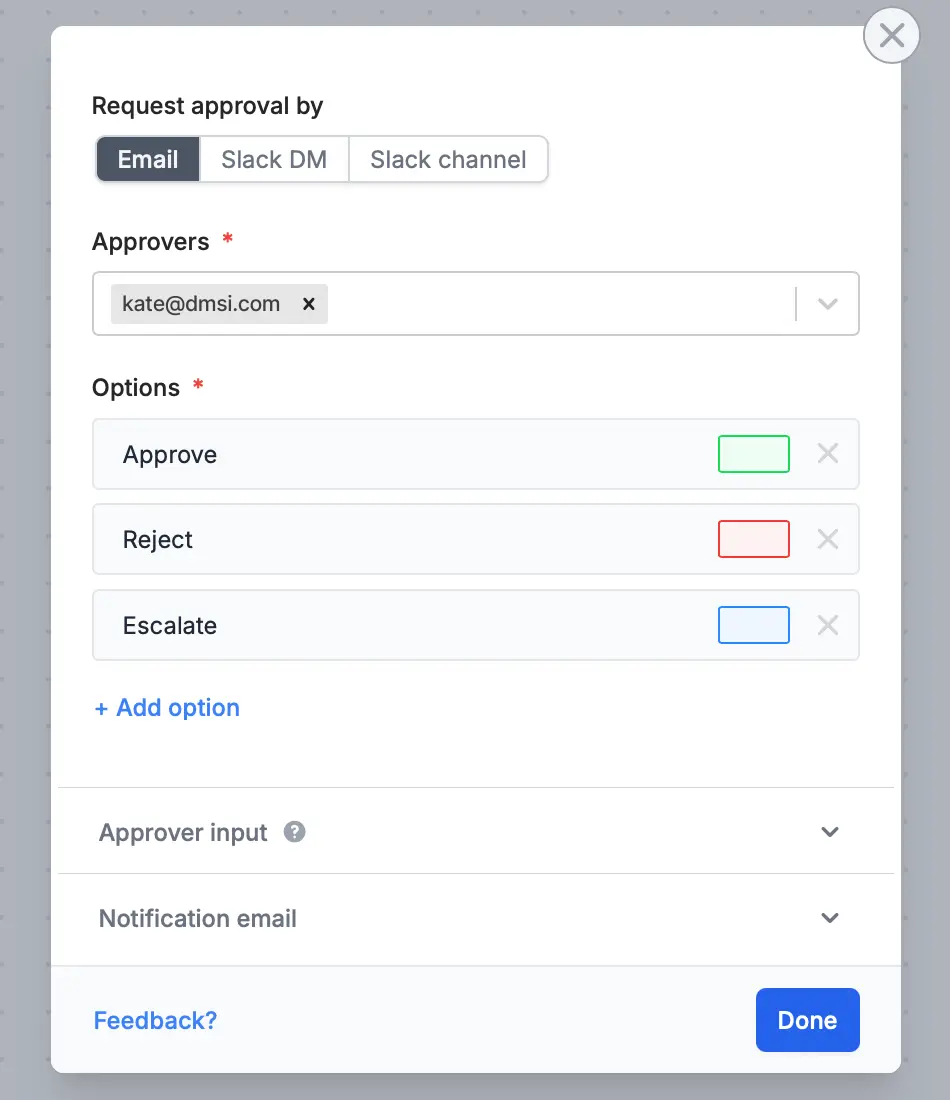
By default, the form owner is the **Approver**. You can `Edit` this to choose another member of the workspace or add more approvers.
You can also opt to **Request approval by** Slack.
If necessary, request for **Approver input** like reason and comments, and edit the default **Notification email**.
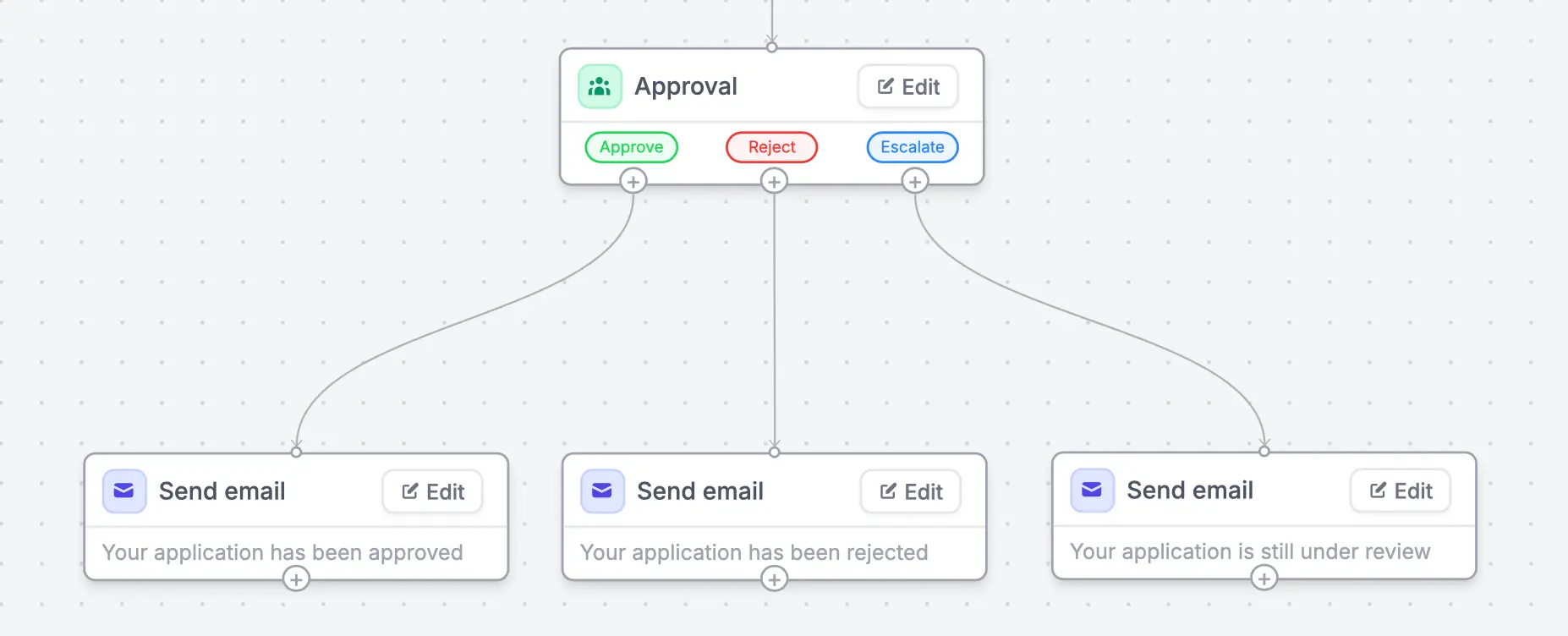
A different email will be sent depending on the option the approver will choose. When you have set your workflow, `Test` this before clicking `Publish`.
You can opt to `Edit` the contents of each email and [format its style](/help/custom-emails).
### Assign task for submissions
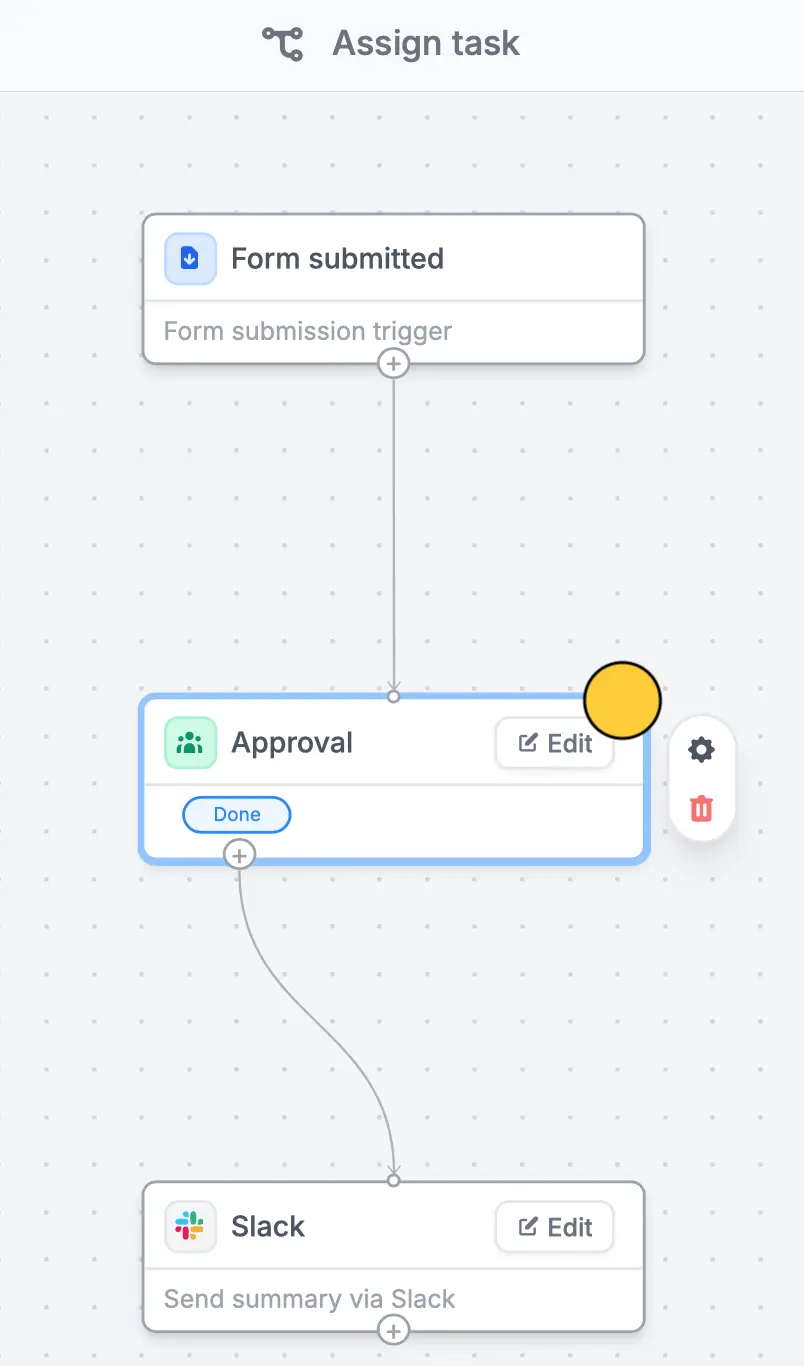
Delegate a task to your team after receiving submissions. The default workflow template sends a summary of form responses in a Slack channel to notify members.
Besides notifying, you can enhance this workflow. For example, add a step for reviewing submissions. Customize it by clicking `Edit` in **Approval** and adding **Options**.
You can opt to edit the `Custom message` in Slack and reference form fields. More info [here](https://www.fillout.com/help/slack#send-a-custom-message-to-slack).
## Manage approvals in one dashboard
When you receive an approval request, it will redirect to the `Results page` of your form where you can take the necessary `Action needed`.
You can view comments by clicking the `messaging icon` beside **Answers**.
## Related articles
Simplify task flows with native multi-step automations.
Automate sending, pipe previous answers, and style your email.
Insert previous answers into upcoming questions or fields.
 ### Approve or reject submissions
By default, the form owner is the **Approver**. You can `Edit` this to choose another member of the workspace or add more approvers.
### Approve or reject submissions
By default, the form owner is the **Approver**. You can `Edit` this to choose another member of the workspace or add more approvers.
 You can also opt to **Request approval by** Slack.
 If necessary, request for **Approver input** like reason and comments, and edit the default **Notification email**.
A different email will be sent depending on the option the approver will choose. When you have set your workflow, `Test` this before clicking `Publish`.
If necessary, request for **Approver input** like reason and comments, and edit the default **Notification email**.
A different email will be sent depending on the option the approver will choose. When you have set your workflow, `Test` this before clicking `Publish`.
 You can opt to `Edit` the contents of each email and [format its style](/help/custom-emails).
### Assign task for submissions
Delegate a task to your team after receiving submissions. The default workflow template sends a summary of form responses in a Slack channel to notify members.
You can opt to `Edit` the contents of each email and [format its style](/help/custom-emails).
### Assign task for submissions
Delegate a task to your team after receiving submissions. The default workflow template sends a summary of form responses in a Slack channel to notify members.
 Besides notifying, you can enhance this workflow. For example, add a step for reviewing submissions. Customize it by clicking `Edit` in **Approval** and adding **Options**.
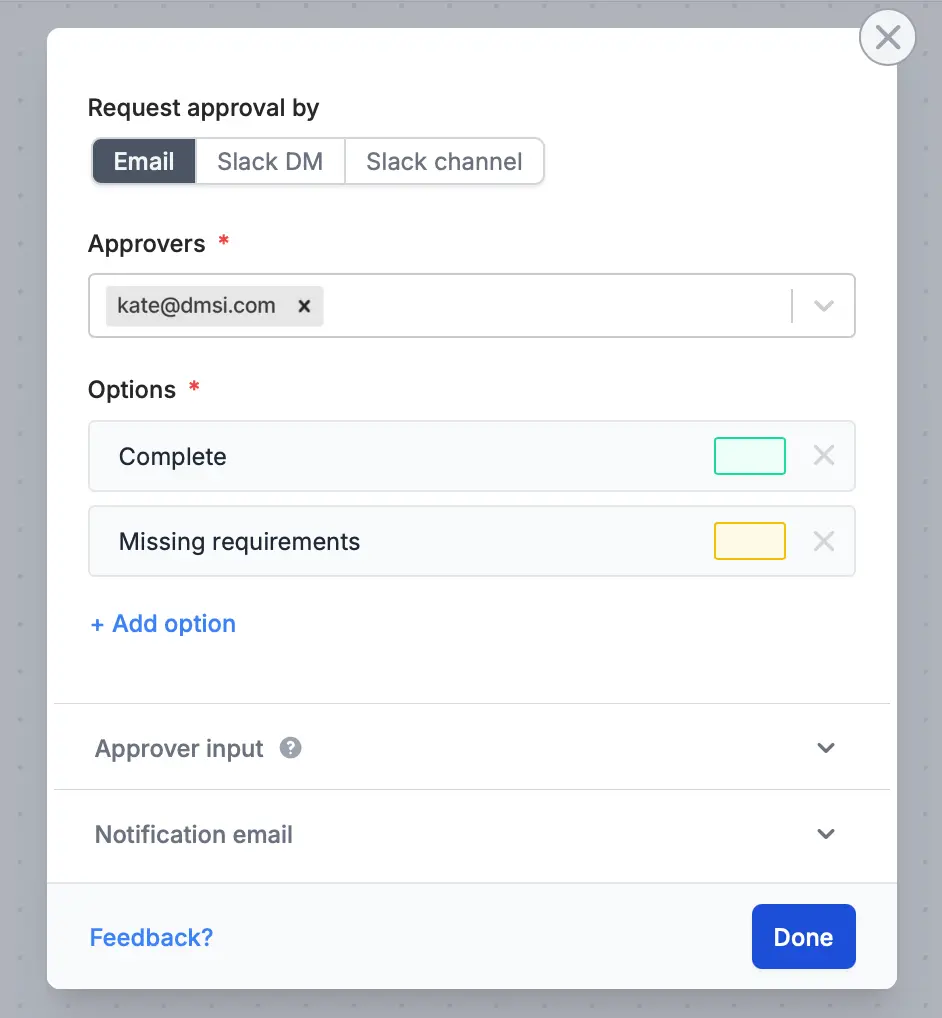 You can opt to edit the `Custom message` in Slack and reference form fields. More info [here](https://www.fillout.com/help/slack#send-a-custom-message-to-slack).
## Manage approvals in one dashboard
When you receive an approval request, it will redirect to the `Results page` of your form where you can take the necessary `Action needed`.
You can opt to edit the `Custom message` in Slack and reference form fields. More info [here](https://www.fillout.com/help/slack#send-a-custom-message-to-slack).
## Manage approvals in one dashboard
When you receive an approval request, it will redirect to the `Results page` of your form where you can take the necessary `Action needed`.
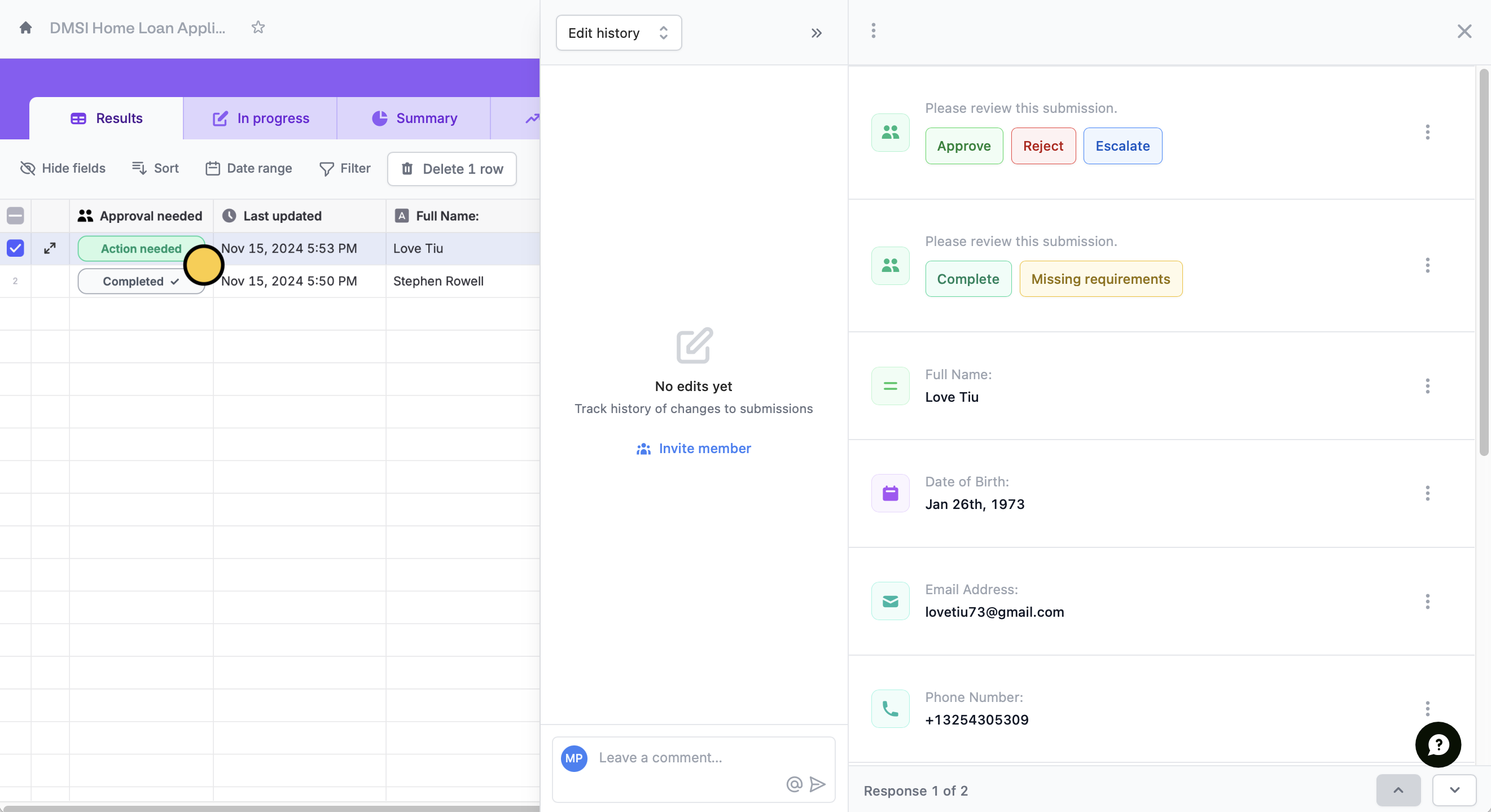 You can view comments by clicking the `messaging icon` beside **Answers**.
## Related articles
You can view comments by clicking the `messaging icon` beside **Answers**.
## Related articles