> ## Documentation Index
> Fetch the complete documentation index at: https://fillout.com/help/llms.txt
> Use this file to discover all available pages before exploring further.
# Fillout Analytics
> Gain insights from responses. Identify patterns, trends, and areas for improvement like where respondents drop-off.
export const SupportBanner = () => {
const titleId = React.useId();
return ;
};
## Overview
The **Analytics** section displays various metrics about your form, like completion rate, number of submissions, total views per page, and more. You can also see how many completed submissions your forms are receiving per day.
## How to view analytics
Open a form and navigate to `Results` on top. Click `Analytics`. Here, you'll see:
* **Unique Visitors** - number of individual respondents who viewed your form, each counted only once no matter how many times they visit
* **Started** - number of times your form was started but left incomplete
* **Finished** - number of times your form has been completed
* **Completion rate** - number of finished submissions divided by number of unique visitors
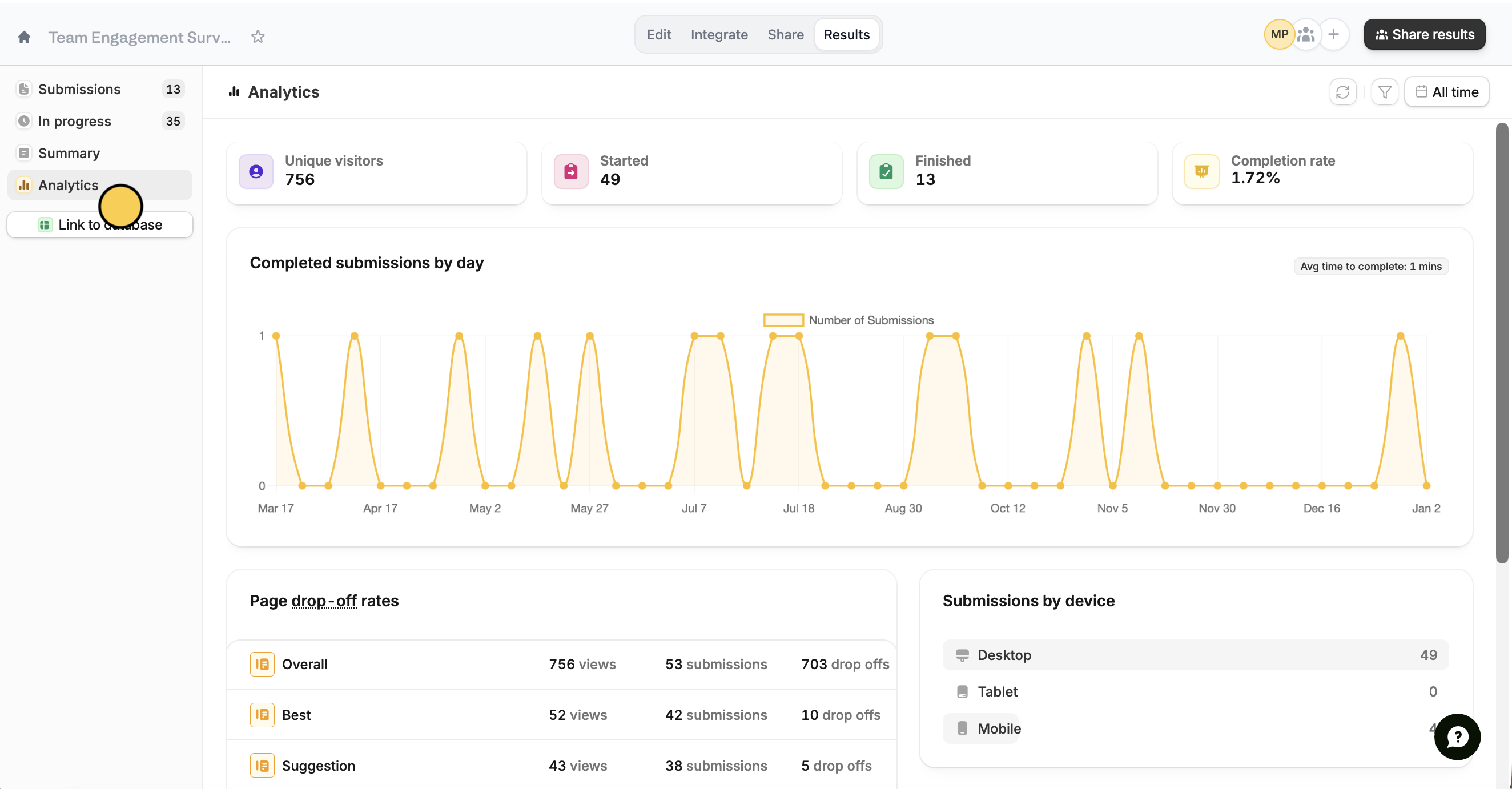 The chart above shows the total number of submissions on any given day since you first published the form.
## Check page drop-off rates
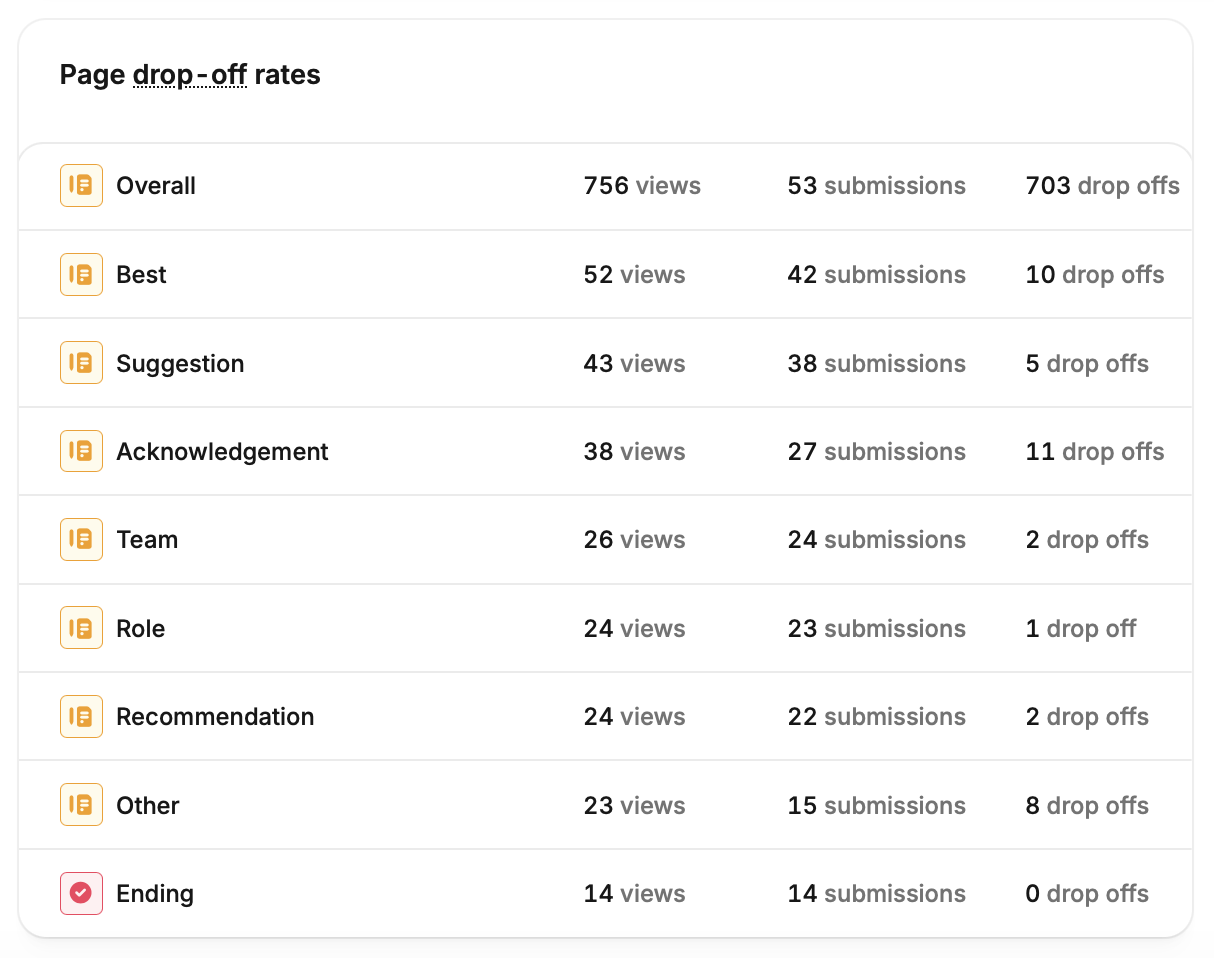
**Page drop-off rates** shown at the bottom help you determine if and where respondents are abandoning your forms. In the example below, the Overall page has the highest number of drop-offs.
The chart above shows the total number of submissions on any given day since you first published the form.
## Check page drop-off rates
**Page drop-off rates** shown at the bottom help you determine if and where respondents are abandoning your forms. In the example below, the Overall page has the highest number of drop-offs.
 Viewing page drop-off information is available on the **Business** plan and above. Learn more [here](https://www.fillout.com/pricing).
To view each respondent's submission, check out [this help article](https://www.fillout.com/help/view-responses#view-individual-submissions).
Double check form pages with high drop-off rates. To improve your conversion rates, make sure that questions are worded clearly, and that you’re not asking for too much information on a single page.
You can also view which device was most used here.
## Related articles
Get an overview of form responses and visualize them as charts.
Auto-save progress so respondents can resume later.
Remind respondents who exit early to finish the form.
Viewing page drop-off information is available on the **Business** plan and above. Learn more [here](https://www.fillout.com/pricing).
To view each respondent's submission, check out [this help article](https://www.fillout.com/help/view-responses#view-individual-submissions).
Double check form pages with high drop-off rates. To improve your conversion rates, make sure that questions are worded clearly, and that you’re not asking for too much information on a single page.
You can also view which device was most used here.
## Related articles
Get an overview of form responses and visualize them as charts.
Auto-save progress so respondents can resume later.
Remind respondents who exit early to finish the form.