> ## Documentation Index
> Fetch the complete documentation index at: https://fillout.com/help/llms.txt
> Use this file to discover all available pages before exploring further.

# Use AI to create surveys

> Fillout lets you make any type of survey using a prompt or by importing an existing one with the AI Survey Maker for free.

export const SupportBanner = () => {
  const titleId = React.useId();
  return <div className="support-banner" role="region" aria-labelledby={titleId}>
      <span className="support-banner__ring support-banner__ring--outer" aria-hidden="true" />
      <span className="support-banner__ring support-banner__ring--middle" aria-hidden="true" />
      <span className="support-banner__ring support-banner__ring--inner" aria-hidden="true" />
      <span className="support-banner__ring support-banner__ring--center" aria-hidden="true" />

      <div className="support-banner__content">
        <div className="support-banner__title" id={titleId} role="heading" aria-level="2">Still have questions?</div>

        <div className="support-banner__copy">
          <span className="support-banner__line">Our team is happy to help. Start a live chat using the</span>
          <span className="support-banner__line">
            chat bubble <span className="support-banner__chat-icon" aria-hidden="true" /> in the bottom right, or email us at
          </span>
          <span className="support-banner__line">
            <a href="mailto:support@fillout.com">support{'@'}fillout.com</a>
          </span>
        </div>

        <a className="support-banner__cta" href="mailto:support@fillout.com">Contact us</a>
      </div>
    </div>;
};

## How it works

<Steps>
  <Step title="Go to the AI Form Maker">
    On Fillout, scroll to the bottom of the page, and click [**AI Survey Maker**](https://www.fillout.com/ai-survey-maker).
  </Step>

  <Step title="Choose how you want to create your survey">
    Enter the type of survey you need, add your questions, or start from an existing one.

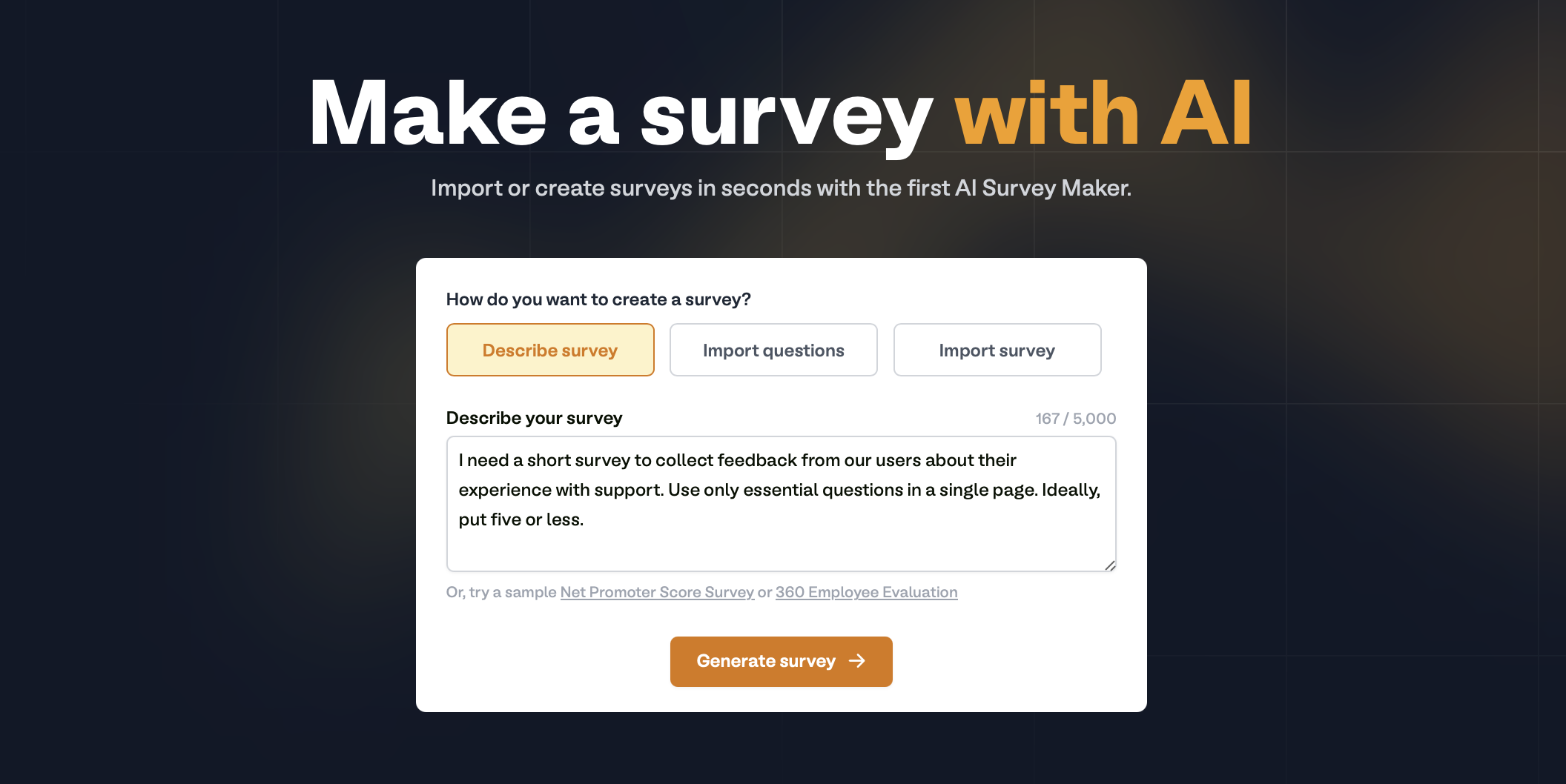
    **Describe survey**

    Type your survey description or use a sample, then click `Generate survey`.
    <img src="https://mintcdn.com/fillout-005a867b/9Ja0Hwg5Ahy6Y_5f/images/Screenshot2025-07-18at6.23.25PM.png?fit=max&auto=format&n=9Ja0Hwg5Ahy6Y_5f&q=85&s=5d23b67ce5389dfc2f2b8e74d3437f62" alt="Screenshot 2025-07-18 at 6.23.25 PM.png" width="2112" height="1058" data-path="images/Screenshot2025-07-18at6.23.25PM.png" />

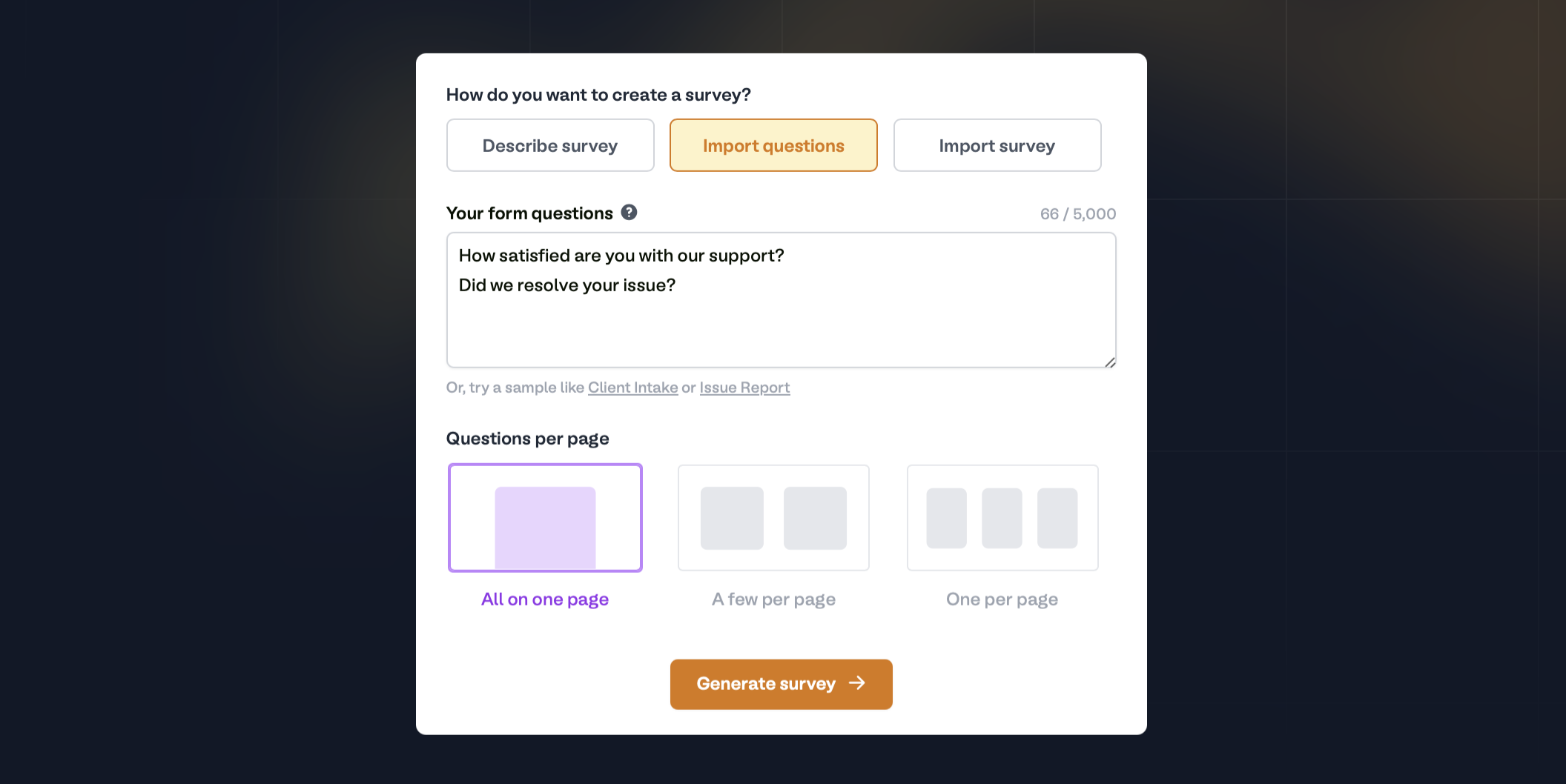
    **Import questions**

    List your questions vertically — one line equals one question or field. At the bottom, select how you want the **Questions per page** to be displayed.
    <img src="https://mintcdn.com/fillout-005a867b/9Ja0Hwg5Ahy6Y_5f/images/Screenshot2025-07-18at6.25.26PM.png?fit=max&auto=format&n=9Ja0Hwg5Ahy6Y_5f&q=85&s=01a5a7cd5fa2d3c76fa8075da7fe8eab" alt="Screenshot 2025-07-18 at 6.25.26 PM.png" title="Screenshot 2025-07-18 at 6.25.26 PM.png" style={{ width:"100%" }} width="2112" height="1058" data-path="images/Screenshot2025-07-18at6.25.26PM.png" />

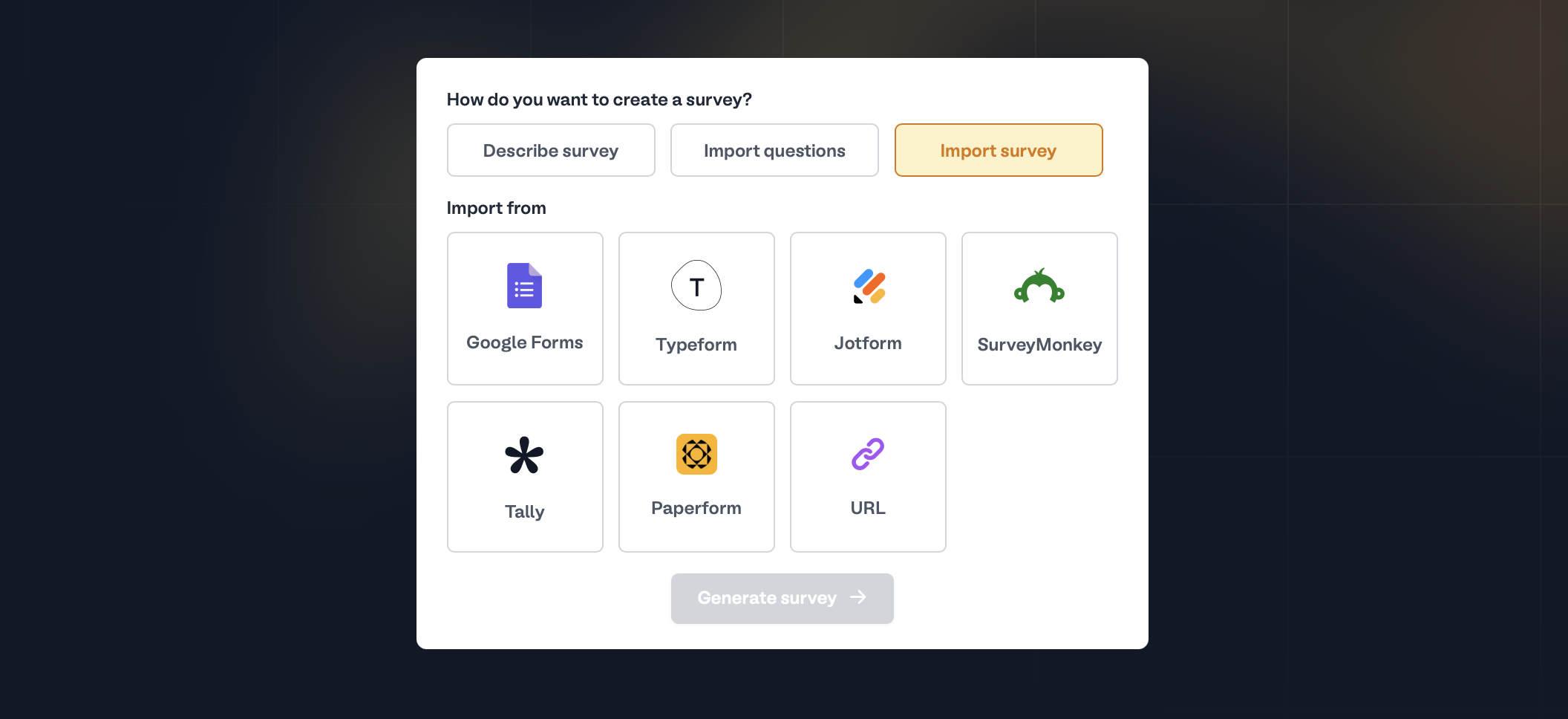
    **Import survey**

    You can use surveys you've already created outside Fillout. Choose between these survey builders or enter a survey URL.
    <img src="https://mintcdn.com/fillout-005a867b/9Ja0Hwg5Ahy6Y_5f/images/Screenshot2025-07-18at6.26.02PM.png?fit=max&auto=format&n=9Ja0Hwg5Ahy6Y_5f&q=85&s=dedf1ab81bff76dbaec4e2f5c7aeb8e2" alt="Screenshot 2025-07-18 at 6.26.02 PM.png" width="2112" height="968" data-path="images/Screenshot2025-07-18at6.26.02PM.png" />

    <Check>
      You can bulk import forms, including their responses.
    </Check>
  </Step>

  <Step title="Customize your AI survey">
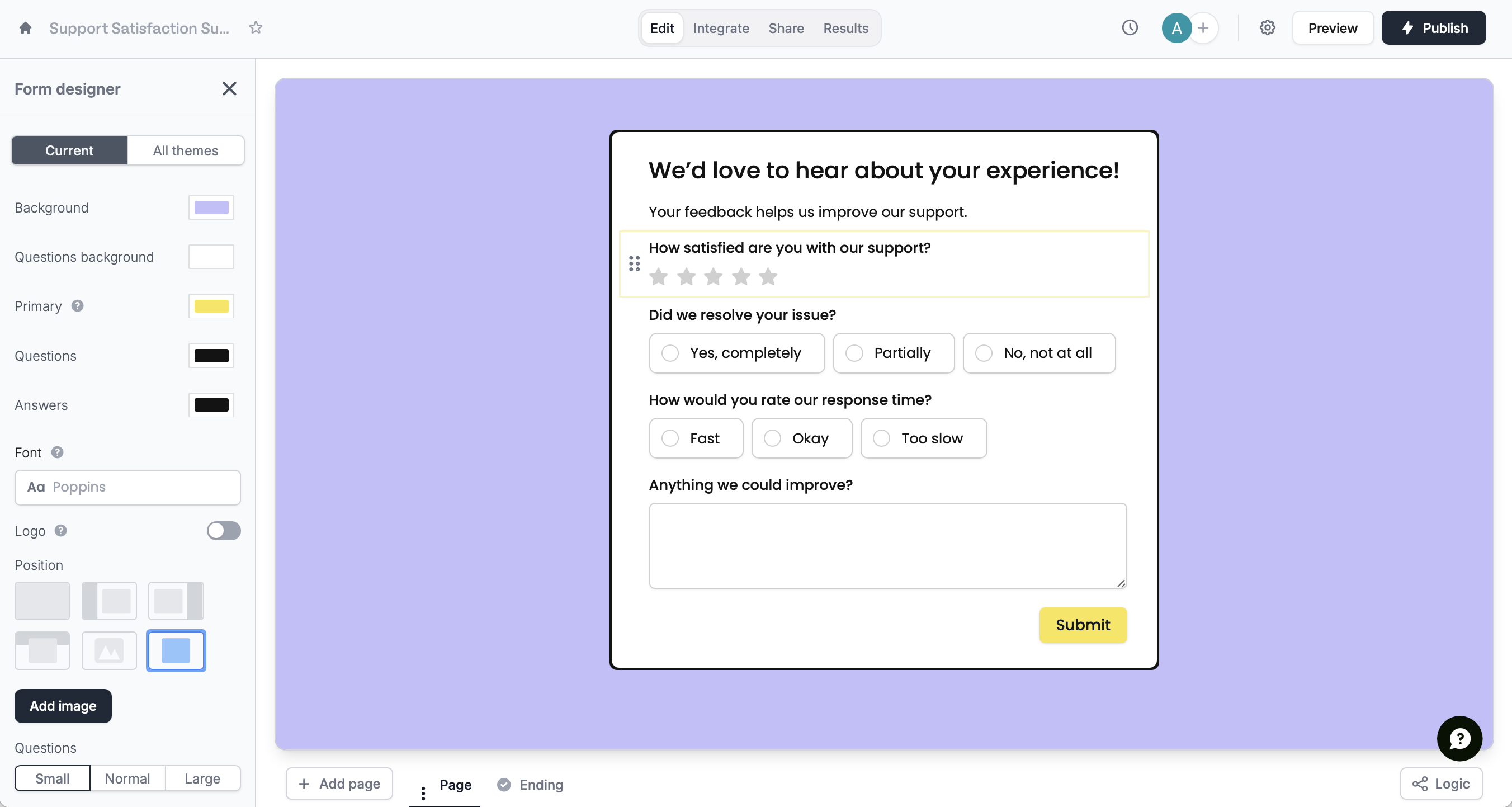
    [Style](/help/themes) your survey, require and [reorder questions](/help/reorder-with-drag-and-drop), add [logic](/help/logic), and more. Then, click `Publish` in the upper right corner to share your form via link or embed.
    <img src="https://mintcdn.com/fillout-005a867b/9Ja0Hwg5Ahy6Y_5f/images/Screenshot2025-07-18at6.27.43PM.png?fit=max&auto=format&n=9Ja0Hwg5Ahy6Y_5f&q=85&s=d1817d006eb026119fcccbc2cdf6701e" alt="Screenshot 2025-07-18 at 6.27.43 PM.png" width="2704" height="1443" data-path="images/Screenshot2025-07-18at6.27.43PM.png" />
  </Step>
</Steps>

## Related articles

<CardGroup cols={3}>
  <Card title="Themes" color="#FFC738" icon="palette" iconType="regular" href="/help/themes">
    Select from hundreds of themes or create your own.
  </Card>

  <Card title="Reorder with drag and drop" color="#FFC738" icon="arrow-pointer" iconType="regular" href="/help/reorder-with-drag-and-drop">
    Easily arrange pages and field options.
  </Card>

  <Card title="Page logic" color="#FFC738" icon="diagram-project" iconType="regular" href="/help/page-logic">
    Hide or show pages or custom endings based on respondent input.
  </Card>
</CardGroup>

<SupportBanner />
