> ## Documentation Index
> Fetch the complete documentation index at: https://fillout.com/help/llms.txt
> Use this file to discover all available pages before exploring further.
# Address
> Collect addresses in your forms with separate input boxes for the street address, city, state/province, and postal code. Optionally add Google Maps Autocomplete.
export const SupportBanner = () => {
const titleId = React.useId();
return ;
};
## How to add an address field
Simply drag the `Address` field from the left-hand panel.
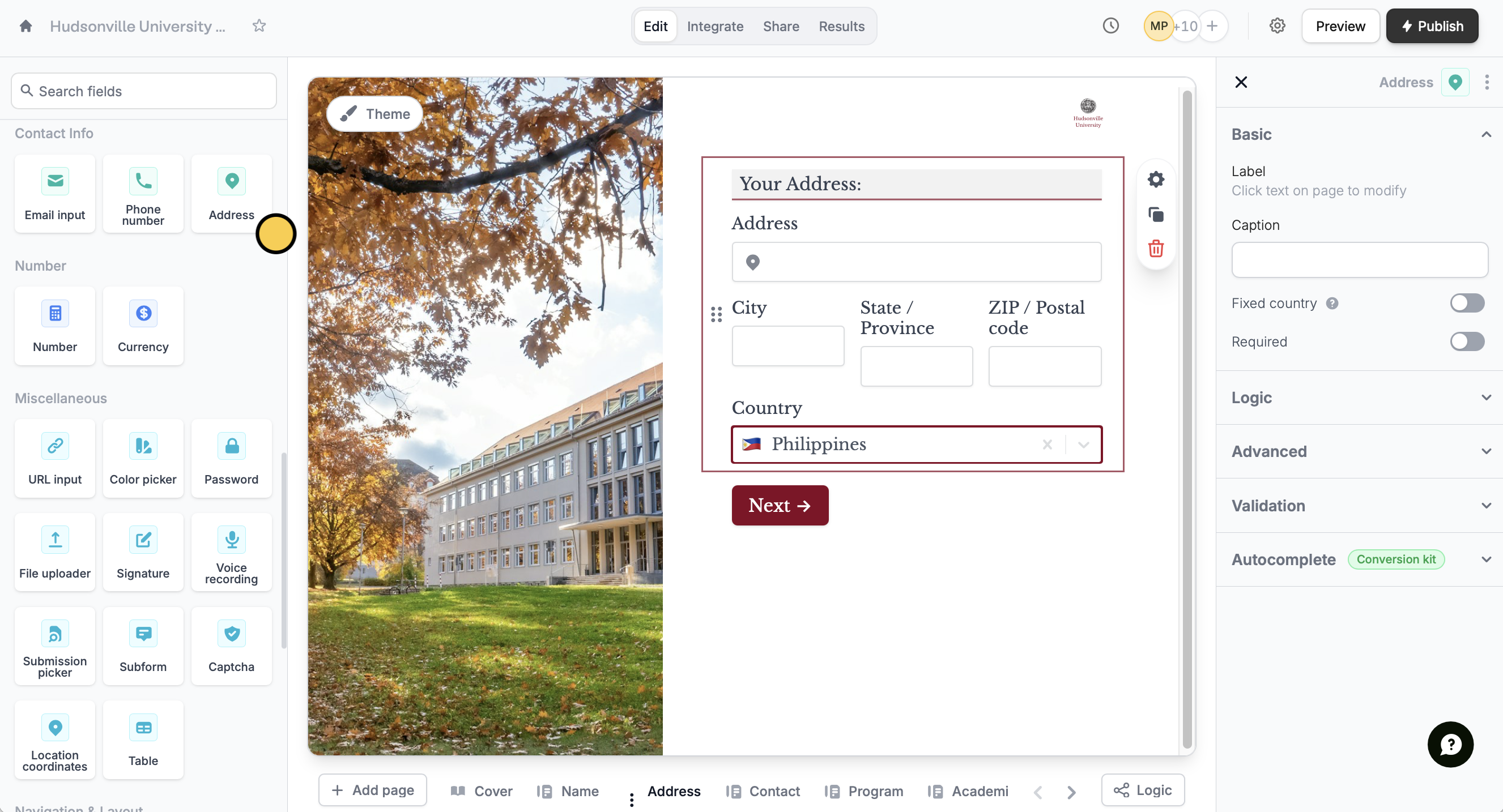 Optionally allow users to choose a **Country**. Click its to open the right-hand panel and turn off the `Fixed country` switch.
## Use Google Maps Autocomplete
Increase conversion rates and address accuracy by enabling Google Maps Autocomplete. Click the address field followed by its and toggle the `Address autocomplete` switch in the right-hand panel at the bottom.
Optionally allow users to choose a **Country**. Click its to open the right-hand panel and turn off the `Fixed country` switch.
## Use Google Maps Autocomplete
Increase conversion rates and address accuracy by enabling Google Maps Autocomplete. Click the address field followed by its and toggle the `Address autocomplete` switch in the right-hand panel at the bottom.
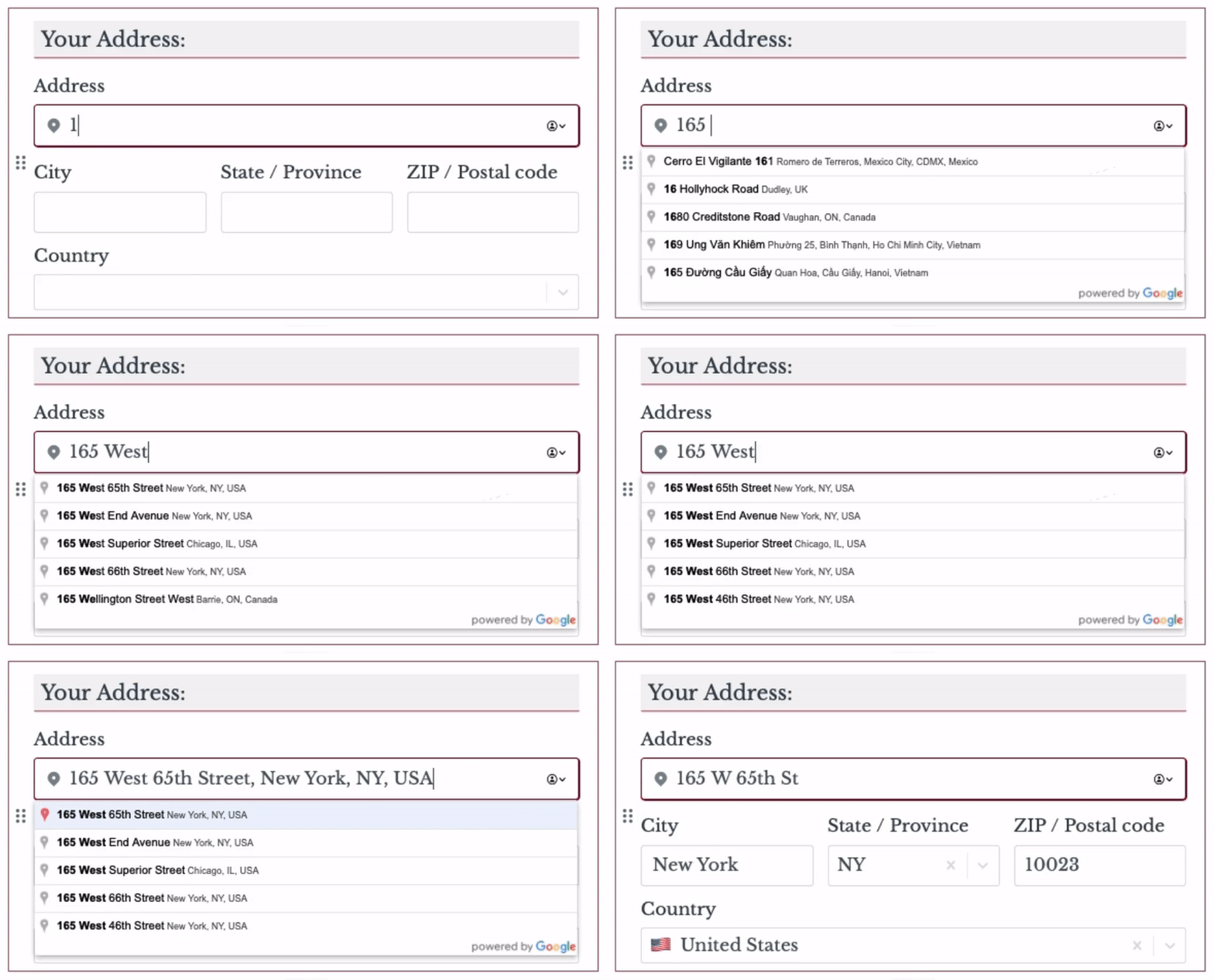 Google Maps Autocomplete is currently available on [Conversion Kit](https://www.fillout.com/help/make-forms-that-convert). Contact [support@fillout.com](mailto:support@fillout.com) for details.
## Dynamic address visibility
While the Address field can be shown conditionally or hidden always via its logic setting, it is treated as a single block. This means individual components (e.g., city, state, or postal code) cannot be hidden separately at the moment.
Google Maps Autocomplete is currently available on [Conversion Kit](https://www.fillout.com/help/make-forms-that-convert). Contact [support@fillout.com](mailto:support@fillout.com) for details.
## Dynamic address visibility
While the Address field can be shown conditionally or hidden always via its logic setting, it is treated as a single block. This means individual components (e.g., city, state, or postal code) cannot be hidden separately at the moment.
If you need more granular control over which address fields are shown, you can:
* Use separate input fields instead of the Address block, OR
* Apply [custom CSS](https://www.fillout.com/help/custom-css#use-custom-css-in-your-form) to selectively hide parts of the Address field.
## Mapping to Airtable, Notion and other databases
Follow the [steps above](/help/address#how-to-add-an-address-field).
Click `Integrate` in top menu and choose [Airtable](https://www.fillout.com/help/airtable), [Notion](https://www.fillout.com/help/notion) or another [database](https://www.fillout.com/help/integrations#spreadsheet-%26-database).
Under [**Mappings**](https://www.fillout.com/help/additional-integration-mappings), reference Airtable column fields from the left to Fillout form fields in the right.
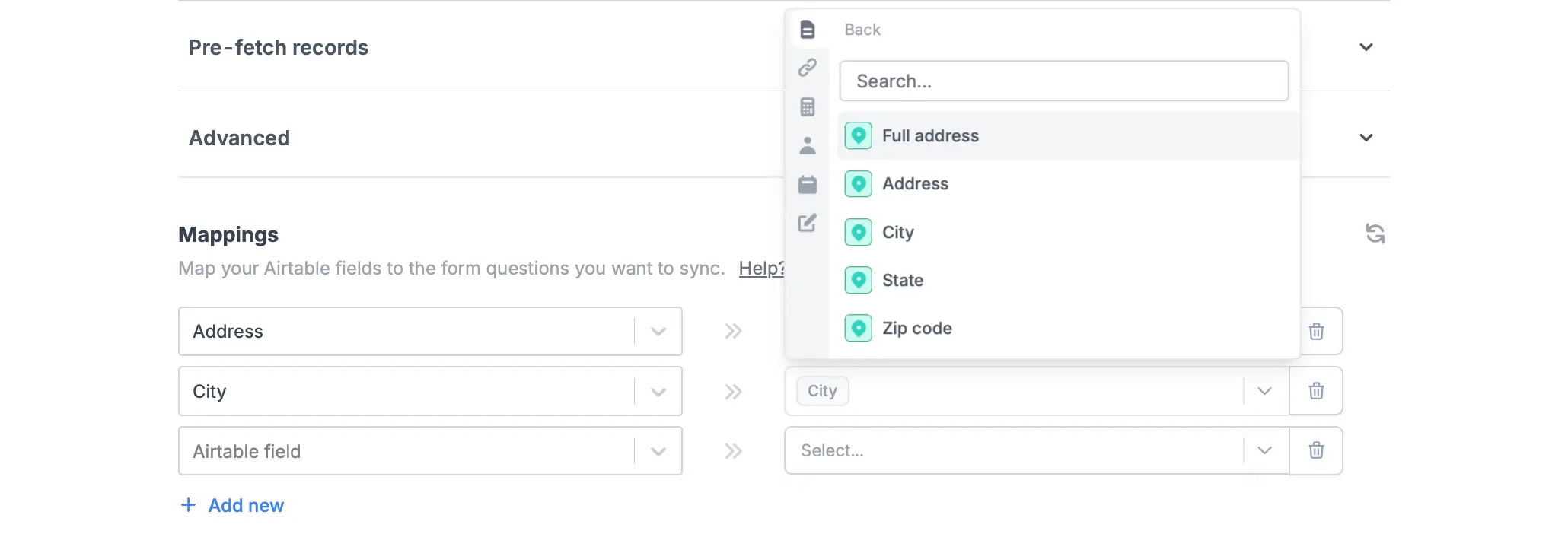 When using an Update Record integration, address fields can’t be pre-filled into separate parts (Address, Address 2, City, State, Zip). A workaround is to set default values for each field from the existing record.