> ## Documentation Index
> Fetch the complete documentation index at: https://fillout.com/help/llms.txt
> Use this file to discover all available pages before exploring further.
# Add links and external URLs
> Add clickable URLs anywhere in your form to link to external websites or services.
export const SupportBanner = () => {
const titleId = React.useId();
return ;
};
## How to add a hyperlink
Simply highlight any text in your form and click .
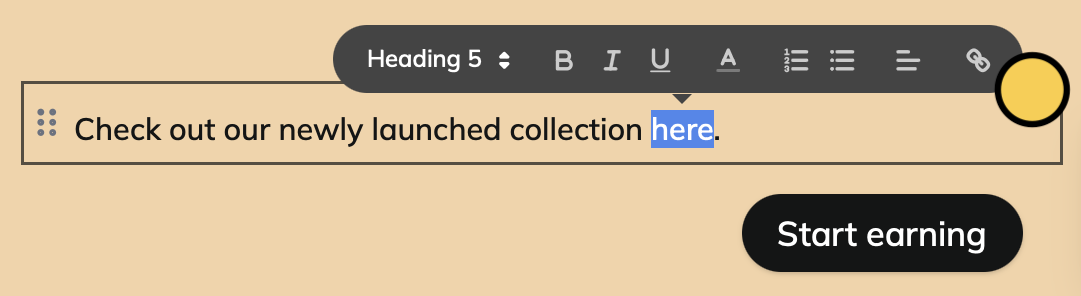 Insert your URL in the popup and click `Save`.
## Add **URL buttons**
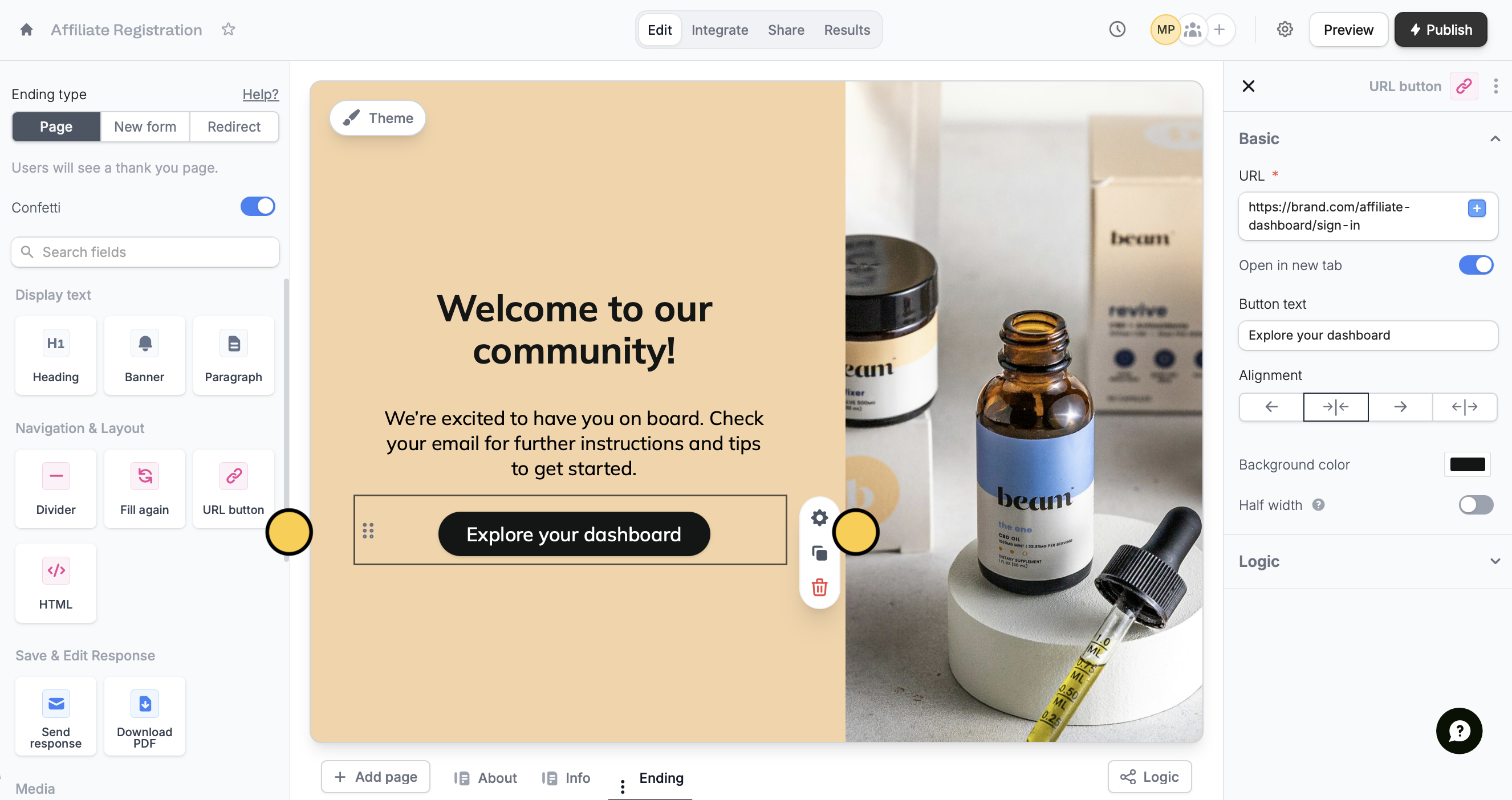
You can add a button to an ending page. Drag and drop the `URL button` from the left-hand panel to the form. Then, click its to add a URL in the right-hand panel.
Insert your URL in the popup and click `Save`.
## Add **URL buttons**
You can add a button to an ending page. Drag and drop the `URL button` from the left-hand panel to the form. Then, click its to add a URL in the right-hand panel.
 ## Insert dynamic links
You can make your URLs dynamic. In the URL input field, simply type **@** or click to reference form inputs. Then, click `Save`.
## Insert dynamic links
You can make your URLs dynamic. In the URL input field, simply type **@** or click to reference form inputs. Then, click `Save`.
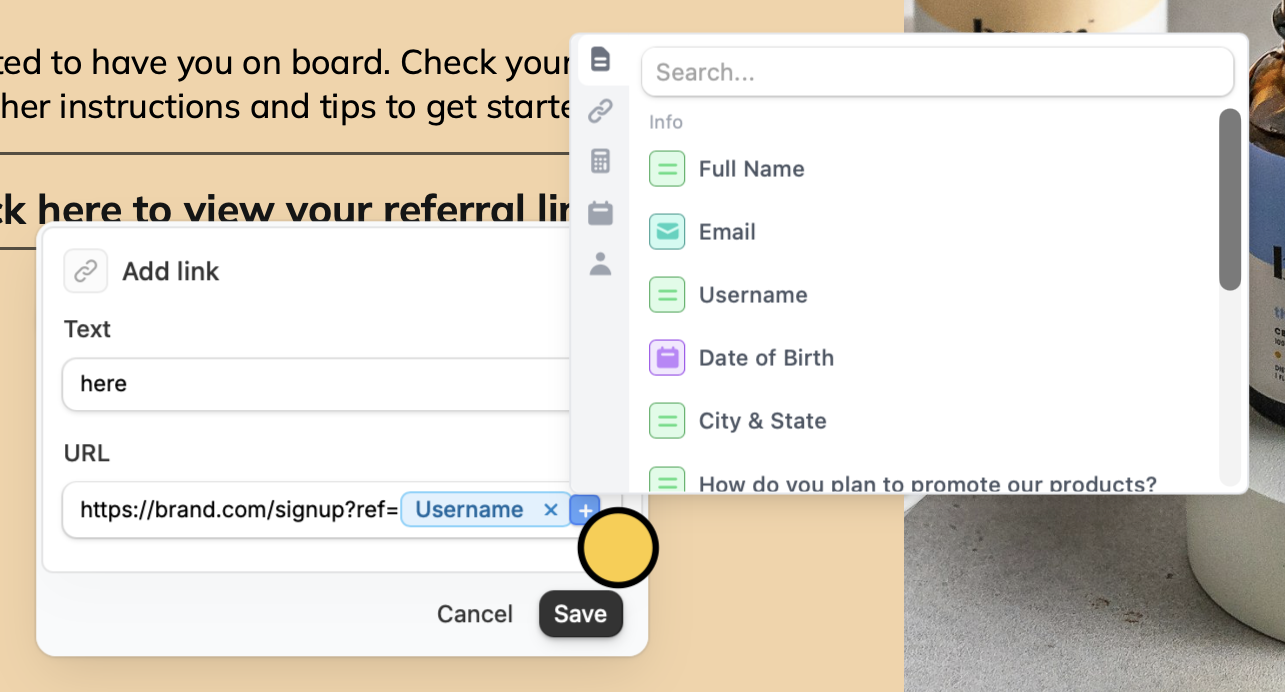 In this example, we’ve referenced an applicant’s username in the referral link. Each time a respondent completes this form, a unique link containing their username will be generated.
## **Automatic redirects**
You can also link to an external page automatically, via a redirect. See [ending page](/help/ending-page) for details.
In this example, we’ve referenced an applicant’s username in the referral link. Each time a respondent completes this form, a unique link containing their username will be generated.
## **Automatic redirects**
You can also link to an external page automatically, via a redirect. See [ending page](/help/ending-page) for details.